1. Introduction to Samsung Galaxy Devices
Samsung Galaxy devices are designed with advanced technology and sleek aesthetics. This manual provides detailed instructions to help you understand and utilize the full capabilities of your device. From initial setup to advanced features and troubleshooting, this guide aims to enhance your user experience.
Smartphones and tablets are sophisticated devices. Their design combines aesthetic appeal with robust functionality. The sheer amount of functionality integrated into their compact units is remarkable. This guide will outline exactly why you'll find it hard to put your Galaxy device down.
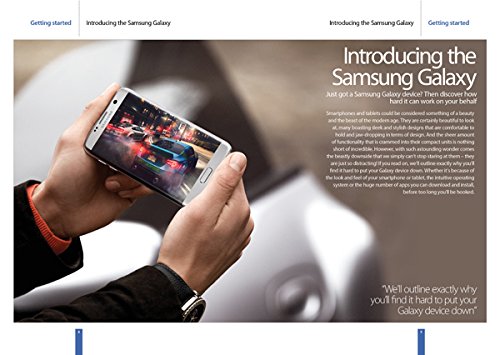
Figure 1.1: A Samsung Galaxy device showcasing its display. This image illustrates the device's design and screen quality.
2. പ്രാരംഭ സജ്ജീകരണം
This section guides you through the initial steps to power on and configure your Samsung Galaxy device for first-time use.
- പവർ ഓൺ: സാംസങ് ലോഗോ ദൃശ്യമാകുന്നതുവരെ പവർ ബട്ടൺ അമർത്തിപ്പിടിക്കുക.
- ഭാഷ തിരഞ്ഞെടുക്കൽ: Choose your preferred language from the list and tap "Start".
- Wi-Fi കണക്ഷൻ: Select your Wi-Fi network and enter the password if prompted. Tap "Connect".
- ഉപാധികളും നിബന്ധനകളും: Read and accept the End User License Agreement and Privacy Policy to proceed.
- Google അക്കൗണ്ട് സജ്ജീകരണം: നിങ്ങളുടെ Google അക്കൗണ്ട് ഉപയോഗിച്ച് സൈൻ ഇൻ ചെയ്യുകയോ പുതിയൊരെണ്ണം സൃഷ്ടിക്കുകയോ ചെയ്യുക. Google സേവനങ്ങളും Play Store-ഉം ആക്സസ് ചെയ്യുന്നതിന് ഇത് അത്യാവശ്യമാണ്.
- ഡാറ്റ കൈമാറ്റം (ഓപ്ഷണൽ): If you have a previous device, follow the on-screen instructions to transfer data.
- സുരക്ഷാ സജ്ജീകരണം: ഉപകരണ സുരക്ഷയ്ക്കായി ഒരു സ്ക്രീൻ ലോക്ക് (പിൻ, പാറ്റേൺ, പാസ്വേഡ്, ഫിംഗർപ്രിന്റ് അല്ലെങ്കിൽ മുഖം തിരിച്ചറിയൽ) സജ്ജീകരിക്കുക.
- സജ്ജീകരണം പൂർത്തിയാക്കുക: Follow any remaining prompts to finalize the setup process. Your device is now ready for use.
3. നിങ്ങളുടെ ഉപകരണം പ്രവർത്തിപ്പിക്കുന്നു
This section covers the basic operations and navigation of your Samsung Galaxy device.
3.1. നാവിഗേഷൻ അടിസ്ഥാനങ്ങൾ
- ഹോം സ്ക്രീൻ: നിങ്ങളുടെ ആപ്പുകൾക്കും വിജറ്റുകൾക്കുമുള്ള കേന്ദ്ര ഹബ്. അധിക സ്ക്രീനുകൾ ആക്സസ് ചെയ്യാൻ ഇടത്തോട്ടോ വലത്തോട്ടോ സ്വൈപ്പ് ചെയ്യുക.
- ആപ്പ് ഡ്രോയർ: ഹോം സ്ക്രീനിൽ നിന്ന് മുകളിലേക്ക് സ്വൈപ്പ് ചെയ്യുക view ഇൻസ്റ്റാൾ ചെയ്ത എല്ലാ ആപ്ലിക്കേഷനുകളും.
- അറിയിപ്പ് പാനൽ: അറിയിപ്പുകളും ദ്രുത ക്രമീകരണങ്ങളും ആക്സസ് ചെയ്യാൻ സ്ക്രീനിന്റെ മുകളിൽ നിന്ന് താഴേക്ക് സ്വൈപ്പ് ചെയ്യുക.
- സമീപകാല ആപ്പുകൾ: സമീപകാല ആപ്പുകൾ ബട്ടൺ (സാധാരണയായി ഒരു ചതുര ഐക്കൺ) ടാപ്പ് ചെയ്യുക, view കൂടാതെ അടുത്തിടെ ഉപയോഗിച്ച ആപ്ലിക്കേഷനുകൾക്കിടയിൽ മാറുക.
- ബാക്ക് ബട്ടൺ: Tap the Back button (usually a triangle or arrow icon) to return to the previous screen.
4. ആപ്ലിക്കേഷനുകൾ കൈകാര്യം ചെയ്യൽ
Your Samsung Galaxy device comes with a variety of pre-installed applications, and you can download many more from the Google Play Store. This section explains how to manage them.
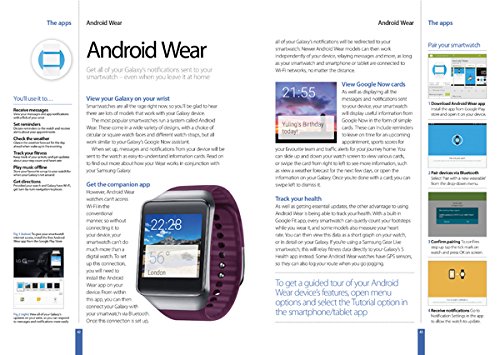
ചിത്രം 4.1: ഒരു ഓവർview of app management and Android Wear integration on Samsung Galaxy.
4.1. Installing and Uninstalling Apps
- ഇൻസ്റ്റാൾ ചെയ്യുക: Open the "Play Store" app, search for the desired app, and tap "Install".
- അൺഇൻസ്റ്റാൾ ചെയ്യുക: Go to "Settings" > "Apps", select the app, and tap "Uninstall". Alternatively, long-press the app icon on the home screen or app drawer and drag it to the "Uninstall" option.
4.2. App Permissions
Manage what information and device features apps can access. Go to "Settings" > "Apps", select an app, then tap "Permissions" to review and adjust access.
5. Android Wear Integration
Your Samsung Galaxy device can seamlessly integrate with Android Wear smartwatches, allowing you to receive notifications and manage certain functions directly from your wrist.
5.1. Getting Started with Android Wear
- ആപ്പ് ഡൗൺലോഡ് ചെയ്യുക: Download the "Android Wear" app from the Google Play Store on your Galaxy device.
- ജോടിയാക്കൽ: Open the Android Wear app and follow the on-screen instructions to pair your smartwatch via Bluetooth. Ensure Bluetooth is enabled on both devices.
- അറിയിപ്പുകൾ: Once paired, all notifications from your Galaxy device will be redirected to your smartwatch. This includes calls, messages, and app alerts.
5.2 പ്രധാന സവിശേഷതകൾ
- View Google Now Cards: Receive timely information such as weather updates, traffic alerts, and calendar reminders directly on your smartwatch.
- Track Your Health: Many Android Wear devices include fitness tracking capabilities. Sync your smartwatch with Google Fit or other health apps on your Galaxy device to monitor steps, heart rate, and more.
- Respond to Messages: Reply to messages using voice commands or pre-set responses directly from your wrist.
6. ഉപകരണ പരിപാലനം
Proper maintenance ensures the longevity and optimal performance of your Samsung Galaxy device.
- സോഫ്റ്റ്വെയർ അപ്ഡേറ്റുകൾ: Regularly check for and install software updates. Go to "Settings" > "Software update" > "Download and install".
- ബാറ്ററി കെയർ: Avoid extreme temperatures. Do not let the battery drain completely often, and avoid overcharging.
- വൃത്തിയാക്കൽ: സ്ക്രീനും ബോഡിയും വൃത്തിയാക്കാൻ മൃദുവായ, ലിന്റ് രഹിത തുണി ഉപയോഗിക്കുക. കഠിനമായ രാസവസ്തുക്കൾ ഒഴിവാക്കുക.
- സ്റ്റോറേജ് മാനേജ്മെന്റ്: അനാവശ്യമായത് ഇടയ്ക്കിടെ നീക്കം ചെയ്യുക files and uninstall unused apps to free up storage space. Go to "Settings" > "Device care" > "Storage".
- ബാക്കപ്പ് ഡാറ്റ: Regularly back up your important data to Samsung Cloud, Google Drive, or a computer to prevent data loss.
7. പൊതുവായ പ്രശ്നങ്ങൾ പരിഹരിക്കുന്നു
നിങ്ങൾ നേരിട്ടേക്കാവുന്ന പൊതുവായ പ്രശ്നങ്ങളെ ഈ വിഭാഗം അഭിസംബോധന ചെയ്യുകയും പരിഹാരങ്ങൾ നൽകുകയും ചെയ്യുന്നു.
7.1. ഉപകരണം പ്രതികരിക്കുന്നില്ല
- പുനരാരംഭിക്കുക: ഉപകരണം റീസ്റ്റാർട്ട് ചെയ്യാൻ നിർബന്ധിതമായി പവർ ബട്ടണും വോളിയം ഡൗൺ ബട്ടണും ഒരേസമയം 7-10 സെക്കൻഡ് അമർത്തിപ്പിടിക്കുക.
- ചാർജ്ജ്: Ensure the device has sufficient battery charge. Connect it to a charger and wait a few minutes before attempting to power on.
7.2. വൈഫൈ കണക്ഷൻ പ്രശ്നങ്ങൾ
- വൈഫൈ ടോഗിൾ ചെയ്യുക: Turn Wi-Fi off and then on again from the Quick Settings panel.
- റൂട്ടർ പുനരാരംഭിക്കുക: നിങ്ങളുടെ വൈഫൈ റൂട്ടർ പുനരാരംഭിക്കുക.
- നെറ്റ്വർക്ക് മറക്കുക: Go to "Settings" > "Connections" > "Wi-Fi", tap the gear icon next to the problematic network, and select "Forget". Then, reconnect.
7.3. ആപ്പ് ക്രാഷിംഗ്
- കാഷെ മായ്ക്കുക: Go to "Settings" > "Apps", select the problematic app, then "Storage" > "Clear cache".
- ആപ്പ് അപ്ഡേറ്റ് ചെയ്യുക: Ensure the app is updated to its latest version via the Google Play Store.
- ആപ്പ് വീണ്ടും ഇൻസ്റ്റാൾ ചെയ്യുക: ആപ്പ് അൺഇൻസ്റ്റാൾ ചെയ്ത് വീണ്ടും ഇൻസ്റ്റാൾ ചെയ്യുക.
8. ഉൽപ്പന്ന സവിശേഷതകൾ
Key technical details for the Samsung Galaxy: The Complete Manual.
| ഫീച്ചർ | വിശദാംശങ്ങൾ |
|---|---|
| പ്രസാധകൻ | Imagine Publishing Ltd |
| പതിപ്പ് | 13-ാം പതിപ്പ് |
| ഭാഷ | ഇംഗ്ലീഷ് |
| ISBN-10 | 1785464140 |
| ISBN-13 | 978-1785464140 |
| ഇനത്തിൻ്റെ ഭാരം | 7.1 ഔൺസ് |
9. വാറൻ്റിയും പിന്തുണയും
For specific warranty information regarding your Samsung Galaxy device, please refer to the documentation included with your product at the time of purchase or visit the official Samsung support webസൈറ്റ്.
ഉപഭോക്തൃ പിന്തുണ: If you encounter issues not covered in this manual or require further assistance, please contact Samsung customer support through their official website or designated service centers. Have your device's model number and serial number ready for faster service.
ഓൺലൈൻ ഉറവിടങ്ങൾ: Additional guides, FAQs, and software downloads are often available on the official Samsung support portal.


