ആമുഖം
This manual provides detailed instructions for the proper use and maintenance of your Gateway DC-T50 Digital Camera. Please read this manual thoroughly before operating the camera to ensure optimal performance and longevity.
The Gateway DC-T50 is a 5-megapixel digital camera featuring a 3x optical zoom lens, a 1.5-inch TFT LCD display, and video recording capabilities. It is designed for ease of use, allowing you to capture high-quality images and video clips.
1. സജ്ജീകരണം
1.1 പായ്ക്ക് ചെയ്യലും ഉള്ളടക്കവും
പെട്ടിയിൽ നിന്ന് എല്ലാ ഇനങ്ങളും ശ്രദ്ധാപൂർവ്വം അൺപാക്ക് ചെയ്യുക. ഇനിപ്പറയുന്ന ഘടകങ്ങൾ ഉണ്ടെന്ന് ഉറപ്പാക്കുക:
- Gateway DC-T50 Digital Camera
- റീചാർജ് ചെയ്യാവുന്ന ലിഥിയം-അയൺ ബാറ്ററി
- ബാറ്ററി ചാർജർ
- 32 MB SD Memory Card
- നെക്ക് സ്ട്രാപ്പ്
- USB Cable (for computer connection)
- ഉപയോക്തൃ മാനുവൽ (ഈ പ്രമാണം)
1.2 ബാറ്ററി ഇൻസ്റ്റാളേഷനും ചാർജിംഗും
- ക്യാമറയുടെ അടിയിൽ ബാറ്ററി കമ്പാർട്ട്മെന്റ് കവർ കണ്ടെത്തുക.
- കവർ ലാച്ച് നീക്കി കമ്പാർട്ട്മെന്റ് തുറക്കുക.
- Insert the Lithium-ion battery according to the polarity indicators inside the compartment.
- ബാറ്ററി കമ്പാർട്ട്മെൻ്റ് കവർ സുരക്ഷിതമായി അടയ്ക്കുക.
- To charge the battery, insert it into the provided battery charger and connect the charger to a power outlet. The charging indicator light will show the charging status.
- ആദ്യ ഉപയോഗത്തിന് മുമ്പ് ബാറ്ററി പൂർണ്ണമായും ചാർജ് ചെയ്യാൻ അനുവദിക്കുക.
ചിത്രം: വശം view of the Gateway DC-T50 camera, illustrating the location of the battery and SD card compartment.
1.3 SD Memory Card Installation
- ക്യാമറ ഓഫാണെന്ന് ഉറപ്പാക്കുക.
- Open the battery/SD card compartment cover.
- Insert the 32 MB SD memory card into the SD card slot with the metal contacts facing down and towards the camera. Push until it clicks into place.
- കമ്പാർട്ട്മെന്റ് കവർ അടയ്ക്കുക.
- To remove the SD card, gently push it in until it springs out, then pull it out.
1.4 നെക്ക് സ്ട്രാപ്പ് ഘടിപ്പിക്കൽ
Thread the neck strap through the strap eyelet on the camera body and secure it according to the strap's instructions. This helps prevent accidental drops.
2. ക്യാമറ പ്രവർത്തിപ്പിക്കുക
2.1 പവർ ഓൺ/ഓഫ്
അമർത്തുക പവർ button located on the top of the camera to turn it on or off. The lens will extend when powered on.

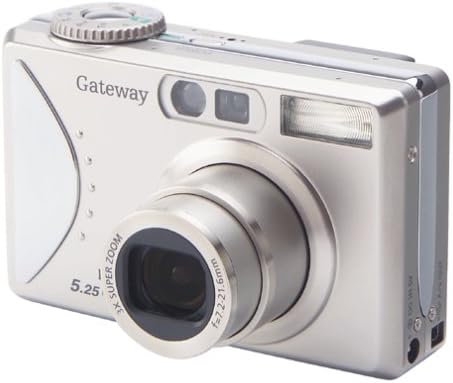
ചിത്രം: മുൻഭാഗം view of the Gateway DC-T50 digital camera with the lens extended, ready for use.
2.2 അടിസ്ഥാന ഫോട്ടോഗ്രാഫി
- മോഡ് തിരഞ്ഞെടുക്കുക: Use the mode dial (if present) or menu options to select your desired shooting mode (e.g., Auto, Macro, Movie).
- Compose Shot: Use the 1.5-inch TFT LCD display or the optical viewനിങ്ങളുടെ വിഷയം ഫ്രെയിം ചെയ്യുന്നതിനുള്ള ഫൈൻഡർ.
- സൂം: Use the zoom controls (typically a rocker switch) to adjust the 3x optical zoom. Digital zoom is also available.
- ഫോക്കസ്: The camera will automatically focus when the shutter button is half-pressed.
- ക്യാപ്ചർ: Fully press the ഷട്ടർ ഒരു ചിത്രമെടുക്കാനുള്ള ബട്ടൺ.

ചിത്രം: പിൻഭാഗം view of the Gateway DC-T50 digital camera, highlighting the LCD screen and various control buttons for navigation and settings.
2.3 ഷൂട്ടിംഗ് മോഡുകൾ
- യാന്ത്രിക മോഡ്: The camera automatically adjusts settings for most shooting conditions.
- മാക്രോ മോഡ്: For close-up photography of small objects. Activate via the menu or a dedicated button.
- മൂവി മോഡ്: Records video clips at 15 frames per second (fps) with sound.
2.4 ഫ്ലാഷ് ക്രമീകരണങ്ങൾ
The built-in flash can be adjusted to various modes (e.g., Auto, Fill-in, Red-eye Reduction, Off) through the camera's menu or a dedicated flash button.
2.5 സ്വയം-ടൈമർ
Activate the 10-second self-timer for self-portraits or group photos. The camera will count down before taking the picture.
2.6 റീviewചിത്രങ്ങളും ഇല്ലാതാക്കലും
Enter playback mode (usually indicated by a play icon button) to view your captured photos and videos on the LCD screen. Use the directional pad to navigate. To delete an unwanted image, select it and press the ഇല്ലാതാക്കുക button (often represented by a trash can icon).
2.7 ഒരു കമ്പ്യൂട്ടറിലേക്ക് ബന്ധിപ്പിക്കുന്നു
Use the provided USB cable to connect the camera to your computer. The camera should appear as a removable disk drive, allowing you to transfer images and videos to your computer for storage, editing, or sharing.
3. പരിപാലനം
- ലെൻസ് വൃത്തിയാക്കൽ: ക്യാമറ ലെൻസുകൾക്കായി പ്രത്യേകം രൂപകൽപ്പന ചെയ്ത മൃദുവായ, ലിന്റ് രഹിത തുണി ഉപയോഗിക്കുക. നിങ്ങളുടെ വിരലുകൾ കൊണ്ട് ലെൻസിൽ തൊടുന്നത് ഒഴിവാക്കുക.
- എൽസിഡി സ്ക്രീൻ വൃത്തിയാക്കൽ: Wipe gently with a soft, dry cloth. Do not use abrasive cleaners.
- ബാറ്ററി കെയർ: ഉപയോഗത്തിലില്ലാത്തപ്പോൾ ബാറ്ററി തണുത്തതും വരണ്ടതുമായ സ്ഥലത്ത് സൂക്ഷിക്കുക. ആയുസ്സ് വർദ്ധിപ്പിക്കുന്നതിന് ബാറ്ററി ഇടയ്ക്കിടെ പൂർണ്ണമായും ഡിസ്ചാർജ് ചെയ്യുന്നത് ഒഴിവാക്കുക.
- സംഭരണം: When not in use for extended periods, remove the battery and store the camera in a dry, dust-free environment, away from extreme temperatures.
- ജല പ്രതിരോധം: This camera is not water-resistant. Avoid exposure to moisture or liquids.
4. പ്രശ്നപരിഹാരം
| പ്രശ്നം | സാധ്യമായ കാരണം / പരിഹാരം |
|---|---|
| ക്യാമറ പവർ ഓൺ ചെയ്യുന്നില്ല. |
|
| "Card Error" message appears. |
|
| ചിത്രങ്ങൾ അവ്യക്തമാണ്. |
|
| ഫ്ലാഷ് കത്തുന്നില്ല. |
|
| ഫോട്ടോകൾ കമ്പ്യൂട്ടറിലേക്ക് മാറ്റാൻ കഴിയില്ല. |
|
5 സ്പെസിഫിക്കേഷനുകൾ
| ഫീച്ചർ | വിശദാംശങ്ങൾ |
|---|---|
| മോഡലിൻ്റെ പേര് | DC-T50 |
| ഫലപ്രദമായ സ്റ്റിൽ റെസല്യൂഷൻ | 5 മെഗാപിക്സലുകൾ |
| ഒപ്റ്റിക്കൽ സൂം | 3x |
| ഡിജിറ്റൽ സൂം | 4x |
| പ്രദർശിപ്പിക്കുക | 1.5-ഇഞ്ച് TFT കളർ എൽസിഡി |
| സ്റ്റോറേജ് മീഡിയ | Secure Digital (SD) Card (32 MB included) |
| ബാറ്ററി തരം | റീചാർജ് ചെയ്യാവുന്ന ലിഥിയം-അയോൺ |
| വീഡിയോ റെസല്യൂഷൻ | 5 MP (for video clips) |
| ഫ്രെയിം റേറ്റ് (വീഡിയോ) | 15 fps |
| സ്വയം-ടൈമർ | 10 സെക്കൻഡ് |
| പിന്തുണച്ചു File ഫോർമാറ്റ് | JPEG (images), MP4 (video), WAV (audio) |
| നിറം | ടൈറ്റാനിയം സിൽവർ |
| നിർമ്മാതാവ് | ഗേറ്റ്വേ |
6. വാറൻ്റിയും പിന്തുണയും
6.1 ലിമിറ്റഡ് വാറൻ്റി
The Gateway DC-T50 Digital Camera comes with a 1-year limited warranty from the date of purchase. This warranty covers manufacturing defects under normal use. It does not cover damage caused by misuse, accidents, unauthorized modifications, or external factors. Please retain your proof of purchase for warranty claims.
6.2 ഉപഭോക്തൃ പിന്തുണ
For technical assistance, warranty service, or further inquiries, please refer to the official Gateway support channels or website. Contact information can typically be found on the manufacturer's official product page or included documentation.


