1. ആമുഖം
This manual provides comprehensive instructions for the installation, operation, maintenance, and troubleshooting of your Binatone BES460 EOC Master. The BES460 is designed to extend network connectivity over existing coaxial cable infrastructure, integrating Ethernet, Wi-Fi, and CATV signals. Please read this manual carefully before using the device to ensure proper setup and optimal performance.
2. ഉൽപ്പന്നം കഴിഞ്ഞുview
The Binatone BES460 EOC Master is a versatile networking device that combines multiple functionalities to provide robust connectivity. It features 4 LAN ports for wired connections, CATV RF IN and OUT ports for coaxial cable integration, and built-in Wi-Fi for wireless access.
പ്രധാന സവിശേഷതകളിൽ ഇവ ഉൾപ്പെടുന്നു:
- കണക്റ്റിവിറ്റി: 4 LAN ports, CATV RF IN, CATV RF OUT, Wi-Fi (802.11 b/g/n).
- അനുയോജ്യത: Adheres to IEEE HomePlug AV, 802.11 b/g/n, IEEE802.3, and IEEE802.3u standards.
- പ്രോട്ടോക്കോൾ പിന്തുണ: Supports CSMA/CD, TCP/IP, PPPoE, DHCP, ICMP, and NAT protocols.
- പ്രവർത്തന രീതികൾ: Can function in both bridging and routing modes.
- മാനേജ്മെൻ്റ്: Offers remote and web-based management interfaces.
- വിപുലമായ നെറ്റ്വർക്കിംഗ്: Supports virtual server, DMZ host, NAT/NAPT, PPPoE, Static IP, PPTP, and DHCP configurations.
- സുരക്ഷ: Provides 128-bit WEP, WPA-PSK, and WPA2-PSK encryption for secure wireless communication.
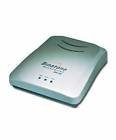
ചിത്രം 1: മുകളിൽ view of the Binatone BES460 EOC Master. This compact grey unit features indicator lights on its front panel, signifying its operational status.
3. സജ്ജീകരണ നിർദ്ദേശങ്ങൾ
Follow these steps to set up your Binatone BES460 EOC Master:
- Connect Coaxial Cable (Input): Connect the incoming CATV coaxial cable from your wall outlet to the CATV RF IN port on the BES460.
- Connect Coaxial Cable (Output): If you wish to connect a TV or set-top box, connect a coaxial cable from the CATV RF OUT port on the BES460 to your TV or set-top box.
- Connect Ethernet Devices: Use standard Ethernet cables to connect your computers, network switches, or other wired devices to any of the 4 ലാൻ പോർട്ടുകൾ on the BES460.
- പവർ അഡാപ്റ്റർ ബന്ധിപ്പിക്കുക: Plug the provided power adapter into the power input port on the BES460, then plug the adapter into a standard electrical outlet.
- Power On and Observe Indicators: The device will power on automatically. Allow a few moments for the device to boot up. Observe the indicator lights on the front panel. The power indicator should be solid, and other indicators (LAN, Wi-Fi, EOC) should illuminate as connections are established.
- പ്രവേശനം Web Management (Optional): To configure advanced settings, open a web browser on a connected computer and enter the default IP address (typically
192.168.1.1or192.168.0.1, refer to the label on the device or accompanying quick start guide for the exact IP and default login credentials).
4. പ്രവർത്തന നിർദ്ദേശങ്ങൾ
Once the BES460 is set up, you can begin using its networking capabilities:
4.1. വയർഡ് കണക്റ്റിവിറ്റി
Devices connected to the LAN ports will automatically obtain an IP address from the BES460 (if operating in routing mode with DHCP enabled) or from your main network (if in bridging mode).
4.2. വയർലെസ് കണക്റ്റിവിറ്റി (വൈ-ഫൈ)
To connect to the Wi-Fi network:
- നിങ്ങളുടെ വയർലെസ് ഉപകരണത്തിൽ (സ്മാർട്ട്ഫോൺ, ലാപ്ടോപ്പ്, ടാബ്ലെറ്റ്), ലഭ്യമായ വൈ-ഫൈ നെറ്റ്വർക്കുകൾക്കായി തിരയുക.
- Locate the network name (SSID) broadcast by the BES460 (e.g., "Binatone_BES460" or similar, check the device label).
- Select the network and enter the Wi-Fi password (WPA/WPA2 key), also typically found on the device label.
- Once connected, your device should have internet access.
4.3. Web മാനേജ്മെന്റ് ഇന്റർഫേസ്
ദി web management interface allows you to customize network settings. Access it by typing the device's IP address into a web browser. From here, you can:
- Change Wi-Fi SSID and password.
- Configure network mode (Bridging/Routing).
- Set up advanced features like Virtual Server, DMZ, and NAT.
- View ബന്ധിപ്പിച്ച ഉപകരണങ്ങളും നെറ്റ്വർക്ക് നിലയും.
- ഫേംവെയർ അപ്ഡേറ്റ് ചെയ്യുക.
Always save changes after configuration and restart the device if prompted.
5. പരിപാലനം
To ensure the longevity and optimal performance of your Binatone BES460 EOC Master, consider the following maintenance tips:
- പ്ലേസ്മെൻ്റ്: Place the device in a well-ventilated area, away from direct sunlight, heat sources, and moisture. Ensure adequate airflow around the unit.
- വൃത്തിയാക്കൽ: മൃദുവായതും ഉണങ്ങിയതുമായ തുണി ഉപയോഗിച്ച് ഉപകരണത്തിന്റെ പുറംഭാഗം ഇടയ്ക്കിടെ വൃത്തിയാക്കുക. ദ്രാവക ക്ലീനറുകളോ ഉരച്ചിലുകളുള്ള വസ്തുക്കളോ ഉപയോഗിക്കുന്നത് ഒഴിവാക്കുക.
- ഫേംവെയർ അപ്ഡേറ്റുകൾ: Check the Binatone official website periodically for firmware updates. Keeping the firmware updated can improve performance, add new features, and enhance security. Follow the instructions provided with the firmware update carefully.
- പവർ സൈക്ലിംഗ്: If you experience minor network issues, try power cycling the device by unplugging it from the power outlet for 10-15 seconds, then plugging it back in.
6. പ്രശ്നപരിഹാരം
If you encounter problems with your Binatone BES460 EOC Master, refer to the following common issues and solutions:
| പ്രശ്നം | സാധ്യമായ കാരണം | പരിഹാരം |
|---|---|---|
| No power indicator light. | പവർ അഡാപ്റ്റർ ബന്ധിപ്പിച്ചിട്ടില്ല അല്ലെങ്കിൽ തകരാറുണ്ട്; പവർ ഔട്ട്ലെറ്റ് പ്രവർത്തിക്കുന്നില്ല. | പവർ അഡാപ്റ്റർ ഉപകരണത്തിലേക്കും പ്രവർത്തിക്കുന്ന ഒരു ഇലക്ട്രിക്കൽ ഔട്ട്ലെറ്റിലേക്കും സുരക്ഷിതമായി ബന്ധിപ്പിച്ചിട്ടുണ്ടെന്ന് ഉറപ്പാക്കുക. മറ്റൊരു ഔട്ട്ലെറ്റ് പരീക്ഷിക്കുക. |
| No internet access (wired). | Ethernet cable loose/faulty; incorrect network configuration; ISP issue. | Check all Ethernet cable connections. Verify BES460 network settings (bridging/routing mode). Contact your Internet Service Provider (ISP) to confirm service status. |
| Wi-Fi-ലേക്ക് കണക്റ്റ് ചെയ്യാൻ കഴിയില്ല. | Incorrect Wi-Fi password; Wi-Fi disabled; signal interference. | Double-check the Wi-Fi password. Ensure Wi-Fi is enabled via the web management interface. Move closer to the device or reduce interference sources. |
| കുറഞ്ഞ നെറ്റ്വർക്ക് വേഗത. | Network congestion; outdated firmware; poor coaxial cable quality. | Reduce the number of active devices. Update device firmware. Ensure coaxial cables are in good condition and properly connected. |
| ആക്സസ് ചെയ്യാൻ കഴിയില്ല web മാനേജ്മെൻ്റ് ഇൻ്റർഫേസ്. | Incorrect IP address; device not fully booted; IP conflict. | Verify the correct IP address for the BES460. Ensure your computer is set to obtain an IP address automatically (DHCP). Power cycle the device and try again. |
ഈ പരിഹാരങ്ങൾ പരീക്ഷിച്ചതിനുശേഷവും പ്രശ്നം നിലനിൽക്കുകയാണെങ്കിൽ, കൂടുതൽ സഹായത്തിനായി വാറന്റി, പിന്തുണ വിഭാഗം പരിശോധിക്കുക.
7 സ്പെസിഫിക്കേഷനുകൾ
The following table details the technical specifications of the Binatone BES460 EOC Master:
| ഫീച്ചർ | വിശദാംശങ്ങൾ |
|---|---|
| ബ്രാൻഡ് | ബിനാറ്റോൺ |
| മോഡൽ നമ്പർ | BNE_BES460 |
| കണക്റ്റിവിറ്റി തരം | വൈഫൈ, ഇഥർനെറ്റ് |
| വയർലെസ് തരം | 802.11 ബിജിഎൻ |
| തുറമുഖങ്ങളുടെ എണ്ണം | 4 (ലാൻ) |
| അനുയോജ്യമായ ഉപകരണങ്ങൾ | Personal Computer and other network-enabled devices |
| ASIN | B00013JWXW |
| ഗ്ലോബൽ ട്രേഡ് ഐഡൻ്റിഫിക്കേഷൻ നമ്പർ (GTIN) | 05012786034112 |
| ആദ്യ തീയതി ലഭ്യമാണ് | 31 മാർച്ച് 2015 |
8. വാറൻ്റിയും പിന്തുണയും
The Binatone BES460 EOC Master comes with a 1 വർഷത്തെ വാറൻ്റി വാങ്ങിയ തീയതി മുതൽ. ഈ വാറന്റി നിർമ്മാണ വൈകല്യങ്ങൾ ഉൾക്കൊള്ളുകയും സാധാരണ ഉപയോഗത്തിൽ ഉൽപ്പന്നം അതിന്റെ നിർദ്ദിഷ്ട പ്രകടന മാനദണ്ഡങ്ങൾ പാലിക്കുന്നുണ്ടെന്ന് ഉറപ്പാക്കുകയും ചെയ്യുന്നു.
For warranty claims, technical support, or further assistance, please contact Binatone customer service. Details for contacting support can typically be found on the Binatone official webസൈറ്റ് അല്ലെങ്കിൽ ഉൽപ്പന്ന പാക്കേജിംഗിൽ.
വാറന്റി സാധൂകരണത്തിനായി നിങ്ങളുടെ വാങ്ങിയതിന്റെ തെളിവ് സൂക്ഷിക്കുക.


