ആമുഖം
The CardScan Executive 700 is a compact and powerful business card scanner designed to efficiently digitize and organize your contact information. This manual provides essential information for setting up, operating, maintaining, and troubleshooting your device, ensuring optimal performance and longevity.

Image: The CardScan Executive 700 Compact Business Card Scanner.
പ്രധാന സവിശേഷതകളിൽ ഇവ ഉൾപ്പെടുന്നു:
- Stores and organizes business cards electronically.
- Produces 3-4 second color and 2-second monochrome scans.
- Includes software to search and manage card storage.
- Weighs just 8 ounces, making it highly portable.
- Includes a detachable USB 2.0 cable for power and data.
സജ്ജമാക്കുക
Before using your CardScan Executive 700, please ensure all components are present and follow these setup instructions.
ബോക്സിൽ എന്താണുള്ളത്:
- CardScan Executive 700 Scanner Unit
- വേർപെടുത്താവുന്ന യുഎസ്ബി കേബിൾ
- സോഫ്റ്റ്വെയർ സിഡി (അല്ലെങ്കിൽ ഡൗൺലോഡ് നിർദ്ദേശങ്ങൾ)
- ഉപയോക്തൃ ഗൈഡ്
- വാറൻ്റി കാർഡ്
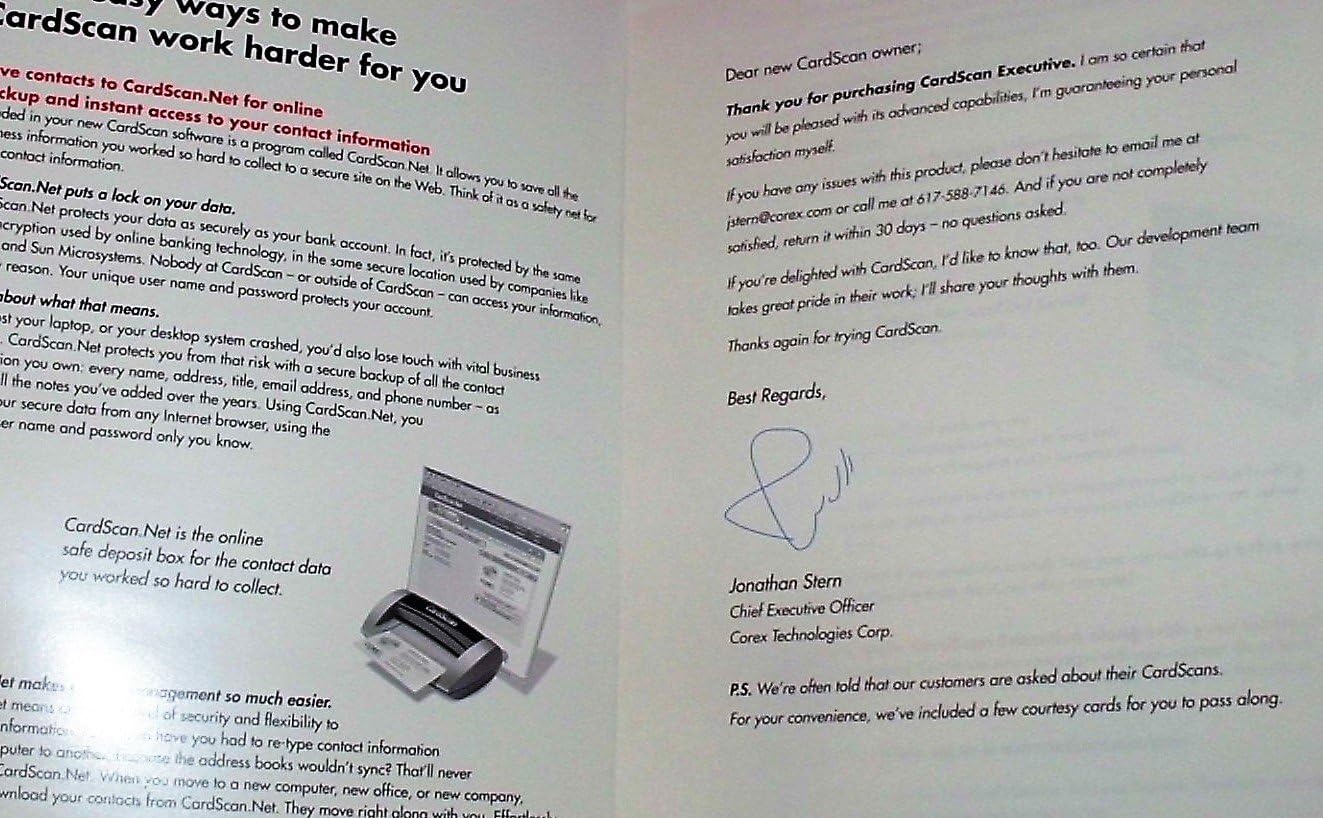
Image: Contents of the CardScan Executive 700 retail box, including the scanner, USB cable, and documentation.
ഹാർഡ്വെയർ കണക്ഷൻ:
- Place the CardScan Executive 700 scanner on a stable, flat surface near your computer.
- Connect one end of the provided USB cable to the USB port on the back of the scanner.
- Connect the other end of the USB cable to an available USB 2.0 port on your computer. The scanner is USB powered and does not require an external power adapter.
സോഫ്റ്റ്വെയർ ഇൻസ്റ്റാളേഷൻ:
- Insert the software CD into your computer's CD/DVD drive. If no CD drive is available, please refer to the user's guide for instructions on downloading the software from the manufacturer's webസൈറ്റ്.
- Follow the on-screen prompts to install the CardScan software. It is recommended to install all components, including drivers and the main application.
- ഇൻസ്റ്റാളേഷൻ പൂർത്തിയായ ശേഷം ആവശ്യപ്പെടുകയാണെങ്കിൽ നിങ്ങളുടെ കമ്പ്യൂട്ടർ പുനരാരംഭിക്കുക.
പ്രവർത്തന നിർദ്ദേശങ്ങൾ
This section details the process of scanning business cards and utilizing the CardScan software features.
Scanning a Business Card:
- Ensure the CardScan software is running on your computer.
- Orient the business card correctly for scanning. Typically, the card should be inserted face down with the top edge entering the scanner first. Refer to the calibration card for proper orientation.
- Gently insert the business card into the scanner's input slot. The scanner will automatically detect the card and pull it through.
- The scanner will process the card. Black-and-white scans typically take 2 seconds, while color scans take approximately 4 seconds.
- Once scanned, the card's information will appear in the CardScan software interface for review and editing.

Image: The CardScan calibration card, showing proper insertion for scanning.
സോഫ്റ്റ്വെയർ സവിശേഷതകൾ:
- അവബോധജന്യമായ ഇൻ്റർഫേസ്: The software features a user-friendly interface designed for easy navigation and contact management.
- സ്വഭാവ തിരിച്ചറിയൽ: Advanced optical character recognition (OCR) ensures high accuracy in extracting data from scanned cards.
- Duplicate Management: An efficient 'find duplicates' feature helps eliminate redundant records in your database.
- Card Correction: Enhanced card correction highlights fields that may contain errors, allowing for quick manual verification and adjustment.
- കോൺടാക്റ്റ് സിൻക്രൊണൈസേഷൻ: Sync your digitized contacts with popular contact management programs and portable devices.
- Web Accessibility & Backup: Store your contacts on the Web for remote access and create fail-safe backups to protect your data.
- Contact Updating Service: Utilize the optional service to keep your contact information current.
മെയിൻ്റനൻസ്
Regular maintenance ensures the optimal performance and longevity of your CardScan Executive 700 scanner.
സ്കാനർ വൃത്തിയാക്കൽ:
- ബാഹ്യ ശുചീകരണം: Use a soft, dry, lint-free cloth to wipe the exterior of the scanner. Do not use abrasive cleaners or solvents.
- ഇന്റീരിയർ ക്ലീനിംഗ്: Periodically clean the scanner's internal rollers and glass scanning surface. Refer to the detailed user's guide for specific instructions on accessing these components and recommended cleaning materials (e.g., a soft cloth dampened with isopropyl alcohol). Ensure the scanner is unplugged before cleaning internal parts.
കാലിബ്രേഷൻ:
If scan quality degrades or lines appear on scanned images, the scanner may require calibration. Use the provided calibration card and follow the instructions within the CardScan software to perform a calibration cycle.
ട്രബിൾഷൂട്ടിംഗ്
This section addresses common issues you might encounter with your CardScan Executive 700 scanner.
പൊതുവായ പ്രശ്നങ്ങളും പരിഹാരങ്ങളും:
- സ്കാനർ കണ്ടെത്തിയില്ല:
- Ensure the USB cable is securely connected to both the scanner and a working USB port on your computer.
- മറ്റൊരു USB പോർട്ടിലേക്ക് കണക്റ്റുചെയ്യാൻ ശ്രമിക്കുക.
- നിങ്ങളുടെ കമ്പ്യൂട്ടർ പുനരാരംഭിക്കുക.
- Verify that the scanner drivers are correctly installed. Reinstall the software if necessary.
- Poor Scan Quality / Unreadable Text:
- Ensure the business card is inserted correctly, face down and straight.
- Clean the scanner's internal glass and rollers as described in the Maintenance section.
- Perform a scanner calibration using the provided calibration card and software utility.
- Check the physical condition of the business card; heavily creased or damaged cards may not scan well.
- Software Not Functioning Correctly:
- Ensure your operating system meets the minimum requirements for the CardScan software.
- Close and restart the CardScan application.
- Reinstall the CardScan software.
- കുറിപ്പ്: Some older versions of the software may have compatibility issues with newer operating systems or require specific frameworks (e.g., Microsoft .NET). Refer to the manufacturer's support resources for updates.
- Cards Jamming:
- Ensure cards are not bent, torn, or have sticky residue.
- Insert cards one at a time and ensure they are aligned properly.
- Clean the scanner's rollers to ensure proper card feeding.
പ്രധാന കുറിപ്പ്: Some product listings or units may be sold as "MAIN UNIT ONLY - NO SOFTWARE OR MANUALS." If you purchased such a unit, you may need to acquire the software and drivers separately from the manufacturer's official webസൈറ്റ് അല്ലെങ്കിൽ പിന്തുണ ചാനലുകൾ.
സ്പെസിഫിക്കേഷനുകൾ
Detailed technical specifications for the CardScan Executive 700 Compact Business Card Scanner.
| ഫീച്ചർ | സ്പെസിഫിക്കേഷൻ |
|---|---|
| ബ്രാൻഡ് | കാർഡ് സ്കാൻ |
| മോഡലിൻ്റെ പേര് | CardScan Executive 700 |
| ഇനം മോഡൽ നമ്പർ | SC-A07170-ENG |
| സ്കാനർ തരം | ബിസിനസ് കാർഡ് |
| കണക്റ്റിവിറ്റി ടെക്നോളജി | USB 2.0 |
| Scan Speed (B&W) | 2 seconds per card |
| Scan Speed (Color) | 3-4 seconds per card |
| റെസലൂഷൻ | 600 ഡിപിഐ |
| വർണ്ണ ആഴം | 24 ബിപിപി |
| ഇനത്തിൻ്റെ ഭാരം | 0.5 കിലോഗ്രാം (1.1 പൗണ്ട്) |
| പവർ ഉറവിടം | USB Powered (2.5 watts) |
| പാക്കേജ് അളവുകൾ | 12.44 x 9.45 x 3.94 ഇഞ്ച് |
വാറൻ്റിയും പിന്തുണയും
Your CardScan Executive 700 scanner comes with a manufacturer's warranty. Please refer to the warranty card included in your product packaging for specific terms, conditions, and duration of coverage.
For technical support, software updates, or further assistance, please visit the official CardScan or Dymo (current brand owner) support website. Contact information and support resources are typically provided in the user's guide or on the manufacturer's webസൈറ്റ്.
നിരാകരണം: This manual provides general information. Specific features and support options may vary based on product version and region. Always refer to the latest documentation and support channels provided by the manufacturer.


