1. ആമുഖം
This manual provides detailed instructions for the installation, configuration, and operation of your Belkin F5D7231-4P High-Speed Mode Wireless G Router with Built-in USB Print Server. Please read this manual thoroughly before attempting to set up your device to ensure proper functionality and network security. This router combines wireless networking capabilities with a convenient USB print server, allowing multiple users to share a printer over the network.
2. ഉൽപ്പന്നം കഴിഞ്ഞുview
2.1 പ്രധാന സവിശേഷതകൾ
- Built-in 4-port 10/100 Ethernet Switch: Allows for wired connections to multiple devices.
- Built-in NAT/SPI Firewall: Provides basic network address translation and stateful packet inspection for security.
- സുരക്ഷ: Supports 64-bit and 128-bit WEP Data Encryption, and WPA with TKIP & AES for secure wireless communication.
- Wireless G (802.11g): Achieves data transfer rates up to 54Mbps.
- പിന്നിലേക്ക് അനുയോജ്യം: Works with 802.11b equipment for data transfer rates up to 11Mbps.
- Integrated USB Print Server: Enables sharing of a compatible USB printer across the network.
2.2 റൂട്ടർ ഘടകങ്ങൾ
The Belkin F5D7231-4P router features various ports and indicators for connectivity and status monitoring.
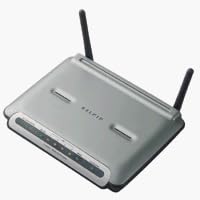
ചിത്രം 1: Belkin F5D7231-4P Wireless G Router. This image displays the router's casing, typically showing the front panel with status indicator lights and the rear panel with various ports for power, Ethernet, and USB connections.
- പവർ പോർട്ട്: ഉൾപ്പെടുത്തിയിരിക്കുന്ന പവർ അഡാപ്റ്ററുമായി ബന്ധിപ്പിക്കുന്നു.
- WAN Port (Internet): Connects to your cable or DSL modem.
- LAN പോർട്ടുകൾ (1-4): Connects to wired network devices such as computers or switches.
- USB പോർട്ട്: Connects to a compatible USB printer for network sharing.
- റീസെറ്റ് ബട്ടൺ: റൂട്ടറിനെ ഫാക്ടറി ഡിഫോൾട്ട് ക്രമീകരണങ്ങളിലേക്ക് പുനഃസ്ഥാപിക്കാൻ ഉപയോഗിക്കുന്നു.
- സ്റ്റാറ്റസ് ഇൻഡിക്കേറ്റർ ലൈറ്റുകൾ: Provide visual feedback on power, internet connectivity, wireless activity, and port status.
3. സജ്ജീകരണ നിർദ്ദേശങ്ങൾ
3.1 ഹാർഡ്വെയർ കണക്ഷൻ
- പവർ ഓഫ് ഡിവൈസുകൾ: Disconnect the power from your modem and computer.
- Connect Modem to Router: Connect an Ethernet cable from your modem's Ethernet port to the WAN (Internet) port on the Belkin router.
- Connect Computer to Router: Connect an Ethernet cable from your computer's network adapter to any of the LAN ports (1-4) on the Belkin router.
- പവർ ബന്ധിപ്പിക്കുക: Connect the included power adapter to the router's power port and then plug it into an electrical outlet.
- പവർ ഓൺ ഉപകരണങ്ങൾ: First, power on your modem and wait for its indicator lights to stabilize. Then, power on the Belkin router. Finally, power on your computer.
3.2 പ്രാരംഭ കോൺഫിഗറേഷൻ
The router typically comes with an installation CD that guides you through basic setup. However, for advanced settings and security configuration, you will use the web-അടിസ്ഥാന യൂട്ടിലിറ്റി.
- റൂട്ടർ ഇന്റർഫേസ് ആക്സസ് ചെയ്യുക: എ തുറക്കുക web browser on a computer connected to the router. In the address bar, type the router's default IP address (commonly
192.168.2.1or192.168.1.1) and press Enter. Refer to the label on the bottom of your router for the exact IP address and default login credentials. - ലോഗിൻ: Enter the default username and password. If prompted, change the default password immediately for security.
- Internet Connection Setup: Follow the on-screen wizard to configure your internet connection settings. The router should automatically detect your connection type (e.g., DHCP, PPPoE). If automatic detection fails, you may need to manually enter details provided by your Internet Service Provider (ISP).
- വയർലെസ് നെറ്റ്വർക്ക് സജ്ജീകരണം: Configure your wireless network (SSID) name and select a strong security protocol. It is highly recommended to use WPA (Wi-Fi Protected Access) with TKIP & AES encryption. Avoid using WEP as it is less secure.
- ക്രമീകരണങ്ങൾ സംരക്ഷിക്കുക: Apply and save all changes. The router may restart.
4. പ്രവർത്തന നിർദ്ദേശങ്ങൾ
4.1 ഉപകരണങ്ങൾ ബന്ധിപ്പിക്കുന്നു
- വയർഡ് ഉപകരണങ്ങൾ: Connect Ethernet cables from your computers, gaming consoles, or other network devices to the available LAN ports (1-4) on the router.
- വയർലെസ് ഉപകരണങ്ങൾ: On your wireless-enabled device (laptop, smartphone, tablet), search for available Wi-Fi networks. Select the SSID you configured during setup and enter the wireless password (security key) when prompted.
4.2 Using the USB Print Server
The built-in USB print server allows you to share a single USB printer with multiple computers on your network.
- പ്രിന്റർ അനുയോജ്യത: Before connecting, verify that your printer is compatible with the Belkin F5D7231-4P print server. Refer to the Belkin support website for a list of compatible printers. Note that some multi-function printers (all-in-ones) may only support the printing function and not scanning or faxing when connected via the print server.
- പ്രിന്റർ ബന്ധിപ്പിക്കുക: Connect your USB printer to the USB port on the router. Power on the printer.
- Install Print Server Software: On each computer that will use the shared printer, install the Belkin print server utility software (usually found on the installation CD or Belkin's website). This software helps detect and configure the network printer.
- Add Network Printer: Follow the instructions in the print server utility to add the printer to your computer's operating system. You may need to install the printer's drivers if not already present.
4.3 വിപുലമായ ക്രമീകരണങ്ങൾ
റൂട്ടറിലേക്ക് പ്രവേശിക്കുക web-based interface for advanced configurations such as:
- പോർട്ട് ഫോർവേഡിങ്: To allow external access to specific services on your local network.
- DHCP സെർവർ: To manage IP address assignment for network devices.
- വയർലെസ് ചാനൽ: To optimize wireless performance by selecting a less congested channel.
- High-Speed Mode (HSM): This feature can increase wireless speed but may reduce signal range and quality. Consider disabling it if you experience connectivity issues over distance.
5. പരിപാലനം
5.1 ഫേംവെയർ അപ്ഡേറ്റുകൾ
Periodically check the Belkin support website for firmware updates for your router model. Firmware updates can improve performance, add features, and address security vulnerabilities. Follow the instructions provided by Belkin carefully when performing a firmware update, as an improper update can render the device inoperable.
5.2 പതിവ് പരിശോധനകൾ
- എല്ലാ കേബിളുകളും സുരക്ഷിതമായി ബന്ധിപ്പിച്ചിട്ടുണ്ടെന്ന് ഉറപ്പാക്കുക.
- Monitor router indicator lights for normal operation.
- റൂട്ടർ അമിതമായി ചൂടാകുന്നത് തടയാൻ നന്നായി വായുസഞ്ചാരമുള്ള സ്ഥലത്ത് സൂക്ഷിക്കുക.
5.3 റൂട്ടർ പുനഃസജ്ജമാക്കൽ
If you encounter persistent issues or forget your login credentials, you can reset the router to its factory default settings. Locate the small reset button on the router (often recessed). With the router powered on, use a paperclip or similar pointed object to press and hold the reset button for 10-15 seconds. The router will restart, and all custom configurations will be erased.
6. പ്രശ്നപരിഹാരം
6.1 ഇന്റർനെറ്റ് കണക്ഷൻ ഇല്ല
- കേബിളുകൾ പരിശോധിക്കുക: നിങ്ങളുടെ മോഡത്തിൽ നിന്നുള്ള ഇതർനെറ്റ് കേബിൾ റൂട്ടറിന്റെ WAN പോർട്ടുമായി സുരക്ഷിതമായി ബന്ധിപ്പിച്ചിട്ടുണ്ടെന്ന് ഉറപ്പാക്കുക.
- പവർ സൈക്കിൾ: Power off your modem, router, and computer. Wait 30 seconds, then power on the modem, wait for it to stabilize, then power on the router, and finally your computer.
- റൂട്ടർ കോൺഫിഗറേഷൻ: റൂട്ടറിലേക്ക് പ്രവേശിക്കുക web interface and verify that the internet connection settings are correct for your ISP.
- ISP സ്റ്റാറ്റസ്: സേവനമില്ലെന്ന് സ്ഥിരീകരിക്കാൻ നിങ്ങളുടെ ഇന്റർനെറ്റ് സേവന ദാതാവിനെ ബന്ധപ്പെടുക അല്ലെങ്കിൽtagനിങ്ങളുടെ പ്രദേശത്താണ്.
6.2 വയർലെസ് കണക്റ്റിവിറ്റി പ്രശ്നങ്ങൾ
- സിഗ്നൽ ശക്തി: Ensure your wireless device is within range of the router. Walls and other obstructions can reduce signal strength.
- ഇടപെടൽ: Other wireless devices (cordless phones, microwaves) can cause interference. Try changing the wireless channel in the router's settings.
- സുരക്ഷാ ക്രമീകരണങ്ങൾ: Verify that the correct wireless network name (SSID) and password (security key) are entered on your device.
- High-Speed Mode (HSM): If enabled, try disabling HSM in the router settings, as it can sometimes reduce signal quality and range.
6.3 USB Print Server Not Working
- പ്രിന്റർ അനുയോജ്യത: Double-check that your printer model is officially supported by the Belkin F5D7231-4P print server.
- Printer Drivers: Ensure the correct and latest printer drivers are installed on the computer attempting to print.
- Print Server Utility: Confirm that the Belkin print server utility software is installed and configured correctly on the client computer.
- പ്രിന്റർ നില: Ensure the printer is powered on and in a ready state.
6.4 Frequent Router Resets Required
If the router frequently requires a power cycle or reset to restore functionality, consider the following:
- ഫേംവെയർ അപ്ഡേറ്റ്: റൂട്ടറിന്റെ ഫേംവെയർ കാലികമാണെന്ന് ഉറപ്പാക്കുക.
- അമിത ചൂടാക്കൽ: Ensure adequate ventilation around the router.
- വൈദ്യുതി വിതരണം: Verify the power adapter is the original and functioning correctly.
7 സ്പെസിഫിക്കേഷനുകൾ
| ഫീച്ചർ | സ്പെസിഫിക്കേഷൻ |
|---|---|
| മോഡൽ നമ്പർ | F5D7231-4P |
| ഉൽപ്പന്ന അളവുകൾ | 7 x 8 x 2 ഇഞ്ച് |
| ഇനത്തിൻ്റെ ഭാരം | 1.6 പൗണ്ട് |
| നിർമ്മാതാവ് | Belkin Inc. |
| വയർലെസ് കമ്മ്യൂണിക്കേഷൻ സ്റ്റാൻഡേർഡ് | 802.11 ബി, 802.11 ഗ്രാം |
| ഫ്രീക്വൻസി ബാൻഡ് ക്ലാസ് | സിംഗിൾ-ബാൻഡ് |
| കണക്റ്റിവിറ്റി ടെക്നോളജി | ഇഥർനെറ്റ്, യുഎസ്ബി |
| ഇഥർനെറ്റ് പോർട്ടുകൾ | 4 x 10/100 Mbps LAN, 1 x 10/100 Mbps WAN |
| USB പോർട്ടുകൾ | 1 x USB (for Print Server) |
| സുരക്ഷാ സവിശേഷതകൾ | 64/128-bit WEP, WPA (TKIP & AES), NAT/SPI Firewall |
| പ്രത്യേക ഫീച്ചർ | WPS (വൈഫൈ പരിരക്ഷിത സജ്ജീകരണം) |
| അനുയോജ്യമായ ഉപകരണങ്ങൾ | പേഴ്സണൽ കമ്പ്യൂട്ടർ |
| ശുപാർശ ചെയ്യുന്ന ഉപയോഗങ്ങൾ | വീട് |
| ഓപ്പറേറ്റിംഗ് സിസ്റ്റം | ZyNOS (firmware based) |
8. വാറൻ്റിയും പിന്തുണയും
Specific warranty details for the Belkin F5D7231-4P router are not provided in this document. For information regarding warranty coverage, technical support, and product registration, please visit the official Belkin website or refer to the warranty card included with your product at the time of purchase. Belkin's website also provides access to updated drivers, firmware, and an extensive knowledge base for troubleshooting.


