1. ആമുഖം
The Nintendo DS Titanium Standard is a portable entertainment and communication device designed for interactive gaming experiences. It features an innovative dual-screen design, with the lower screen offering touchscreen capabilities for intuitive control. This manual will guide you through the essential steps to set up, operate, and maintain your Nintendo DS system, ensuring optimal performance and enjoyment.
പ്രധാന സവിശേഷതകളിൽ ഇവ ഉൾപ്പെടുന്നു:
- ഇരട്ട സ്ക്രീനുകൾ: Provides two perspectives for gameplay, enhancing strategic and immersive experiences.
- ടച്ച്സ്ക്രീൻ നിയന്ത്രണം: The lower screen allows for navigation and interaction using a stylus or fingertip.
- ബിൽറ്റ്-ഇൻ മൈക്രോഫോൺ: Enables voice control in compatible games and voice chat with other DS players.
- വയർലെസ് കമ്മ്യൂണിക്കേഷൻ: Supports local wireless networks for multiplayer gaming and features like PictoChat for sending messages and drawings.
- Dual Game Card Slots: Compatible with both Nintendo DS and Game Boy Advance game cartridges.
2. ഉൽപ്പന്നം കഴിഞ്ഞുview
Familiarize yourself with the components of your Nintendo DS Titanium Standard console.
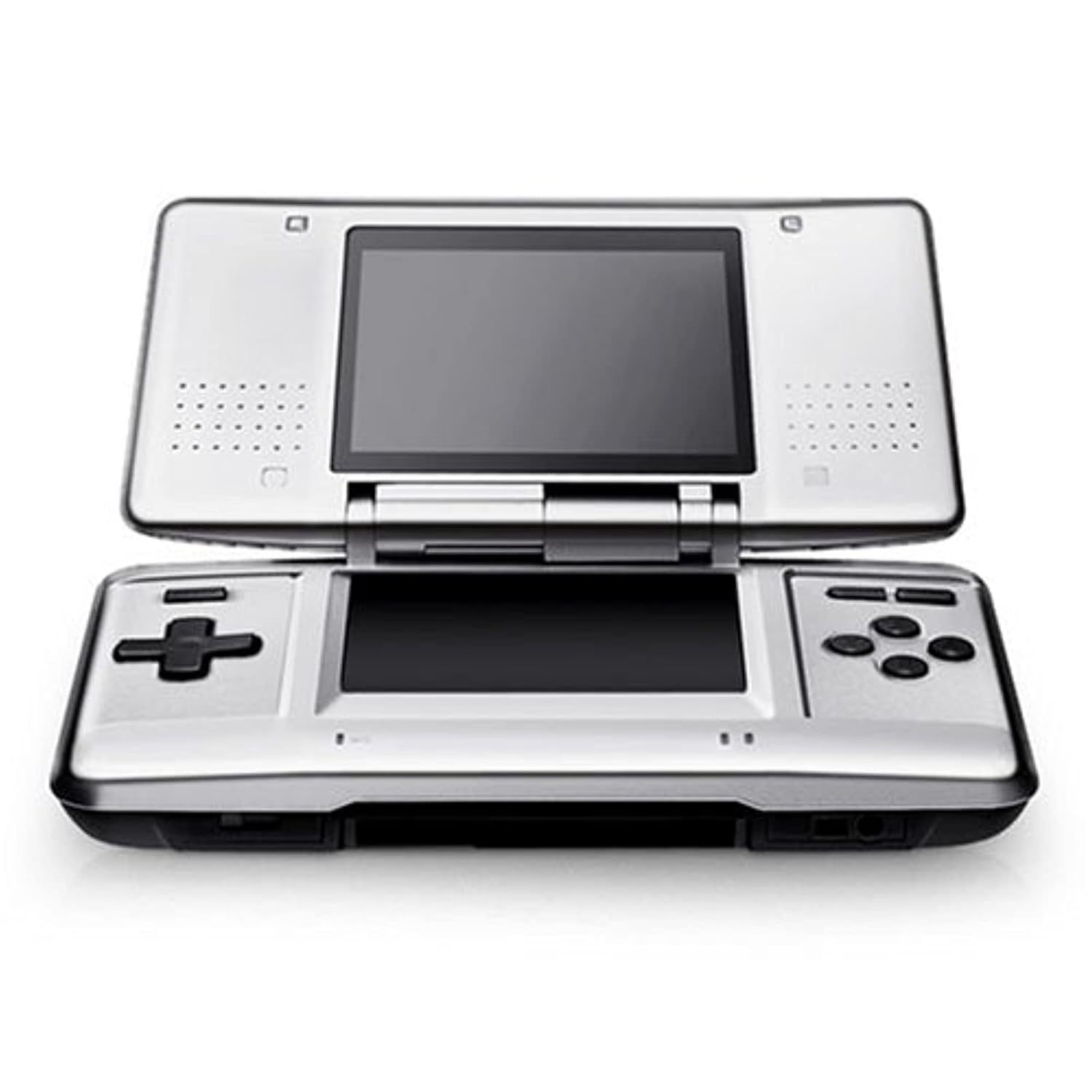
Figure 2.1: Nintendo DS Titanium Standard Console (Open View)
This image displays the Nintendo DS Titanium Standard in its open position. The top screen is the main display, while the bottom screen is the interactive touchscreen. To the left of the bottom screen is the directional pad (D-pad), and to the right are the A, B, X, Y action buttons. Speaker grilles are visible on both sides of the top screen. The console's hinge mechanism is central, allowing it to fold for portability.
2.1 Console Components
- Top Screen: Main display for game visuals.
- Bottom Screen (Touchscreen): Interactive display for touch input with stylus or finger.
- ദിശാസൂചന പാഡ് (ഡി-പാഡ്): Used for movement and menu navigation.
- A/B/X/Y ബട്ടണുകൾ: Action buttons for gameplay.
- ആരംഭിക്കുക/തിരഞ്ഞെടുക്കുക ബട്ടണുകൾ: For pausing games and menu selections.
- പവർ ബട്ടൺ: സിസ്റ്റം ഓൺ അല്ലെങ്കിൽ ഓഫ് ചെയ്യാൻ.
- വോളിയം സ്ലൈഡർ: ഓഡിയോ ഔട്ട്പുട്ട് ക്രമീകരിക്കുന്നു.
- മൈക്രോഫോൺ: For voice input in compatible games and applications.
- സ്റ്റൈലസ് സ്ലോട്ട്: Stores the included stylus.
- DS Game Card Slot: For Nintendo DS game cartridges.
- Game Boy Advance (GBA) Game Pak Slot: For Game Boy Advance game cartridges.
- ഹെഡ്ഫോൺ ജാക്ക്: ഹെഡ്ഫോണുകൾ ബന്ധിപ്പിക്കുന്നതിന്.
- എസി അഡാപ്റ്റർ പോർട്ട്: ചാർജർ ബന്ധിപ്പിക്കുന്നതിന്.
3. സജ്ജീകരണം
3.1 ബാറ്ററി ചാർജ് ചെയ്യുന്നു
- Locate the AC adapter port on the back of the Nintendo DS console.
- Insert the small plug of the AC adapter into the AC adapter port.
- എസി അഡാപ്റ്ററിൻ്റെ മറ്റേ അറ്റം ഒരു സാധാരണ വാൾ ഔട്ട്ലെറ്റിലേക്ക് പ്ലഗ് ചെയ്യുക.
- The orange charge indicator light will illuminate, indicating that the battery is charging.
- Once charging is complete, the orange light will turn off. A full charge typically takes approximately 3 hours.
Note: The Nintendo DS comes with a rechargeable Lithium Ion battery pack. Ensure the battery is fully charged before initial use for optimal performance.
3.2 ഒരു ഗെയിം കാർഡ് ചേർക്കൽ
3.2.1 Nintendo DS Game Card
- Open the Nintendo DS Game Card slot cover located on the back of the console.
- Insert the Nintendo DS game card firmly into the slot until it clicks into place. Ensure the label faces downwards.
- സ്ലോട്ട് കവർ അടയ്ക്കുക.
3.2.2 Game Boy Advance (GBA) Game Pak
- Insert the GBA Game Pak into the GBA Game Pak slot located on the front edge of the console. Ensure the label faces upwards.
- Push the Game Pak in until it is securely seated. It will not click into place like a DS card.
4. പ്രവർത്തന നിർദ്ദേശങ്ങൾ
4.1 പവർ ഓൺ/ഓഫ്
- പവർ ഓണാക്കാൻ: Slide the POWER switch located on the right side of the console upwards and hold briefly. The power indicator light will turn green.
- പവർ ഓഫ് ചെയ്യാൻ: Slide the POWER switch upwards and hold briefly until the screens turn off.
4.2 അടിസ്ഥാന നാവിഗേഷൻ
- ഡി-പാഡ്: Use for directional movement in games and menu selection.
- A/B/X/Y ബട്ടണുകൾ: Perform actions within games, confirm selections.
- ടച്ച് സ്ക്രീൻ: Use the stylus or your fingertip to interact with the lower screen. Tap to select, drag to move items, or draw.
- മൈക്രോഫോൺ: Speak into the microphone for voice commands in compatible games or for voice chat.
4.3 വോളിയം ക്രമീകരിക്കൽ
Use the volume slider located on the left side of the console to increase or decrease the sound output.
4.4 Wireless Communication (PictoChat)
The Nintendo DS supports local wireless communication. One notable feature is PictoChat, which allows up to 16 users within a 30-foot range to send text messages and drawings to each other wirelessly.
- From the DS Menu, select 'PictoChat'.
- Choose a chat room (A, B, C, or D).
- Use the on-screen keyboard or stylus to write messages or draw.
- Tap 'Send' to transmit your message to other users in the same chat room.
5. പരിപാലനം
5.1 കൺസോൾ വൃത്തിയാക്കൽ
- കൺസോളിന്റെ പുറംഭാഗം തുടയ്ക്കാൻ മൃദുവായതും ഉണങ്ങിയതുമായ തുണി ഉപയോഗിക്കുക.
- For screens, use a soft, lint-free cloth. If necessary, slightly dampen the cloth with water, but avoid spraying liquids directly onto the screens.
- കഠിനമായ രാസവസ്തുക്കളോ, ലായകങ്ങളോ, അബ്രസീവ് ക്ലീനറുകളോ ഉപയോഗിക്കരുത്.
5.2 ബാറ്ററി കെയർ
- അങ്ങേയറ്റത്തെ താപനിലയിലേക്ക് ബാറ്ററി തുറന്നുകാട്ടുന്നത് ഒഴിവാക്കുക.
- Charge the battery regularly, even if the console is not in frequent use, to maintain its lifespan.
- If the battery life significantly diminishes, it may need replacement. Contact Nintendo support for guidance.
5.3 സംഭരണം
When not in use, store the Nintendo DS in a clean, dry place away from direct sunlight and extreme temperatures. Keep it folded to protect the screens.
6. പ്രശ്നപരിഹാരം
If you encounter issues with your Nintendo DS, refer to the following common problems and solutions:
- കൺസോൾ പവർ ഓൺ ചെയ്യുന്നില്ല:
- Ensure the battery is charged. Connect the AC adapter and allow it to charge for at least 30 minutes.
- Verify the POWER switch is fully engaged.
- ഗെയിം കാർഡ് തിരിച്ചറിഞ്ഞില്ല:
- Remove the game card and reinsert it firmly into the correct slot.
- Ensure the game card contacts are clean. Gently wipe with a soft, dry cloth if necessary.
- Confirm you are using the correct type of game card for the slot (DS card for DS slot, GBA Pak for GBA slot).
- Screens are dim or fuzzy:
- Adjust the brightness settings if available (some models may have this feature).
- Ensure the screens are clean and free from smudges or debris.
- പ്രശ്നം നിലനിൽക്കുകയാണെങ്കിൽ, അത് ഒരു ഹാർഡ്വെയർ പ്രശ്നത്തെ സൂചിപ്പിക്കാം.
- Touchscreen is unresponsive or inaccurate:
- സ്ക്രീൻ വൃത്തിയുള്ളതാണെന്ന് ഉറപ്പാക്കുക.
- Recalibrate the touchscreen through the system settings if available.
- Use the official Nintendo stylus for best results.
- ശബ്ദമോ വികലമായ ശബ്ദമോ ഇല്ല:
- Check the volume slider and ensure it is not set to minimum.
- ഹെഡ്ഫോണുകൾ ഉപയോഗിക്കുകയാണെങ്കിൽ, അവ പൂർണ്ണമായും പ്ലഗിൻ ചെയ്തിട്ടുണ്ടെന്നും പ്രവർത്തനക്ഷമമാണെന്നും ഉറപ്പാക്കുക.
For issues not covered here, please refer to the official Nintendo support webസൈറ്റ് അല്ലെങ്കിൽ ഉപഭോക്തൃ സേവനവുമായി ബന്ധപ്പെടുക.
7 സ്പെസിഫിക്കേഷനുകൾ
| ഫീച്ചർ | വിശദാംശങ്ങൾ |
|---|---|
| മോഡൽ നമ്പർ | 45496716134 |
| യു.പി.സി | 045496716134 |
| അളവുകൾ (മടക്കിയത്) | 8 x 5 x 2.25 ഇഞ്ച് |
| ഭാരം | 4 ഔൺസ് |
| ബാറ്ററി | 1 ലിഥിയം അയൺ ബാറ്ററി (റീചാർജ് ചെയ്യാവുന്നത്) |
| Compatible Game Console Models | Nintendo DS, Nintendo DS Lite, Nintendo DSi, Nintendo DSi XL (for game compatibility) |
| നിർമ്മാതാവ് | നിൻ്റെൻഡോ |
| റിലീസ് തീയതി | ജൂൺ 15, 2006 |
8. വാറൻ്റിയും പിന്തുണയും
Warranty information for your Nintendo DS Titanium Standard is typically included with your purchase documentation. Please refer to these materials for details regarding coverage, terms, and conditions.
For technical support, service, or additional information, please visit the official Nintendo support website or contact Nintendo customer service directly. Contact details can usually be found on the Nintendo webസൈറ്റ് അല്ലെങ്കിൽ നിങ്ങളുടെ ഉൽപ്പന്ന പാക്കേജിംഗിനുള്ളിൽ.
You can visit the official Nintendo store for more information: നിന്റെൻഡോ സ്റ്റോർ


