1. ആമുഖം
This manual provides comprehensive instructions for the setup, operation, and maintenance of your KitVision 7-inch Digital Photo Frame, model DPF7BKK. Please read this manual thoroughly before using the device to ensure proper functionality and longevity.

ചിത്രം 1: മുൻഭാഗം view of the KitVision 7-inch Digital Photo Frame. The frame is silver with a black bezel, displaying a vibrant image of a person holding a child on a beach.
2. പാക്കേജ് ഉള്ളടക്കം
താഴെ കൊടുത്തിരിക്കുന്ന എല്ലാ ഇനങ്ങളും നിങ്ങളുടെ പാക്കേജിൽ ഉണ്ടെന്ന് ഉറപ്പാക്കുക:
- KitVision 7-inch Digital Photo Frame (DPF7BKK)
- എസി പവർ അഡാപ്റ്റർ
- വേർപെടുത്താവുന്ന സ്റ്റാൻഡ്
- ഉപയോക്തൃ മാനുവൽ (ഈ പ്രമാണം)

Figure 2: The product packaging for the KitVision 7-inch Digital Photo Frame. The box features a blue background with wave patterns and an image of the digital photo frame displaying a beach scene.
3. ഉൽപ്പന്നം കഴിഞ്ഞുview
3.1. Rear Panel and Controls

ചിത്രം 3: പിൻഭാഗം view of the digital photo frame. Visible features include the USB port, SD/MMC/MS card slot, DC power input, control buttons (ENTER, arrows, MENU, STANDBY), and a detachable stand.
- USB പോർട്ട്: യുഎസ്ബി ഫ്ലാഷ് ഡ്രൈവുകൾ ബന്ധിപ്പിക്കുന്നതിന്.
- SD/MMC/MS Card Slot: For inserting compatible memory cards.
- DC ഇൻപുട്ട്: Power connection port for the AC adapter.
- നിയന്ത്രണ ബട്ടണുകൾ:
- നൽകുക: തിരഞ്ഞെടുക്കലുകൾ സ്ഥിരീകരിക്കുന്നു.
- < / > (Left/Right Arrows): Navigates through menus and images.
- ^ / v (Up/Down Arrows): മെനുകളിലൂടെയും ഓപ്ഷനുകളിലൂടെയും നാവിഗേറ്റ് ചെയ്യുന്നു.
- മെനു: പ്രധാന മെനുവിൽ പ്രവേശിക്കുന്നു.
- സ്റ്റാൻഡ് ബൈ: Powers the frame on or off.
- Detachable Stand: Allows for tabletop placement in landscape or portrait orientation.
- വാൾ മൗണ്ട് ഹോൾ: For mounting the frame on a wall.
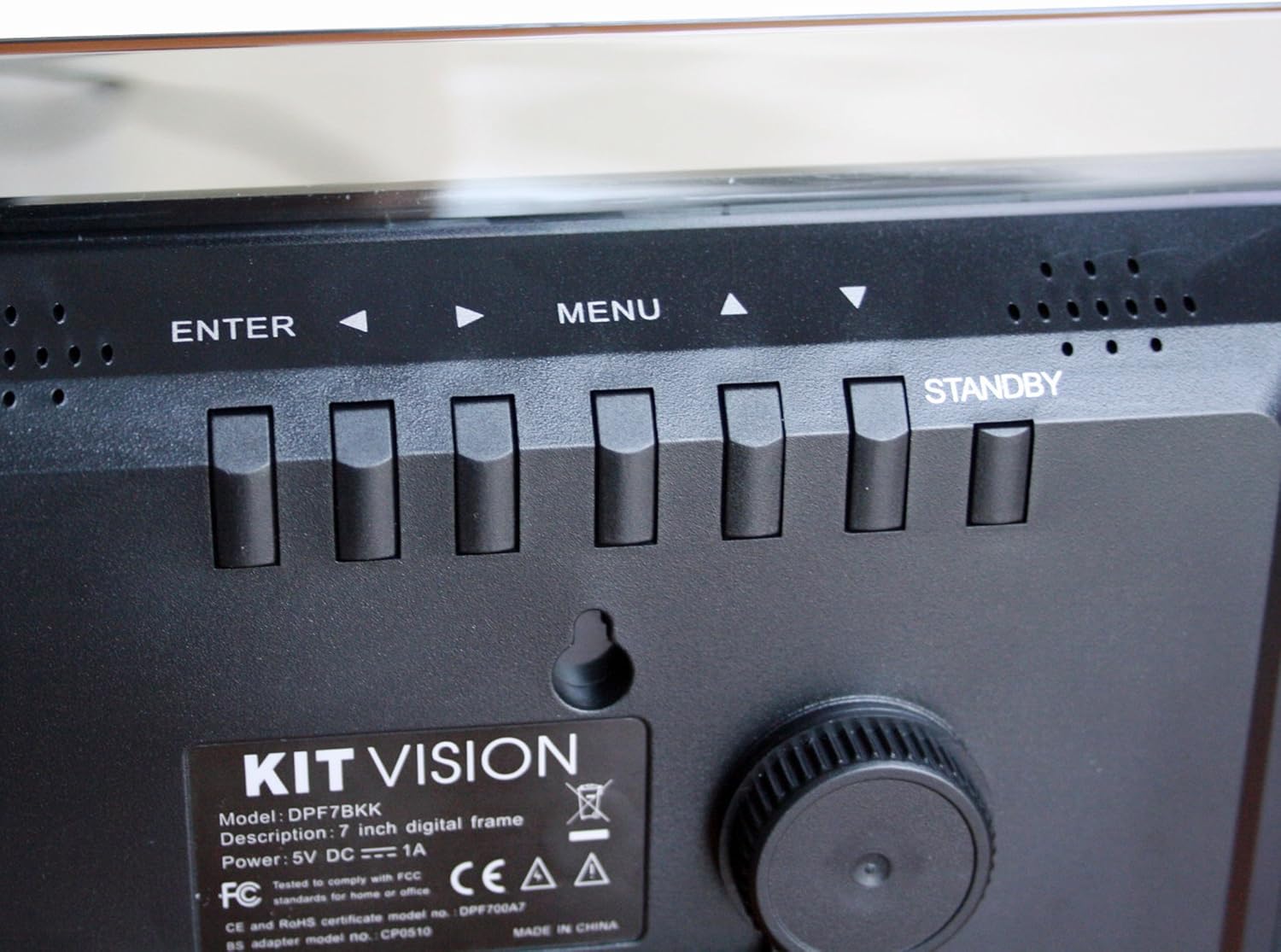
ചിത്രം 4: ക്ലോസപ്പ് view of the control buttons and product label on the rear of the digital photo frame. The label clearly shows "KITVISION", "Model: DPF7BKK", and power specifications.
4. സജ്ജീകരണം
4.1. സ്റ്റാൻഡ് ഘടിപ്പിക്കൽ
- Locate the detachable stand in the package.
- Insert the stand's peg into the designated hole on the rear of the photo frame.
- Rotate the stand to secure it in place and adjust the angle for optimal viewing. The stand supports both landscape and portrait orientations.
4.2. പവർ കണക്ഷൻ
- Connect the AC power adapter to the DC input port on the rear of the frame.
- പവർ അഡാപ്റ്ററിന്റെ മറ്റേ അറ്റം ഒരു സാധാരണ ഇലക്ട്രിക്കൽ ഔട്ട്ലെറ്റിലേക്ക് പ്ലഗ് ചെയ്യുക.
- The frame will typically power on automatically or can be turned on using the STANDBY button.
4.3. Inserting a Memory Card or USB Drive
The frame supports SD, MMC, MS memory cards, and USB flash drives. Ensure your photos are in a compatible format (e.g., JPEG).
- Carefully insert your memory card into the SD/MMC/MS slot or your USB flash drive into the USB port.
- Ensure the card or drive is inserted correctly and fully seated. Do not force it.
- The frame should automatically detect the storage device and begin displaying photos, or prompt you to select a source.
5. പ്രവർത്തന നിർദ്ദേശങ്ങൾ
5.1. അടിസ്ഥാന നാവിഗേഷൻ
- ഉപയോഗിക്കുക </> (Left/Right) and ^ / വി (Up/Down) arrow buttons to navigate through menus and select options.
- അമർത്തുക പ്രവേശിക്കുക button to confirm a selection or open a sub-menu.
- അമർത്തുക മെനു button to return to the previous menu or access the main menu from a slideshow.
- അമർത്തിപ്പിടിക്കുക സ്റ്റാൻഡ് ബൈ button to power the frame off or on.
5.2. Viewഫോട്ടോകൾ
Once a memory card or USB drive is inserted, the frame will typically start a slideshow automatically. If not, navigate to the "Photo" or "Slideshow" option in the main menu and press പ്രവേശിക്കുക.
5.3. Slideshow Settings
To customize your slideshow:
- അമർത്തുക മെനു പ്രധാന മെനുവിൽ പ്രവേശിക്കുന്നതിനുള്ള ബട്ടൺ.
- Navigate to "Settings" or "Slideshow Options" using the arrow buttons and press പ്രവേശിക്കുക.
- Adjust settings such as:
- പ്രദർശന സമയം: Duration each photo is shown.
- പരിവർത്തന പ്രഭാവം: How photos change (e.g., fade, wipe).
- ആവർത്തിക്കുന്ന മോഡ്: Loop all photos or play once.
- Photo Order: Sequential or random.
- അമർത്തുക പ്രവേശിക്കുക to confirm changes and മെനു പുറത്തുകടക്കാൻ.
6. പരിപാലനം
6.1. ഫ്രെയിം വൃത്തിയാക്കൽ
- വൃത്തിയാക്കുന്നതിന് മുമ്പ് എല്ലായ്പ്പോഴും പവർ അഡാപ്റ്റർ വിച്ഛേദിക്കുക.
- സ്ക്രീനും ഫ്രെയിമും മൃദുവായതും ഉണങ്ങിയതും ലിന്റ് രഹിതവുമായ ഒരു തുണി ഉപയോഗിച്ച് മൃദുവായി തുടയ്ക്കുക.
- സ്ക്രീനിലെ കഠിനമായ അടയാളങ്ങൾക്ക്, നേരിയ തോതിൽ dampen the cloth with water or a screen-safe cleaning solution. Do not spray liquid directly onto the screen.
- Avoid using abrasive cleaners, solvents, or alcohol-based solutions, as these can damage the surface.
6.2. സംഭരണം
- When not in use for extended periods, store the digital photo frame in a cool, dry place, away from direct sunlight and extreme temperatures.
- It is recommended to store the frame in its original packaging to protect it from dust and physical damage.
7. പ്രശ്നപരിഹാരം
| പ്രശ്നം | സാധ്യമായ കാരണം | പരിഹാരം |
|---|---|---|
| ഫ്രെയിം പവർ ഓൺ ചെയ്യുന്നില്ല. | No power, faulty adapter, or STANDBY button not pressed. | Ensure power adapter is securely connected to both the frame and a working electrical outlet. Press the STANDBY button. Try a different outlet. |
| ചിത്രങ്ങളൊന്നും പ്രദർശിപ്പിച്ചിട്ടില്ല. | No memory card/USB, incompatible file format, or card/USB not inserted correctly. | Insert a memory card or USB drive with compatible image files (JPEG). Ensure it is fully seated. Check if the frame is set to the correct source input in the menu. |
| Images appear distorted or low quality. | Low resolution images, damaged memory card/USB, or screen issue. | Use higher resolution images. Try a different memory card or USB drive. Clean the screen. |
| ബട്ടണുകൾ പ്രതികരിക്കുന്നില്ല. | താൽക്കാലിക സോഫ്റ്റ്വെയർ തകരാർ. | Disconnect the power adapter, wait 10 seconds, then reconnect it to reset the device. |
8 സ്പെസിഫിക്കേഷനുകൾ
| മോഡൽ നമ്പർ | DPF7BKK |
| സ്ക്രീൻ വലിപ്പം | 7 ഇഞ്ച് |
| റെസലൂഷൻ | WXGA |
| ഉൽപ്പന്ന അളവുകൾ | 9.06 x 6.5 x 1.26 ഇഞ്ച് |
| ഇനത്തിൻ്റെ ഭാരം | 0.012 ഔൺസ് |
| കണക്റ്റിവിറ്റി ടെക്നോളജി | USB |
| പവർ ഉറവിടം | Corded Electric (5V DC === 1A) |
| പിന്തുണയ്ക്കുന്ന മെമ്മറി കാർഡുകൾ | SD, MMC, MS |
| പിന്തുണയ്ക്കുന്ന ഇമേജ് ഫോർമാറ്റുകൾ | JPEG (common format, specific list not provided in input) |
9. വാറൻ്റിയും പിന്തുണയും
For warranty information and technical support, please refer to the documentation provided at the time of purchase or contact KitVision customer service. Specific warranty terms may vary by region and retailer.


