1. ആമുഖം
ഉൽപ്പന്നം കഴിഞ്ഞുview
The Visual Land VL-G4 is a compact and versatile portable media player designed for on-the-go entertainment. It features a 1.8-inch screen, 4GB of internal storage, and supports various media formats. This device allows you to enjoy your favorite music, videos, and images, along with additional functionalities such as an FM radio and a voice recorder.
പ്രധാന സവിശേഷതകളിൽ ഇവ ഉൾപ്പെടുന്നു:
- 4 GB storage capacity, sufficient for approximately 4,000 songs.
- ഒറ്റ ചാർജിൽ 6 മണിക്കൂർ വരെ ഓഡിയോ പ്ലേബാക്ക്.
- 1.8-inch color LCD display for media viewing.
- Supports MP3, WMA, and WAV audio formats; AMV video format; JPG image format.
- ഇന്റഗ്രേറ്റഡ് എഫ്എം റേഡിയോ ട്യൂണർ.
- ബിൽറ്റ്-ഇൻ വോയ്സ് റെക്കോർഡർ.
- Functions as a USB flash memory drive for data storage.
- Built-in speaker for shared listening.
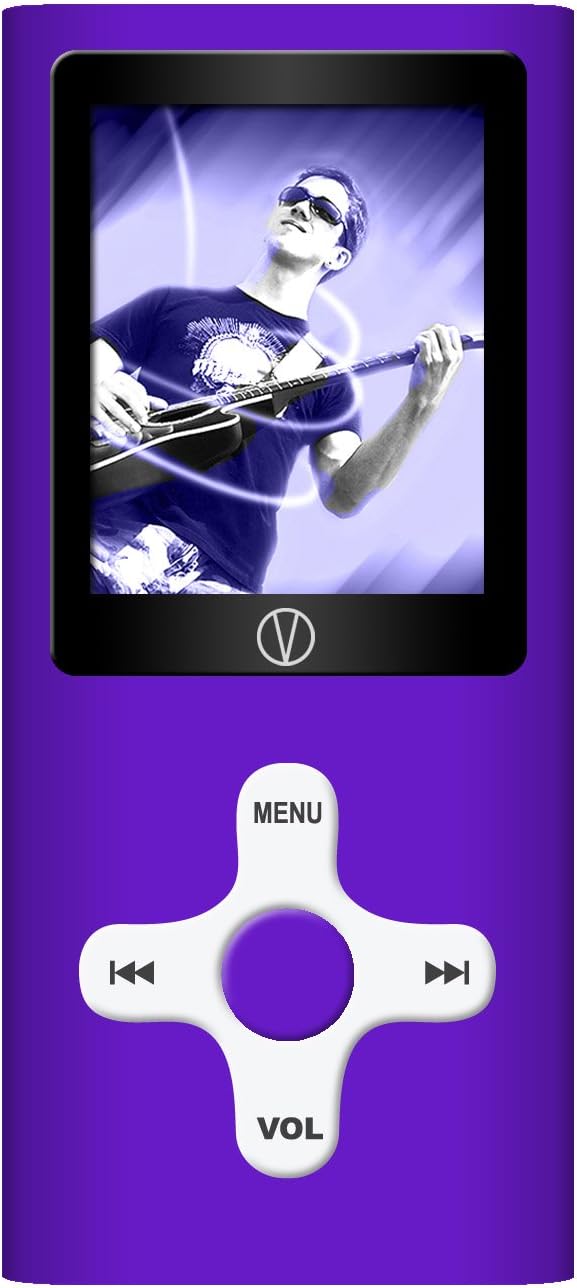
This manual provides detailed instructions for setting up, operating, and maintaining your VL-G4 device to ensure optimal performance and user experience.
2. സജ്ജീകരണം
2.1 പാക്കേജ് ഉള്ളടക്കം
ആരംഭിക്കുന്നതിന് മുമ്പ്, എല്ലാ ഇനങ്ങളും പാക്കേജിൽ ഉണ്ടെന്ന് ദയവായി ഉറപ്പാക്കുക:
- Visual Land VL-G4 Media Player
- ഇയർഫോണുകൾ
- എസി അഡാപ്റ്റർ
- USB കേബിൾ
- ഉപയോക്തൃ മാനുവൽ (ഈ പ്രമാണം)
2.2 ഉപകരണം ചാർജ് ചെയ്യുന്നു
The VL-G4 is equipped with an internal lithium-ion battery. Before initial use, fully charge the device.
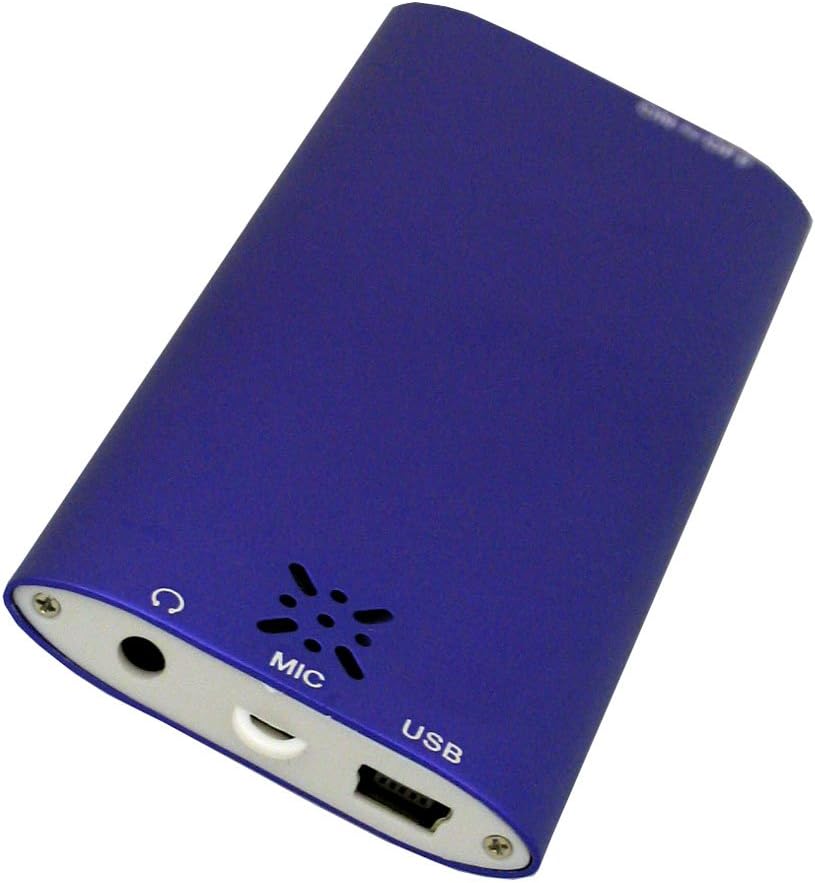
- Connect the small end of the USB cable to the USB port on the bottom of the VL-G4.
- Connect the large end of the USB cable to the AC adapter.
- ഒരു സാധാരണ വാൾ ഔട്ട്ലെറ്റിലേക്ക് എസി അഡാപ്റ്റർ പ്ലഗ് ചെയ്യുക.
- The device will indicate charging status on its screen. A full charge typically takes approximately 2-3 hours.
- Alternatively, you can connect the USB cable directly to a powered USB port on your computer for charging.
2.3 മീഡിയ ലോഡ് ചെയ്യുന്നു Files
To transfer music, videos, or images to your VL-G4:
- ഉപകരണം ഓണാണെന്ന് ഉറപ്പാക്കുക.
- Connect the VL-G4 to your computer using the provided USB cable.
- Your computer should recognize the VL-G4 as a removable disk drive.
- Open the VL-G4 drive on your computer. You can create folders (e.g., 'Music', 'Videos', 'Photos') to organize your files.
- Drag and drop your desired MP3, WMA, WAV, AMV, or JPG files into the appropriate folders on the VL-G4 drive.
- ഒരിക്കൽ file transfer is complete, safely eject the VL-G4 drive from your computer before disconnecting the USB cable.
Note: For video playback, AMV format is supported. You may need to convert other video formats using the included software (if applicable) or third-party conversion tools.
3. പ്രവർത്തന നിർദ്ദേശങ്ങൾ
3.1 ഉപകരണ ലേഔട്ടും നിയന്ത്രണങ്ങളും
Familiarize yourself with the buttons and ports on your VL-G4:
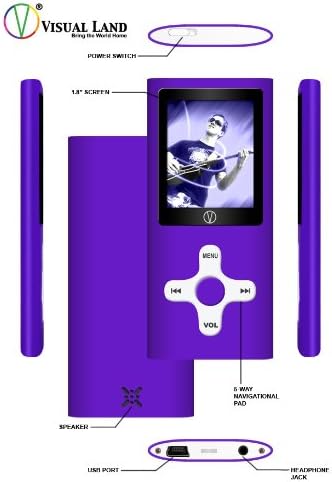
- വൈദ്യുതി സ്വിച്ച്: Located on the top edge, slides to turn the device On or Off.
- 1.8 ഇഞ്ച് സ്ക്രീൻ: Displays menus, media content, and device status.
- 5-Way Navigational Pad: Central control for menu navigation and media playback.
- MENU button (Top): പ്രധാന മെനുവിലേക്ക് പ്രവേശിക്കുന്നു അല്ലെങ്കിൽ മുമ്പത്തെ സ്ക്രീനിലേക്ക് മടങ്ങുന്നു.
- ഇടത്/വലത് ബട്ടണുകൾ: Navigate through menus, skip tracks, fast forward/rewind.
- Play/Pause/Confirm button (Center): Starts/pauses playback, confirms selections.
- VOL button (Bottom): Enters volume adjustment mode. Use Left/Right to change volume.
- സ്പീക്കർ: Built-in speaker for audio output without earphones.
- USB പോർട്ട്: ചാർജ് ചെയ്യുന്നതിനും കമ്പ്യൂട്ടറിലേക്ക് കണക്റ്റുചെയ്യുന്നതിനും.
- ഹെഡ്ഫോൺ ജാക്ക്: 3.5mm port for connecting earphones.
- MIC: Built-in microphone for voice recording.
3.2 പവർ ഓൺ/ഓഫ്
To power on the device, slide the Power Switch to the 'On' position. To power off, slide it to the 'Off' position.
3.3 അടിസ്ഥാന നാവിഗേഷൻ
From the main menu, use the Left/Right buttons on the navigational pad to scroll through options. Press the central Play/Pause/Confirm button to select an option. Press the MENU button to go back to the previous screen or the main menu.
3.4 Audio Playback (MP3/WMA/WAV)
- From the main menu, select 'Music' or 'Audio'.
- Navigate through your folders and files using the Left/Right buttons.
- Press the central Play/Pause/Confirm button to start playback of a selected track.
- പ്ലേബാക്ക് സമയത്ത്:
- Press Play/Pause/Confirm to pause/resume.
- Press Left/Right briefly to skip to the previous/next track.
- Press and hold Left/Right to fast forward/rewind within a track.
- Press the VOL button, then use Left/Right to adjust the volume. Press VOL again to exit volume mode.
- The device offers EQ presets (Natural, Rock, Pop, Classical, Soft, Jazz, DBB) which can typically be accessed through the music playback options menu.
3.5 Video Playback (AMV)
- പ്രധാന മെനുവിൽ നിന്ന്, 'വീഡിയോ' തിരഞ്ഞെടുക്കുക.
- Navigate to your desired AMV video file.
- Press the central Play/Pause/Confirm button to begin playback.
- Playback controls are similar to audio playback.
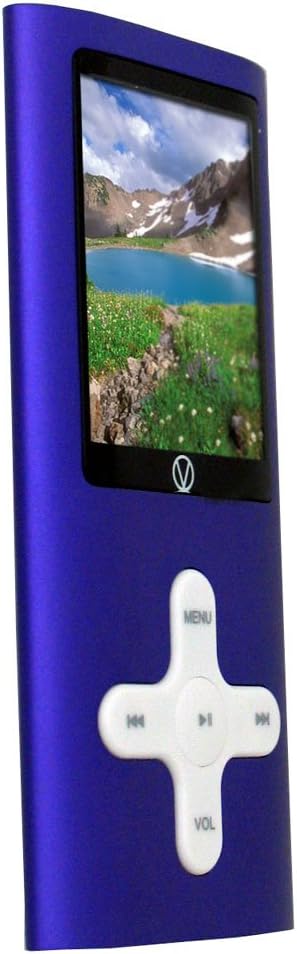
3.6 ചിത്രം Viewing (JPG)
- From the main menu, select 'Photos' or 'Images'.
- Navigate to your JPG image files.
- Press the central Play/Pause/Confirm button to view ഒരു ചിത്രം.
- Use Left/Right buttons to cycle through images.
- Some models may offer a slideshow function, typically accessible via the options menu during image viewing.
3.7 എഫ്എം റേഡിയോ
- Connect earphones to the headphone jack; they act as the antenna for the FM radio.
- പ്രധാന മെനുവിൽ നിന്ന്, 'FM റേഡിയോ' തിരഞ്ഞെടുക്കുക.
- Use the Left/Right buttons to manually tune frequencies.
- Look for an 'Autoscan' or 'Search' option within the FM radio menu to automatically find and save available stations.
3.8 വോയ്സ് റെക്കോർഡർ
- From the main menu, select 'Recorder' or 'Voice'.
- Select 'Start Recording' or a similar option. The built-in microphone (MIC) will capture audio.
- Press Play/Pause/Confirm to stop recording.
- Recordings are typically saved in a dedicated folder and can be played back from the 'Audio' or 'Recorder' menu.
3.9 Using as a USB Drive
When connected to a computer, the VL-G4 functions as a standard USB mass storage device. You can drag and drop any file type onto it, making it useful for carrying documents or other data in addition to media files.
4. പരിപാലനം
4.1 വൃത്തിയാക്കൽ
To clean your VL-G4, use a soft, dry, lint-free cloth. Do not use liquid cleaners, aerosols, or solvents, as these can damage the device's finish or internal components.
4.2 ബാറ്ററി കെയർ
- ബാറ്ററി ഇടയ്ക്കിടെ പൂർണ്ണമായും ഡിസ്ചാർജ് ചെയ്യുന്നത് ഒഴിവാക്കുക.
- Charge the device regularly, even if not in use, to maintain battery health.
- Do not expose the device to extreme temperatures, as this can degrade battery performance and lifespan.
4.3 സംഭരണം
When storing the device for extended periods, ensure it is partially charged (around 50%) and kept in a cool, dry place away from direct sunlight and extreme temperatures.
5. പ്രശ്നപരിഹാരം
If you encounter issues with your VL-G4, refer to the following common problems and solutions:
| പ്രശ്നം | സാധ്യമായ പരിഹാരം |
|---|---|
| ഉപകരണം പവർ ഓണാക്കുന്നില്ല. | Ensure the battery is charged. Connect to the AC adapter and try again. Check the power switch position. |
| No sound from earphones/speaker. | Check volume level. Ensure earphones are properly plugged in. Test with different earphones. Verify media file കേടായിട്ടില്ല. |
| കമ്പ്യൂട്ടർ ഉപകരണം തിരിച്ചറിയുന്നില്ല. | Ensure the device is powered on. Try a different USB port or cable. Restart your computer. |
| Files are not playing. | പരിശോധിച്ചുറപ്പിക്കുക file format is supported (MP3/WMA/WAV for audio, AMV for video, JPG for images). Ensure fileകൾ കേടായിട്ടില്ല. |
| ചെറിയ ബാറ്ററി ലൈഫ്. | Ensure the device is fully charged. Reduce screen brightness. Close unused applications. Battery performance may degrade over time with usage. |
6 സ്പെസിഫിക്കേഷനുകൾ
| ഫീച്ചർ | വിശദാംശങ്ങൾ |
|---|---|
| മോഡൽ നമ്പർ | VL-G4 |
| മെമ്മറി സ്റ്റോറേജ് കപ്പാസിറ്റി | 4 ജിബി |
| സ്ക്രീൻ വലിപ്പം | 1.8 Inches (Note: Product description states 1.8-inch, specifications list 2.4 inches. Using 1.8-inch as per detailed description.) |
| പിന്തുണയ്ക്കുന്ന ഓഡിയോ ഫോർമാറ്റുകൾ | MP3, WMA, WAV |
| പിന്തുണയ്ക്കുന്ന വീഡിയോ ഫോർമാറ്റുകൾ | എ.എം.വി |
| പിന്തുണയ്ക്കുന്ന ഇമേജ് ഫോർമാറ്റുകൾ | ജെ.പി.ജി |
| പ്രത്യേക സവിശേഷതകൾ | FM Radio, Video Playback, Voice Recorder, Built-in Speaker |
| കണക്റ്റിവിറ്റി ടെക്നോളജി | USB |
| Battery Life (Audio) | 6 മണിക്കൂർ വരെ |
| ഉൽപ്പന്ന അളവുകൾ | 1.6 x 0.34 x 3.6 ഇഞ്ച് |
| ഇനത്തിൻ്റെ ഭാരം | 1.28 ഔൺസ് |
7. വാറൻ്റി വിവരങ്ങൾ
The Visual Land VL-G4 Portable Media Player comes with a one-year limited warranty from the date of purchase. This warranty covers manufacturing defects under normal use. It does not cover damage caused by misuse, accidents, unauthorized modifications, or normal wear and tear. Please retain your proof of purchase for warranty claims.
8. ഉപഭോക്തൃ പിന്തുണ
For further assistance, technical support, or warranty inquiries, please refer to the contact information provided on the Visual Land official website or the original product packaging. When contacting support, please have your product model number (VL-G4) and proof of purchase readily available.


