ആമുഖം
This manual provides essential information for the setup, operation, maintenance, and troubleshooting of your HP Compaq LA2206x 21.5-inch LED LCD Monitor. The monitor features a super-thin, soft black design with a 21.5-inch diagonal widescreen display, offering Full HD images. Its WLED backlight technology contributes to improved recyclability, and advanced adjustability enhances user productivity.
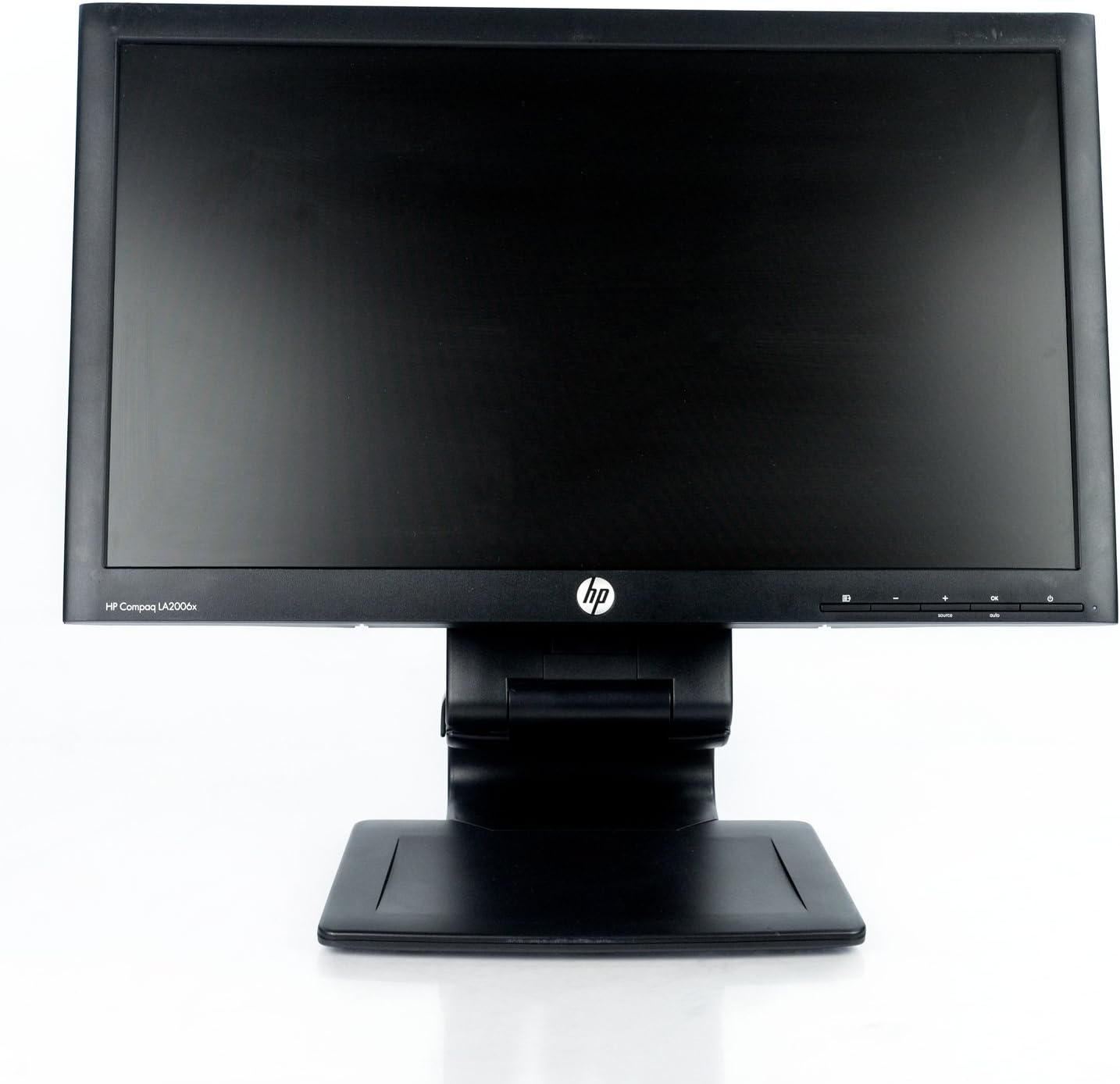
ചിത്രം 1: ഫ്രണ്ട് view of the HP Compaq LA2206x monitor, showcasing its slim bezel and adjustable stand.
സജ്ജമാക്കുക
1. മോണിറ്റർ അൺപാക്ക് ചെയ്യുന്നു
Carefully remove all components from the packaging. Ensure all parts are present before proceeding with assembly. Retain packaging for future transport or service.
2. സ്റ്റാൻഡ് അസംബ്ലിംഗ്
- പോറലുകൾ ഉണ്ടാകാതിരിക്കാൻ മോണിറ്റർ മൃദുവായതും വൃത്തിയുള്ളതുമായ ഒരു പ്രതലത്തിൽ മുഖം താഴേക്ക് വയ്ക്കുക.
- Align the stand base with the stand column. Secure the base to the column using the provided screw, if applicable.
- Attach the assembled stand to the back of the monitor. Ensure it clicks securely into place or is fastened with screws as per the included quick setup guide.
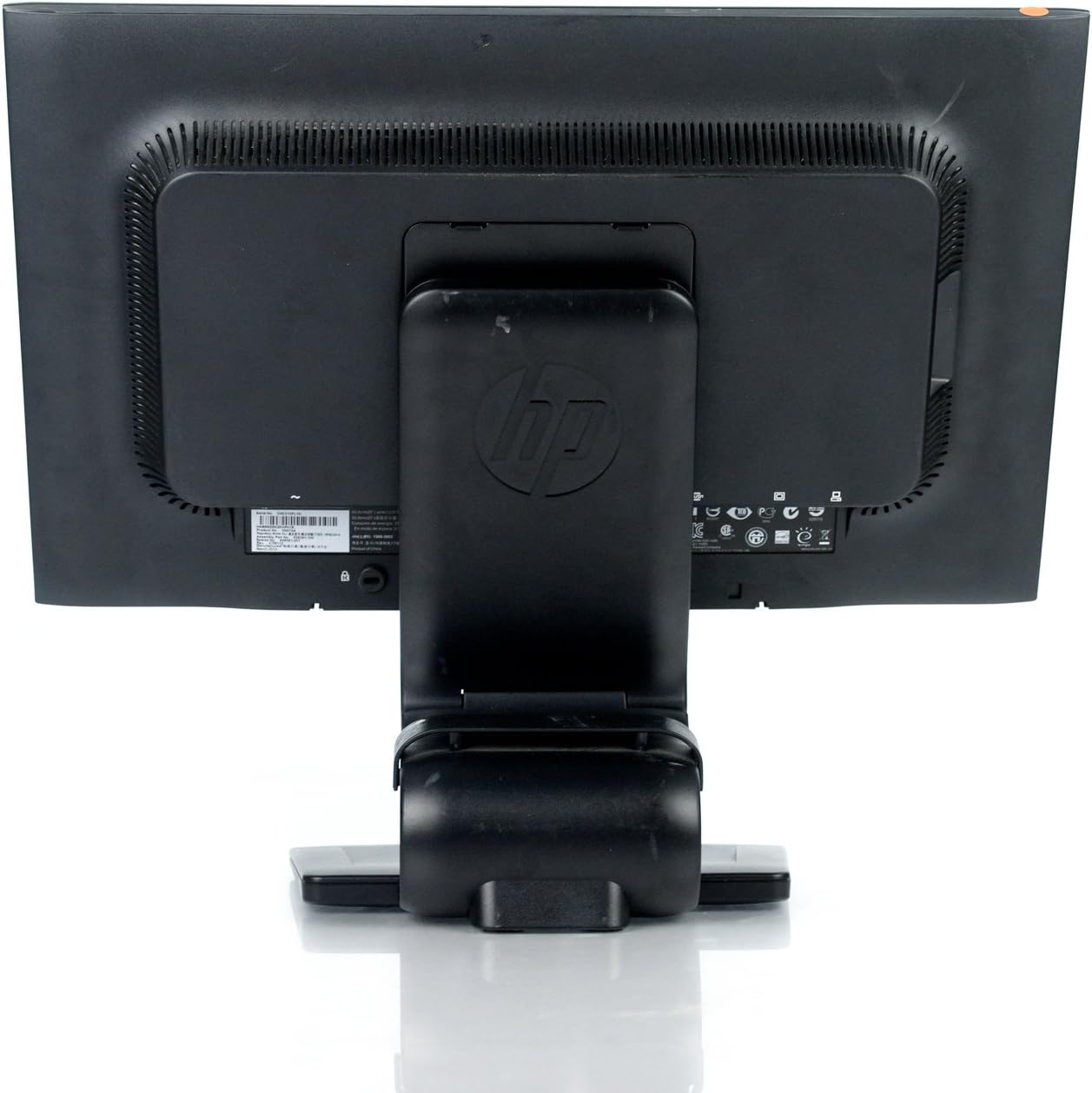
ചിത്രം 2: പിൻഭാഗം view of the monitor showing the attached stand, ready for cable connections.
3. കേബിളുകൾ ബന്ധിപ്പിക്കുന്നു
Connect the necessary cables to the monitor and your computer. Ensure all connections are firm.
- പവർ കേബിൾ: Connect one end to the monitor's power input and the other to a grounded electrical outlet.
- വീഡിയോ കേബിൾ: Connect a DVI, DisplayPort, or VGA cable from your computer's video output to the corresponding input on the monitor. The monitor supports 1920x1080 resolution.
- USB Cable (Optional): Connect a USB upstream cable from your computer to the monitor's USB upstream port to enable the monitor's integrated USB 2.0 ports.

ചിത്രം 3: വിശദമായി view of the monitor's rear panel, highlighting the power input, DisplayPort, DVI, VGA, and USB ports.
മോണിറ്റർ പ്രവർത്തിക്കുന്നു
1. പവർ ഓൺ/ഓഫ്
Press the power button located on the front right side of the monitor to turn it on or off. The power indicator light will illuminate when the monitor is active.
2. ഓൺ-സ്ക്രീൻ ഡിസ്പ്ലേ (OSD) മെനു നാവിഗേഷൻ
The monitor features an On-Screen Display (OSD) menu for adjusting various settings. Use the control buttons located on the front bezel to navigate and select options.

ചിത്രം 4: Close-up of the monitor's control buttons, including power, menu navigation, and input selection.
- മെനു ബട്ടൺ: OSD മെനു തുറക്കുന്നു.
- '+' / '-' ബട്ടണുകൾ: മെനു ഓപ്ഷനുകളിലൂടെ നാവിഗേറ്റ് ചെയ്യുക അല്ലെങ്കിൽ മൂല്യങ്ങൾ ക്രമീകരിക്കുക.
- ശരി ബട്ടൺ: ഒരു തിരഞ്ഞെടുപ്പ് സ്ഥിരീകരിക്കുന്നു അല്ലെങ്കിൽ ഒരു ഉപമെനുവിൽ പ്രവേശിക്കുന്നു.
- ഉറവിട ബട്ടൺ: Quickly switches between available video inputs (DVI, DisplayPort, VGA).
- യാന്ത്രിക ബട്ടൺ: Automatically adjusts the screen image for optimal display, particularly useful for analog (VGA) connections.
3. മോണിറ്റർ ക്രമീകരണങ്ങൾ ക്രമീകരിക്കുന്നു
Through the OSD menu, you can adjust settings such as:
- തെളിച്ചവും ദൃശ്യതീവ്രതയും: പ്രകാശ, ഇരുണ്ട പ്രദേശങ്ങൾ തമ്മിലുള്ള മൊത്തത്തിലുള്ള പ്രകാശവും വ്യത്യാസവും ക്രമീകരിക്കുക.
- വർണ്ണ നിയന്ത്രണം: Select color temperature or customize RGB values.
- ചിത്ര നിയന്ത്രണം: Fine-tune sharpness, clock, and phase for optimal image clarity.
- ഇൻപുട്ട് നിയന്ത്രണം: Manually select the video input source.
- ഊർജ്ജനിയന്ത്രണം: Configure sleep timers and power-saving modes.
മെയിൻ്റനൻസ്
1. മോണിറ്റർ വൃത്തിയാക്കൽ
- Always power off the monitor and unplug it from the electrical outlet before cleaning.
- നനവില്ലാത്തതും ലിനില്ലാത്തതുമായ തുണി ചെറുതായി ഉപയോഗിക്കുകampവെള്ളം അല്ലെങ്കിൽ ഉരച്ചിലുകളില്ലാത്ത സ്ക്രീൻ ക്ലീനർ ഉപയോഗിച്ച് നനയ്ക്കുക.
- Do not spray cleaners directly onto the screen or casing.
- Avoid using benzene, thinners, or any volatile solvents, as these may damage the monitor's surface.
2. സുരക്ഷാ മുൻകരുതലുകൾ
- മോണിറ്ററിലെ വെന്റിലേഷൻ തുറസ്സുകൾ തടയരുത്.
- നേരിട്ടുള്ള സൂര്യപ്രകാശം, താപ സ്രോതസ്സുകൾ, അമിതമായ ഈർപ്പം എന്നിവയിൽ നിന്ന് മോണിറ്റർ അകറ്റി നിർത്തുക.
- മോണിറ്ററിലോ അതിന്റെ കേബിളുകളിലോ ഭാരമുള്ള വസ്തുക്കൾ വയ്ക്കുന്നത് ഒഴിവാക്കുക.
- If the monitor is damaged or malfunctions, do not attempt to repair it yourself. Contact qualified service personnel.
ട്രബിൾഷൂട്ടിംഗ്
This section addresses common issues you might encounter with your HP Compaq LA2206x monitor.
പവർ ഇല്ല
- മോണിറ്ററിലേക്കും പ്രവർത്തിക്കുന്ന ഒരു ഇലക്ട്രിക്കൽ ഔട്ട്ലെറ്റിലേക്കും പവർ കേബിൾ സുരക്ഷിതമായി ബന്ധിപ്പിച്ചിട്ടുണ്ടെന്ന് ഉറപ്പാക്കുക.
- മറ്റൊരു ഉപകരണം പ്ലഗ് ഇൻ ചെയ്ത് പവർ ഔട്ട്ലെറ്റ് പ്രവർത്തനക്ഷമമാണെന്ന് ഉറപ്പാക്കുക.
- Check if the monitor's power button is pressed.
സിഗ്നൽ ഇല്ല / ശൂന്യമായ സ്ക്രീൻ
- Confirm that the video cable is securely connected to both the monitor and the computer's video output port.
- Ensure the correct input source is selected on the monitor using the 'Source' button.
- നിങ്ങളുടെ കമ്പ്യൂട്ടർ പുനരാരംഭിക്കുക.
- സാധ്യമെങ്കിൽ മറ്റൊരു കമ്പ്യൂട്ടർ ഉപയോഗിച്ചോ അല്ലെങ്കിൽ മറ്റൊരു വീഡിയോ കേബിൾ ഉപയോഗിച്ചോ മോണിറ്റർ പരിശോധിക്കുക.
Distorted or Unclear Image
- For analog (VGA) connections, press the 'Auto' button on the monitor to automatically adjust the image.
- Adjust the brightness, contrast, sharpness, clock, and phase settings through the OSD menu.
- Ensure your computer's display resolution is set to the monitor's native resolution of 1920x1080.
സ്പെസിഫിക്കേഷനുകൾ
Below are the key technical specifications for the HP Compaq LA2206x monitor (Model: XN376AA):
| ഫീച്ചർ | സ്പെസിഫിക്കേഷൻ |
|---|---|
| സ്ക്രീൻ വലിപ്പം | 21.5 ഇഞ്ച് |
| പരമാവധി സ്ക്രീൻ റെസല്യൂഷൻ | 1920 x 1080 (FHD 1080p) |
| വീക്ഷണാനുപാതം | 16:9 |
| പ്രതികരണ സമയം | 5 എം.എസ് |
| ഡിസ്പ്ലേ ടെക്നോളജി | LED-LCD |
| കണക്റ്റിവിറ്റി | DisplayPort, DVI, VGA, 2x USB 2.0 Ports |
| നിറം | കറുപ്പ് |
| ഇനത്തിൻ്റെ ഭാരം | 13.45 പൗണ്ട് |
| ഉൽപ്പന്ന അളവുകൾ (LxWxH) | 8.95 x 20.39 x 13.12 ഇഞ്ച് |
| മോഡൽ നമ്പർ | XN376AA |
വാറൻ്റി വിവരങ്ങൾ
This HP Compaq LA2206x monitor is covered by a standard manufacturer's warranty. Please refer to the warranty card included with your product or visit the official HP support website for detailed terms and conditions, including warranty duration and service procedures. Keep your proof of purchase for warranty claims.
പിന്തുണ
For technical assistance, driver downloads, or further information regarding your HP Compaq LA2206x monitor, please visit the official HP support website. You may need your monitor's serial number for support inquiries.

ചിത്രം 5: Location of the serial number label on the back of the monitor. The serial number for this unit is CNC210PLYN.
When contacting support, please have your model number (XN376AA) and serial number ready to expedite service.


