ആമുഖം
നിങ്ങളുടെ ലോജിടെക് യുഎസ്ബി കീബോർഡിന്റെ സജ്ജീകരണം, പ്രവർത്തനം, പരിപാലനം എന്നിവയ്ക്കുള്ള അവശ്യ വിവരങ്ങൾ ഈ മാനുവൽ നൽകുന്നു. കാര്യക്ഷമതയ്ക്കും ഈടുതലിനും വേണ്ടി രൂപകൽപ്പന ചെയ്തിരിക്കുന്ന ഈ കീബോർഡ് വിവിധ കമ്പ്യൂട്ടിംഗ് പരിതസ്ഥിതികൾക്ക് സുഖകരവും വിശ്വസനീയവുമായ ടൈപ്പിംഗ് അനുഭവം പ്രദാനം ചെയ്യുന്നു.

ചിത്രം: മുകളിൽ നിന്ന് താഴേക്ക് view ബിസിനസ്സിനായുള്ള ലോജിടെക് യുഎസ്ബി കീബോർഡിന്റെ, ഷോക്asing അതിന്റെ പൂർണ്ണ ലേഔട്ട്.
സജ്ജമാക്കുക
ലളിതമായ പ്ലഗ്-ആൻഡ്-പ്ലേ പ്രവർത്തനത്തിനായി ലോജിടെക് യുഎസ്ബി കീബോർഡ് ഫോർ ബിസിനസ് രൂപകൽപ്പന ചെയ്തിരിക്കുന്നു. അനുയോജ്യമായ സിസ്റ്റങ്ങളിലെ അടിസ്ഥാന പ്രവർത്തനത്തിന് സാധാരണയായി അധിക സോഫ്റ്റ്വെയറോ ഡ്രൈവറുകളോ ആവശ്യമില്ല.
കീബോർഡ് ബന്ധിപ്പിക്കുന്നു
- നിങ്ങളുടെ കമ്പ്യൂട്ടറിൽ ലഭ്യമായ USB പോർട്ട് കണ്ടെത്തുക.
- കീബോർഡിന്റെ USB കണക്റ്റർ USB പോർട്ടിലേക്ക് ദൃഢമായി തിരുകുക.
- നിങ്ങളുടെ ഓപ്പറേറ്റിംഗ് സിസ്റ്റം പുതിയ ഹാർഡ്വെയർ തിരിച്ചറിയുന്നത് വരെ കാത്തിരിക്കുക. ഈ പ്രക്രിയ സാധാരണയായി യാന്ത്രികമാണ്, കുറച്ച് നിമിഷങ്ങൾ മാത്രമേ എടുക്കൂ.
- കീബോർഡ് ഇപ്പോൾ ഉപയോഗത്തിന് തയ്യാറാണ്.

ചിത്രം: ലോജിടെക് K120 കീബോർഡ്, അതിന്റെ പ്ലഗ്-ആൻഡ്-പ്ലേ യുഎസ്ബി കണക്റ്റിവിറ്റി എടുത്തുകാണിക്കുന്നു.
പ്രവർത്തന നിർദ്ദേശങ്ങൾ
ഈ കീബോർഡിൽ ഒരു സ്റ്റാൻഡേർഡ് 104-കീ ലേഔട്ട് ഉണ്ട്, അതിൽ ഒരു പൂർണ്ണ വലുപ്പത്തിലുള്ള എഫ്-കീ വരിയും ഒരു സമർപ്പിത നമ്പർ പാഡും ഉൾപ്പെടുന്നു, ഇത് ബിസിനസ്സിനും പൊതുവായ ഉപയോഗത്തിനും സമഗ്രമായ പ്രവർത്തനം നൽകുന്നു.
പ്രധാന സവിശേഷതകൾ
- ലോ-പ്രോfile കീകൾ: ശാന്തവും സുഖകരവുമായ ടൈപ്പിംഗ് അനുഭവത്തിനായി രൂപകൽപ്പന ചെയ്തിരിക്കുന്നു.
- പൂർണ്ണ വലുപ്പത്തിലുള്ള ലേഔട്ട്: കാര്യക്ഷമമായ ഡാറ്റ എൻട്രിക്കായി ഒരു പൂർണ്ണമായ കീ സെറ്റ്, എഫ്-കീകൾ, ഒരു സംഖ്യാ കീപാഡ് എന്നിവ ഉൾപ്പെടുന്നു.
- ധീരവും തിളക്കമുള്ളതുമായ കഥാപാത്രങ്ങൾ: വായിക്കാൻ എളുപ്പവും ധരിക്കാൻ പ്രതിരോധശേഷിയുള്ളതുമായ രീതിയിലാണ് പ്രധാന ഇതിഹാസങ്ങൾ രൂപകൽപ്പന ചെയ്തിരിക്കുന്നത്.
- ക്രമീകരിക്കാവുന്ന ടിൽറ്റ് കാലുകൾ: നിങ്ങളുടെ ടൈപ്പിംഗ് മുൻഗണനയ്ക്ക് അനുയോജ്യമായ വ്യക്തിഗതമാക്കിയ എർഗണോമിക് ക്രമീകരണം അനുവദിക്കുന്നു.

ചിത്രം: പരിചിതവും സുഖകരവുമായ ടൈപ്പിംഗ് അനുഭവം പ്രകടമാക്കുന്ന, കീബോർഡിൽ സ്ഥാപിച്ചിരിക്കുന്ന ഒരു കൈ.

ചിത്രം: സ്പിൽ-പ്രൂഫ് ഡിസൈൻ, ഡീപ്പ്-പ്രോ തുടങ്ങിയ പ്രധാന സവിശേഷതകൾ ചിത്രീകരിക്കുന്ന വിശദമായ ഡയഗ്രംfile കീകൾ, പൂർണ്ണ വലുപ്പത്തിലുള്ള ലേഔട്ട്, ക്രമീകരിക്കാവുന്ന ഉയരം, വിൻഡോസ് ലേഔട്ട്, സംയോജിത നമ്പർ പാഡ്.
ഡ്യൂറബിലിറ്റിയും ഡിസൈനും
ബിസിനസ്സിനായുള്ള ലോജിടെക് യുഎസ്ബി കീബോർഡ് ദൈനംദിന ഉപയോഗത്തെയും സാധാരണ ഓഫീസ് അപകടങ്ങളെയും നേരിടാൻ നിർമ്മിച്ചതാണ്, ഇത് ദീർഘകാല പ്രകടനം ഉറപ്പാക്കുന്നു.
സ്പിൽ-റെസിസ്റ്റന്റ് ഡിസൈൻ
ഈ കീബോർഡിന് ചോർച്ചയെ പ്രതിരോധിക്കുന്ന രൂപകൽപ്പനയുണ്ട്, അതായത് ആകസ്മികമായി ഒഴുകുന്ന ദ്രാവകം ആന്തരിക ഘടകങ്ങൾക്ക് കേടുപാടുകൾ വരുത്താതെ പുറത്തേക്ക് ഒഴുകും. പരിമിതമായ സാഹചര്യങ്ങളിൽ (പരമാവധി 60 മില്ലി ലിക്വിഡ് ചോർച്ച) ഈ സവിശേഷത പരീക്ഷിക്കപ്പെടുന്നു. കീബോർഡ് ദ്രാവകത്തിൽ മുക്കാതിരിക്കേണ്ടത് പ്രധാനമാണ്.

ചിത്രം: ജലത്തുള്ളികളുള്ള കീബോർഡ് പ്രതലം, അതിന്റെ ചോർച്ച-പ്രതിരോധശേഷി പ്രകടമാക്കുന്നു.
ക്രമീകരിക്കാവുന്ന ടൈപ്പിംഗ് ആംഗിൾ
കൂടുതൽ സുഖകരവും എർഗണോമിക് ടൈപ്പിംഗ് സ്ഥാനവും നൽകുന്നതിനായി കീബോർഡിന്റെ ആംഗിൾ ഇഷ്ടാനുസൃതമാക്കാൻ സംയോജിത ക്രമീകരിക്കാവുന്ന ടിൽറ്റ് കാലുകൾ നിങ്ങളെ അനുവദിക്കുന്നു, ദീർഘനേരം ഉപയോഗിക്കുമ്പോൾ ആയാസം കുറയ്ക്കുന്നു.
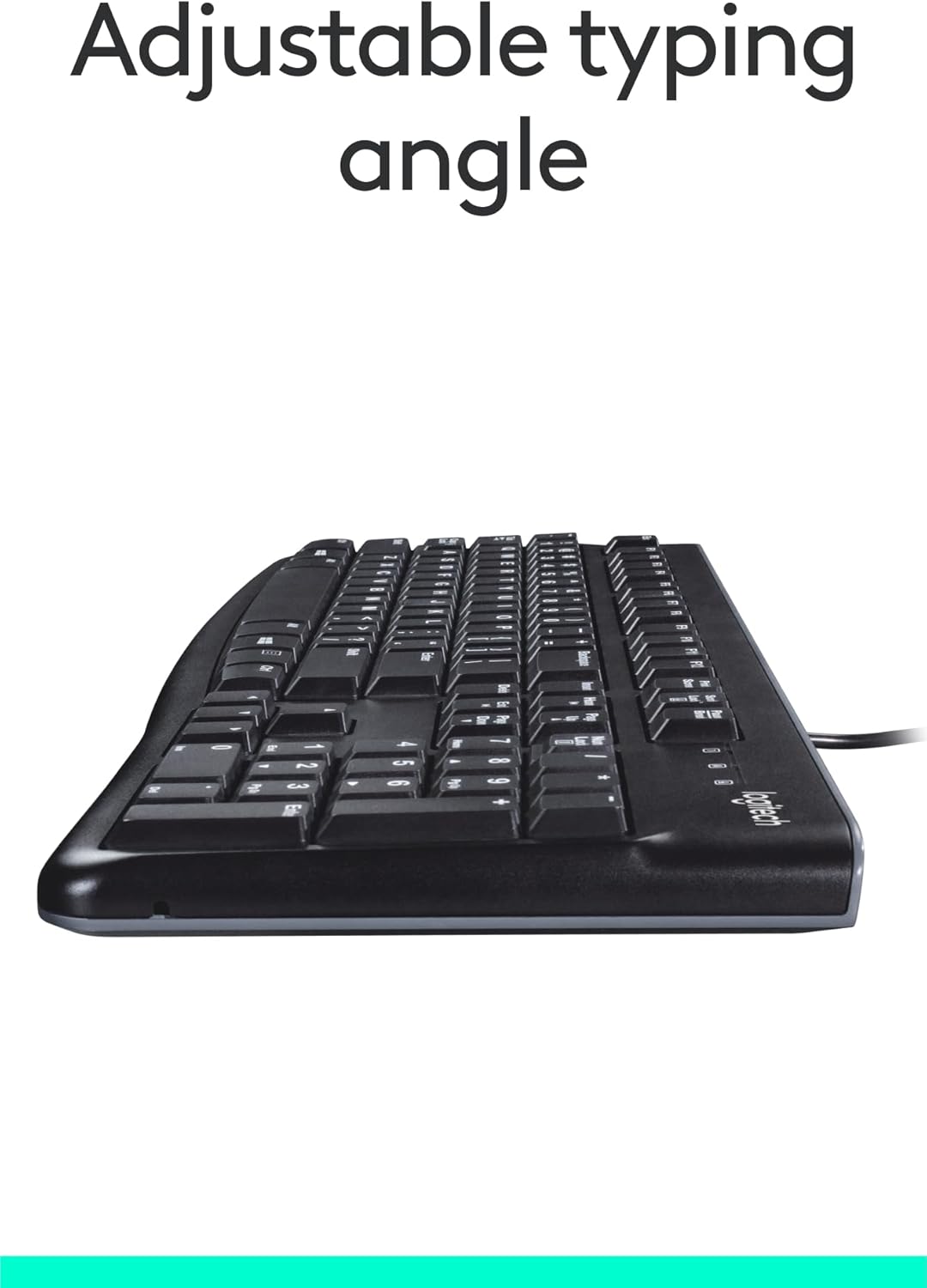
ചിത്രം: വശം view ഉയർത്തിയ ടൈപ്പിംഗ് ആംഗിൾ കാണിക്കുന്ന, ക്രമീകരിക്കാവുന്ന ടിൽറ്റ് കാലുകൾ നീട്ടിയിരിക്കുന്ന കീബോർഡിന്റെ.
മെയിൻ്റനൻസ്
ശരിയായ പരിചരണവും വൃത്തിയാക്കലും നിങ്ങളുടെ കീബോർഡിന്റെ പ്രകടനവും രൂപവും നിലനിർത്താൻ സഹായിക്കും.
ക്ലീനിംഗ് നിർദ്ദേശങ്ങൾ
- വൃത്തിയാക്കുന്നതിനുമുമ്പ് നിങ്ങളുടെ കമ്പ്യൂട്ടറിൽ നിന്ന് കീബോർഡ് വിച്ഛേദിക്കുക.
- മൃദുവായ, ലിൻ്റ് രഹിത തുണി ഉപയോഗിക്കുകampകീബോർഡിന്റെ ഉപരിതലം തുടയ്ക്കാൻ വെള്ളമോ നേരിയ ക്ലീനിംഗ് ലായനിയോ ഉപയോഗിച്ച് നനയ്ക്കുക.
- കഠിനമായ രാസവസ്തുക്കൾ, അബ്രാസീവ് ക്ലീനറുകൾ അല്ലെങ്കിൽ ലായകങ്ങൾ എന്നിവ ഉപയോഗിക്കുന്നത് ഒഴിവാക്കുക, കാരണം ഇവ കീബോർഡിന്റെ ഫിനിഷിനും കീ ലെജന്റുകൾക്കും കേടുവരുത്തും.
- കീകൾക്കിടയിൽ വൃത്തിയാക്കാൻ, പൊടിയും അവശിഷ്ടങ്ങളും നീക്കം ചെയ്യാൻ കംപ്രസ് ചെയ്ത വായു ഉപയോഗിക്കുക.
- നിങ്ങളുടെ കമ്പ്യൂട്ടറുമായി വീണ്ടും ബന്ധിപ്പിക്കുന്നതിന് മുമ്പ് കീബോർഡ് പൂർണ്ണമായും ഉണങ്ങിയെന്ന് ഉറപ്പാക്കുക.
ട്രബിൾഷൂട്ടിംഗ്
നിങ്ങളുടെ ബിസിനസ്സിനായുള്ള ലോജിടെക് യുഎസ്ബി കീബോർഡിൽ പ്രശ്നങ്ങൾ നേരിടുകയാണെങ്കിൽ, ഇനിപ്പറയുന്ന ട്രബിൾഷൂട്ടിംഗ് ഘട്ടങ്ങൾ പരീക്ഷിക്കുക:
കീബോർഡ് പ്രതികരിക്കുന്നില്ല
- യുഎസ്ബി കണക്ഷൻ പരിശോധിക്കുക: നിങ്ങളുടെ കമ്പ്യൂട്ടറിലെ പ്രവർത്തിക്കുന്ന ഒരു USB പോർട്ടിലേക്ക് കീബോർഡിന്റെ USB കേബിൾ സുരക്ഷിതമായി പ്ലഗ് ചെയ്തിട്ടുണ്ടെന്ന് ഉറപ്പാക്കുക. മറ്റൊരു USB പോർട്ട് പരീക്ഷിക്കുക.
- കമ്പ്യൂട്ടർ പുനരാരംഭിക്കുക: ഒരു ലളിതമായ പുനരാരംഭം പലപ്പോഴും കണക്റ്റിവിറ്റി പ്രശ്നങ്ങൾ പരിഹരിക്കും.
- മറ്റൊരു കമ്പ്യൂട്ടറിൽ പരീക്ഷിക്കുക: സാധ്യമെങ്കിൽ, പ്രശ്നം കീബോർഡിലാണോ അതോ നിങ്ങളുടെ യഥാർത്ഥ കമ്പ്യൂട്ടറിന്റെ സജ്ജീകരണത്തിലാണോ എന്ന് നിർണ്ണയിക്കാൻ കീബോർഡ് മറ്റൊരു കമ്പ്യൂട്ടറുമായി ബന്ധിപ്പിക്കുക.
- ഉപകരണ മാനേജർ (വിൻഡോസ്) പരിശോധിക്കുക: ഡിവൈസ് മാനേജർ തുറന്ന് 'കീബോർഡുകൾ' കണ്ടെത്തി ഏതെങ്കിലും പിശക് സൂചകങ്ങൾക്കായി പരിശോധിക്കുക. നിങ്ങൾ കീബോർഡ് ഡ്രൈവർ അപ്ഡേറ്റ് ചെയ്യുകയോ വീണ്ടും ഇൻസ്റ്റാൾ ചെയ്യുകയോ ചെയ്യേണ്ടതുണ്ട് (സാധാരണയായി ഈ പ്ലഗ്-ആൻഡ്-പ്ലേ മോഡലിന് ആവശ്യമില്ലെങ്കിലും).
കീകൾ ശരിയായി പ്രവർത്തിക്കുന്നില്ല.
- ക്ലീൻ കീകൾ: പ്രവർത്തിക്കാത്ത കീകൾക്കടിയിൽ അവശിഷ്ടങ്ങൾ അടിഞ്ഞുകൂടുന്നില്ലെന്ന് ഉറപ്പാക്കുക. തടസ്സങ്ങൾ നീക്കാൻ കംപ്രസ് ചെയ്ത വായു ഉപയോഗിക്കുക.
- ചോർച്ച നാശം: കീബോർഡിൽ കാര്യമായ അളവിൽ ദ്രാവകം ചോർന്നിട്ടുണ്ടെങ്കിൽ, അത് പൂർണ്ണമായും ഉണങ്ങാൻ അനുവദിക്കുക. പ്രശ്നങ്ങൾ നിലനിൽക്കുകയാണെങ്കിൽ, ആന്തരിക കേടുപാടുകൾ സംഭവിച്ചിരിക്കാം.
സ്പെസിഫിക്കേഷനുകൾ
| ഫീച്ചർ | വിശദാംശങ്ങൾ |
|---|---|
| ബ്രാൻഡ് | ലോജിടെക് |
| മോഡൽ നമ്പർ | എഫ്ബിഎ_920-002582 |
| കണക്റ്റിവിറ്റി ടെക്നോളജി | യുഎസ്ബി, യുഎസ്ബി-എ |
| കീബോർഡ് വിവരണം | എർഗണോമിക് |
| കീകളുടെ എണ്ണം | 104 |
| മെറ്റീരിയൽ | പ്ലാസ്റ്റിക് |
| ഓപ്പറേറ്റിംഗ് സിസ്റ്റം അനുയോജ്യത | വിൻഡോസ് 10 (മറ്റ് സ്റ്റാൻഡേർഡ് ഓപ്പറേറ്റിംഗ് സിസ്റ്റങ്ങളുമായി പൊരുത്തപ്പെടുന്നു) |
| ഇനത്തിൻ്റെ ഭാരം | 1.52 പൗണ്ട് (ഏകദേശം 689 ഗ്രാം) |
| ഉൽപ്പന്ന അളവുകൾ (LxWxH) | 18.43 x 7.24 x 7.24 ഇഞ്ച് (ഏകദേശം 46.8 x 18.4 x 18.4 സെ.മീ) |

ചിത്രം: കീബോർഡിന്റെ വിശദമായ കീ അളവുകളും ഭാരവും ഉള്ള ദൃശ്യ പ്രാതിനിധ്യം.
പാക്കേജ് ഉള്ളടക്കം
ബിസിനസ്സിനായുള്ള ലോജിടെക് യുഎസ്ബി കീബോർഡിനായുള്ള റീട്ടെയിൽ പാക്കേജിൽ സാധാരണയായി ഇനിപ്പറയുന്നവ ഉൾപ്പെടുന്നു:
- ബിസിനസ്സിനായുള്ള ലോജിടെക് യുഎസ്ബി കീബോർഡ് (മോഡൽ: FBA_920-002582)

ചിത്രം: ബിസിനസ്സിനായുള്ള ലോജിടെക് യുഎസ്ബി കീബോർഡ്, ഉൽപ്പന്ന പാക്കേജിൽ ഉൾപ്പെടുത്തിയിരിക്കുന്ന പ്രാഥമിക ഇനമാണിതെന്ന് സൂചിപ്പിക്കുന്നു.
വാറൻ്റിയും പിന്തുണയും
ലോജിടെക് ഉൽപ്പന്നങ്ങൾ ഉയർന്ന നിലവാരമുള്ള നിലവാരത്തിലാണ് നിർമ്മിക്കുന്നത്, കൂടാതെ പരിമിതമായ ഹാർഡ്വെയർ വാറണ്ടിയും ഇവയ്ക്ക് നൽകുന്നു. നിർദ്ദിഷ്ട വാറന്റി നിബന്ധനകൾക്കും വ്യവസ്ഥകൾക്കും, വാങ്ങുന്ന സമയത്ത് നിങ്ങളുടെ ഉൽപ്പന്നത്തിനൊപ്പം നൽകിയിരിക്കുന്ന വാറന്റി വിവരങ്ങൾ പരിശോധിക്കുക അല്ലെങ്കിൽ ഔദ്യോഗിക ലോജിടെക് പിന്തുണ സന്ദർശിക്കുക. webസൈറ്റ്.
സാങ്കേതിക പിന്തുണയ്ക്കും, പതിവായി ചോദിക്കുന്ന ചോദ്യങ്ങൾക്കും, ഡ്രൈവർ ഡൗൺലോഡുകൾക്കും (ബാധകമെങ്കിൽ), ദയവായി ഔദ്യോഗിക ലോജിടെക് പിന്തുണ പേജ് സന്ദർശിക്കുക അല്ലെങ്കിൽ ആമസോണിലെ ലോജിടെക് സ്റ്റോർ.


