1. ആമുഖം
The D-Link DWR-116 Wireless N300 Multi-WAN Router is designed to provide flexible and reliable internet connectivity. It allows you to share a mobile broadband connection (via a 4G LTE or 3G USB adapter) or a traditional wired internet connection (via a DSL/Cable modem) across a high-speed wireless network. This router supports N300 wireless standards, offering speeds up to 300 Mbps, and includes advanced security features like WPA/WPA2 encryption and dual-active firewalls.
പ്രധാന സവിശേഷതകളിൽ ഇവ ഉൾപ്പെടുന്നു:
- Support for 4G LTE/EV-DO/CDMA/HSPA+/HSUPA/HSDPA/UMTS wireless networks via USB adapter.
- Input Type RJ-45 (Ethernet Cable) for ISPs such as MTNL, BSNL, Airtel, Hathway, ACT Fibernet.
- Portable mobile wireless capability.
- Auto WAN Failover for uninterrupted connection.
- Dual-active firewalls (SPI and NAT) and WPA/WPA2 wireless encryption for secure network sharing.
- Maximum physical rate up to 300Mbps in 802.11n 1x1 mode.
2. പാക്കേജ് ഉള്ളടക്കം
നിങ്ങളുടെ പാക്കേജിൽ ഇനിപ്പറയുന്ന ഇനങ്ങൾ അടങ്ങിയിട്ടുണ്ടെന്ന് ദയവായി പരിശോധിക്കുക:
- D-Link DWR-116 Wireless N300 Multi-WAN Router
- പവർ അഡാപ്റ്റർ
- ഇഥർനെറ്റ് കേബിൾ
- ദ്രുത ഇൻസ്റ്റലേഷൻ ഗൈഡ് (ഉൾപ്പെടുത്തിയിട്ടുണ്ടെങ്കിൽ)
If any items are missing or damaged, please contact your local D-Link reseller.
3. ഹാർഡ്വെയർ ഓവർview
ഫ്രണ്ട് പാനൽ
The front panel of the DWR-116 router features LED indicators that provide status information about the device's operation.

ചിത്രം 1: ഫ്രണ്ട് view of the D-Link DWR-116 router, showing the LED indicators for power, internet, Wi-Fi, and WAN/LAN status.
പിൻ പാനൽ
The rear panel contains all the necessary ports for connecting the router to your network and power source.
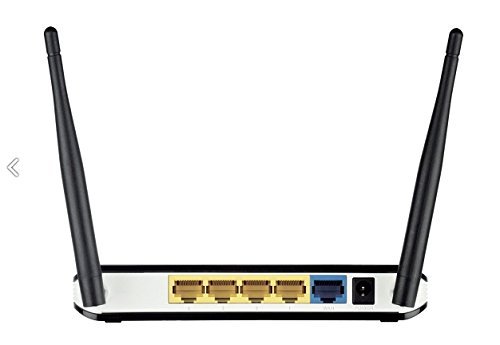
ചിത്രം 2: പിൻഭാഗം view of the D-Link DWR-116 router, displaying the WAN port (blue), LAN ports (yellow), USB port, and power input.
വശം View
ഒരു വശം view illustrates the overall design and antenna placement.

ചിത്രം 3: വശം view of the D-Link DWR-116 router, highlighting its compact design and two external antennas.
4. സജ്ജീകരണ നിർദ്ദേശങ്ങൾ
4.1 പ്രാരംഭ ഹാർഡ്വെയർ കണക്ഷൻ
- റൂട്ടറിന്റെ സ്ഥാനം നിർണ്ണയിക്കൽ: Place the DWR-116 in a central location to maximize wireless coverage. Avoid placing it near obstructions, metal objects, or devices that emit radio frequency noise (e.g., microwave ovens).
- പവർ ബന്ധിപ്പിക്കുക: Plug the provided power adapter into the router's power input port and then into a wall outlet. The Power LED on the front panel should illuminate.
- Connect to Internet Source:
- For Mobile Broadband (3G/4G LTE): Insert your compatible 3G/4G USB adapter into the USB port on the rear of the DWR-116 router.
- For Wired Internet (DSL/Cable Modem): Connect an Ethernet cable from your DSL/Cable modem's LAN port to the blue WAN port on the DWR-116 router.
- Connect Local Devices (Optional): For wired connections, connect Ethernet cables from your computers or other network devices to the yellow LAN ports on the DWR-116 router.
4.2 കോൺഫിഗറേഷൻ വഴി Web ഇൻ്റർഫേസ്
- റൂട്ടറുമായി ബന്ധിപ്പിക്കുക:
- വയർ: നിങ്ങളുടെ കമ്പ്യൂട്ടർ റൂട്ടറിന്റെ ലാൻ പോർട്ടുകളിൽ ഒന്നിലേക്ക് ബന്ധിപ്പിച്ചിട്ടുണ്ടെന്ന് ഉറപ്പാക്കുക.
- വയർലെസ്: Connect to the router's default Wi-Fi network. The default Wi-Fi name (SSID) and password are usually printed on a label on the bottom of the router.
- പ്രവേശനം Web ഇൻ്റർഫേസ്: എ തുറക്കുക web browser (e.g., Chrome, Firefox) and type the router's default IP address (commonly
192.168.0.1or192.168.1.1) into the address bar, then press Enter. - ലോഗിൻ: സ്ഥിരസ്ഥിതി ഉപയോക്തൃനാമവും പാസ്വേഡും നൽകുക. ഇവ സാധാരണയായി
adminfor both, or found on the router's label. - സജ്ജീകരണ വിസാർഡ് പ്രവർത്തിപ്പിക്കുക: Follow the on-screen instructions of the setup wizard to configure your internet connection (3G/4G or WAN), Wi-Fi network name (SSID), and password. It is highly recommended to change the default administrator password for security.
- ഫേംവെയർ അപ്ഡേറ്റ് ചെയ്യുക: After initial setup, navigate to the firmware update section in the router's web interface and check for the latest firmware version. Updating the firmware can improve performance and security.
5. റൂട്ടർ പ്രവർത്തിപ്പിക്കൽ
5.1 വയർലെസ് നെറ്റ്വർക്കിലേക്ക് കണക്റ്റുചെയ്യുന്നു
To connect a wireless device (laptop, smartphone, tablet) to your DWR-116 router:
- On your device, enable Wi-Fi and scan for available networks.
- Select your router's Wi-Fi network name (SSID) from the list.
- Enter the Wi-Fi password (WPA/WPA2 key) you configured during setup.
- നിങ്ങളുടെ ഉപകരണം ഇപ്പോൾ ഇന്റർനെറ്റുമായി ബന്ധിപ്പിച്ചിരിക്കണം.
5.2 WPS (Wi-Fi പരിരക്ഷിത സജ്ജീകരണം) ഉപയോഗിക്കുന്നു
WPS allows for easy and secure connection of new devices without manually entering the Wi-Fi password.
- On your wireless device, initiate the WPS connection process (often found in Wi-Fi settings).
- Within two minutes, press the WPS button on your DWR-116 router (refer to the hardware overview സ്ഥലത്തിനായി).
- The devices will automatically establish a secure connection.
5.3 WAN Failover Functionality
The DWR-116 features an auto-failover mechanism to ensure continuous internet connectivity.
- If you have both a wired WAN connection (DSL/Cable modem) and a 3G/4G USB adapter connected, the router can be configured to use one as the primary connection and the other as a backup.
- In case the primary WAN link is lost, the router will automatically switch to the backup 3G/4G network.
- ഈ സവിശേഷത റൂട്ടറിൽ കോൺഫിഗർ ചെയ്യാൻ കഴിയും web interface under WAN settings.
6. പരിപാലനം
- ഫേംവെയർ അപ്ഡേറ്റുകൾ: Regularly check the D-Link support website for firmware updates for your DWR-116 router. Firmware updates can provide new features, improve performance, and enhance security.
- റൂട്ടർ പ്ലേസ്മെന്റ്: Ensure the router is placed in an open area, away from walls, large metal objects, and other electronic devices that may cause interference. Optimal placement improves Wi-Fi signal strength and coverage.
- വൃത്തിയാക്കൽ: റൂട്ടർ വൃത്തിയായും പൊടി രഹിതമായും സൂക്ഷിക്കുക. പുറംഭാഗം തുടയ്ക്കാൻ മൃദുവായതും ഉണങ്ങിയതുമായ തുണി ഉപയോഗിക്കുക. ലിക്വിഡ് ക്ലീനറുകൾ ഉപയോഗിക്കരുത്.
- പുനരാരംഭിക്കുന്നു: If you experience network issues, a simple restart of the router (unplugging the power for 10 seconds and plugging it back in) can often resolve temporary problems.
- പാസ്വേഡ് മാനേജ്മെൻ്റ്: Periodically change your Wi-Fi password and router administration password to maintain network security.
7. പ്രശ്നപരിഹാരം
This section addresses common issues you might encounter with your DWR-116 router.
- ഇൻ്റർനെറ്റ് കണക്ഷൻ ഇല്ല:
- Check all cable connections (power, WAN, LAN, USB adapter).
- Verify that your internet service (3G/4G or wired) is active and working.
- നിങ്ങളുടെ മോഡം (ബാധകമെങ്കിൽ) പുനരാരംഭിക്കുക, തുടർന്ന് നിങ്ങളുടെ റൂട്ടർ പുനരാരംഭിക്കുക.
- Ensure the correct WAN settings are configured in the router's web ഇൻ്റർഫേസ്.
- Poor Wi-Fi Signal or Speed:
- Relocate the router to a more central position, away from obstructions and interference sources.
- Ensure the router's antennas are positioned vertically for optimal signal.
- ഫേംവെയർ അപ്ഡേറ്റുകൾക്കായി പരിശോധിക്കുക.
- കണക്റ്റുചെയ്ത ഉപകരണങ്ങളുടെ എണ്ണം കുറയ്ക്കുക അല്ലെങ്കിൽ ബാൻഡ്വിഡ്ത്ത്-ഇന്റൻസീവ് പ്രവർത്തനങ്ങൾ കുറയ്ക്കുക.
- Devices Not Reconnecting to Wi-Fi (Android specific issue mentioned in reviews):
- റൂട്ടർ പുനരാരംഭിക്കുക.
- റൂട്ടറിന്റെ ഫേംവെയർ കാലികമാണെന്ന് ഉറപ്പാക്കുക.
- On the Android device, forget the network and reconnect.
- PPOE Connection Issues (e.g., after power interruption, password reset):
- Ensure the router's firmware is updated, as this was a reported bug.
- Re-enter PPOE credentials in the router's web interface if they reset.
- Contact your ISP to verify PPOE settings.
- റൂട്ടർ ആക്സസ് ചെയ്യാൻ കഴിയില്ല Web ഇൻ്റർഫേസ്:
- Verify your computer is connected to the router (wired or wireless).
- നിങ്ങൾ ശരിയായ IP വിലാസമാണ് ഉപയോഗിക്കുന്നതെന്ന് ഉറപ്പാക്കുക (ഉദാ.,
192.168.0.1). - നിങ്ങളുടെ ബ്രൗസറിന്റെ കാഷെ മായ്ക്കുക അല്ലെങ്കിൽ മറ്റൊരു ബ്രൗസർ പരീക്ഷിക്കുക.
- If you changed the router's IP address, use the new one.
8 സ്പെസിഫിക്കേഷനുകൾ
| ഫീച്ചർ | വിശദാംശങ്ങൾ |
|---|---|
| ബ്രാൻഡ് | ഡി-ലിങ്ക് |
| മോഡൽ നമ്പർ | DWR-116 |
| കണക്റ്റിവിറ്റി തരം | 3G, 4G, Wi-Fi |
| വയർലെസ് തരം | 802.11n |
| വയർലെസ് കമ്മ്യൂണിക്കേഷൻ സ്റ്റാൻഡേർഡ് | 802.11n |
| ഫ്രീക്വൻസി ബാൻഡ് ക്ലാസ് | ഡ്യുവൽ-ബാൻഡ് |
| Max Physical Rate | Up to 300Mbps (in 802.11n 1x1 mode) |
| WAN തുറമുഖങ്ങൾ | 1 x 10/100 Ethernet WAN port |
| ലാൻ പോർട്ടുകൾ | 4 x 10/100 Ethernet LAN ports |
| USB പോർട്ട് | 1 x USB port for 3G/4G USB adapter |
| സുരക്ഷ | WPA/WPA2 wireless encryption, Dual-active firewalls (SPI and NAT) |
| പ്രത്യേക ഫീച്ചർ | USB പ്രിന്റ് സെർവർ |
| ഇനത്തിൻ്റെ ഭാരം | 128 ഗ്രാം |
| പാക്കേജ് അളവുകൾ | 27.2 x 21 x 7 സെ.മീ |
9. വാറൻ്റിയും പിന്തുണയും
9.1 വാറൻ്റി വിവരങ്ങൾ
This product comes with a manufacturing warranty as per the principles of D-Link. Please refer to the warranty card included with your product or visit the official D-Link website for detailed warranty terms and conditions. Some reviews indicate a 3-year warranty.
9.2 സാങ്കേതിക പിന്തുണ
For technical assistance, product registration, or to download the latest firmware and documentation, please visit the official D-Link support website. Contact information for D-Link support can typically be found on their webസൈറ്റ് അല്ലെങ്കിൽ ഉൽപ്പന്ന പാക്കേജിംഗിൽ.
When contacting support, please have your product model number (DWR-116) and serial number ready.