1. ആമുഖം
The D-Link DSL-G225 Wireless N300 ADSL2+/VDSL2 Modem Router is designed to provide a reliable and secure internet connection for home and office environments. This device supports various internet connection types, including ADSL2+, VDSL2, NBN (Australia), and UFB (New Zealand), ensuring broad compatibility with different service providers.
Equipped with N300 Wi-Fi technology and four Ethernet LAN ports, the DSL-G225 allows for seamless sharing of your internet connection across multiple devices such as desktop computers, laptops, tablets, smartphones, gaming consoles, and smart TVs.
പ്രധാന സവിശേഷതകളിൽ ഇവ ഉൾപ്പെടുന്നു:
- Integrated ADSL2+/VDSL2 Modem for direct line connection.
- Wireless N300 technology for fast Wi-Fi speeds.
- Four 10/100 Ethernet LAN ports for wired connections.
- Support for NBN (Australia) and UFB (New Zealand) connection options.
- Easy setup wizard for quick installation.
2. ഹാർഡ്വെയർ ഓവർview
2.1 ഫ്രണ്ട് പാനൽ
The front panel of the DSL-G225 features a series of LED indicators that provide real-time status information about the device's operation.
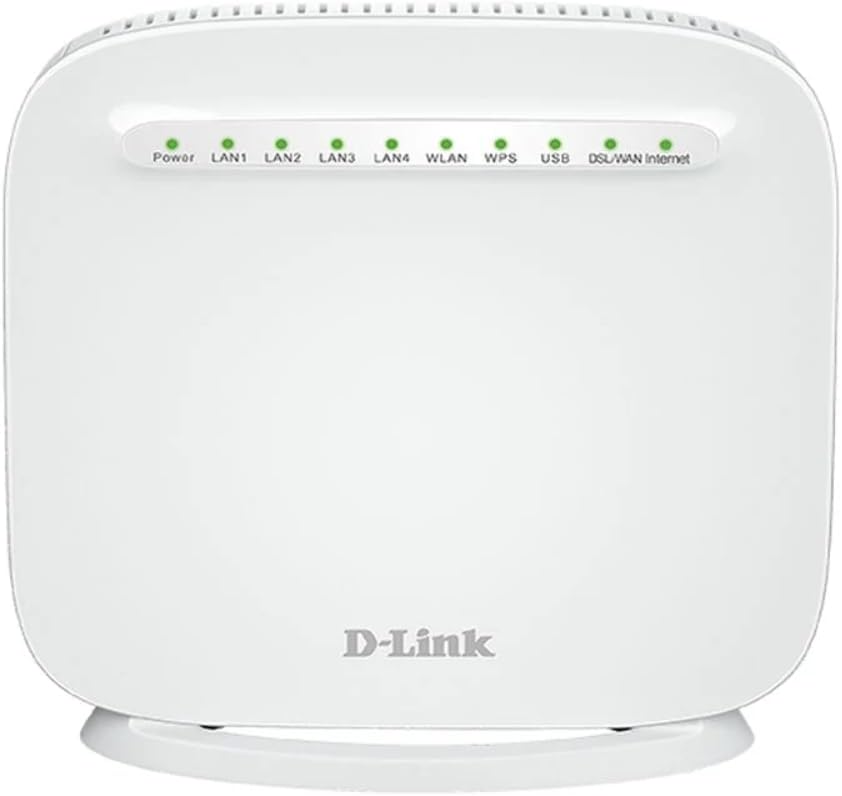
ചിത്രം 1: ഫ്രണ്ട് view of the D-Link DSL-G225 Modem Router, showing the Power, LAN, WLAN, WPS, USB, DSL/WAN, and Internet LED indicators.
| LED സൂചകം | നില | വിവരണം |
|---|---|---|
| ശക്തി | സോളിഡ് ഗ്രീൻ | ഉപകരണം ഓണാണ്. |
| LAN 1-4 | സോളിഡ് ഗ്രീൻ | ഒരു ഉപകരണം അനുബന്ധ LAN പോർട്ടിലേക്ക് ബന്ധിപ്പിച്ചിരിക്കുന്നു. |
| മിന്നുന്ന പച്ച | അനുബന്ധ ലാൻ പോർട്ട് വഴിയാണ് ഡാറ്റ കൈമാറുകയോ സ്വീകരിക്കുകയോ ചെയ്യുന്നത്. | |
| WLAN | സോളിഡ് ഗ്രീൻ | Wireless functionality is enabled. |
| മിന്നുന്ന പച്ച | Wireless data is being transmitted or received. | |
| WPS | മിന്നുന്ന പച്ച | WPS connection attempt in progress. |
| USB | സോളിഡ് ഗ്രീൻ | A USB device is connected and recognized. |
| DSL/WAN | സോളിഡ് ഗ്രീൻ | DSL line is connected and synchronized, or WAN port is active. |
| മിന്നുന്ന പച്ച | Attempting to establish DSL synchronization or WAN connection. | |
| ഇൻ്റർനെറ്റ് | സോളിഡ് ഗ്രീൻ | Successfully connected to the internet. |
| മിന്നുന്ന പച്ച | Data is being transmitted or received over the internet. |
2.2 പിൻ പാനൽ
The rear panel contains all the physical ports for connecting the modem router to your internet service and local network devices.
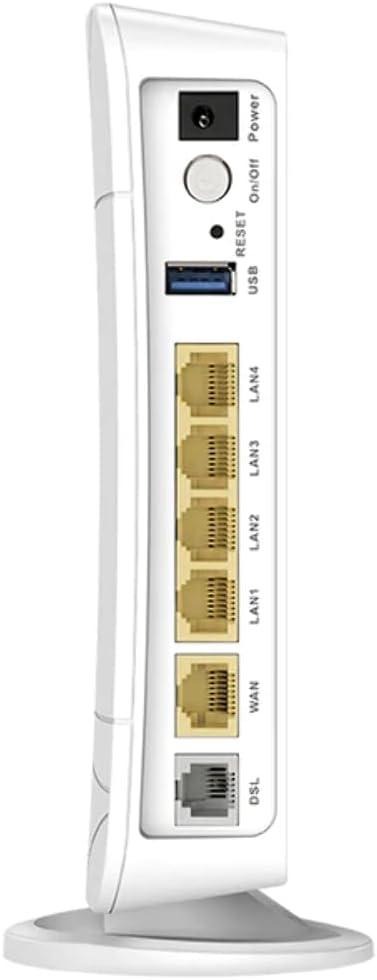
ചിത്രം 2: പിൻഭാഗം view of the D-Link DSL-G225 Modem Router, displaying the Power input, On/Off button, Reset button, USB port, LAN ports, WAN port, and DSL port.
| പോർട്ട്/ബട്ടൺ | വിവരണം |
|---|---|
| പവർ ഇൻപുട്ട് | നൽകിയിരിക്കുന്ന പവർ അഡാപ്റ്ററിലേക്ക് ബന്ധിപ്പിക്കുന്നു. |
| ഓൺ/ഓഫ് ബട്ടൺ | ഉപകരണം ഓൺ അല്ലെങ്കിൽ ഓഫ് ചെയ്യുന്നു. |
| റീസെറ്റ് ബട്ടൺ | ഫാക്ടറി ഡിഫോൾട്ട് ക്രമീകരണങ്ങൾ പുനഃസ്ഥാപിക്കാൻ 10 സെക്കൻഡ് അമർത്തിപ്പിടിക്കുക. |
| USB പോർട്ട് | Connects USB devices such as storage drives for network sharing. |
| LAN 1-4 പോർട്ടുകൾ | Connects wired devices (e.g., computers, gaming consoles) using Ethernet cables. |
| WAN പോർട്ട് | Connects to an external modem or NBN/UFB Network Termination Device (NTD) for internet access. |
| DSL പോർട്ട് | Connects to the telephone line for ADSL2+/VDSL2 internet service. |
3. സജ്ജീകരണം
3.1 ശാരീരിക ബന്ധം
- പവർ കണക്ഷൻ: Connect the provided power adapter to the Power Input port on the rear panel of the modem router and then plug it into a power outlet. Press the On/Off button. The Power LED on the front panel should illuminate green.
- ഇൻ്റർനെറ്റ് കണക്ഷൻ:
- For ADSL2+/VDSL2: Connect a telephone cable from your wall socket to the ഡിഎസ്എൽ മോഡം റൂട്ടറിൽ പോർട്ട്.
- For NBN/UFB (FTTP/FTTC/HFC/Fixed Wireless): Connect an Ethernet cable from your NBN/UFB Network Termination Device (NTD) or wall socket to the WAN മോഡം റൂട്ടറിൽ പോർട്ട്.
- Local Network Connection (Optional): ഇവയിൽ ഒന്നിൽ നിന്ന് ഒരു ഇതർനെറ്റ് കേബിൾ ബന്ധിപ്പിക്കുക LAN 1-4 ports on the modem router to your computer's Ethernet port. For wireless devices, proceed to the Wi-Fi connection steps.
3.2 പ്രാരംഭ കോൺഫിഗറേഷൻ
After physical connections are made, you can configure the modem router using its web-അടിസ്ഥാനമാക്കിയുള്ള ഇന്റർഫേസ്.
- Ensure your computer is connected to the modem router via Ethernet or Wi-Fi.
- എ തുറക്കുക web ബ്രൗസർ (ഉദാ. ക്രോം, ഫയർഫോക്സ്, എഡ്ജ്).
- വിലാസ ബാറിൽ, ടൈപ്പ് ചെയ്യുക
http://192.168.1.1(default IP address) and press Enter. - സ്ഥിരസ്ഥിതി ഉപയോക്തൃനാമവും പാസ്വേഡും നൽകുക (സാധാരണയായി
adminfor both, or as printed on a label on the device). - Follow the on-screen Setup Wizard to configure your internet connection settings (ISP username/password, connection type) and Wi-Fi network name (SSID) and password.
4. പ്രവർത്തിക്കുന്നു
4.1 വൈഫൈ വഴി ഉപകരണങ്ങൾ ബന്ധിപ്പിക്കൽ
- On your wireless device (smartphone, tablet, laptop), open the Wi-Fi settings.
- Scan for available networks.
- Select your Wi-Fi network name (SSID) as configured during the setup process.
- Enter your Wi-Fi password (network key) when prompted.
- Your device should now be connected to the internet via Wi-Fi.
4.2 ഇതർനെറ്റ് വഴി ഉപകരണങ്ങൾ ബന്ധിപ്പിക്കുന്നു
For devices requiring a stable wired connection, use an Ethernet cable.
- Connect one end of an Ethernet cable to an available ലാൻ port (1-4) on the rear of the modem router.
- Connect the other end of the Ethernet cable to the Ethernet port on your device (e.g., computer, smart TV, gaming console).
- The corresponding LAN LED on the front panel should illuminate green, indicating a successful connection.
4.3 യുഎസ്ബി പോർട്ട് പ്രവർത്തനം
The USB port on the DSL-G225 can be used to connect a USB storage device (e.g., a USB flash drive or external hard drive) to share files across your network. Refer to the modem router's web interface for specific settings related to USB storage sharing.
5. പരിപാലനം
5.1 ഫേംവെയർ അപ്ഡേറ്റുകൾ
Periodically check the D-Link Australia support website for firmware updates. Firmware updates can improve performance, add new features, and address security vulnerabilities. Follow the instructions provided on the D-Link website carefully when performing a firmware update.
5.2 ഫാക്ടറി റീസെറ്റ്
നിങ്ങൾക്ക് തുടർച്ചയായ പ്രശ്നങ്ങൾ നേരിടുകയോ ലോഗിൻ ക്രെഡൻഷ്യലുകൾ മറക്കുകയോ ചെയ്താൽ, നിങ്ങൾക്ക് ഒരു ഫാക്ടറി റീസെറ്റ് നടത്താം. ഇത് എല്ലാ ക്രമീകരണങ്ങളും അവയുടെ ഡിഫോൾട്ട് മൂല്യങ്ങളിലേക്ക് പുനഃസ്ഥാപിക്കും.
- With the modem router powered on, locate the പുനഃസജ്ജമാക്കുക പിൻ പാനലിലെ ബട്ടൺ.
- Using a paperclip or a similar pointed object, press and hold the Reset button for approximately 10 seconds.
- Release the button. The modem router will restart with factory default settings. You will need to reconfigure your internet and Wi-Fi settings.
6. പ്രശ്നപരിഹാരം
6.1 ഇന്റർനെറ്റ് കണക്ഷൻ ഇല്ല
- കേബിളുകൾ പരിശോധിക്കുക: Ensure all cables (power, DSL/WAN, Ethernet) are securely connected.
- LED നില: പരിശോധിച്ചുറപ്പിക്കുക ശക്തി, DSL/WAN, ഒപ്പം ഇൻ്റർനെറ്റ് LEDs are solid green. If the DSL/WAN LED is flashing, there might be an issue with your internet line or connection type. If the Internet LED is off, check your ISP settings in the router's web ഇൻ്റർഫേസ്.
- ISP Credentials: Confirm that your internet service provider (ISP) username and password are correctly entered in the modem router's configuration.
- ഉപകരണങ്ങൾ പുനരാരംഭിക്കുക: Power cycle the modem router and any connected devices (computer, NBN/UFB NTD) by unplugging them for 30 seconds and then plugging them back in.
6.2 വൈഫൈ കണക്ഷൻ പ്രശ്നങ്ങൾ
- WLAN LED: ഉറപ്പാക്കുക WLAN LED on the front panel is solid green. If it's off, Wi-Fi might be disabled. Check settings in the web ഇൻ്റർഫേസ്.
- ശരിയായ പാസ്വേഡ്: Verify you are entering the correct Wi-Fi password (network key).
- സിഗ്നൽ ശക്തി: Move closer to the modem router to check if signal strength is an issue. Obstacles like walls and large appliances can interfere with Wi-Fi signals.
- ചാനൽ ഇടപെടൽ: In congested areas, changing the Wi-Fi channel in the router's settings may improve performance.
6.3 കുറഞ്ഞ ഇന്റർനെറ്റ് വേഗത
- ഉപകരണങ്ങളുടെ എണ്ണം: Too many devices actively using the network can reduce speeds.
- ഇടപെടൽ: Other wireless devices (cordless phones, microwaves) can cause interference.
- ഫേംവെയർ: Ensure your modem router has the latest firmware installed.
- ISP പ്രശ്നം: Contact your internet service provider to check for any network issues in your area or with your service plan.
7 സ്പെസിഫിക്കേഷനുകൾ
| ഫീച്ചർ | വിശദാംശങ്ങൾ |
|---|---|
| മോഡൽ നമ്പർ | DSL-G225-AU |
| ബ്രാൻഡ് | ഡി-ലിങ്ക് |
| പരമ്പര | വയർലെസ് N300 |
| വയർലെസ് തരം | 802.11n |
| ഫ്രീക്വൻസി ബാൻഡ് ക്ലാസ് | സിംഗിൾ-ബാൻഡ് |
| ഇഥർനെറ്റ് പോർട്ടുകൾ | 4 x 10/100 LAN ports, 1 x WAN port |
| USB പോർട്ടുകൾ | 1 x USB 2.0 പോർട്ട് |
| മോഡം തരം | ADSL2+/VDSL2 |
| ഓപ്പറേറ്റിംഗ് സിസ്റ്റം | RouterOS (D-Link Firmware) |
| പ്രത്യേക ഫീച്ചർ | ആക്സസ് പോയിൻറ് മോഡ് |
| അളവുകൾ (L x W x H) | 15.5 x 15 x 6 സെ.മീ |
| ഇനത്തിൻ്റെ ഭാരം | 590 ഗ്രാം |
| നിർമ്മാതാവ് | D-Link Australia |
8. വാറൻ്റിയും പിന്തുണയും
For warranty information and technical support, please refer to the official D-Link Australia website or contact D-Link customer service. Warranty terms and conditions may vary by region and purchase date.
It is recommended to register your product on the D-Link website to receive updates and access support resources.


