1. ആമുഖം
This manual provides essential information for the proper use and maintenance of your Western Digital WD Elements 1TB Portable Hard Drive. The WD Elements portable hard drive offers reliable, high-capacity storage in a compact design, making it suitable for various computing environments.
പ്രധാന സവിശേഷതകളിൽ ഇവ ഉൾപ്പെടുന്നു:
- ഡിജിറ്റൽ സ്റ്റോറേജ് കപ്പാസിറ്റി: 1TB
- ഫോം ഘടകം: 2.5-ഇഞ്ച്
- കണക്റ്റിവിറ്റി: SuperSpeed USB 3.0 port, backward compatible with USB 2.0
- അനുയോജ്യത: Pre-formatted NTFS for Windows, can be reformatted for Mac or other operating systems
- ഈട്: Engineered for shock tolerance and long-term reliability
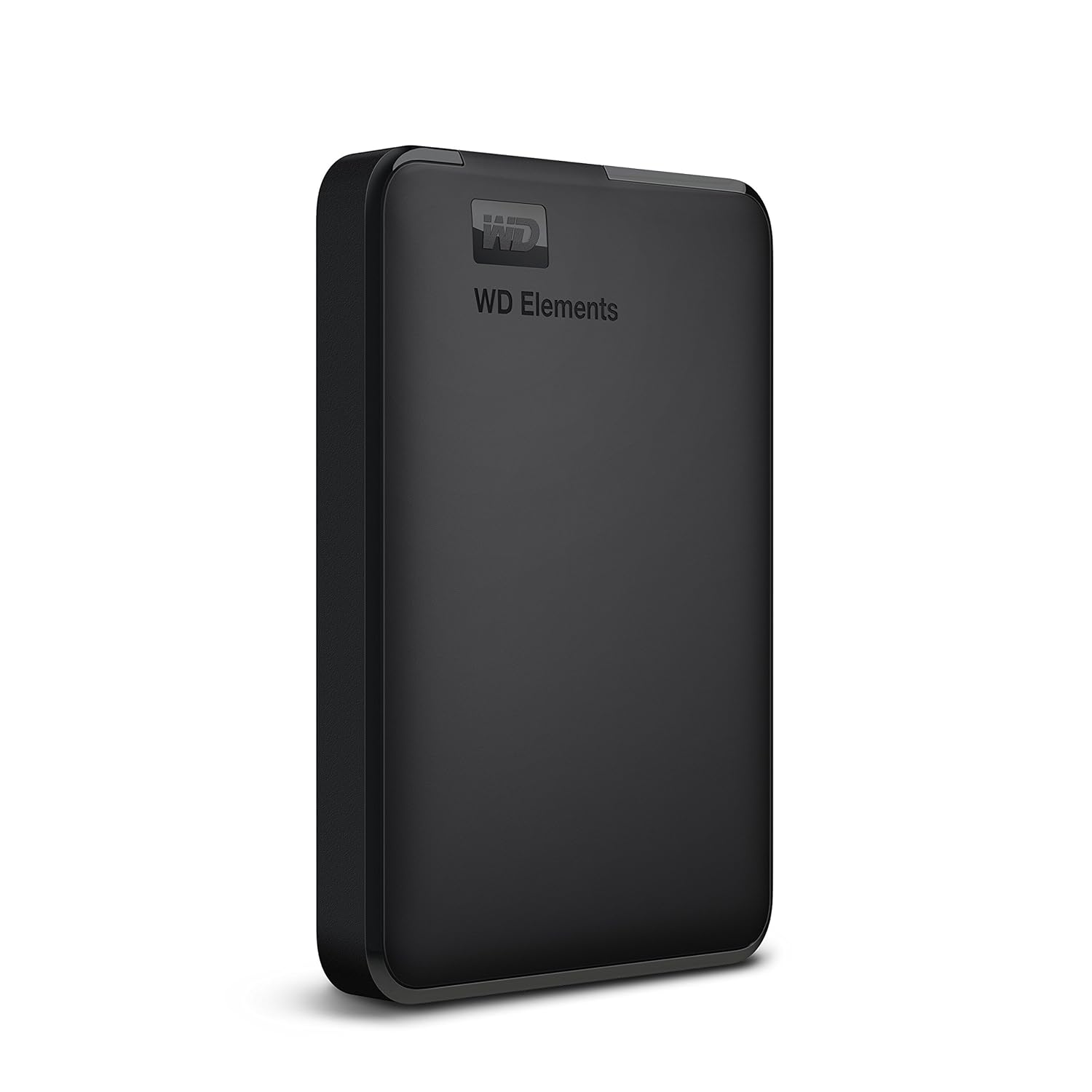
Image 1.1: The Western Digital WD Elements 1TB Portable Hard Drive, showcasing അതിന്റെ ഒതുക്കമുള്ളതും മിനുസമാർന്നതുമായ രൂപകൽപ്പന.
2. പാക്കേജ് ഉള്ളടക്കം
പാക്കേജിൽ എല്ലാ ഇനങ്ങളും ഉണ്ടെന്ന് ഉറപ്പാക്കുക:
- Western Digital Elements Portable Hard Disk Drive
- യുഎസ്ബി 3.0 കേബിൾ
- ദ്രുത ആരംഭ ഗൈഡ്
3. സജ്ജീകരണം
3.1 Connecting the Hard Drive
- Locate an available USB port on your computer (PC, Mac, PS4, or Xbox). For optimal performance, use a USB 3.0 port.
- Connect the small end of the included USB 3.0 cable to the USB port on the WD Elements portable hard drive.
- Connect the larger end of the USB 3.0 cable to the USB port on your computer or console.
- The drive will automatically power on and be detected by your operating system.

Image 3.1: The WD Elements portable hard drive connected to a laptop, demonstrating USB 3.0 and USB 2.0 compatibility.
3.2 Initial Use and Formatting
The drive comes pre-formatted with the NTFS file system, making it ready for immediate use with Windows operating systems. For Mac users or other operating systems, reformatting the drive is necessary.
വിൻഡോസിനായി:
No special action is required. The drive will appear as a new storage device in 'This PC' or 'My Computer'.
മാക്കിനായി:
- നിങ്ങളുടെ മാക്കിലേക്ക് ഡ്രൈവ് ബന്ധിപ്പിക്കുക.
- 'ഡിസ്ക് യൂട്ടിലിറ്റി' (ആപ്ലിക്കേഷനുകൾ > യൂട്ടിലിറ്റീസ് > ഡിസ്ക് യൂട്ടിലിറ്റി) തുറക്കുക.
- Select the WD Elements drive from the sidebar.
- 'മായ്ക്കുക' ക്ലിക്ക് ചെയ്യുക.
- Choose a suitable format (e.g., APFS or Mac OS Extended (Journaled)) and a name for the drive.
- സ്ഥിരീകരിക്കാൻ വീണ്ടും 'മായ്ക്കുക' ക്ലിക്ക് ചെയ്യുക. Warning: This will delete all data on the drive.
4. പ്രവർത്തന നിർദ്ദേശങ്ങൾ
4.1 ഡാറ്റ കൈമാറ്റം
കൈമാറാൻ files, simply drag and drop them to and from the WD Elements drive icon on your desktop or in your file explorer. The USB 3.0 interface ensures fast data transfer speeds.

Image 4.1: A laptop screen displaying a data transfer progress bar, illustrating the fast data transfer capabilities of the drive.
4.2 സുരക്ഷിതമായ നീക്കം ചെയ്യൽ
Always safely eject the hard drive before disconnecting it to prevent data corruption. For Windows, use the 'Safely Remove Hardware and Eject Media' icon in the system tray. For Mac, drag the drive icon to the Trash or use the 'Eject' option in Finder.
5. പരിപാലനം
To ensure the longevity and optimal performance of your WD Elements portable hard drive:
- ഡ്രൈവ് വൃത്തിയുള്ളതും വരണ്ടതുമായ അന്തരീക്ഷത്തിൽ സൂക്ഷിക്കുക, കടുത്ത താപനിലയിൽ നിന്നും നേരിട്ടുള്ള സൂര്യപ്രകാശത്തിൽ നിന്നും അകറ്റി നിർത്തുക.
- Avoid dropping or subjecting the drive to physical shocks.
- Do not block ventilation openings, if any.
- മൃദുവായതും ഉണങ്ങിയതുമായ തുണി ഉപയോഗിച്ച് പുറംഭാഗം വൃത്തിയാക്കുക. ലിക്വിഡ് ക്ലീനറുകൾ ഉപയോഗിക്കരുത്.
- Regularly back up important data to another storage device.
6. പ്രശ്നപരിഹാരം
6.1 ഡ്രൈവ് കണ്ടെത്തിയില്ല
- Ensure the USB cable is securely connected to both the drive and the computer/console.
- Try connecting the drive to a different USB port.
- Test the drive with a different USB cable, if available.
- നിങ്ങളുടെ കമ്പ്യൂട്ടറോ കൺസോളോ പുനരാരംഭിക്കുക.
- For Windows, check 'Disk Management'. For Mac, check 'Disk Utility' to see if the drive is recognized but unformatted.
6.2 മന്ദഗതിയിലുള്ള ഡാറ്റാ ട്രാൻസ്ഫർ വേഗത
- Ensure the drive is connected to a USB 3.0 port on your computer. USB 2.0 ports will result in slower speeds.
- നിങ്ങളുടെ കമ്പ്യൂട്ടറിന്റെ USB 3.0 ഡ്രൈവറുകൾ കാലികമാണെന്ന് ഉറപ്പാക്കുക.
- വലിയ ജോലികൾ ചെയ്യുമ്പോൾ ഒന്നിലധികം ആവശ്യപ്പെടുന്ന ആപ്ലിക്കേഷനുകൾ പ്രവർത്തിപ്പിക്കുന്നത് ഒഴിവാക്കുക. file കൈമാറ്റങ്ങൾ.
6.3 Drive Making Unusual Noises
If the drive emits clicking, grinding, or other unusual noises, immediately back up any accessible data and discontinue use. Contact Western Digital support for assistance.
7 സ്പെസിഫിക്കേഷനുകൾ

Image 7.1: Visual representation of the compact dimensions of the WD Elements portable hard drive.
| ഫീച്ചർ | വിശദാംശങ്ങൾ |
|---|---|
| ബ്രാൻഡ് | വെസ്റ്റേൺ ഡിജിറ്റൽ |
| മോഡൽ നമ്പർ | WDBHHG0010BBK-EESN |
| പരമ്പര | ഘടകങ്ങൾ |
| ഡിജിറ്റൽ സ്റ്റോറേജ് കപ്പാസിറ്റി | 1TB (1024 GB) |
| ഹാർഡ് ഡ്രൈവ് വലിപ്പം | 1 ടി.ബി |
| ഹാർഡ് ഡിസ്ക് വിവരണം | മെക്കാനിക്കൽ ഹാർഡ് ഡിസ്ക് |
| ഫോം ഫാക്ടർ | 2.5-ഇഞ്ച് |
| ഹാർഡ് ഡ്രൈവ് ഇൻ്റർഫേസ് | USB 3.0 |
| കണക്റ്റിവിറ്റി ടെക്നോളജി | USB |
| ഹാർഡ്വെയർ പ്ലാറ്റ്ഫോം | Mac, PC, Unix |
| നിറം | കറുപ്പ് |
| ഉൽപ്പന്ന അളവുകൾ (LxWxH) | 11.1 x 8.2 x 1.5 സെ.മീ |
| ഇനത്തിൻ്റെ ഭാരം | 300 ഗ്രാം |
| മാതൃരാജ്യം | തായ്ലൻഡ് |
8. വാറൻ്റിയും പിന്തുണയും
8.1 വാറൻ്റി വിവരങ്ങൾ
The Western Digital WD Elements 1TB Portable Hard Drive comes with a 3-വർഷ പരിമിത വാറൻ്റി. സാധാരണ ഉപയോഗത്തിലുള്ള മെറ്റീരിയലുകളിലെയും നിർമ്മാണത്തിലെയും വൈകല്യങ്ങൾ ഈ വാറന്റി ഉൾക്കൊള്ളുന്നു. വാറന്റി ക്ലെയിമുകൾക്കായി നിങ്ങളുടെ വാങ്ങലിന്റെ തെളിവ് സൂക്ഷിക്കുക.

Image 8.1: A visual representation of the product's warranty coverage. Note: The image shows '2-Year Limited Warranty', but the product specifications state '3-Year Warranty'. Please refer to your product packaging for the most accurate warranty period.
8.2 സാങ്കേതിക പിന്തുണ
For technical assistance, product registration, or to access the full user manual and software downloads, please visit the official Western Digital support webസൈറ്റ്:
You may also find helpful resources and FAQs on the Western Digital brand store:


