1. ആമുഖം
This manual provides detailed instructions for the setup, operation, and maintenance of your Intermec EasyCoder PX4i Thermal Transfer Printer. The PX4i is a robust and flexible industrial printer designed for high-volume label printing, offering monochrome output at a resolution of 203 dpi and speeds up to 12 inches per second. Please read this manual thoroughly before using the printer to ensure safe and efficient operation.
2. ഉൽപ്പന്ന സവിശേഷതകൾ
- ഹൈ-സ്പീഡ് പ്രിന്റിംഗ്: Capable of printing at speeds up to 12 inches per second.
- ഉയർന്ന മിഴിവ്: Delivers clear monochrome prints at 203 dpi.
- ഫ്ലെക്സിബിൾ മീഡിയ കൈകാര്യം ചെയ്യൽ: Supports various media types including black mark, continuous label, fanfold, gap, general identification label, notch, roll fed, tag, and ticket.
- ഇഥർനെറ്റ് കണക്റ്റിവിറ്റി: Integrated Ethernet for network integration.
- പ്രോഗ്രാമബിൾ: Designed for optimized printing operations and streamlined deployment.
- മോടിയുള്ള ഡിസൈൻ: Industrial-grade construction for demanding environments.
3. പാക്കേജ് ഉള്ളടക്കം
Verify that all items listed below are included in your printer package. If any items are missing or damaged, contact your supplier immediately.
- Intermec EasyCoder PX4i Thermal Transfer Printer
- പവർ കോർഡ്
- Labels (Included Components)
- User Documentation (This manual)
4 സുരക്ഷാ വിവരങ്ങൾ
പ്രിന്ററിന് പരിക്കേൽക്കാതിരിക്കാനും കേടുപാടുകൾ സംഭവിക്കാതിരിക്കാനും ഇനിപ്പറയുന്ന സുരക്ഷാ മുൻകരുതലുകൾ എപ്പോഴും പാലിക്കുക:
- പ്രിന്റർ ഒരു സ്ഥിരതയുള്ള, നിരപ്പായ പ്രതലത്തിൽ സ്ഥാപിച്ചിട്ടുണ്ടെന്ന് ഉറപ്പാക്കുക.
- Connect the printer to a grounded power outlet.
- Do not operate the printer in wet or excessively humid conditions.
- പ്രവർത്തന സമയത്ത് കൈകളും അയഞ്ഞ വസ്ത്രങ്ങളും ചലിക്കുന്ന ഭാഗങ്ങളിൽ നിന്ന് അകറ്റി നിർത്തുക.
- ഏതെങ്കിലും അറ്റകുറ്റപ്പണികൾ അല്ലെങ്കിൽ വൃത്തിയാക്കൽ നടത്തുന്നതിന് മുമ്പ് വൈദ്യുതി വിച്ഛേദിക്കുക.
- അംഗീകൃത മാറ്റിസ്ഥാപിക്കാനുള്ള ഭാഗങ്ങളും അനുബന്ധ ഉപകരണങ്ങളും മാത്രം ഉപയോഗിക്കുക.
5. സജ്ജീകരണം
5.1 അൺപാക്കിംഗ്
- പ്രിന്റർ അതിന്റെ പാക്കേജിംഗിൽ നിന്ന് ശ്രദ്ധാപൂർവ്വം നീക്കം ചെയ്യുക.
- എല്ലാ പാക്കിംഗ് മെറ്റീരിയലുകളും, ടേപ്പുകളും, സംരക്ഷണ ഫിലിമുകളും നീക്കം ചെയ്യുക.
- ഭാവിയിലെ ഗതാഗതത്തിനോ സംഭരണത്തിനോ വേണ്ടി യഥാർത്ഥ പാക്കേജിംഗ് സൂക്ഷിക്കുക.
5.2 ബന്ധിപ്പിക്കുന്ന പവർ
- പ്രിന്ററിന്റെ പവർ സ്വിച്ച് ഓഫ് സ്ഥാനത്താണെന്ന് ഉറപ്പാക്കുക.
- പവർ കോർഡ് പ്രിന്ററിന്റെ പവർ ഇൻലെറ്റുമായി ബന്ധിപ്പിക്കുക.
- പവർ കോർഡിന്റെ മറ്റേ അറ്റം ഗ്രൗണ്ടഡ് ഇലക്ട്രിക്കൽ ഔട്ട്ലെറ്റിലേക്ക് പ്ലഗ് ചെയ്യുക.
5.3 Loading Media (Labels)
The PX4i printer supports various label types. Follow these general steps to load your labels:

ചിത്രം: മുൻഭാഗം view of the Intermec EasyCoder PX4i printer, showing a label being fed out of the front slot. The control panel with an LCD screen and numeric keypad is visible on the top front.
- പ്രിൻ്ററിൻ്റെ മീഡിയ കവർ തുറക്കുക.
- Place the roll of labels onto the media supply spindle, ensuring it unwinds correctly.
- Feed the leading edge of the labels through the media guides and under the printhead assembly.
- Adjust the media guides to fit the width of your labels snugly but without binding.
- Close the media cover. The printer may automatically calibrate to the new media.
5.4 ഒരു കമ്പ്യൂട്ടർ/നെറ്റ്വർക്കിലേക്ക് കണക്റ്റുചെയ്യുന്നു
The PX4i offers Ethernet connectivity for network integration.
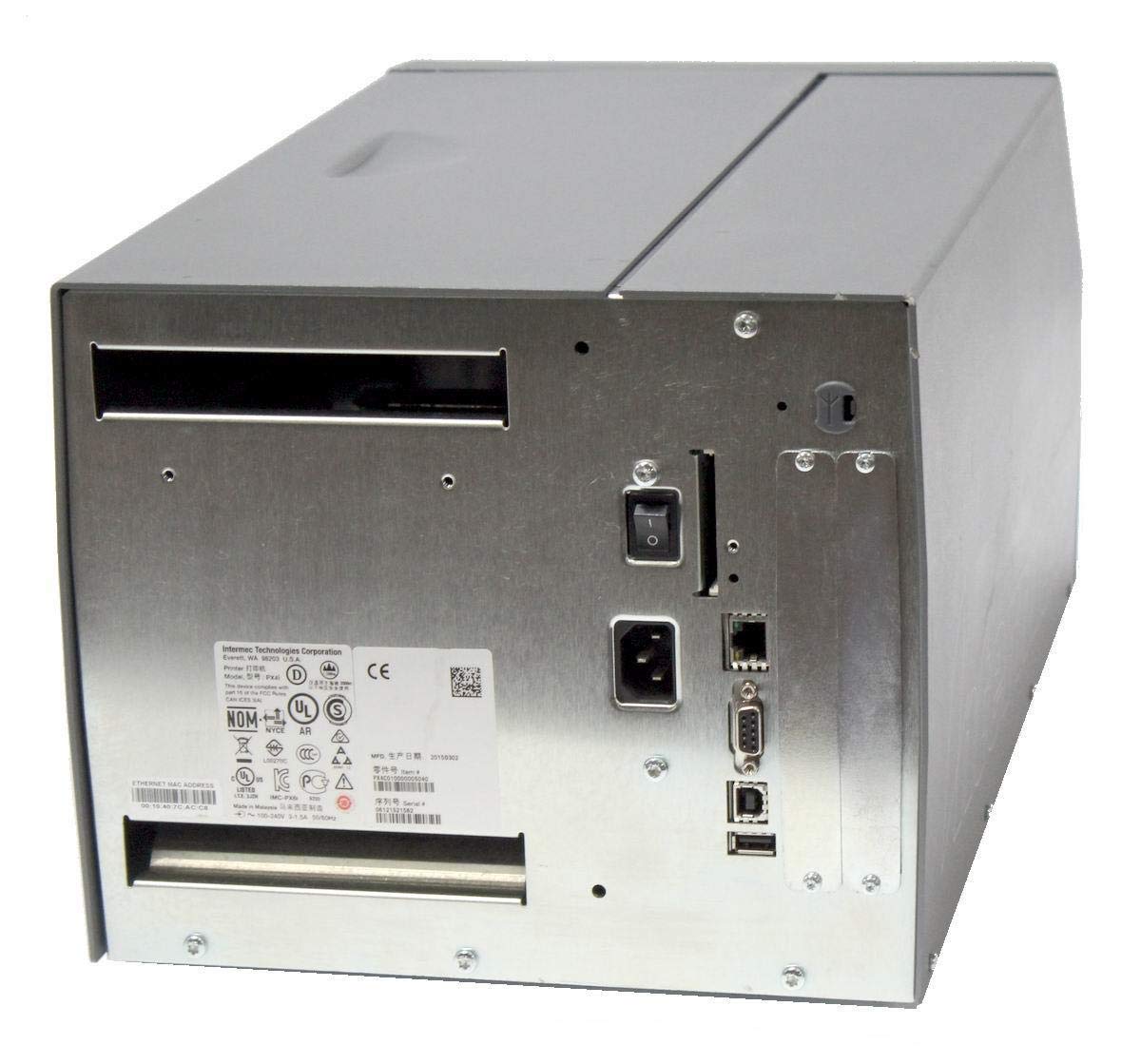
ചിത്രം: പിൻഭാഗം view of the Intermec EasyCoder PX4i printer, displaying the power inlet, power switch, Ethernet port, serial ports, and USB ports. The metallic casing is clearly visible.
- Locate the Ethernet port on the rear of the printer.
- Connect a standard Ethernet cable from the printer to your network router or switch.
- For direct connection to a computer, use an appropriate USB or serial cable if supported by your system and printer configuration.
- Refer to the printer's network configuration guide for setting up IP addresses and other network parameters.
6. ഓപ്പറേഷൻ
6.1 കൺട്രോൾ പാനൽ ഓവർview
The front control panel provides access to printer functions and status information.
Image: Close-up of the Intermec EasyCoder PX4i control panel, featuring an LCD display, navigation buttons (up, down, left, right, enter), and a numeric keypad with function keys like Pause, Feed, and Clear.
- LCD ഡിസ്പ്ലേ: പ്രിന്റർ സ്റ്റാറ്റസ്, മെനു ഓപ്ഷനുകൾ, പിശക് സന്ദേശങ്ങൾ എന്നിവ കാണിക്കുന്നു.
- നാവിഗേഷൻ ബട്ടണുകൾ: Used to scroll through menus and select options.
- സംഖ്യാ കീപാഡ്: For entering data or selecting numbered options.
- താൽക്കാലികമായി നിർത്തുക ബട്ടൺ: Temporarily stops printing.
- ഫീഡ് ബട്ടൺ: Advances one label.
- സജ്ജീകരണ ബട്ടൺ: Accesses printer configuration menus.
6.2 അടിസ്ഥാന പ്രിന്റിംഗ്
- പ്രിന്റർ ഓണാക്കിയിട്ടുണ്ടെന്നും നിങ്ങളുടെ കമ്പ്യൂട്ടറിലേക്കോ നെറ്റ്വർക്കിലേക്കോ ബന്ധിപ്പിച്ചിട്ടുണ്ടെന്നും ഉറപ്പാക്കുക.
- Open the document or application from which you wish to print labels.
- Select the Intermec PX4i printer from your printer list.
- Configure print settings such as label size, orientation, and quantity as needed.
- Initiate the print job. The printer will begin feeding and printing labels.
6.3 Adjusting Print Settings
Advanced print settings can be adjusted through the printer's control panel or via the printer driver on your computer. These settings include print darkness, print speed, label gap sensing, and more. Consult your printer driver documentation for software-based adjustments.
7. പരിപാലനം
പതിവ് അറ്റകുറ്റപ്പണികൾ മികച്ച പ്രകടനം ഉറപ്പാക്കുകയും നിങ്ങളുടെ പ്രിന്ററിന്റെ ആയുസ്സ് വർദ്ധിപ്പിക്കുകയും ചെയ്യുന്നു.
7.1 പ്രിന്റ്ഹെഡ് വൃത്തിയാക്കൽ
The printhead should be cleaned regularly, especially if print quality degrades.
- പ്രിന്റർ ഓഫ് ചെയ്ത് പവർ കോർഡ് വിച്ഛേദിക്കുക.
- പ്രിൻ്റ് ഹെഡ് അസംബ്ലി തുറക്കുക.
- Using a lint-free cloth or a printhead cleaning pen moistened with isopropyl alcohol, gently wipe the printhead surface from center to edge.
- Allow the printhead to dry completely before closing the assembly and reconnecting power.
7.2 Replacing Media and Ribbon
When the label roll or thermal transfer ribbon (if used) runs out, replace it promptly.
- Turn off the printer and open the media cover.
- Remove the empty label roll and/or used ribbon core.
- Install a new roll of labels and/or a new ribbon, following the loading instructions in Section 5.3.
- Ensure media and ribbon are properly tensioned and aligned.
- മീഡിയ കവർ അടയ്ക്കുക.
8. പ്രശ്നപരിഹാരം
This section addresses common issues you might encounter with your PX4i printer.
- പ്രിൻ്റർ ഓണാക്കുന്നില്ല: Check power cord connection, power outlet, and printer's power switch.
- പ്രിന്റ് ഔട്ട്പുട്ട് ഇല്ല: Verify printer is online, connected to the computer/network, and has media loaded. Check for error messages on the LCD.
- മോശം പ്രിന്റ് നിലവാരം: Clean the printhead (Section 7.1). Adjust print darkness settings. Ensure correct media and ribbon are used.
- ശരിയായി ഭക്ഷണം നൽകാത്ത ലേബലുകൾ: Check media loading (Section 5.3) and ensure media guides are properly adjusted. Calibrate media sensors if necessary.
- പിശക് സന്ദേശങ്ങൾ: Refer to the printer's LCD display for specific error codes and consult the full Intermec PX4i technical manual for detailed explanations and solutions.
9 സ്പെസിഫിക്കേഷനുകൾ
| ഫീച്ചർ | വിവരണം |
|---|---|
| മോഡലിൻ്റെ പേര് | PX4i |
| ഇനം മോഡൽ നമ്പർ | പിഎക്സ്4സി010000000020 |
| പ്രിൻ്റിംഗ് ടെക്നോളജി | താപ കൈമാറ്റം |
| പ്രിന്റ് നിറം | മോണോക്രോം |
| പരമാവധി പ്രിന്റ് വേഗത | 12 in/s (Monochrome) |
| പരമാവധി പ്രിന്റ് റെസലൂഷൻ | 203 ഡിപിഐ |
| കണക്റ്റിവിറ്റി ടെക്നോളജി | ഇഥർനെറ്റ് |
| പരമാവധി മീഡിയ വലുപ്പം | 12 ഇഞ്ച് |
| ഉൾപ്പെടുത്തിയ ഘടകങ്ങൾ | ലേബലുകൾ |
| കൺട്രോളർ തരം | പുഷ് ബട്ടൺ |
| നിർമ്മാതാവ് | INTERMEC INDUSTRIAL PRINTERS |
| പാക്കേജ് അളവുകൾ | 23.25 x 15.5 x 15.25 ഇഞ്ച്; 36.2 പൗണ്ട് |
10. വാറൻ്റിയും പിന്തുണയും
The Intermec EasyCoder PX4i Thermal Transfer Printer comes with a standard manufacturer's warranty. For specific warranty terms and conditions, please refer to the warranty card included with your product or visit the official Intermec (Honeywell) support website. For technical assistance, troubleshooting beyond this manual, or to inquire about service, please contact Intermec customer support or your authorized dealer.
ഓൺലൈൻ ഉറവിടങ്ങൾ: For the latest drivers, firmware updates, and additional documentation, please visit the official Intermec support portal.


