ആമുഖം
This user manual provides detailed instructions for the setup, operation, and maintenance of your Ugee M1000L Graphics Drawing Digital Pen Tablet. Please read this manual thoroughly before using the device to ensure proper functionality and to maximize your creative experience.
പാക്കേജ് ഉള്ളടക്കം
താഴെ ലിസ്റ്റ് ചെയ്തിരിക്കുന്ന എല്ലാ ഇനങ്ങളും നിങ്ങളുടെ പാക്കേജിൽ ഉൾപ്പെടുത്തിയിട്ടുണ്ടെന്ന് ഉറപ്പാക്കുക:
- 1 x M1000L Drawing Tablet
- 1 x P51 Pen (requires AAA Battery, not included)
- 1 x ഇൻസ്റ്റാളേഷൻ സിഡി
- 1 x Pen Holder (contains 8 x Pen Nibs and 1 x Remover Pen-Clipper)
- 1 x USB Cable (150cm)
- 1 x ഉപയോക്തൃ മാനുവൽ (ഈ പ്രമാണം)
ഉൽപ്പന്നം കഴിഞ്ഞുview
The Ugee M1000L features a large active drawing area and customizable shortcut keys for efficient workflow.

ചിത്രം 1: മുകളിൽ നിന്ന് താഴേക്ക് view of the Ugee M1000L Graphics Tablet, showcasing its large active area and integrated shortcut buttons.
പ്രധാന സവിശേഷതകൾ:
- സജീവ പ്രദേശം: 10 x 6 Inch for ample drawing space.
- പ്രഷർ സെൻസിറ്റിവിറ്റി: 2048 Levels for precise control over line thickness and opacity.
- റെസലൂഷൻ: 4000 LPI (Lines Per Inch) for high detail.
- റിപ്പോർട്ട് നിരക്ക്: 230 RPS (Revolutions Per Second) for smooth, responsive drawing.
- ഇഷ്ടാനുസൃതമാക്കാവുന്ന കുറുക്കുവഴി ബട്ടണുകൾ: 8 buttons on the left side and 16 express keys along the top for quick access to common functions.
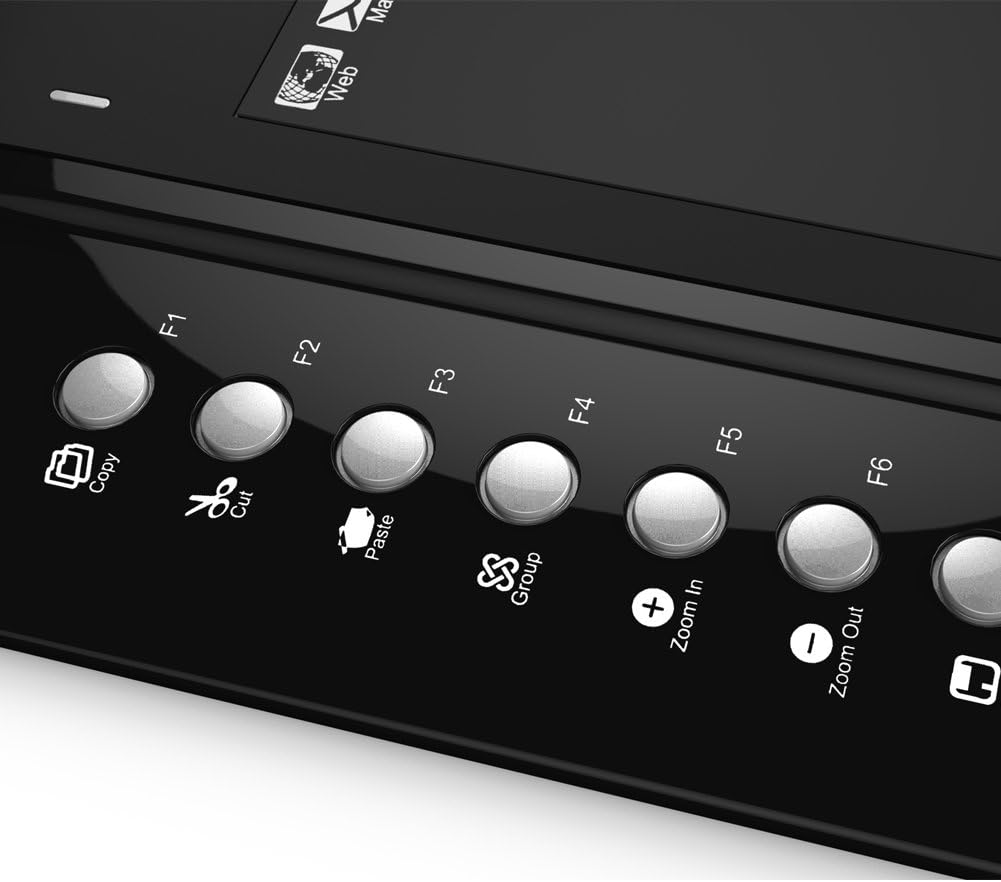
Figure 2: Detail of the 8 customizable shortcut buttons located on the left side of the tablet. These can be configured for functions like copy, cut, paste, zoom, and more.
സിസ്റ്റം ആവശ്യകതകൾ
Ensure your computer meets the following minimum requirements:
- ഓപ്പറേറ്റിംഗ് സിസ്റ്റം: Windows XP/Vista/7/8/8.1/10, Mac OS
- ഇൻ്റർഫേസ്: USB പോർട്ട്
The tablet is compatible with popular creative software such as Adobe Photoshop, Illustrator, Autodesk Sketchbook, Corel Painter, Autodesk MAYA, and ZBrush.
Setup and Driver Installation
Follow these steps carefully to install the Ugee M1000L graphics tablet drivers and set up your device:
- Remove Existing Drivers: Before installing the Ugee M1000L drivers, ensure all other graphics tablet drivers (from other brands) are completely uninstalled from your system. Additionally, disable Windows Tablet driver and Pen Flicks if applicable.
- Do Not Connect Tablet Yet: ചെയ്യരുത് plug in the Ugee M1000L tablet to your computer until the drivers are fully installed.
- Obtain Installation Package: Insert the provided Installation CD into your computer's CD/DVD drive. Alternatively, you can download the latest driver package from the official UGEE webസൈറ്റ്.
- Unzip and Locate Driver: If downloaded, unzip the installation package. Find the 'setup.exe' driver file.
- ഡ്രൈവർ ഇൻസ്റ്റാൾ ചെയ്യുക: Run the 'setup.exe' file. It is recommended to install the driver in the default directory (typically C drive) and avoid changing the installation directory.
- കമ്പ്യൂട്ടർ പുനരാരംഭിക്കുക: After the driver installation is complete, restart your computer. This is a crucial step for the drivers to be properly recognized by the system.
- Connect Tablet: Once your computer has restarted, plug in the Ugee M1000L tablet to an available USB port.
- ഇൻസ്റ്റാളേഷൻ പരിശോധിക്കുക: Allow a moment for the system to recognize the tablet. A small tablet icon should appear in your system's quick-launch bar or notification area. This icon represents the tablet driver/settings.
- Perform Pressure Test: Open the driver icon and initiate a pressure test. If the test functions normally, the driver installation was successful.

Figure 3: A user demonstrating the Ugee M1000L tablet in use, connected to a laptop.
പ്രവർത്തന നിർദ്ദേശങ്ങൾ
Using the P51 Pen:
- The P51 pen requires one AAA battery (not included). Insert the battery according to the polarity markings.
- The pen offers 2048 levels of pressure sensitivity, allowing for varied line weight and opacity based on how hard you press.
- The buttons on the pen can be customized through the driver control panel. By default, one button can be set to an eraser function.
- To replace pen nibs, use the remover pen-clipper located in the pen holder. Gently pull out the old nib and insert a new one.
Customizing Shortcut Buttons:
The Ugee M1000L features 8 customizable buttons on the left side and 16 express keys along the top of the drawing area. These buttons can be configured to perform various functions, enhancing your workflow.
- Open the Ugee tablet driver software from the system tray icon.
- Navigate to the "Button Settings" or "Hot Key Settings" section.
- Select each button individually and assign your desired function (e.g., Copy, Cut, Paste, Undo, Redo, Zoom In/Out, application launch, etc.).
- Apply the changes to save your custom settings.
The tablet is designed for both right-handed and left-handed users. You can adjust the tablet orientation and pen button functions in the driver settings to suit your preference.
മെയിൻ്റനൻസ്
- വൃത്തിയാക്കൽ: Use a soft, dry cloth to clean the tablet surface. Avoid using harsh chemicals or abrasive materials that could damage the surface.
- സംഭരണം: When not in use, store the tablet in a clean, dry place away from direct sunlight and extreme temperatures.
- പെൻ നിബ്സ്: Regularly check the pen nib for wear. Replace worn-out nibs promptly to maintain optimal drawing performance and prevent scratching the tablet surface.
- കേബിൾ കെയർ: ആന്തരിക കേടുപാടുകൾ ഒഴിവാക്കാൻ യുഎസ്ബി കേബിൾ അമിതമായി വളയ്ക്കുകയോ ഞെരുക്കുകയോ ചെയ്യുന്നത് ഒഴിവാക്കുക.
ട്രബിൾഷൂട്ടിംഗ്
പൊതുവായ പ്രശ്നങ്ങളും പരിഹാരങ്ങളും:
- Issue: Tablet not responding or pen not working.
- യുഎസ്ബി കേബിൾ ടാബ്ലെറ്റിലേക്കും കമ്പ്യൂട്ടറിലേക്കും സുരക്ഷിതമായി ബന്ധിപ്പിച്ചിട്ടുണ്ടെന്ന് ഉറപ്പാക്കുക.
- Verify that the P51 pen has a fresh AAA battery inserted correctly.
- Check if the tablet driver is properly installed and running. Look for the tablet icon in your system tray.
- നിങ്ങളുടെ കമ്പ്യൂട്ടർ പുനരാരംഭിക്കുക.
- If you have other tablet drivers installed, uninstall them completely and reinstall the Ugee driver as per the "Setup and Driver Installation" section.
- Issue: Pen pressure sensitivity is not working.
- Ensure the driver is correctly installed. Perform the pressure test in the driver settings.
- Check your drawing software settings to ensure pressure sensitivity is enabled.
- Verify the pen nib is not excessively worn. Replace if necessary.
- Issue: Shortcut buttons are not functioning.
- Open the Ugee tablet driver software and ensure the buttons are correctly assigned to functions.
- Ensure the driver is running in the background.
- Issue: Driver not recognized after OS update (e.g., macOS Catalina).
- ഔദ്യോഗിക UGEE സന്ദർശിക്കുക website to check for updated drivers compatible with your operating system version.
- Follow the updated installation instructions provided with the new driver.
സ്പെസിഫിക്കേഷനുകൾ
| ഫീച്ചർ | വിശദാംശങ്ങൾ |
|---|---|
| സാങ്കേതികവിദ്യ | വൈദ്യുതകാന്തിക ഡിജിറ്റൈസർ |
| സജീവ മേഖല | 10 x 6 ഇഞ്ച് |
| റെസലൂഷൻ | 4000 LPI (ഇഞ്ച് പെർ ഇഞ്ച്) |
| റിപ്പോർട്ട് നിരക്ക് | 230 RPS (Revolutions Per Second) |
| കൃത്യത | ±0.01 Inch |
| പ്രഷർ സെൻസിറ്റിവിറ്റി | 2048 ലെവലുകൾ |
| വായന ഉയരം | 10 മി.മീ |
| അളവ് | 350 x 260 x 8 മിമി |
| ആകെ ഭാരം | 576 ഗ്രാം |
| സപ്ലൈ വോളിയംtage | DC 5V |
| വൈദ്യുതി ഉപഭോഗം | 0.2 W |
| ഇന്റർഫേസ് പിന്തുണ | USB |
| സർട്ടിഫിക്കേഷനുകൾ | FCC, CE, CCC, RoHS |
വാറൻ്റിയും പിന്തുണയും
For warranty information and technical support, please refer to the official UGEE website or contact UGEE customer service. Keep your purchase receipt as proof of purchase.
You can visit the official UGEE store on Amazon for more information and products: UGEE Store


