1. ആമുഖം
This manual provides essential information for the safe and efficient use of your Fujitsu A3 Monochrome Page Printer XL-9321. Please read this manual thoroughly before operating the printer and keep it for future reference. This printer is designed for high-speed, high-resolution monochrome printing on various paper sizes up to A3.
2 സുരക്ഷാ വിവരങ്ങൾ
To ensure safe operation and prevent damage to the printer or injury to yourself, always observe the following safety precautions:
- ഇലക്ട്രിക്കൽ സുരക്ഷ: Connect the printer only to a grounded power outlet. Do not use damaged power cords.
- പ്ലേസ്മെൻ്റ്: Place the printer on a stable, level surface with adequate ventilation. Avoid direct sunlight, excessive heat, humidity, or dust.
- കൈകാര്യം ചെയ്യൽ: Do not attempt to disassemble or modify the printer. Refer all servicing to qualified personnel.
- ചലിക്കുന്ന ഭാഗങ്ങൾ: Keep hands, hair, and clothing away from moving parts inside the printer during operation.
- ടോണർ കാട്രിഡ്ജ്: Handle toner cartridges carefully. If toner spills, avoid inhaling it and clean it up with a damp cloth. Keep out of reach of children.
3. പാക്കേജ് ഉള്ളടക്കം
പാക്കേജിൽ എല്ലാ ഇനങ്ങളും ഉണ്ടെന്ന് ഉറപ്പാക്കുക:
- Fujitsu A3 Monochrome Page Printer XL-9321
- Toner Cartridge (initial yield)
- പവർ കോർഡ്
- USB കേബിൾ
- Driver CD-ROM (or link to download drivers)
- ഉപയോക്തൃ മാനുവൽ (ഈ പ്രമാണം)
4. സജ്ജീകരണം
4.1 അൺപാക്കിംഗും പ്ലേസ്മെന്റും
- പ്രിൻ്റർ അതിൻ്റെ പാക്കേജിംഗിൽ നിന്ന് നീക്കം ചെയ്യുക.
- പ്രിന്ററിന്റെ പുറംഭാഗത്തും ഉൾഭാഗത്തുനിന്നും എല്ലാ സംരക്ഷണ ടേപ്പുകളും പാക്കിംഗ് വസ്തുക്കളും നീക്കം ചെയ്യുക.
- Place the printer on a sturdy, flat surface. Ensure there is enough space around the printer for ventilation and access to trays.
4.2 ഘടകം തിരിച്ചറിയൽ
Refer to the image below for key components of the Fujitsu XL-9321 printer.
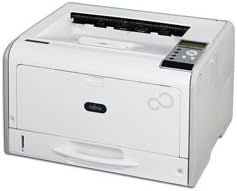
ചിത്രം 1: ഫ്രണ്ട് view of the Fujitsu A3 Monochrome Page Printer XL-9321. The image shows a white, rectangular printer unit with a paper output tray on top, a control panel with buttons and a small display on the right side, and a paper input tray at the bottom front. The Fujitsu logo is visible on the front panel.
4.3 ടോണർ കാട്രിഡ്ജ് ഇൻസ്റ്റലേഷൻ
- പ്രിന്ററിന്റെ മുൻ കവർ തുറക്കുക.
- Carefully unpackage the new toner cartridge.
- Shake the cartridge gently a few times to distribute the toner evenly.
- ടോണർ കാട്രിഡ്ജ് അതിന്റെ സ്ഥാനത്ത് ക്ലിക്കുചെയ്യുന്നതുവരെ നിയുക്ത സ്ലോട്ടിലേക്ക് തിരുകുക.
- മുൻ കവർ അടയ്ക്കുക.
4.4 പേപ്പർ ലോഡ് ചെയ്യുന്നു
- പേപ്പർ ട്രേ പുറത്തെടുക്കുക.
- Adjust the paper guides to the desired paper size (up to A3).
- Load the paper stack into the tray, ensuring it is flat and aligned. Do not overload the tray.
- പേപ്പർ ട്രേ പതുക്കെ പ്രിന്ററിലേക്ക് തിരികെ തള്ളുക.
4.5 പവറിലേക്കും കമ്പ്യൂട്ടറിലേക്കും കണക്റ്റുചെയ്യുന്നു
- പവർ കോർഡ് പ്രിന്ററുമായി ബന്ധിപ്പിക്കുക, തുടർന്ന് ഗ്രൗണ്ടഡ് ഇലക്ട്രിക്കൽ ഔട്ട്ലെറ്റുമായി ബന്ധിപ്പിക്കുക.
- For USB connection: Connect one end of the USB cable to the printer and the other end to your computer.
- For Network connection: Connect an Ethernet cable to the printer's network port and to your network router or switch.
- പവർ സ്വിച്ച് ഉപയോഗിച്ച് പ്രിന്റർ ഓണാക്കുക.
4.6 ഡ്രൈവർ ഇൻസ്റ്റലേഷൻ
- Insert the driver CD-ROM into your computer's CD/DVD drive, or download the latest drivers from the official Fujitsu support webസൈറ്റ്.
- പ്രിന്റർ ഡ്രൈവറുകളും യൂട്ടിലിറ്റി സോഫ്റ്റ്വെയറും ഇൻസ്റ്റാൾ ചെയ്യുന്നതിന് ഓൺ-സ്ക്രീൻ നിർദ്ദേശങ്ങൾ പാലിക്കുക.
- Once installation is complete, perform a test print to confirm proper setup.
5. പ്രവർത്തന നിർദ്ദേശങ്ങൾ
5.1 അടിസ്ഥാന പ്രിന്റിംഗ്
- പ്രിന്റർ ഓണാക്കിയിട്ടുണ്ടെന്നും നിങ്ങളുടെ കമ്പ്യൂട്ടറിലേക്കോ നെറ്റ്വർക്കിലേക്കോ ബന്ധിപ്പിച്ചിട്ടുണ്ടെന്നും ഉറപ്പാക്കുക.
- Load the desired paper into the paper tray.
- നിങ്ങളുടെ കമ്പ്യൂട്ടറിൽ പ്രിന്റ് ചെയ്യാൻ ആഗ്രഹിക്കുന്ന പ്രമാണം തുറക്കുക.
- ആപ്ലിക്കേഷന്റെ മെനുവിൽ നിന്ന് 'പ്രിന്റ്' തിരഞ്ഞെടുക്കുക (ഉദാ. File > പ്രിന്റ് ചെയ്യുക).
- Choose the Fujitsu XL-9321 from the list of available printers.
- പേപ്പർ വലുപ്പം, ഓറിയന്റേഷൻ, പകർപ്പുകളുടെ എണ്ണം തുടങ്ങിയ പ്രിന്റ് ക്രമീകരണങ്ങൾ ആവശ്യാനുസരണം ക്രമീകരിക്കുക.
- Click 'Print'. The document will be sent to the printer and output to the top tray.
5.2 കൺട്രോൾ പാനൽ ഓവർview
The control panel on the right side of the printer allows you to monitor printer status, navigate menus, and perform basic operations. It typically includes a small display screen, navigation buttons (up/down/left/right), an 'OK' or 'Enter' button, and a 'Cancel' or 'Back' button. Refer to the printer's display for specific menu options.
5.3 പ്രിന്റിംഗ് ക്രമീകരണങ്ങൾ
Through your computer's printer driver settings, you can configure various options:
- പേപ്പർ വലിപ്പം: Select from standard sizes like A4, A3, Letter, Legal, etc.
- Print Quality/Resolution: Adjust for faster printing or higher detail (e.g., 600 dpi, 1200 dpi).
- പേപ്പർ ഉറവിടം: Choose between the standard paper tray or the manual feed slot (if available).
- Multiple Pages Per Sheet: Print several document pages onto a single sheet of paper.
6. പരിപാലനം
പതിവ് അറ്റകുറ്റപ്പണികൾ മികച്ച പ്രകടനം ഉറപ്പാക്കുകയും നിങ്ങളുടെ പ്രിന്ററിന്റെ ആയുസ്സ് വർദ്ധിപ്പിക്കുകയും ചെയ്യുന്നു.
6.1 പ്രിന്റർ വൃത്തിയാക്കുന്നു
- പുറം: ഒരു സോഫ്റ്റ്, ഡി ഉപയോഗിച്ച് പുറംഭാഗം തുടയ്ക്കുകamp, ലിന്റ് രഹിത തുണി. അബ്രാസീവ് ക്ലീനറുകളോ ലായകങ്ങളോ ഉപയോഗിക്കരുത്.
- ഇൻ്റീരിയർ: Periodically open the covers and gently remove any dust or paper debris using a soft brush or compressed air. Be careful around the toner area.
6.2 ടോണർ കാട്രിഡ്ജ് മാറ്റിസ്ഥാപിക്കൽ
When the toner low warning appears on the display or print quality degrades:
- Order a new genuine Fujitsu toner cartridge for XL-9321.
- Open the front cover and remove the old toner cartridge by pulling it out.
- Unpack the new cartridge and shake it gently.
- പുതിയ കാട്രിഡ്ജ് ലോക്ക് ആകുന്നതുവരെ തിരുകുക.
- Close the front cover. Dispose of the old cartridge according to local regulations.
6.3 പേപ്പർ ജാമുകൾ വൃത്തിയാക്കൽ
If a paper jam occurs, the printer display will indicate the location of the jam. Follow these general steps:
- പ്രിന്റർ ഓഫാക്കി പവർ കോർഡ് അൺപ്ലഗ് ചെയ്യുക.
- സൂചിപ്പിച്ചിരിക്കുന്ന കവറുകൾ അല്ലെങ്കിൽ ട്രേകൾ തുറക്കുക.
- കടലാസ് പാതയുടെ ദിശയിലേക്ക് ജാമായ പേപ്പർ ശ്രദ്ധാപൂർവ്വം പുറത്തെടുക്കുക. പേപ്പർ കീറുന്നത് ഒഴിവാക്കുക.
- Check all paper path areas for any remaining paper fragments.
- Close all covers and trays, plug in the power cord, and turn on the printer.
7. പ്രശ്നപരിഹാരം
നിങ്ങളുടെ പ്രിന്ററിൽ നിങ്ങൾ നേരിട്ടേക്കാവുന്ന സാധാരണ പ്രശ്നങ്ങൾ ഈ വിഭാഗം അഭിസംബോധന ചെയ്യുന്നു.
| പ്രശ്നം | സാധ്യമായ കാരണം | പരിഹാരം |
|---|---|---|
| പ്രിന്റർ പവർ ഓൺ ചെയ്യുന്നില്ല | പവർ കോർഡ് ബന്ധിപ്പിച്ചിട്ടില്ല; പവർ ഔട്ട്ലെറ്റ് തകരാറിലാണ് | പവർ കോർഡ് കണക്ഷൻ പരിശോധിക്കുക; മറ്റൊരു ഔട്ട്ലെറ്റ് പരീക്ഷിക്കുക. |
| പ്രിന്റർ അച്ചടിക്കുന്നില്ല | Printer offline; Cable disconnected; Driver issue; No paper/toner | Check printer status; Reconnect cables; Reinstall drivers; Load paper/replace toner |
| പേപ്പർ ജാം | Improperly loaded paper; Foreign object; Worn rollers | Clear jam as per Section 6.3; Ensure paper is loaded correctly |
| മോശം പ്രിന്റ് നിലവാരം | Low toner; Incorrect print settings; Dirty printer interior | Replace toner; Adjust print quality settings; Clean printer |
| Network printing issues | Network cable disconnected; Incorrect IP address; Firewall blocking | Check network cable; Verify IP settings; Adjust firewall settings |
8 സ്പെസിഫിക്കേഷനുകൾ
Key technical specifications for the Fujitsu A3 Monochrome Page Printer XL-9321:
| ഫീച്ചർ | സ്പെസിഫിക്കേഷൻ |
|---|---|
| മോഡലിൻ്റെ പേര് | XL-9321 |
| പ്രിൻ്റിംഗ് രീതി | എൽഇഡി |
| Print Resolution (Monochrome) | 1200 x 1200 dpi |
| പരമാവധി പ്രിന്റ് വേഗത (മോണോക്രോം) | 60 പേജുകൾ/മിനിറ്റ് |
| പരമാവധി പേപ്പർ വലുപ്പം | A3 |
| കളർ പ്രിന്റിംഗ് | Not supported (Monochrome only) |
| Paper Feeding Method | 2-വഴി |
| ഓട്ടോമാറ്റിക് ഡ്യൂപ്ലെക്സ് പ്രിന്റിംഗ് | പിന്തുണയ്ക്കുന്നില്ല |
| കണക്റ്റിവിറ്റി ടെക്നോളജി | USB, Parallel, Network (Ethernet) |
| വയർലെസ് പിന്തുണ | പിന്തുണയ്ക്കുന്നില്ല |
| സ്കാനർ പ്രവർത്തനം | പിന്തുണയ്ക്കുന്നില്ല |
| FAX Function | പിന്തുണയ്ക്കുന്നില്ല |
| പകർപ്പ് പ്രവർത്തനം | പിന്തുണയ്ക്കുന്നില്ല |
| അളവുകൾ (W x D x H) | ഏകദേശം. 48 x 41 x 29 സെ |
| ഭാരം | ഏകദേശം 19.82 കിലോ |
9. വാറൻ്റിയും പിന്തുണയും
For warranty information, technical support, and service inquiries, please refer to the warranty card included with your product or visit the official Fujitsu support website. This product may have been discontinued by the manufacturer, so support resources might be limited to existing documentation and driver archives.
ഫുജിറ്റ്സു ഒഫീഷ്യൽ Webസൈറ്റ്: www.fujitsu.com


