1. ആമുഖം
This manual provides comprehensive instructions for the setup, operation, and maintenance of the EDUP EP-3701 USB WiFi Disk. The EP-3701 is a portable wireless storage device designed to expand storage and facilitate data sharing for iOS and Android smartphones and tablets without the need for cables or a computer.
ശരിയായ പ്രവർത്തനക്ഷമത ഉറപ്പാക്കാനും കേടുപാടുകൾ തടയാനും ഉപകരണം ഉപയോഗിക്കുന്നതിന് മുമ്പ് ദയവായി ഈ മാനുവൽ നന്നായി വായിക്കുക.
2. ഉൽപ്പന്നം കഴിഞ്ഞുview
The EDUP EP-3701 acts as a bridge between your USB storage devices (like USB flash drives or external hard drives) and your mobile devices via a Wi-Fi connection. It creates its own Wi-Fi hotspot, allowing multiple devices to connect and access stored fileകൾ ഒരേസമയം.
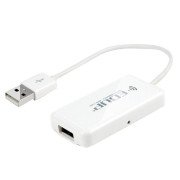
ചിത്രം 2.1: മുൻഭാഗം view of the EDUP EP-3701 USB WiFi Disk, showing the USB host port and the integrated USB cable.
3 പ്രധാന സവിശേഷതകൾ
- Wireless Data Access: പ്രവേശനം files on connected USB storage devices wirelessly from smartphones, tablets, and computers.
- മൾട്ടി-യൂസർ പിന്തുണ: Allows multiple users to connect and stream/access data simultaneously.
- പോർട്ടബിൾ ഡിസൈൻ: Compact and lightweight, ideal for travel and on-the-go use.
- ഊർജ്ജ സ്രോതസ്സ്: Powered via USB, can be connected to a USB wall adapter, power bank, or computer USB port.
- ആപ്പ് നിയന്ത്രണം: Dedicated mobile application for easy file management and device configuration.
4. പാക്കേജ് ഉള്ളടക്കം
പാക്കേജിൽ എല്ലാ ഇനങ്ങളും ഉണ്ടെന്ന് ഉറപ്പാക്കുക:
- EDUP EP-3701 USB WiFi Disk
- ദ്രുത ആരംഭ ഗൈഡ് (ഈ മാനുവൽ)
5. സജ്ജീകരണം
5.1. ഉപകരണം പവർ ചെയ്യുന്നു
- Connect the integrated USB cable of the EP-3701 to a USB power source (e.g., a 5V/1A USB wall adapter, a power bank, or a computer's USB port).
- The power indicator light on the device will illuminate, indicating it is powered on.
5.2. Connecting USB Storage
- Insert your USB flash drive or external hard drive into the USB host port on the EP-3701.
- Ensure the USB storage device is properly seated.
5.3. Connecting Mobile Device
- On your smartphone or tablet, go to Wi-Fi settings.
- Locate and connect to the Wi-Fi network named "EDUP_XXXXXX" (XXXXXX will be the last six digits of the device's MAC address).
- The default password is "12345678". It is recommended to change this password after initial setup.
- Download and install the "WiFi Disk" application from your device's app store (App Store for iOS, Google Play Store for Android).
- Open the "WiFi Disk" app. The app will automatically detect and connect to the EP-3701.
6. പ്രവർത്തന നിർദ്ദേശങ്ങൾ
6.1. File മാനേജ്മെൻ്റ്
- ബ്രൗസ് ചെയ്യുക Files: Within the "WiFi Disk" app, navigate through the folders and files on the connected USB storage.
- അപ്ലോഡ് ചെയ്യുക Files: കൈമാറ്റം files from your mobile device to the USB storage connected to the EP-3701.
- ഡൗൺലോഡ് ചെയ്യുക Files: കൈമാറ്റം files from the USB storage to your mobile device.
- സ്ട്രീം മീഡിയ: വീഡിയോകൾ, സംഗീതം, എന്നിവ പ്ലേ ചെയ്യുക view photos directly from the USB storage without downloading.
6.2 നെറ്റ്വർക്ക് ക്രമീകരണങ്ങൾ
The "WiFi Disk" app allows you to configure network settings:
- Change Wi-Fi Name (SSID): Modify the name of the EP-3701's Wi-Fi network.
- വൈഫൈ പാസ്വേഡ് മാറ്റുക: Update the password for the Wi-Fi network.
- Internet Passthrough (Bridge Mode): Connect the EP-3701 to an existing Wi-Fi network to provide internet access to connected devices while still allowing access to the USB storage.
7. പരിപാലനം
- വൃത്തിയാക്കൽ: ഉപകരണത്തിന്റെ പുറംഭാഗം വൃത്തിയാക്കാൻ മൃദുവായതും ഉണങ്ങിയതുമായ തുണി ഉപയോഗിക്കുക. ലിക്വിഡ് ക്ലീനറുകളോ എയറോസോളുകളോ ഉപയോഗിക്കരുത്.
- സംഭരണം: നേരിട്ടുള്ള സൂര്യപ്രകാശത്തിൽ നിന്നും കടുത്ത താപനിലയിൽ നിന്നും മാറി തണുത്തതും വരണ്ടതുമായ സ്ഥലത്ത് ഉപകരണം സൂക്ഷിക്കുക.
- ഫേംവെയർ അപ്ഡേറ്റുകൾ: Periodically check the "WiFi Disk" app or the EDUP official webഒപ്റ്റിമൽ പ്രകടനവും സുരക്ഷയും ഉറപ്പാക്കാൻ ഫേംവെയർ അപ്ഡേറ്റുകൾക്കായുള്ള സൈറ്റ്.
- സുരക്ഷിതമായ നീക്കം: Always ensure data transfer is complete before disconnecting the USB storage device or powering off the EP-3701.
8. പ്രശ്നപരിഹാരം
8.1. ഉപകരണം ഓണാക്കുന്നില്ല
- Ensure the USB cable is securely connected to a working USB power source.
- മറ്റൊരു USB പോർട്ട് അല്ലെങ്കിൽ പവർ അഡാപ്റ്റർ പരീക്ഷിക്കുക.
8.2. Cannot Connect to Wi-Fi Network
- Verify you are selecting the correct "EDUP_XXXXXX" network.
- Double-check the Wi-Fi password (default is "12345678").
- Restart the EP-3701 device and your mobile device.
8.3. USB Storage Not Detected
- Ensure the USB storage device is properly inserted into the EP-3701's USB host port.
- Check if the USB storage device is formatted in a supported file system (FAT32, NTFS, exFAT).
- Some high-power consumption external hard drives may require an external power source.
- Try a different USB storage device to rule out a faulty drive.
8.4. App Not Functioning Correctly
- Ensure your mobile device is connected to the EP-3701's Wi-Fi network.
- Close and reopen the "WiFi Disk" app.
- Reinstall the "WiFi Disk" app.
- നിങ്ങളുടെ ഉപകരണത്തിന്റെ ആപ്പ് സ്റ്റോറിൽ ആപ്പ് അപ്ഡേറ്റുകൾക്കായി പരിശോധിക്കുക.
9 സ്പെസിഫിക്കേഷനുകൾ
| ഫീച്ചർ | വിവരണം |
|---|---|
| മോഡൽ | EP-3701 |
| ഇൻ്റർഫേസ് | USB 2.0 (Host), USB 2.0 (Power Input) |
| വയർലെസ് സ്റ്റാൻഡേർഡ് | IEEE 802.11b/g/n |
| ഫ്രീക്വൻസി ബാൻഡ് | 2.4 GHz |
| സുരക്ഷ | WPA / WPA2, WPA-PSK / WPA2-PSK |
| പിന്തുണച്ചു File സിസ്റ്റങ്ങൾ | FAT32, NTFS, exFAT |
| പവർ ഇൻപുട്ട് | DC 5V/1A (via USB) |
| അളവുകൾ | (Approximate, based on typical USB dongle size) 60mm x 25mm x 10mm |
| പ്രവർത്തന താപനില | 0°C മുതൽ 40°C വരെ (32°F മുതൽ 104°F വരെ) |
10. വാറൻ്റിയും പിന്തുണയും
EDUP products typically come with a limited warranty. Please refer to the warranty card included with your purchase or visit the official EDUP webനിങ്ങളുടെ പ്രദേശത്തിന് പ്രത്യേകമായുള്ള വിശദമായ വാറന്റി നിബന്ധനകൾക്കും വ്യവസ്ഥകൾക്കും സൈറ്റ് സന്ദർശിക്കുക.
For technical support, product inquiries, or warranty claims, please contact EDUP customer service through their official webസൈറ്റ് അല്ലെങ്കിൽ നിങ്ങളുടെ ഉൽപ്പന്ന പാക്കേജിംഗിൽ നൽകിയിരിക്കുന്ന ബന്ധപ്പെടാനുള്ള വിവരങ്ങൾ.
Webസൈറ്റ്: www.szedup.com


