1. ഉൽപ്പന്നം കഴിഞ്ഞുview
The AsReader 1D Barcode Sled/Dock/Modular-Type is an ultra-compact and durable accessory designed to enhance the barcode scanning capabilities of compatible iOS devices. Its slim and stylish design makes it suitable for various environments, including retail, healthcare, and warehousing. The device features an integrated 1D barcode scanner and is constructed from TPU and polycarbonate for durability.
Key features include a convenient magnetic battery charger that simultaneously charges the sled and the connected phone, and a royalty-free Software Development Kit (SDK) for application development.
2. സവിശേഷതകൾ
- Unique, Slim, Stylish and Durable Design: Compact and robust construction for easy portability and long-term use.
- Convenient Magnetic Battery Charger: Allows simultaneous charging of the sled and the connected iOS device.
- Royalty-free SDK: A Software Development Kit is available at no charge for custom application development.
- അംബിഡെക്സ്ട്രസ് ഡിസൈൻ: Buttons on each side enable comfortable left-handed or right-handed usage.
3. അനുയോജ്യമായ ഉപകരണങ്ങൾ
The AsReader 1D Barcode Sled is compatible with the following Apple iOS devices:
- iPhone 5, iPhone 5s
- iPhone 6s, iPhone 6s Plus
- iPhone 7, iPhone 7 Plus
- iPhone 8, iPhone 8 Plus
- iPhone SE
- iPod touch 5th Generation
- iPod touch 6th Generation
- iPad mini 1, iPad mini 2, iPad mini 3
Note: Please ensure you select the correct case color (Black or White) and the specific model of your iPhone/iPad/iPod when acquiring the device to ensure proper fit.
4. സജ്ജീകരണം
Follow these steps to set up your AsReader 1D Barcode Sled with your compatible iOS device:
- ഘടകങ്ങൾ അൺപാക്ക് ചെയ്യുക: Carefully remove the AsReader sled, the protective case, and any other accessories from the packaging.
- Insert iOS Device into Case: Place your iPhone or iPod Touch into the provided protective case. Ensure it is securely seated and all buttons and ports are accessible.
- Attach AsReader Sled: Align the AsReader sled with the opening in the back of the protective case. Gently slide the sled into place until it clicks securely. The sled's Lightning connector should engage with your iOS device's Lightning port.
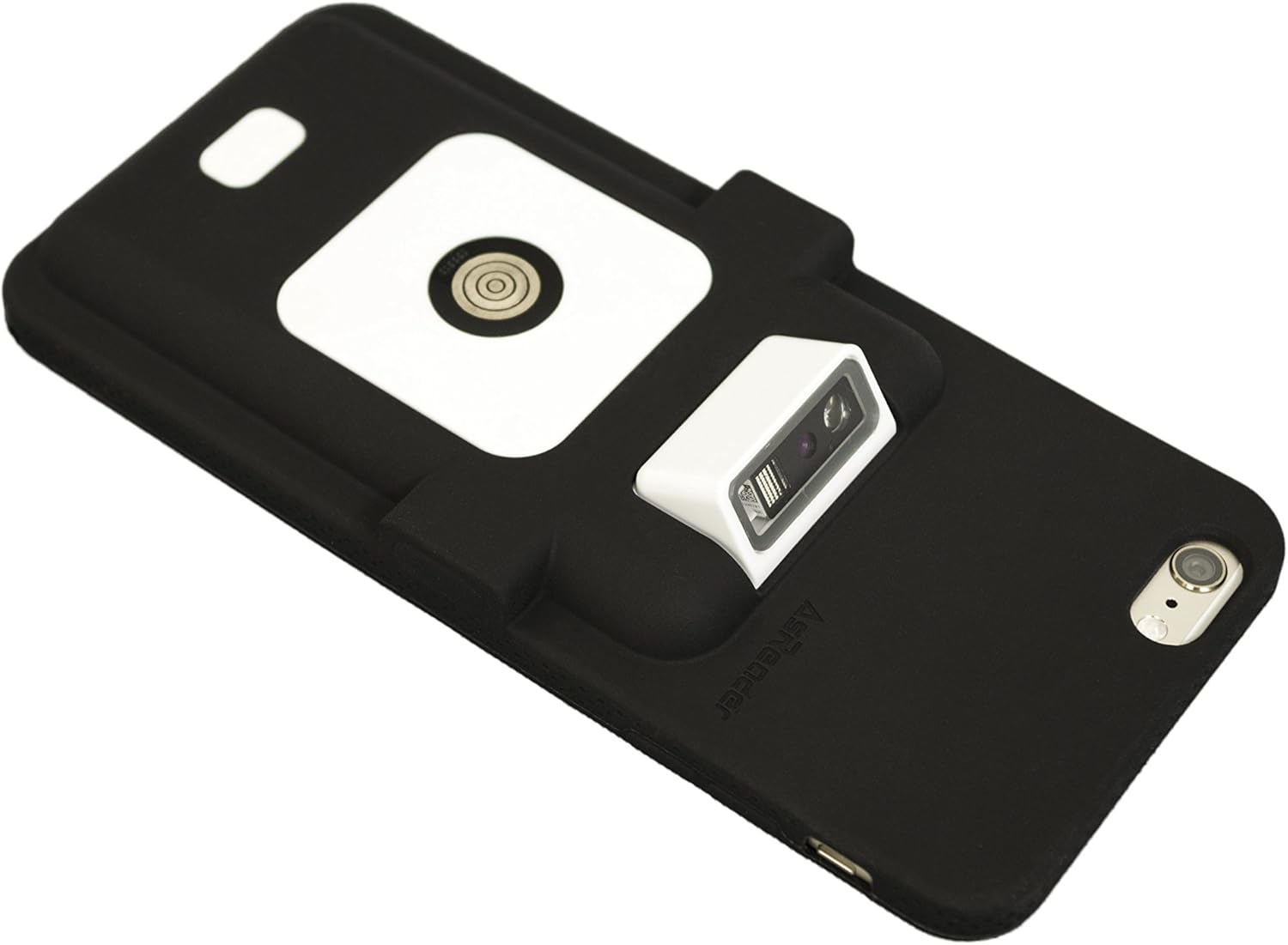
Figure 4.1: Assembled AsReader Sled with iPhone in Black Case. This image shows the AsReader 1D barcode sled securely attached to an iPhone, which is housed within a black protective case. The barcode scanner module is visible at the top of the sled.
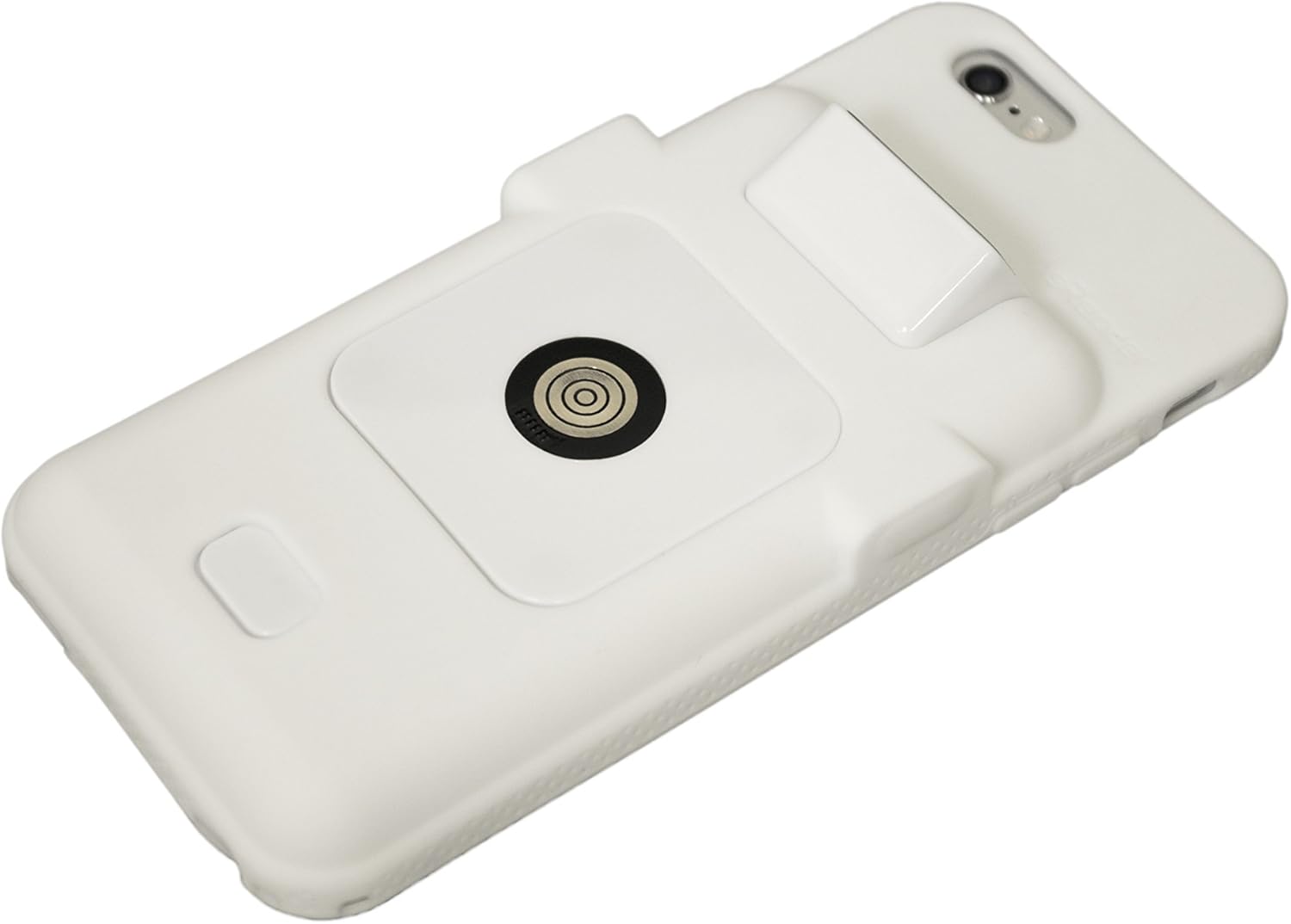
Figure 4.2: Assembled AsReader Sled with iPhone in White Case. This image displays the AsReader 1D barcode sled attached to an iPhone, which is enclosed in a white protective case. The scanner module is clearly visible.
- പ്രാരംഭ ചാർജ്: Connect the magnetic battery charger to the AsReader sled. Ensure both the sled and your iOS device begin charging. A full charge is recommended before first use.
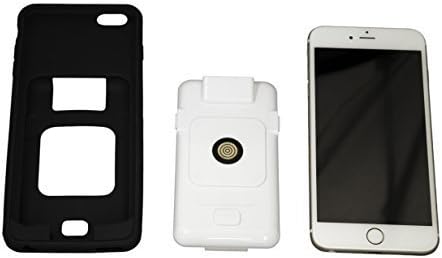
Figure 4.3: AsReader Components. This image shows the three main components of the AsReader system: a black protective case for the iPhone, the white AsReader 1D barcode sled module, and an iPhone. These components are shown separately before assembly.
5. പ്രവർത്തന നിർദ്ദേശങ്ങൾ
To operate your AsReader 1D Barcode Sled:
- പവർ ഓൺ: The AsReader sled powers on automatically when connected to a compatible iOS device and has sufficient battery.
- ആപ്ലിക്കേഷൻ സമാരംഭിക്കുക: Open a compatible barcode scanning application on your iOS device. If you are developing your own application, utilize the provided royalty-free SDK.
- Scan Barcode: Point the scanner window of the AsReader sled at the 1D barcode you wish to scan. Press one of the side buttons (located on either side of the sled) to activate the scanner. The device will emit a scan beam.
- സ്ഥിരീകരണം: A successful scan is typically indicated by an audible beep and/or visual feedback within the scanning application.
The AsReader is designed with buttons on both sides, allowing for comfortable operation whether you are left-handed or right-handed.
6. പരിപാലനം
Proper maintenance ensures the longevity and optimal performance of your AsReader device:
- വൃത്തിയാക്കൽ: മൃദുവായ, ലിൻ്റ് രഹിത തുണി ഉപയോഗിക്കുകampened with water or a mild, non-abrasive cleaner to wipe the exterior of the sled and case. Avoid harsh chemicals or abrasive materials. Do not spray liquids directly onto the device.
- സ്കാനർ വിൻഡോ: Keep the scanner window clean and free of dust or smudges to ensure accurate barcode reading. Use a lens cleaning cloth if necessary.
- ബാറ്ററി കെയർ: The device uses a Lithium Ion battery. For optimal battery life, avoid extreme temperatures and store the device with a partial charge if not used for extended periods.
- സംഭരണം: Store the AsReader in a cool, dry place away from direct sunlight and extreme temperatures.
7. പ്രശ്നപരിഹാരം
If you encounter issues with your AsReader 1D Barcode Sled, refer to the following common problems and solutions:
| പ്രശ്നം | സാധ്യമായ കാരണം | പരിഹാരം |
|---|---|---|
| Device not scanning barcodes | Low battery; Scanner window dirty; Incorrect barcode type; Application issue; Sled not properly connected. | Charge the device; Clean scanner window; Ensure barcode is 1D; Restart scanning application; Re-seat the sled on the iOS device. |
| ഉപകരണം ചാർജ് ചെയ്യുന്നില്ല | Magnetic charger not properly connected; Damaged cable/charger; Faulty battery. | Ensure magnetic charger is firmly attached; Try a different charging cable/adapter; Contact support if battery is suspected faulty. |
| Sled not recognized by iOS device | Loose connection; iOS device software issue; Sled firmware issue. | Remove and re-attach the sled; Restart your iOS device; Check AsReader website for firmware updates or contact support. |
8 സ്പെസിഫിക്കേഷനുകൾ
| സ്പെസിഫിക്കേഷൻ | വിശദാംശങ്ങൾ |
|---|---|
| മോഡൽ നമ്പർ | ASR-010D-V2 |
| അളവുകൾ (L x W x H) | 141.9 x 64.4 x 17.8 മിമി (5.59" x 2.54" x 0.70") |
| ഭാരം | Approx. 90 grams (without iPhone or iPod Touch) |
| സ്കാനർ തരം | 1D Barcode (CCD linear image sensor 1,500pixel) |
| വായന ആംഗിൾ | Pitch: ±65°, Roll: ±25°, Skew motion: ±50° |
| മെറ്റീരിയൽ | TPU and Polycarbonate |
| പവർ ഉറവിടം | ബാറ്ററി പവർ (1 ലിഥിയം അയൺ ബാറ്ററി ഉൾപ്പെടുത്തിയിരിക്കുന്നു) |
| കണക്റ്റിവിറ്റി | മിന്നൽ കണക്റ്റർ |
| നിർമ്മാതാവ് | Asterisk, Inc. |
9. വാറൻ്റിയും പിന്തുണയും
For information regarding product warranty, please refer to the warranty card included with your purchase or visit the official AsReader website. For technical support, software development kit (SDK) inquiries, or further assistance, please contact AsReader customer support through their official channels.
The royalty-free SDK is available to assist developers in integrating the AsReader's functionality into custom applications, providing comprehensive tools and documentation.


