ആമുഖം
The Logitech M337 Wireless Bluetooth Mouse is a compact and portable input device designed for use with virtually any Bluetooth-enabled computer, laptop, or tablet. It offers a comfortable curved shape, precise optical tracking, and a long battery life, making it ideal for on-the-go productivity across various operating systems including Mac, Windows, Chrome OS, and Android.
സജ്ജമാക്കുക
ബോക്സിൽ എന്താണുള്ളത്
- Logitech M337 Wireless Bluetooth Mouse
- 1 AA ബാറ്ററി (മുൻകൂട്ടി ഇൻസ്റ്റാൾ ചെയ്തതോ പ്രത്യേകം ഉൾപ്പെടുത്തിയതോ)
- ഉപയോക്തൃ ഡോക്യുമെൻ്റേഷൻ
ബാറ്ററി ഇൻസ്റ്റാളേഷൻ
- മൗസിന്റെ അടിഭാഗത്ത് ബാറ്ററി കമ്പാർട്ട്മെന്റ് കണ്ടെത്തുക.
- ബാറ്ററി കമ്പാർട്ട്മെൻ്റ് കവർ തുറക്കുക.
- ഉൾപ്പെടുത്തിയിരിക്കുന്ന AA ബാറ്ററി ഇടുക, ശരിയായ പോളാരിറ്റി (+/-) ഉറപ്പാക്കുക.
- ബാറ്ററി കമ്പാർട്ട്മെൻ്റ് കവർ സുരക്ഷിതമായി അടയ്ക്കുക.
ബ്ലൂടൂത്ത് ജോടിയാക്കൽ
The M337 mouse connects wirelessly via Bluetooth, freeing up USB ports. Follow these steps to pair your mouse with your device:
- Turn on the mouse using the On/Off switch located on the underside. The LED indicator on the top of the mouse should start blinking rapidly, indicating it's in pairing mode. If not, press and hold the Bluetooth connect button (usually near the battery compartment or on the top, below the scroll wheel) until the LED blinks.
- On your computer, laptop, or tablet, navigate to the Bluetooth settings:
- വിൻഡോസ്: Go to Start > Settings > Devices > Bluetooth & other devices. Turn Bluetooth On, then click "Add Bluetooth or other device" and select "Bluetooth".
- മാകോസ്: Go to Apple menu > System Preferences > Bluetooth. Ensure Bluetooth is On.
- Chrome OS: Click the status area (bottom right) > Bluetooth > Enable Bluetooth.
- ആൻഡ്രോയിഡ്: Go to Settings > Connected devices > Connection preferences > Bluetooth. Turn Bluetooth On.
- In the Bluetooth device list, select "Logitech M337" or a similar name.
- Follow any on-screen prompts to complete the pairing process. The LED indicator on the mouse will turn solid blue for a few seconds and then turn off once successfully connected.
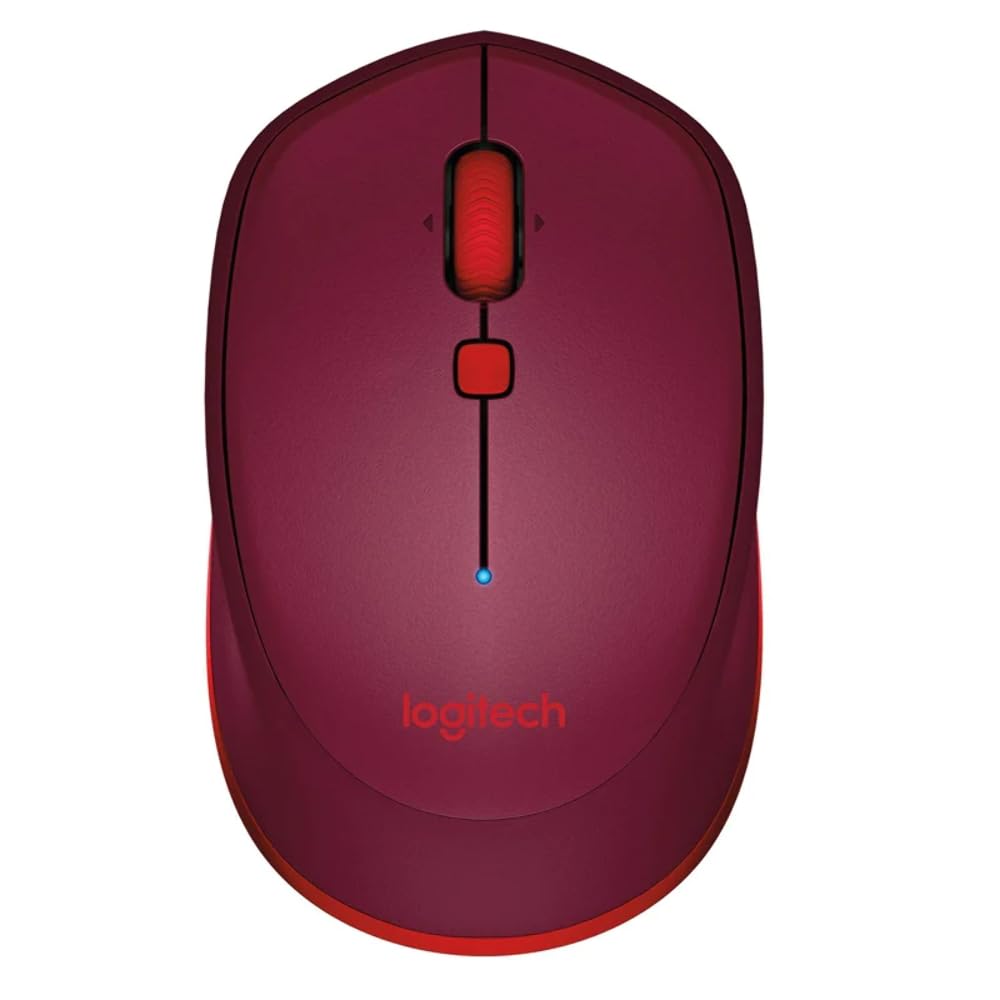
This image displays the Logitech M337 Wireless Bluetooth Mouse from a top-down perspective, highlighting its compact design, the red scroll wheel, and the central navigation button. The Logitech logo is visible at the bottom.
മൗസ് പ്രവർത്തിപ്പിക്കൽ
അടിസ്ഥാന പ്രവർത്തനങ്ങൾ
- ഇടത് ക്ലിക്ക്: ഇനങ്ങൾ തിരഞ്ഞെടുക്കുന്നതിനും സോഫ്റ്റ്വെയറുമായി സംവദിക്കുന്നതിനുമുള്ള പ്രാഥമിക ബട്ടൺ.
- വലത് ക്ലിക്കിൽ: സന്ദർഭ മെനുകൾക്കും അധിക ഓപ്ഷനുകൾക്കുമുള്ള സെക്കൻഡറി ബട്ടൺ.
- സ്ക്രോൾ വീൽ: ഡോക്യുമെന്റുകളിലൂടെ മുകളിലേക്കോ താഴേക്കോ സ്ക്രോൾ ചെയ്യുക, web പേജുകൾ.
- ടിൽറ്റ് വീൽ: Tilt the scroll wheel left or right for horizontal scrolling (if supported by software).
- നാവിഗേഷൻ ബട്ടൺ: The button located below the scroll wheel. By default, this button can be configured to perform various functions, such as opening the task view on Windows or Mission Control on Mac. Customization is available through Logitech Options software.
സുഖവും കൊണ്ടുപോകാനുള്ള കഴിവും
The M337 features a comfortable curved shape with rubber grips, designed for extended use by both right and left-handed users. Its compact size allows for easy portability, fitting conveniently into laptop bags or pockets.

ഒരു കോണാകൃതിയിലുള്ള view of the Logitech M337 mouse, showcasing its comfortable curved shape and the textured rubber grips on the sides, designed for both right and left-handed users.
മെയിൻ്റനൻസ്
ബാറ്ററി മാറ്റിസ്ഥാപിക്കൽ
The Logitech M337 mouse boasts an average battery life of up to 19 months. When the battery is low, the LED indicator on the mouse may blink red. To replace the battery, follow the battery installation steps outlined in the Setup section.
വൃത്തിയാക്കൽ
To maintain optimal performance and hygiene, periodically clean your mouse:
- മൃദുവായ, ലിൻ്റ് രഹിത തുണി ഉപയോഗിക്കുകampവെള്ളം അല്ലെങ്കിൽ മൃദുവായ ക്ലീനിംഗ് ലായനി ഉപയോഗിച്ചാണ്.
- കഠിനമായ രാസവസ്തുക്കൾ, അബ്രസീവ് ക്ലീനറുകൾ എന്നിവ ഉപയോഗിക്കുന്നത് അല്ലെങ്കിൽ മൗസ് ദ്രാവകത്തിൽ മുക്കുന്നത് ഒഴിവാക്കുക.
- മൗസിന്റെ പ്രതലം സൌമ്യമായി തുടയ്ക്കുക, നിങ്ങളുടെ കൈയുമായി ഇടയ്ക്കിടെ സമ്പർക്കം വരുന്ന ഭാഗങ്ങളിൽ ശ്രദ്ധ ചെലുത്തുക.
- ഒപ്റ്റിക്കൽ സെൻസറിന്, ഏതെങ്കിലും പൊടിയോ അവശിഷ്ടങ്ങളോ ശ്രദ്ധാപൂർവ്വം നീക്കം ചെയ്യാൻ ഉണങ്ങിയ കോട്ടൺ സ്വാബ് ഉപയോഗിക്കുക.
ട്രബിൾഷൂട്ടിംഗ്
കണക്റ്റിവിറ്റി പ്രശ്നങ്ങൾ
- മൗസ് കണക്റ്റ് ചെയ്യുന്നില്ല: മൗസ് ഓണാണെന്നും ബാറ്ററിക്ക് ആവശ്യത്തിന് ചാർജ് ഉണ്ടെന്നും ഉറപ്പാക്കുക. മൗസിൽ ജോടിയാക്കൽ മോഡ് വീണ്ടും ആരംഭിച്ച് നിങ്ങളുടെ കമ്പ്യൂട്ടറിലെ ബ്ലൂടൂത്ത് ഉപകരണങ്ങൾക്കായി വീണ്ടും സ്കാൻ ചെയ്യുക.
- ഇടവിട്ടുള്ള കണക്ഷൻ: Move the mouse closer to your device. Ensure there are no large metal objects or other wireless devices causing interference between the mouse and your computer.
- Bluetooth not found on computer: Verify that your computer's Bluetooth is enabled and its drivers are up to date.
Tracking Problems
- ക്രമരഹിതമായ കഴ്സർ ചലനം: Clean the optical sensor on the underside of the mouse. Ensure you are using the mouse on a clean, non-reflective, and uniform surface.
- No cursor movement: Check battery level. Ensure the mouse is properly paired.
മറ്റ് പ്രശ്നങ്ങൾ
- ബട്ടണുകൾ പ്രതികരിക്കുന്നില്ല: Check battery. If using Logitech Options software, ensure button assignments are correct.
- സ്ക്രോൾ വീൽ പ്രവർത്തിക്കുന്നില്ല: Clean around the scroll wheel to remove any debris.
സ്പെസിഫിക്കേഷനുകൾ
| ഫീച്ചർ | വിശദാംശങ്ങൾ |
|---|---|
| ബ്രാൻഡ് | ലോജിടെക് |
| മോഡൽ നമ്പർ | M337 |
| കണക്റ്റിവിറ്റി ടെക്നോളജി | ബ്ലൂടൂത്ത് |
| മൂവ്മെന്റ് ഡിറ്റക്ഷൻ ടെക്നോളജി | ഒപ്റ്റിക്കൽ |
| നിറം | ചുവപ്പ് |
| പവർ ഉറവിടം | Battery Powered (1 AA battery) |
| ശരാശരി ബാറ്ററി ലൈഫ് | 19 മാസം വരെ |
| ഓപ്പറേറ്റിംഗ് സിസ്റ്റം അനുയോജ്യത | Android, Chrome OS, Mac, Windows |
| ഇനത്തിന്റെ അളവുകൾ (LxWxH) | 18.6 x 12.6 x 8.3 സെ.മീ |
| ഇനത്തിൻ്റെ ഭാരം | 82 ഗ്രാം |
വാറൻ്റിയും പിന്തുണയും
വാറൻ്റി വിവരങ്ങൾ
The Logitech M337 Wireless Bluetooth Mouse typically comes with a 1 വർഷത്തെ പരിമിത ഹാർഡ്വെയർ വാറന്റി വാങ്ങിയ തീയതി മുതൽ. വാറന്റി ക്ലെയിമുകൾക്കായി നിങ്ങളുടെ വാങ്ങിയതിന്റെ തെളിവ് സൂക്ഷിക്കുക. സാധാരണ ഉപയോഗത്തിൽ മെറ്റീരിയലുകളിലും വർക്ക്മാൻഷിപ്പിലുമുള്ള വൈകല്യങ്ങൾ വാറന്റി ഉൾക്കൊള്ളുന്നു.
ഉപഭോക്തൃ പിന്തുണ
For further assistance, technical support, or warranty claims, please visit the official Logitech support website or contact their customer service. You can usually find detailed FAQs, troubleshooting guides, and driver downloads on their webസൈറ്റ്.
ലോജിടെക് പിന്തുണ Webസൈറ്റ്: support.logi.com


