1. ആമുഖം
The HP USB Slim Business Keyboard is designed to provide efficient data entry and seamless connectivity for your HP Business PCs. This full-sized keyboard offers a comfortable and productive typing experience, optimized for use across multiple operating systems.
പ്രധാന സവിശേഷതകളിൽ ഇവ ഉൾപ്പെടുന്നു:
- 3 indicator lights for Caps Lock, Num Lock, and Scroll Lock.
- Integrated number pad for quick data entry.
- Spill-resistant construction for enhanced durability.
- Adjustable legs for customizable typing angles.
- Full-size 104-key layout, including Windows, Function, and Page Keys.
- Quiet key strokes to minimize typing noise.
- Plug-and-play USB connectivity for instant setup.

ചിത്രം 1.1: കോണാകൃതിയിലുള്ളത് view of the HP USB Slim Business Keyboard, showcasing ഇത് സ്ലിം പ്രോ ആണ്file and full layout with the attached USB cable.
2. സജ്ജീകരണ ഗൈഡ്
Setting up your HP USB Slim Business Keyboard is a straightforward process due to its plug-and-play design.
2.1 കീബോർഡ് ബന്ധിപ്പിക്കുന്നു
- നിങ്ങളുടെ കമ്പ്യൂട്ടറിൽ ലഭ്യമായ USB പോർട്ട് കണ്ടെത്തുക.
- കീബോർഡിന്റെ USB കണക്റ്റർ USB പോർട്ടിലേക്ക് ദൃഢമായി തിരുകുക.
- Your operating system will automatically detect and install the necessary drivers. This process typically takes a few seconds.
- Once installed, the keyboard is ready for immediate use.
2.2 കീബോർഡ് ആംഗിൾ ക്രമീകരിക്കൽ
For optimal comfort, you can adjust the typing angle of your keyboard:
- Flip the keyboard over to reveal the two adjustable legs located at the top corners of the underside.
- Gently pull out the legs to raise the back of the keyboard, providing a slight incline.
- Push the legs back in to return the keyboard to a flat position.

ചിത്രം 2.1: വശം view of the keyboard illustrating its slim profile and the adjustable leg extended for an inclined typing position.
3. കീബോർഡ് പ്രവർത്തിപ്പിക്കൽ
The HP USB Slim Business Keyboard provides a standard 104-key layout for efficient and familiar typing.
3.1 കീ ലേഔട്ടും പ്രവർത്തനങ്ങളും
The keyboard features a full QWERTY layout, a dedicated numeric keypad, and function keys (F1-F12) that may have secondary functions depending on your operating system and installed software.
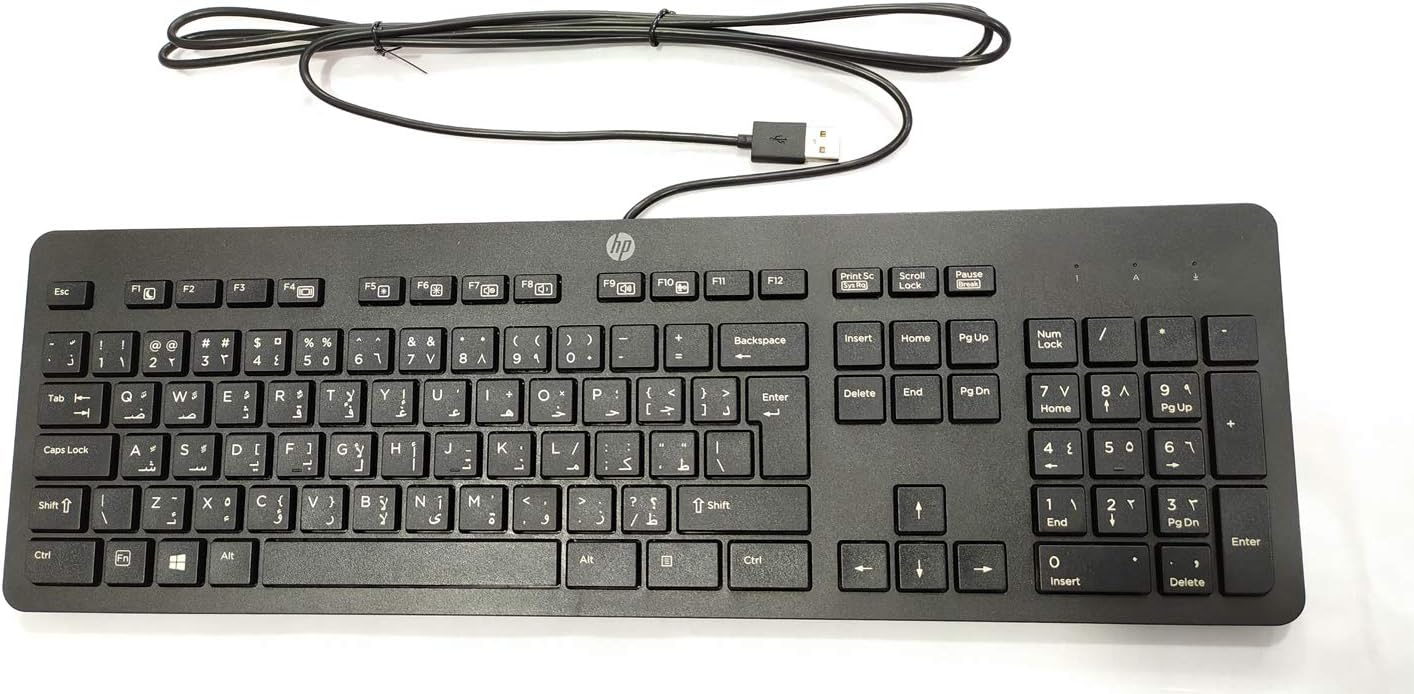
ചിത്രം 3.1: മുകളിൽ നിന്ന് താഴേക്ക് view of the keyboard, highlighting the full 104-key layout including the numeric keypad and function keys.
3.2 ഇൻഡിക്കേറ്റർ ലൈറ്റുകൾ
Three LED indicator lights are located above the numeric keypad:
- നമ്പർ ലോക്ക്: Illuminates when the numeric keypad is active. Press the "Num Lock" key to toggle on/off.
- വലിയക്ഷരം: Illuminates when Caps Lock is active, indicating that all typed letters will be uppercase. Press the "Caps Lock" key to toggle on/off.
- സ്ക്രോൾ ലോക്ക്: Illuminates when Scroll Lock is active. Its function varies by application but is rarely used in modern operating systems.
3.3 Multi-OS Compatibility
This keyboard is designed to interact seamlessly with various operating systems, including Windows 10 and other compatible systems. Standard keyboard functions will operate without additional software installation.
4. പരിപാലനവും പരിചരണവും
Proper care will extend the life and maintain the performance of your HP USB Slim Business Keyboard.
4.1 ക്ലീനിംഗ് നിർദ്ദേശങ്ങൾ
- വൃത്തിയാക്കുന്നതിനുമുമ്പ് നിങ്ങളുടെ കമ്പ്യൂട്ടറിൽ നിന്ന് കീബോർഡ് വിച്ഛേദിക്കുക.
- നനവില്ലാത്തതും ലിനില്ലാത്തതുമായ തുണി ചെറുതായി ഉപയോഗിക്കുകampവെള്ളം അല്ലെങ്കിൽ നേരിയതും, ഉരച്ചിലുകളില്ലാത്തതുമായ ക്ലീനിംഗ് ലായനി ഉപയോഗിച്ച് നനയ്ക്കുക.
- Wipe the keycaps and keyboard surface gently. Avoid excessive moisture.
- താക്കോലുകൾക്കിടയിലുള്ള പൊടിയും അവശിഷ്ടങ്ങളും ഒഴിവാക്കാൻ, കംപ്രസ് ചെയ്ത വായു ഉപയോഗിക്കുക.
- നിങ്ങളുടെ കമ്പ്യൂട്ടറുമായി വീണ്ടും ബന്ധിപ്പിക്കുന്നതിന് മുമ്പ് കീബോർഡ് പൂർണ്ണമായും ഉണങ്ങിയെന്ന് ഉറപ്പാക്കുക.
4.2 ചോർച്ച പ്രതിരോധം
The keyboard features spill-resistant construction. While designed to withstand minor spills, it is not waterproof. In case of a liquid spill:
- നിങ്ങളുടെ കമ്പ്യൂട്ടറിൽ നിന്ന് ഉടൻ തന്നെ കീബോർഡ് വിച്ഛേദിക്കുക.
- Invert the keyboard to allow liquid to drain.
- വൃത്തിയുള്ള തുണി ഉപയോഗിച്ച് ഉപരിതലം ഉണക്കുക.
- Allow the keyboard to air dry completely for several hours (or overnight) before reconnecting.
5. പ്രശ്നപരിഹാരം
If you encounter issues with your keyboard, refer to the following common troubleshooting steps:
| പ്രശ്നം | സാധ്യമായ കാരണം / പരിഹാരം |
|---|---|
| കീബോർഡ് പ്രതികരിക്കുന്നില്ല. |
|
| ചില കീകൾ പ്രവർത്തിക്കുന്നില്ല. |
|
| Indicator lights (Num Lock, Caps Lock) are not working. |
|
| Keyboard input is delayed or erratic. |
|
6 സ്പെസിഫിക്കേഷനുകൾ
| ബ്രാൻഡ് | ഹ്യൂലെറ്റ് പാക്കാർഡ് |
| മോഡൽ നമ്പർ | 803181 |
| കണക്റ്റിവിറ്റി ടെക്നോളജി | USB (വയർഡ്) |
| ഉപകരണ തരം | കീബോർഡ് |
| നിറം | കറുപ്പ് |
| ഇനത്തിൻ്റെ ഭാരം | 7.2 ഔൺസ് (ഏകദേശം 204 ഗ്രാം) |
| ഉൽപ്പന്ന അളവുകൾ (LxWxH) | 18 x 6.6 x 1.1 ഇഞ്ച് (ഏകദേശം 45.7 x 16.8 x 2.8 സെ.മീ) |
| കീകളുടെ എണ്ണം | 104 |
| ഓപ്പറേറ്റിംഗ് സിസ്റ്റം അനുയോജ്യത | Windows 10 (optimized for multiple operating systems) |
| പ്രത്യേക ഫീച്ചർ | Ergonomic, Spill-resistant |
| ബോക്സിൽ എന്താണുള്ളത് | HP USB Slim Business Keyboard, USB Cable (integrated) |
7. വാറൻ്റിയും പിന്തുണയും
7.1 ലിമിറ്റഡ് വാറൻ്റി
The HP USB Slim Business Keyboard comes with a one-year limited warranty. This warranty covers defects in materials and workmanship under normal use. Please retain your proof of purchase for warranty claims.
7.2 ഉപഭോക്തൃ പിന്തുണ
For technical assistance, warranty service, or additional product information, please visit the official HP support website or contact HP customer service. Refer to your product packaging or HP's official webഏറ്റവും പുതിയ കോൺടാക്റ്റ് വിവരങ്ങൾക്കും പിന്തുണാ ഉറവിടങ്ങൾക്കുമുള്ള സൈറ്റ്.
Note: Specific support contact details may vary by region.