ആമുഖം
The Amigo STK 7004 is a versatile 7-in-1 gamepad designed to enhance your gaming experience across multiple platforms. Featuring a built-in lithium battery, it offers portability and convenience for gaming on the go. This gamepad supports various modes including Gamepad, Mouse, and iCade, making it compatible with Android smartphones, Android tablets, iPhones, iPads, and PC systems. Its compact design and special functions like Auto and Turbo provide an optimized gaming interface.

Figure 1: Amigo STK 7004 Gamepad with a smartphone mounted, ready for gaming.
പാക്കേജ് ഉള്ളടക്കം
- Amigo STK 7004 Gamepad
- മൈക്രോ യുഎസ്ബി ചാർജിംഗ് കേബിൾ
- ഉപയോക്തൃ മാനുവൽ (ഈ പ്രമാണം)
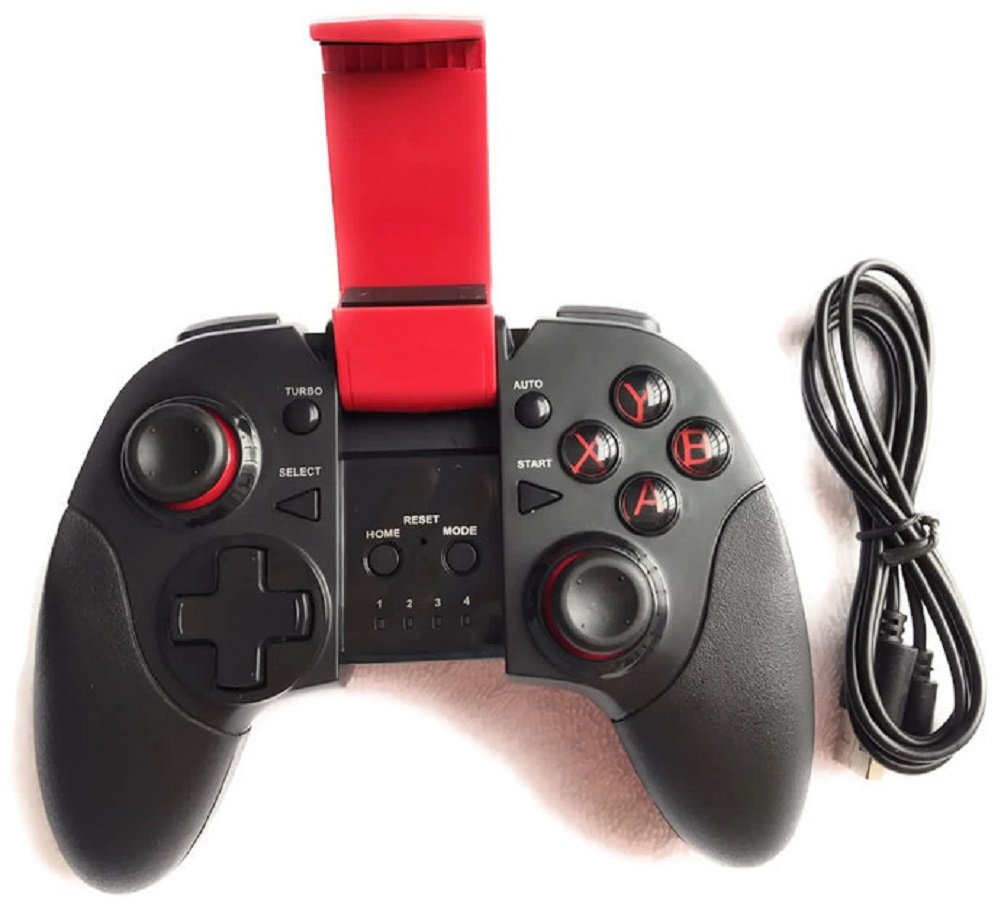
Figure 2: Gamepad and included Micro USB charging cable.
ഉൽപ്പന്നം കഴിഞ്ഞുview
Familiarize yourself with the various buttons and indicators on your Amigo STK 7004 Gamepad.
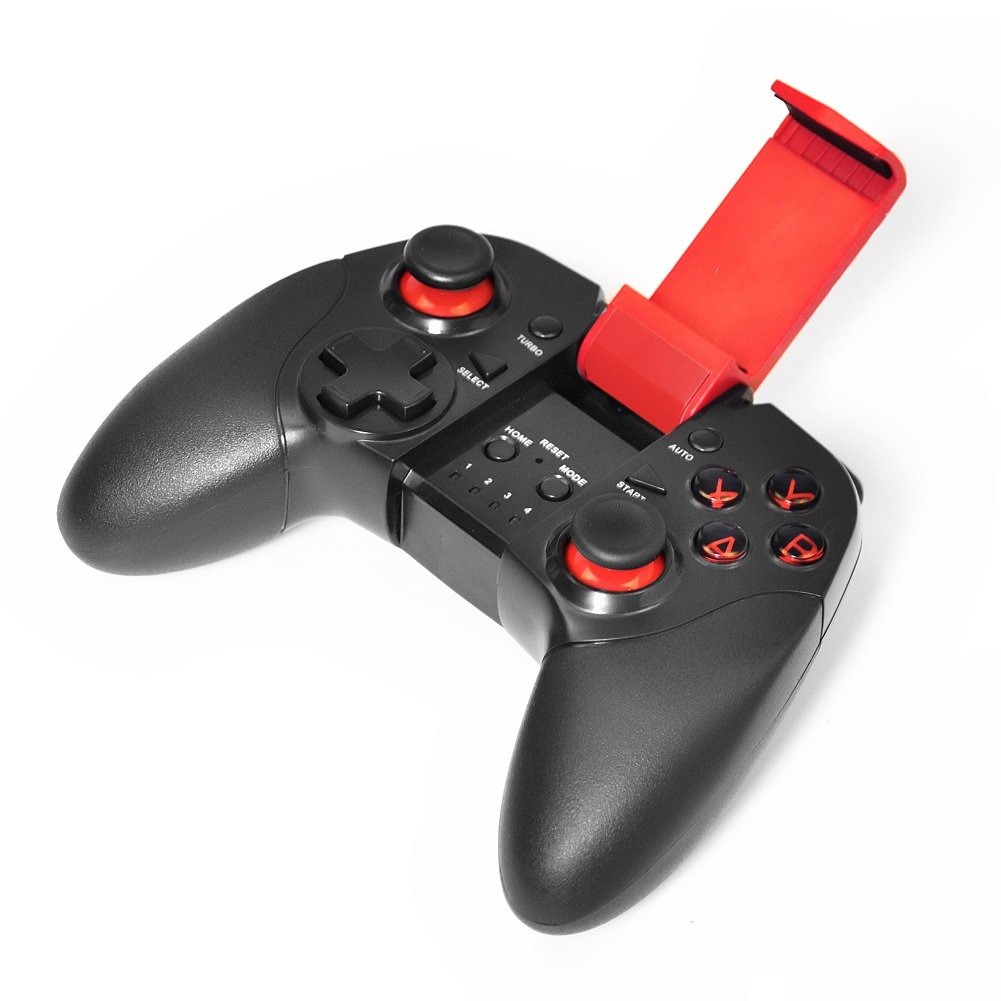
ചിത്രം 3: മുകളിൽ view of the Amigo STK 7004 Gamepad.
- Left Analog Stick / D-Pad: ദിശാ നിയന്ത്രണത്തിനായി.
- വലത് അനലോഗ് സ്റ്റിക്ക്: For camera control or specific game functions.
- ആക്ഷൻ ബട്ടണുകൾ (A, B, X, Y): Standard gaming action buttons.
- ഷോൾഡർ ബട്ടണുകൾ (L1, R1): മുകളിൽ ഘടിപ്പിച്ച ബട്ടണുകൾ.
- Trigger Buttons (L2, R2): Rear-mounted buttons.
- ബട്ടൺ തിരഞ്ഞെടുക്കുക: Typically for menu or specific game functions.
- ആരംഭിക്കുക ബട്ടൺ: Typically for pausing or starting games.
- ഹോം ബട്ടണ്: For returning to the device's home screen or pairing.
- മോഡ് സ്വിച്ച്: To select different operating modes (Gamepad, Mouse, iCade).
- റീസെറ്റ് ബട്ടൺ: ഫാക്ടറി റീസെറ്റിനുള്ള ചെറിയ പിൻഹോൾ ബട്ടൺ.
- ടർബോ ബട്ടൺ: Activates rapid fire for assigned buttons.
- ഓട്ടോ ബട്ടൺ: Activates automatic rapid fire for assigned buttons.
- LED സൂചകങ്ങൾ (1, 2, 3, 4): Indicate connection status and mode.
- സ്മാർട്ട്ഫോൺ ഹോൾഡർ: Integrated adjustable holder for mobile devices.

ചിത്രം 4: പിന്നിലേക്ക് view of the Amigo STK 7004 Gamepad.
സജ്ജീകരണവും കണക്ഷനും
ഗെയിംപാഡ് ചാർജ് ചെയ്യുന്നു
Before first use, fully charge the gamepad. Connect the micro USB cable to the gamepad's charging port and the other end to a USB power source (e.g., computer USB port, USB wall adapter). The LED indicators will show charging status and turn off when fully charged.
ഉപകരണങ്ങളുമായി ജോടിയാക്കുന്നു
The Amigo STK 7004 supports multiple connection modes. Ensure your device's Bluetooth is enabled.
1. Android Devices (Smartphone, Tablet, Android TV Box)
- Ensure the gamepad is off.
- അമർത്തിപ്പിടിക്കുക വീട് ബട്ടൺ ഒപ്പം X button simultaneously until the LED indicator 1 flashes rapidly. This puts the gamepad into Android pairing mode.
- On your Android device, go to Bluetooth settings and search for new devices.
- Select "STK-7004" or similar from the list of available devices.
- Once paired, LED indicator 1 will remain solid.
2. iOS Devices (iPhone, iPad)
- Ensure the gamepad is off.
- അമർത്തിപ്പിടിക്കുക വീട് ബട്ടൺ ഒപ്പം B button simultaneously until the LED indicator 2 flashes rapidly. This puts the gamepad into iOS iCade pairing mode.
- On your iOS device, go to Bluetooth settings and search for new devices.
- Select "STK-7004" or similar from the list of available devices.
- Once paired, LED indicator 2 will remain solid.
- കുറിപ്പ്: iCade mode compatibility varies by game. Some games may require specific iCade support.
3. PC (Windows System)
The gamepad can be connected to a PC via the micro USB cable.
- Connect the micro USB cable to the gamepad and then to an available USB port on your PC.
- പിസി ആവശ്യമായ ഡ്രൈവറുകൾ യാന്ത്രികമായി കണ്ടെത്തി ഇൻസ്റ്റാൾ ചെയ്യണം.
- LED indicator 3 will light up when successfully connected in PC mode.
- കുറിപ്പ്: For optimal performance, ensure your PC's operating system is up-to-date.
പ്രവർത്തന നിർദ്ദേശങ്ങൾ
മോഡ് സ്വിച്ചിംഗ്
The gamepad supports different operating modes. Use the മോഡ് switch or specific button combinations during power-on to select the desired mode.
- Gamepad Mode: Standard mode for most Android games. (Refer to Android pairing instructions).
- മൗസ് മോഡ്: Allows the left analog stick to control a mouse cursor on Android devices. Press വീട് + A to enter/exit mouse mode.
- iCade Mode: Specific mode for iOS games that support the iCade protocol. (Refer to iOS pairing instructions).
Special Functions: TURBO and AUTO
The TURBO and AUTO functions allow for rapid or automatic button presses, useful in certain games.
- ടർബോ സജ്ജീകരണം:
- Press and hold the button you wish to set for TURBO (e.g., A button).
- While holding the button, press the ടർബോ ബട്ടൺ ഒരിക്കൽ.
- Release both buttons. The assigned button will now activate rapid fire when held down.
- Setting AUTO:
- Press and hold the button you wish to set for AUTO (e.g., B button).
- While holding the button, press the ഓട്ടോ ബട്ടൺ ഒരിക്കൽ.
- Release both buttons. The assigned button will now continuously activate rapid fire without needing to be held down.
- Clearing TURBO/AUTO:
- To clear a single button's TURBO/AUTO setting, repeat the setting process for that button.
- To clear all TURBO/AUTO settings, press and hold the ക്ലിയർ button (if available, or refer to specific model instructions for a combination like തിരഞ്ഞെടുക്കുക + ആരംഭിക്കുക + വീട്).
പരിപാലനവും പരിചരണവും
- Keep the gamepad dry. Avoid exposure to moisture or extreme temperatures.
- Clean the surface with a soft, dry cloth. Do not use harsh chemicals or abrasive cleaners.
- ഉപയോഗത്തിലില്ലാത്തപ്പോൾ ഗെയിംപാഡ് തണുത്തതും വരണ്ടതുമായ സ്ഥലത്ത് സൂക്ഷിക്കുക.
- Avoid dropping or subjecting the gamepad to strong impacts.
- Do not attempt to disassemble the gamepad. This will void the warranty.
- ബാറ്ററിയുടെ ആരോഗ്യം നിലനിർത്താൻ, ഉപയോഗത്തിലില്ലെങ്കിൽ പോലും, പതിവായി ബാറ്ററി ചാർജ് ചെയ്യുക.
ട്രബിൾഷൂട്ടിംഗ്
| പ്രശ്നം | സാധ്യമായ കാരണം | പരിഹാരം |
|---|---|---|
| Gamepad does not turn on. | ബാറ്ററി കുറവാണ് അല്ലെങ്കിൽ തീർന്നു. | Charge the gamepad using the provided USB cable. |
| ഉപകരണവുമായി ജോടിയാക്കാൻ കഴിയില്ല. | Incorrect pairing mode; Bluetooth not enabled; device already paired with another gamepad. | Ensure correct pairing mode (Android/iOS) is selected. Enable Bluetooth on your device. Forget previous Bluetooth connections on your device and try pairing again. Restart both gamepad and device. |
| Buttons not responding in game. | Game does not support gamepads; incorrect mode selected; connection issue. | Verify if the game supports external gamepads. Ensure the gamepad is in the correct mode (Gamepad, iCade). Reconnect the gamepad. |
| Gamepad disconnects frequently. | Low battery; interference; device too far. | Charge the gamepad. Ensure no strong electromagnetic interference. Keep the gamepad within close proximity to the device. |
| PC connection issues. | Faulty USB cable/port; driver issues. | Try a different USB port or cable. Ensure PC drivers are up-to-date. Restart PC. |
ഈ പരിഹാരങ്ങൾ പരീക്ഷിച്ചതിന് ശേഷവും പ്രശ്നം നിലനിൽക്കുകയാണെങ്കിൽ, ദയവായി ഉപഭോക്തൃ പിന്തുണയുമായി ബന്ധപ്പെടുക.
സ്പെസിഫിക്കേഷനുകൾ
| മോഡൽ നമ്പർ | STK 7004 |
| ബ്രാൻഡ് | അമിഗോ |
| കണക്റ്റിവിറ്റി | Bluetooth (Wireless), Micro USB (Wired for PC) |
| അനുയോജ്യമായ ഉപകരണങ്ങൾ | Android Smartphones, Android Tablets, iPhones, iPads, PC (Windows) |
| ഓപ്പറേറ്റിംഗ് സിസ്റ്റം പിന്തുണ | Android (v3.1+), iOS (v5.1+), Windows |
| ബാറ്ററി തരം | ബിൽറ്റ്-ഇൻ റീചാർജബിൾ ലിഥിയം ബാറ്ററി |
| നിറം | കറുപ്പ് |
| ഇനത്തിൻ്റെ ഭാരം | 300 ഗ്രാം |
| ഉൾപ്പെടുത്തിയ ഘടകങ്ങൾ | Gamepad, USB Cable |
വാറൻ്റിയും പിന്തുണയും
വാറൻ്റി വിവരങ്ങൾ
The Amigo STK 7004 Gamepad comes with a 1-വർഷ പരിമിത വാറൻ്റി from the date of purchase. This warranty covers manufacturing defects and workmanship under normal use. It does not cover damage caused by misuse, accidents, unauthorized modifications, or improper maintenance.
വാറൻ്റി ക്ലെയിമുകൾക്കായി നിങ്ങളുടെ വാങ്ങിയതിൻ്റെ തെളിവ് സൂക്ഷിക്കുക.
ഉപഭോക്തൃ പിന്തുണ
For technical assistance, troubleshooting, or warranty inquiries, please contact Amigo customer support through their official webഉൽപ്പന്നം വാങ്ങിയ സൈറ്റ് അല്ലെങ്കിൽ റീട്ടെയിലർ.
സന്ദർശിക്കുക AMIGO Store on Amazon കൂടുതൽ വിവരങ്ങൾക്കും ബന്ധപ്പെടാനുള്ള വിവരങ്ങൾക്കും.