1. ആമുഖം
This user manual provides detailed instructions for the Logitech G533 Wireless 7.1 Dolby Surround Gaming Headset. It covers essential information regarding product features, setup, operation, maintenance, and troubleshooting to ensure optimal performance and longevity of your device. Please read this manual thoroughly before using your headset.
2. പാക്കേജ് ഉള്ളടക്കം
താഴെ ലിസ്റ്റ് ചെയ്തിരിക്കുന്ന എല്ലാ ഇനങ്ങളും നിങ്ങളുടെ പാക്കേജിൽ ഉൾപ്പെടുത്തിയിട്ടുണ്ടെന്ന് ഉറപ്പാക്കുക:
- Logitech G533 വയർലെസ് ഗെയിമിംഗ് ഹെഡ്സെറ്റ്
- യുഎസ്ബി വയർലെസ് അഡാപ്റ്റർ
- യുഎസ്ബി ചാർജിംഗ് കേബിൾ
- ഉപയോക്തൃ ഡോക്യുമെന്റേഷൻ (ഈ മാനുവൽ)
3. ഉൽപ്പന്നം കഴിഞ്ഞുview
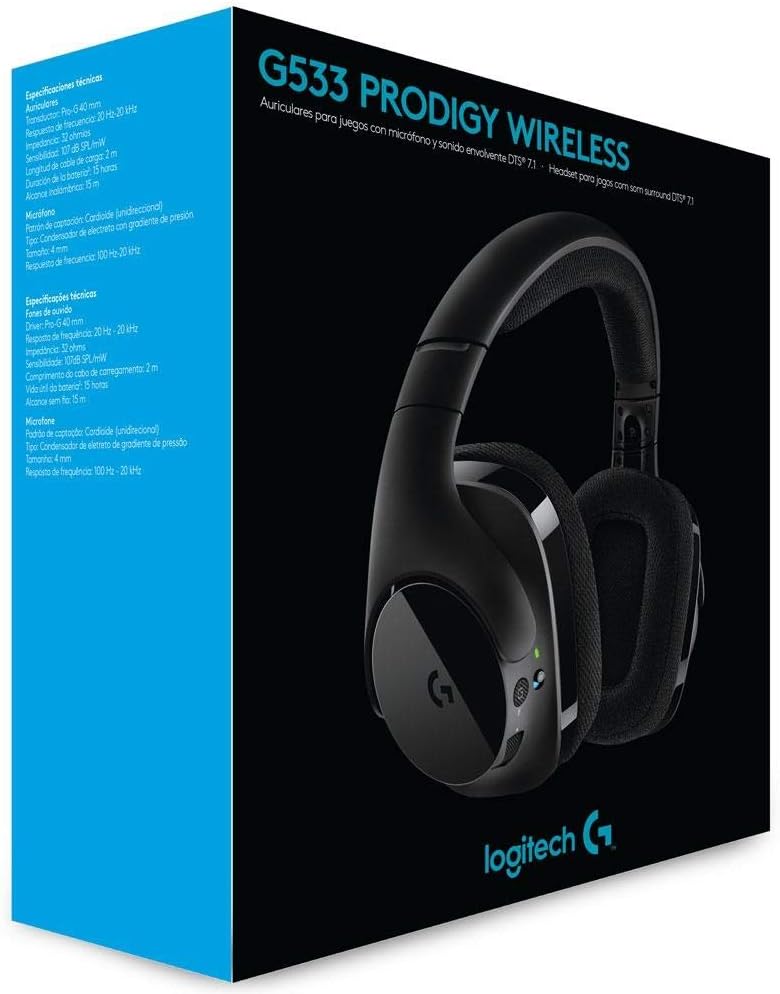
The Logitech G533 Wireless Gaming Headset is designed for immersive gaming audio with 7.1 Dolby Surround Sound and Pro-G audio drivers. It features a lightweight, durable design with breathable ear pads for extended comfort.

ചിത്രം 1: Logitech G533 Wireless Gaming Headset. This image shows the overall design of the headset, highlighting its sleek black finish and comfortable earcups.
3.1 ഹെഡ്സെറ്റ് ഘടകങ്ങൾ
- ക്രമീകരിക്കാവുന്ന ഹെഡ്ബാൻഡ്: For a comfortable fit.
- Breathable Ear Pads: Removable and washable for hygiene and comfort during long gaming sessions.
- Flip-up Microphone: Features noise reduction and automatically mutes when flipped up.
- ചെവിയിൽ വയ്ക്കാവുന്ന നിയന്ത്രണങ്ങൾ: Volume roller, microphone mute button, and power button located on the left earcup.

ചിത്രം 2: Left Earcup Controls. This image displays the volume roller, microphone mute button, and power button on the left earcup for easy access during use.

ചിത്രം 3: Flip-up Microphone. This image shows the flexible, noise-reducing microphone that can be flipped up to mute.
4. സജ്ജീകരണ ഗൈഡ്
Follow these steps to set up your Logitech G533 Wireless Gaming Headset:
- ഹെഡ്സെറ്റ് ചാർജ് ചെയ്യുക: Connect the USB charging cable to the headset and a powered USB port on your computer or a USB wall adapter. Allow the headset to fully charge before first use (approximately 2-3 hours). The LED indicator will show charging status.
- Connect the USB Wireless Adapter: Plug the USB wireless adapter into an available USB port on your computer.
- ഹെഡ്സെറ്റ് പവർ ഓൺ ചെയ്യുക: Press and hold the power button on the left earcup until the LED indicator lights up. The headset should automatically connect to the USB wireless adapter.
- ലോജിടെക് ജി ഹബ് സോഫ്റ്റ്വെയർ ഇൻസ്റ്റാൾ ചെയ്യുക (ഓപ്ഷണൽ പക്ഷേ ശുപാർശ ചെയ്യുന്നു): For full functionality, including 7.1 surround sound customization, equalizer settings, and microphone adjustments, download and install the Logitech G HUB software from the official Logitech webസൈറ്റ് (www.logitechg.com/ghub എന്ന വിലാസത്തിൽ ലഭ്യമാണ്.).
- ഓഡിയോ ക്രമീകരണങ്ങൾ കോൺഫിഗർ ചെയ്യുക: After installing G HUB, open the software to customize your audio experience. Ensure the Logitech G533 is selected as your default audio input and output device in your operating system's sound settings.

ചിത്രം 4: USB Wireless Adapter. This compact adapter provides the wireless connection between your headset and computer.
ചിത്രം 5: USB Charging Cable. Use this cable to recharge your headset's internal battery.
5. പ്രവർത്തന നിർദ്ദേശങ്ങൾ
5.1 പവർ ഓൺ/ഓഫ്
- To power on, press and hold the power button on the left earcup until the LED indicator illuminates.
- പവർ ഓഫ് ചെയ്യാൻ, LED ഇൻഡിക്കേറ്റർ ഓഫാകും വരെ പവർ ബട്ടൺ അമർത്തിപ്പിടിക്കുക.
5.2 വോളിയം നിയന്ത്രണം
Adjust the audio volume using the scroll wheel located on the left earcup. This control is integrated with your computer's system volume.
5.3 മൈക്രോഫോൺ ഉപയോഗം
- Activate Microphone: Flip the microphone boom down to activate it.
- മൈക്രോഫോൺ നിശബ്ദമാക്കുക:
- Flip the microphone boom up to automatically mute it. A distinct sound will indicate the mute status.
- Press the dedicated microphone mute button on the left earcup to mute/unmute.
- The microphone features noise reduction for clear communication.
5.4 DTS Headphone:X 7.1 Surround Sound
The G533 utilizes DTS Headphone:X technology to accurately reproduce 7.1 speaker placement and positional audio, enhancing in-game environmental effects. This feature is configurable via the Logitech G HUB software.
5.5 ബാറ്ററി ലൈഫും ചാർജിംഗും
The headset provides up to 15 hours of battery life on a single charge. Connect the USB charging cable to recharge. You can continue using the headset while it charges.
6. പരിപാലനം
6.1 ഹെഡ്സെറ്റ് വൃത്തിയാക്കൽ
- ഹെഡ്സെറ്റ് മൃദുവായ, ഡി ക്ലീനർ ഉപയോഗിച്ച് തുടയ്ക്കുക.amp തുണി. കഠിനമായ രാസവസ്തുക്കളോ ഉരച്ചിലുകളോ ഉപയോഗിക്കുന്നത് ഒഴിവാക്കുക.
- The ear pads are removable and washable. Gently detach them and hand wash with mild soap and water. Allow them to air dry completely before reattaching.
6.2 ബാറ്ററി കെയർ
- To prolong battery life, avoid fully discharging the headset frequently.
- ഉപയോഗത്തിലില്ലാത്തപ്പോൾ ഹെഡ്സെറ്റ് തണുത്തതും വരണ്ടതുമായ സ്ഥലത്ത് സൂക്ഷിക്കുക.
7. പ്രശ്നപരിഹാരം
7.1 No Audio or Disconnection
- ഹെഡ്സെറ്റ് ഓണാക്കിയിട്ടുണ്ടെന്നും പൂർണ്ണമായും ചാർജ് ചെയ്തിട്ടുണ്ടെന്നും ഉറപ്പാക്കുക.
- Verify the USB wireless adapter is securely plugged into a working USB port on your computer.
- Check your computer's sound settings to ensure the Logitech G533 is selected as the default playback and recording device.
- Try restarting both your computer and the headset.
- If using Logitech G HUB, ensure the software is running and the headset is recognized.
7.2 മൈക്രോഫോൺ പ്രവർത്തിക്കുന്നില്ല
- Ensure the microphone boom is flipped down and not muted via the mute button.
- Check your computer's sound settings to ensure the Logitech G533 is selected as the default recording device and microphone volume is not set to zero.
- In Logitech G HUB, verify microphone settings and ensure noise reduction is not causing issues (some users report issues with aggressive noise reduction settings).
- Test the microphone in different applications.
7.3 Robotic or Distorted Audio
- This can sometimes occur with multiple audio sources playing simultaneously. Try closing unnecessary applications.
- Ensure your wireless adapter is not too far from the headset and there are no significant obstructions.
- Update your audio drivers and Logitech G HUB software to the latest versions.
7.4 Annoying Noise While Charging
- Some users report a notification sound when the battery percentage increases during charging. This is a known characteristic of the device.
- If the noise is excessive or unusual, ensure you are using the provided charging cable and a stable power source.
8 സാങ്കേതിക സവിശേഷതകൾ
| ഫീച്ചർ | സ്പെസിഫിക്കേഷൻ |
|---|---|
| മോഡലിൻ്റെ പേര് | G533 |
| കണക്റ്റിവിറ്റി | വയർലെസ് (2.4 GHz) |
| വയർലെസ് ശ്രേണി | 15 മീറ്റർ വരെ (4.57 അടി) |
| ഹെഡ്ഫോൺ ഡ്രൈവർ | 40 mm Pro-G (Neodymium) |
| ഹെഡ്ഫോൺ ഫ്രീക്വൻസി റെസ്പോൺസ് | 20 ഹെർട്സ് - 20 കിലോ ഹെർട്സ് |
| ഹെഡ്ഫോൺ ഇംപെഡൻസ് | 32 ഓം |
| സൗണ്ട് പ്രഷർ ലെവൽ (SPL) | 107 dB SPL/mW |
| മൈക്രോഫോൺ തരം | Fold-Up, Noise-Reducing |
| മൈക്രോഫോൺ ഫ്രീക്വൻസി പ്രതികരണം | 100 ഹെർട്സ് - 20 കിലോ ഹെർട്സ് |
| മൈക്രോഫോൺ ഇംപെഡൻസ് | 2200 ഓം |
| ബാറ്ററി തരം | റീചാർജ് ചെയ്യാവുന്ന ലിഥിയം-അയോൺ |
| ബാറ്ററി ലൈഫ് | 15 മണിക്കൂർ വരെ |
| സിസ്റ്റം ആവശ്യകതകൾ | Windows 10, Windows 8.1, Windows 8, Windows 7; USB Port; Internet connection for optional software download |
| ഉൽപ്പന്ന അളവുകൾ | 18.9 x 8.5 x 19.7 സെ.മീ (7.44 x 3.35 x 7.76 ഇഞ്ച്) |
| ഉൽപ്പന്ന ഭാരം | 675 ഗ്രാം (1.49 പൗണ്ട്) |
9. വാറൻ്റിയും പിന്തുണയും
The Logitech G533 Wireless Gaming Headset comes with a two-year manufacturer's warranty. For detailed warranty information, technical support, or to contact customer service, please visit the official Logitech support webസൈറ്റ്:
Ensure you have your product model number (G533) and proof of purchase available when contacting support.


