1. ആമുഖം
This manual provides essential information for the safe and efficient use of your Brother DCP-L8410CDW Color Laser Multifunction Printer. This 3-in-1 device is designed for professional environments, offering printing, copying, and scanning functionalities. It features an intuitive touchscreen, Wi-Fi, and Ethernet connectivity, making it suitable for various work settings.
പ്രധാന സവിശേഷതകളിൽ ഇവ ഉൾപ്പെടുന്നു:
- Print, copy, and scan capabilities
- High-quality color laser printing (up to 2400 dpi)
- ഓട്ടോമാറ്റിക് ഡ്യുപ്ലെക്സ് പ്രിൻ്റിംഗ്
- Flexible paper handling with a maximum capacity of 300 sheets
- Integrated Wi-Fi and Gigabit Ethernet for versatile connectivity

ചിത്രം 1.1: മുൻഭാഗം view of the Brother DCP-L8410CDW printer.
2. സജ്ജീകരണം
Follow these steps to set up your Brother DCP-L8410CDW printer:
- അൺപാക്ക് ചെയ്യുന്നു: Carefully remove the printer from its packaging. Ensure all protective tapes and packing materials are removed from the exterior and interior of the device.
- ടോണർ കാട്രിഡ്ജുകൾ ഇൻസ്റ്റാൾ ചെയ്യുക: Open the front cover and install the toner cartridges into their respective slots. Refer to the labels for correct color placement.
- പേപ്പർ ലോഡ് ചെയ്യുക: Open the paper tray and adjust the paper guides to fit your paper size (e.g., A4). Load paper into the tray and close it securely.
- പവർ ബന്ധിപ്പിക്കുക: പവർ കോർഡ് പ്രിന്ററുമായി ബന്ധിപ്പിക്കുക, തുടർന്ന് ഗ്രൗണ്ടഡ് ഇലക്ട്രിക്കൽ ഔട്ട്ലെറ്റുമായി ബന്ധിപ്പിക്കുക.
- നെറ്റ്വർക്കിലേക്ക്/കമ്പ്യൂട്ടറിലേക്ക് കണക്റ്റുചെയ്യുക:
- വയർലെസ് (വൈ-ഫൈ): On the printer's touchscreen, navigate to Network settings and follow the prompts to connect to your Wi-Fi network.
- വയർഡ് (ഇഥർനെറ്റ്): പ്രിന്ററിന്റെ ലാൻ പോർട്ടിൽ നിന്ന് നിങ്ങളുടെ നെറ്റ്വർക്ക് റൂട്ടറിലേക്കോ സ്വിച്ചിലേക്കോ ഒരു ഇതർനെറ്റ് കേബിൾ ബന്ധിപ്പിക്കുക.
- USB: പ്രിന്ററിൽ നിന്ന് നിങ്ങളുടെ കമ്പ്യൂട്ടറിലേക്ക് ഒരു USB 2.0 കേബിൾ ബന്ധിപ്പിക്കുക.
- ഡ്രൈവറുകൾ ഇൻസ്റ്റാൾ ചെയ്യുക: Insert the installation CD (if provided) into your computer or download the latest drivers and software from the official Brother support webസൈറ്റ്. ഇൻസ്റ്റാളേഷൻ പൂർത്തിയാക്കാൻ ഓൺ-സ്ക്രീൻ നിർദ്ദേശങ്ങൾ പാലിക്കുക.

ചിത്രം 2.1: വശം view of the Brother DCP-L8410CDW, showing the paper tray.
3. പ്രവർത്തന നിർദ്ദേശങ്ങൾ
The Brother DCP-L8410CDW features an intuitive touchscreen for easy operation.
3.1. പ്രിൻ്റിംഗ്
- പ്രിന്റർ ഓണാക്കിയിട്ടുണ്ടെന്നും നിങ്ങളുടെ നെറ്റ്വർക്കിലേക്കോ കമ്പ്യൂട്ടറിലേക്കോ ബന്ധിപ്പിച്ചിട്ടുണ്ടെന്നും ഉറപ്പാക്കുക.
- നിങ്ങളുടെ കമ്പ്യൂട്ടറിലോ മൊബൈൽ ഉപകരണത്തിലോ പ്രിന്റ് ചെയ്യാൻ ആഗ്രഹിക്കുന്ന ഡോക്യുമെന്റ് അല്ലെങ്കിൽ ചിത്രം തുറക്കുക.
- Select the 'Print' option from your application.
- Choose the Brother DCP-L8410CDW from the list of available printers.
- Adjust print settings (e.g., number of copies, color/mono, duplex) as needed.
- 'പ്രിന്റ്' ക്ലിക്ക് ചെയ്യുക.
3.2. പകർത്തുന്നു
- നിങ്ങളുടെ ഡോക്യുമെന്റ് സ്കാനർ ഗ്ലാസിൽ മുഖം താഴേക്ക് വയ്ക്കുക അല്ലെങ്കിൽ ഓട്ടോമാറ്റിക് ഡോക്യുമെന്റ് ഫീഡറിൽ (ADF) മുഖം മുകളിലേക്ക് വയ്ക്കുക.
- On the printer's touchscreen, select the 'Copy' function.
- Adjust settings such as number of copies, color/mono, and enlargement/reduction.
- Press 'Start' to begin copying.
3.3. സ്കാനിംഗ്
- Place your document face down on the scanner glass or face up in the ADF.
- On the printer's touchscreen, select the 'Scan' function.
- Choose your desired scan destination (e.g., Scan to PC, Scan to USB, Scan to Email).
- സ്കാൻ ക്രമീകരണങ്ങൾ ക്രമീകരിക്കുക (ഉദാ. റെസല്യൂഷൻ, file type) if necessary.
- Press 'Start' to begin scanning.

Image 3.1: The intuitive touchscreen control panel of the DCP-L8410CDW.

Image 3.2: Using the Automatic Document Feeder for scanning or copying, and the USB port for direct printing/scanning.
4. പരിപാലനം
പതിവ് അറ്റകുറ്റപ്പണികൾ മികച്ച പ്രകടനം ഉറപ്പാക്കുകയും നിങ്ങളുടെ പ്രിന്ററിന്റെ ആയുസ്സ് വർദ്ധിപ്പിക്കുകയും ചെയ്യുന്നു.
4.1. ടോണർ കാട്രിഡ്ജുകൾ മാറ്റിസ്ഥാപിക്കൽ
- When a 'Low Toner' or 'Replace Toner' message appears on the display, order new genuine Brother toner cartridges.
- പ്രിന്ററിന്റെ മുൻ കവർ തുറക്കുക.
- Remove the old toner cartridge and drum unit assembly.
- Separate the toner cartridge from the drum unit.
- Unpack the new toner cartridge and install it into the drum unit until it clicks into place.
- Insert the new toner and drum unit assembly back into the printer.
- മുൻ കവർ അടയ്ക്കുക.
4.2 പ്രിന്റർ വൃത്തിയാക്കുന്നു
- പുറം: Wipe the exterior of the printer with a soft, lint-free cloth. Do not use abrasive cleaners.
- സ്കാനർ ഗ്ലാസ്: സ്കാനർ ഗ്ലാസ് മൃദുവായതും ഉണങ്ങിയതുമായ തുണി ഉപയോഗിച്ച് വൃത്തിയാക്കുക. കഠിനമായ അടയാളങ്ങൾക്ക്, തുണിയിൽ ചെറിയ അളവിൽ ഗ്ലാസ് ക്ലീനർ പുരട്ടുക (ഗ്ലാസിൽ നേരിട്ട് പുരട്ടരുത്).
- Corona Wire: Periodically clean the corona wire inside the drum unit to prevent print quality issues. Refer to the printer's internal instructions or the full user guide for detailed steps.
5. പ്രശ്നപരിഹാരം
നിങ്ങളുടെ പ്രിന്ററിൽ നിങ്ങൾ നേരിട്ടേക്കാവുന്ന സാധാരണ പ്രശ്നങ്ങൾ ഈ വിഭാഗം അഭിസംബോധന ചെയ്യുന്നു.
5.1. പേപ്പർ ജാമുകൾ
If a 'Paper Jam' message appears:
- പ്രിന്റർ ഓഫാക്കി പവർ കോർഡ് അൺപ്ലഗ് ചെയ്യുക.
- Open the rear cover or other access points as indicated on the display or in the full user guide.
- പേപ്പർ പാത്തിന്റെ ദിശയിൽ കുടുങ്ങിയ പേപ്പർ ശ്രദ്ധാപൂർവ്വം പുറത്തെടുക്കുക. പേപ്പർ കീറുന്നത് ഒഴിവാക്കുക.
- Check all paper trays and internal areas for small pieces of torn paper.
- എല്ലാ കവറുകളും അടയ്ക്കുക, പവർ കോർഡ് പ്ലഗ് ഇൻ ചെയ്യുക, പ്രിന്റർ ഓണാക്കുക.
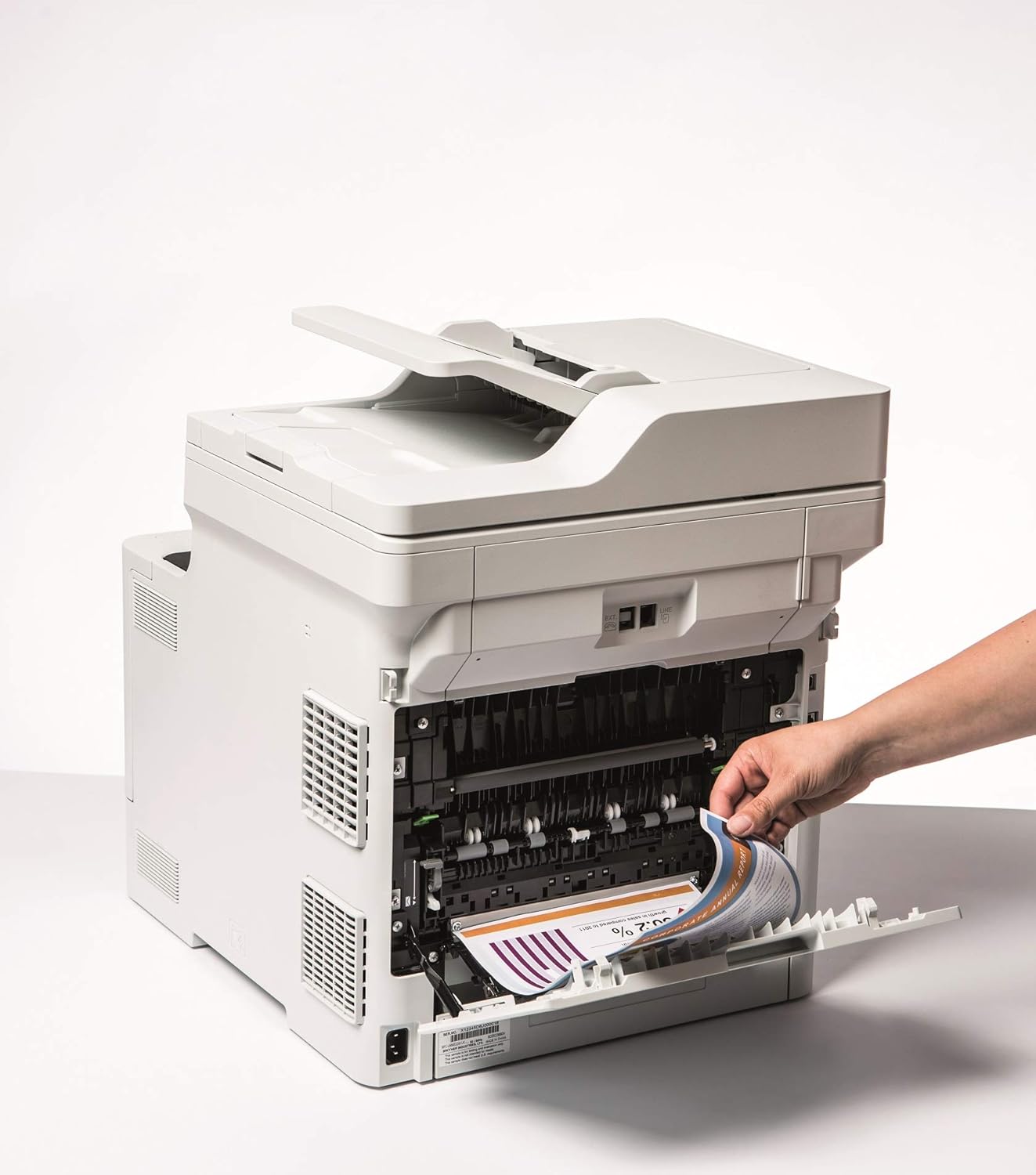
Image 5.1: Clearing a paper jam from the rear of the printer.
5.2. പ്രിന്റ് ഗുണനിലവാര പ്രശ്നങ്ങൾ
- മങ്ങിയ പ്രിന്റുകൾ: Toner cartridge may be low. Replace if necessary.
- വരകൾ അല്ലെങ്കിൽ പാടുകൾ: Clean the corona wire or check for foreign objects on the drum unit.
- തെറ്റായ നിറങ്ങൾ: Ensure genuine Brother toner cartridges are used and perform a color calibration from the printer's menu.
5.3. കണക്റ്റിവിറ്റി പ്രശ്നങ്ങൾ
- Wi-Fi Disconnected: Check network settings on the printer and ensure your router is functioning correctly. Restart both devices if needed.
- Cannot Print from PC: Verify that the printer drivers are correctly installed and updated. Check cable connections for wired setups.
6 സ്പെസിഫിക്കേഷനുകൾ
| ഫീച്ചർ | സ്പെസിഫിക്കേഷൻ |
|---|---|
| മോഡലിൻ്റെ പേര് | DCP-L8410CDW |
| ഉൽപ്പന്ന അളവുകൾ (DxWxH) | 43.5P x 53.9W x 52.6H സെ.മീ |
| പരമാവധി മീഡിയ വലുപ്പം | A4 |
| പരമാവധി ഷീറ്റ് ശേഷി | 300 ഷീറ്റുകൾ |
| പരമാവധി പകർത്തൽ വേഗത (കറുപ്പും വെളുപ്പും) | മിനിറ്റിൽ 31 പേജുകൾ |
| പരമാവധി കളർ പ്രിന്റ് റെസല്യൂഷൻ | 61 dpcm |
| പരമാവധി കറുപ്പും വെളുപ്പും പ്രിന്റ് റെസല്യൂഷൻ | 2400 ഡിപിഐ |
| ഡ്യൂപ്ലക്സ് പ്രിൻ്റിംഗ് | അതെ |
| കണക്റ്റിവിറ്റി ടെക്നോളജി | Ethernet, USB 2.0, Wireless LAN (Wi-Fi) |
| പ്രിൻ്റിംഗ് ടെക്നോളജി | ലേസർ |
| പ്രിൻ്റർ ഔട്ട്പുട്ട് | നിറം |
| പരമാവധി പ്രിന്റ് വേഗത (നിറം) | മിനിറ്റിൽ 31 പേജുകൾ |
| ഇനത്തിൻ്റെ ഭാരം | 27.6 കിലോഗ്രാം |
| വൈദ്യുതി ഉപഭോഗം | 500 വാട്ട്സ് |
| സ്കാനർ തരം | ഫ്ലാറ്റ്ബെഡ് |
7. വാറൻ്റി വിവരങ്ങൾ
This Brother DCP-L8410CDW printer comes with a പരിമിത വാറൻ്റി. For detailed information regarding the terms, conditions, and duration of your warranty, please refer to the warranty card included with your product or visit the official Brother webസൈറ്റ്. വാറന്റി ക്ലെയിമുകൾക്കായി നിങ്ങളുടെ വാങ്ങലിന്റെ തെളിവ് സൂക്ഷിക്കുക.
8. ഉപഭോക്തൃ പിന്തുണ
For further assistance, including driver downloads, FAQs, and contact information for technical support, please visit the official Brother support webസൈറ്റ്:
You can also find additional resources and troubleshooting guides specific to your model on the support page.


