ആമുഖം
The Logitech Unifying Receiver is a compact USB receiver designed to wirelessly connect multiple compatible Logitech devices, such as mice and keyboards, to your computer. It operates on 2.4 GHz wireless technology, providing a reliable connection up to 33 feet (10 meters) away. This manual provides detailed instructions for setting up, operating, and troubleshooting your Unifying Receiver.
This receiver is ideal for users who wish to connect a Logitech Flow or Easy-Switch mouse to a second computer, or to consolidate multiple Logitech wireless peripherals (up to six) using a single USB port.
ബോക്സിൽ എന്താണുള്ളത്
- ലോജിടെക് യൂണിഫൈയിംഗ് റിസീവർ
- ഉപയോക്തൃ ഗൈഡ് (ഈ പ്രമാണം)

Image: Logitech Unifying Receiver in its retail packaging.

ചിത്രം: ആംഗിൾഡ് view of the compact Logitech Unifying Receiver.
സജ്ജമാക്കുക
Initial Setup: Connecting the Receiver
The Logitech Unifying Receiver is designed for simple plug-and-play functionality. Follow these steps to connect it to your computer:
- Locate an available USB Type-A port on your computer (PC or Mac).
- Insert the Logitech Unifying Receiver firmly into the USB port.
- Your operating system should automatically detect the new hardware.

ചിത്രം: മുൻഭാഗം view of the Logitech Unifying Receiver, showing the USB connector.
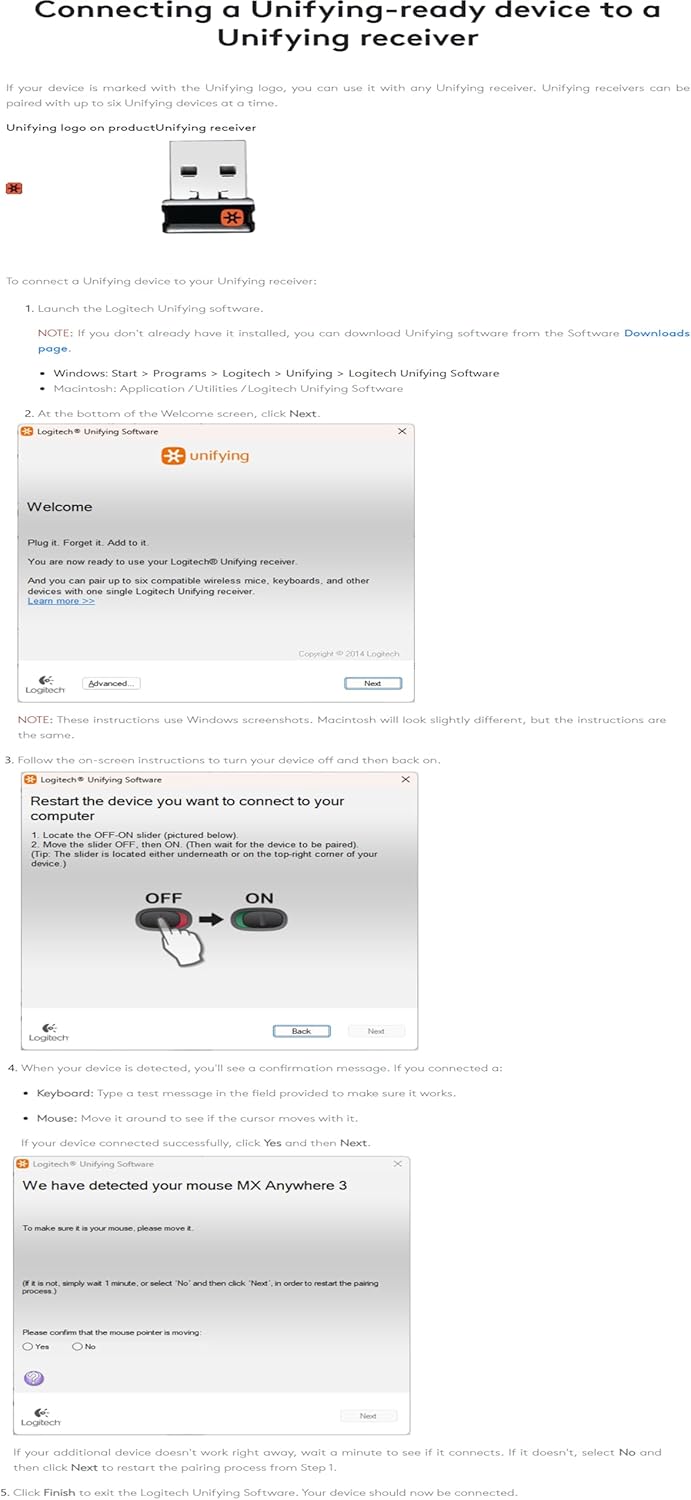
Image: The Unifying Receiver plugged into a laptop's USB port.
Installing Logitech Unifying Software
While the receiver may offer basic functionality upon plug-in, installing the Logitech Unifying Software is crucial for pairing new devices, managing existing ones, and ensuring optimal performance. This software allows you to pair up to six compatible Logitech devices with a single receiver.
- Download the Logitech Unifying Software from the official Logitech website. (A direct link is often provided in the physical user guide or on the product's support page.)
- ഇൻസ്റ്റാളർ പ്രവർത്തിപ്പിച്ച് ഇൻസ്റ്റാളേഷൻ പൂർത്തിയാക്കാൻ ഓൺ-സ്ക്രീൻ നിർദ്ദേശങ്ങൾ പാലിക്കുക.
- Once installed, launch the Logitech Unifying Software.
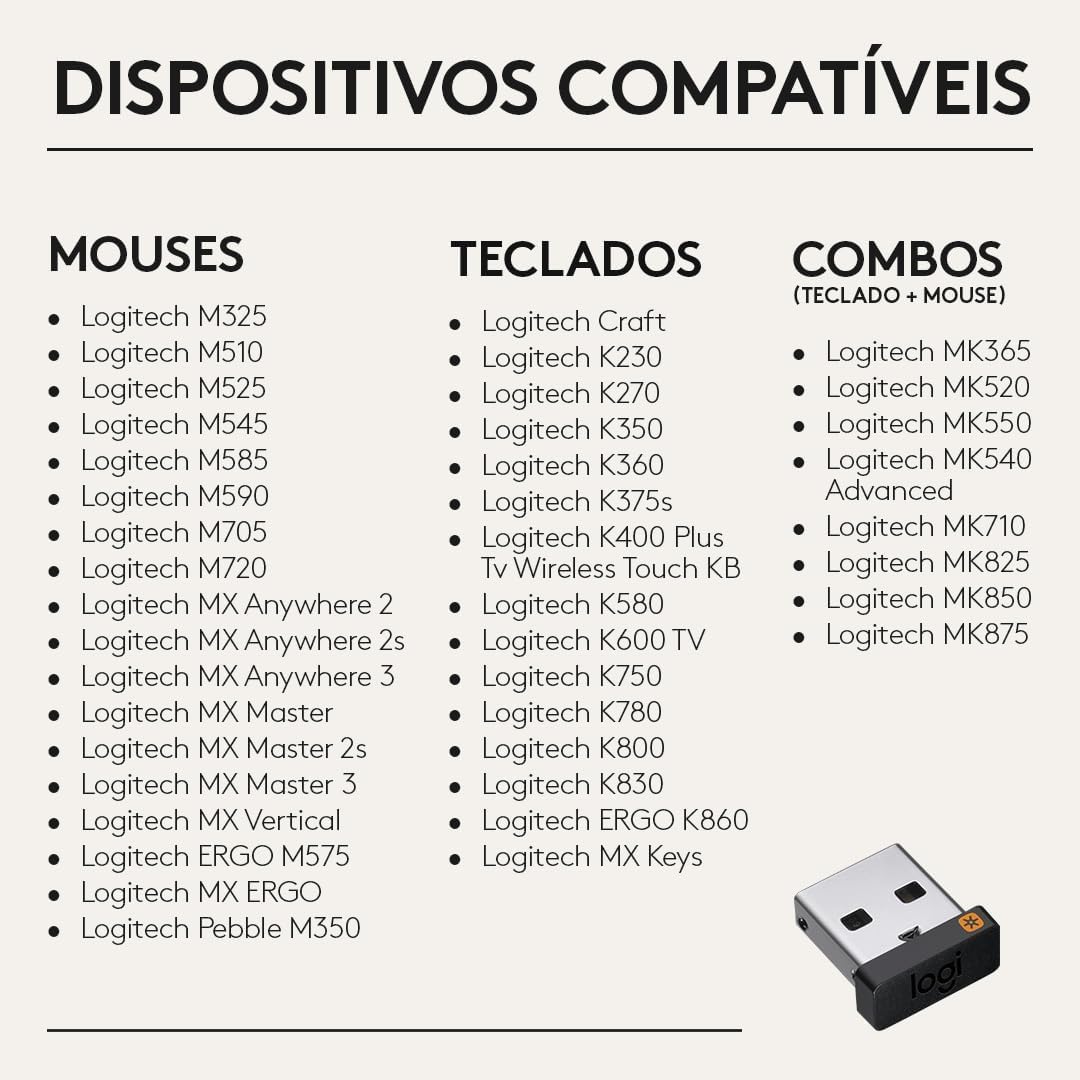
Image: Screenshot of the Logitech Unifying Software interface, guiding the user through the pairing process.
പ്രവർത്തന നിർദ്ദേശങ്ങൾ
പുതിയ ഉപകരണങ്ങൾ ജോടിയാക്കുന്നു
To pair a new Logitech Unifying-compatible mouse or keyboard:
- Ensure your Logitech Unifying Receiver is plugged into your computer.
- ലോജിടെക് യൂണിഫൈയിംഗ് സോഫ്റ്റ്വെയർ തുറക്കുക.
- Follow the on-screen instructions to add a new device. This typically involves turning your device off and then on again, or pressing a connect button on the device.
- The software will detect your device and confirm successful pairing.

Image: Diagram illustrating how the Unifying Receiver connects up to six Logitech devices, such as a mouse and keyboard.
Using with Multiple Computers (Flow/Easy-Switch)
The Unifying Receiver is an essential component for Logitech Flow and Easy-Switch enabled devices, allowing seamless transitions between multiple computers:
- Logitech Flow: For Flow-enabled mice, you can use an extra Unifying Receiver plugged into a second computer. With Logitech Options+ App, you can seamlessly move your cursor, cut, paste, and move fileകമ്പ്യൂട്ടറുകൾക്കിടയിൽ.
- എളുപ്പത്തിലുള്ള സ്വിച്ച്: For Easy-Switch devices, an additional Unifying Receiver allows you to connect your mouse or keyboard to a second computer and switch between them with the push of a button.
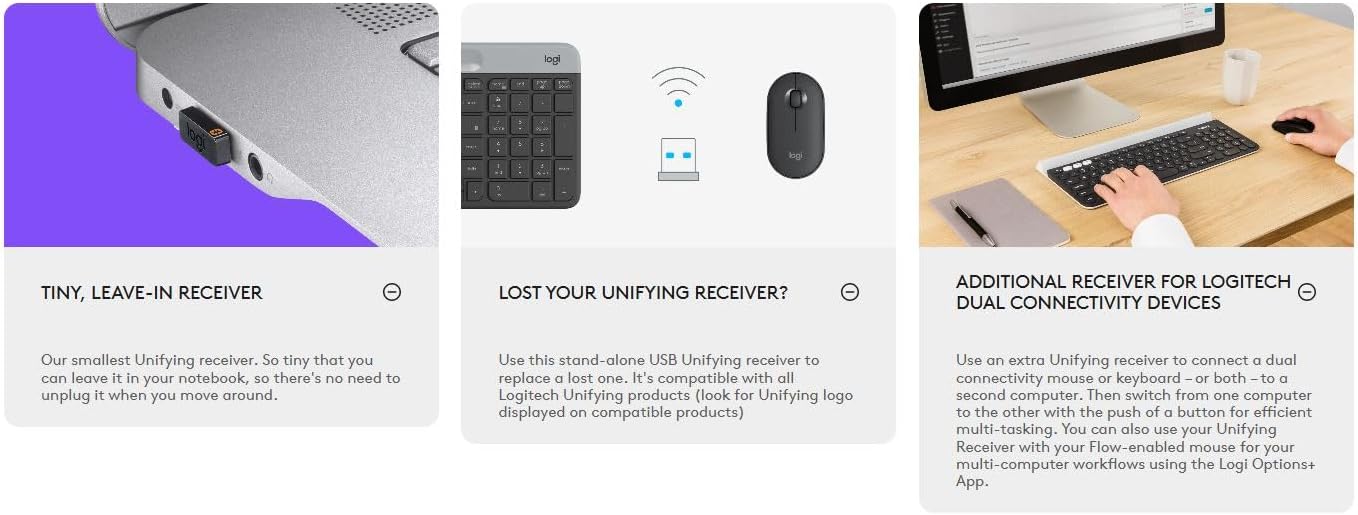
Image: Visual representation of the Unifying Receiver's benefits, including its tiny size, use as a replacement, and support for dual connectivity devices.
അനുയോജ്യമായ ഉപകരണങ്ങൾ
The Logitech Unifying Receiver is compatible with a wide range of Logitech wireless mice and keyboards. Look for the orange Unifying logo (an orange starburst) on your Logitech device to confirm compatibility.
Compatible Mice
- MX Master 2S, MX Anywhere 2S, MX Master, MX Anywhere 2, MX Performance, MX Anywhere
- M720 Triathlon Multi-Device Mouse, M705 Marathon Mouse, Wireless Mouse M585 Multi-Device
- Wireless Trackball M570, M545 Wireless Mouse, M525 Wireless Mouse, M510 Wireless Mouse
- M325/M325c Wireless Mouse, M310 Wireless Mouse, M317 Wireless Mouse (M317c is not compatible)
- M187 Ultra Portable
Compatible Keyboards
- Illuminated Living-Room Keyboard K830, Wireless Illuminated Keyboard K800
- K780 Multi-Device Wireless Keyboard, Wireless Solar Keyboard K750, Wireless Solar Keyboard K750 for Mac
- Wireless Touch Keyboard k400 Plus, K400 Professional Wireless Touch Keyboard, Wireless Touch Keyboard k400
- K375s Multi-Device Wireless Keyboard and Stand Combo, K360 Compact and slim wireless keyboard
- K350 COMFORT WAVE, K270 Full-size wireless keyboard

Image: A visual list of various Logitech mice, keyboards, and combos compatible with the Unifying Receiver.
ട്രബിൾഷൂട്ടിംഗ്
പൊതുവായ പ്രശ്നങ്ങളും പരിഹാരങ്ങളും
- Device Not Connecting/Pairing:
- Ensure the Unifying Receiver is securely plugged into a working USB port.
- Verify that your Logitech device is turned on and has fresh batteries (if applicable).
- Open the Logitech Unifying Software and attempt the pairing process again. Make sure to follow the on-screen instructions precisely.
- Try plugging the receiver into a different USB port or a different computer to rule out port or computer-specific issues.
- Ensure you have the latest version of the Logitech Unifying Software installed. Check for updates within the software or on the Logitech support webസൈറ്റ്.
- ഇടവിട്ടുള്ള കണക്ഷൻ അല്ലെങ്കിൽ കാലതാമസം:
- Move the Logitech device closer to the Unifying Receiver.
- Avoid placing the receiver near other electronic devices that might cause interference (e.g., Wi-Fi routers, cordless phones, microwave ovens).
- If using a USB hub, try connecting the receiver directly to the computer's USB port.
- Lost Unifying Receiver:
- A replacement Unifying Receiver can be purchased. Once you have a new receiver, use the Logitech Unifying Software to pair your existing compatible devices with the new receiver.
സ്പെസിഫിക്കേഷനുകൾ
| ഫീച്ചർ | വിശദാംശങ്ങൾ |
|---|---|
| ഉൽപ്പന്ന അളവുകൾ | 0.35 x 0.23 x 0.59 ഇഞ്ച് |
| ഇനത്തിൻ്റെ ഭാരം | 0.16 ഔൺസ് |
| ASIN | B072JW9LT8 |
| ഇനം മോഡൽ നമ്പർ | 910-005235 |
| നിർമ്മാതാവ് | ലോജിടെക് |
| അനുയോജ്യമായ ഉപകരണങ്ങൾ | പേഴ്സണൽ കമ്പ്യൂട്ടർ |
| ഉൽപ്പന്നത്തിൻ്റെ പ്രത്യേക ഉപയോഗങ്ങൾ | വ്യക്തിഗത, ഗെയിമിംഗ്, ബിസിനസ്സ് |
| കണക്റ്റർ തരം | യുഎസ്ബി ടൈപ്പ് എ |
| നിറം | കറുപ്പ് |
| ആദ്യ തീയതി ലഭ്യമാണ് | ജൂൺ 6, 2017 |
വാറൻ്റിയും പിന്തുണയും
For detailed warranty information, technical support, and additional resources, please refer to the official Logitech support website or the comprehensive User Guide provided with your product.
You can download the official User Guide in PDF format here: Logitech Unifying Receiver User Guide (PDF)


