1. ഉൽപ്പന്നം കഴിഞ്ഞുview
The XIAOMI 300Mbps WiFi Range Extender is designed to expand your existing wireless network coverage. It eliminates Wi-Fi dead zones and provides a stable internet connection to areas with weak signals. This device supports the 802.11n wireless standard and offers data transfer rates up to 300 Megabits Per Second.
Key features include easy setup via the Mi Home app, automatic updates, and a compact design for convenient placement.
2. പാക്കേജ് ഉള്ളടക്കം
- XIAOMI 300Mbps WiFi Range Extender (Model MI-R03-ROUTER)
- ഉപയോക്തൃ മാനുവൽ
3. ഉപകരണ ലേഔട്ട്
The XIAOMI WiFi Range Extender features a minimalist design with essential components for network extension.

ചിത്രം 1: മുൻഭാഗം View of the Extender. Shows the compact black casing with the Mi logo and a small LED indicator light.
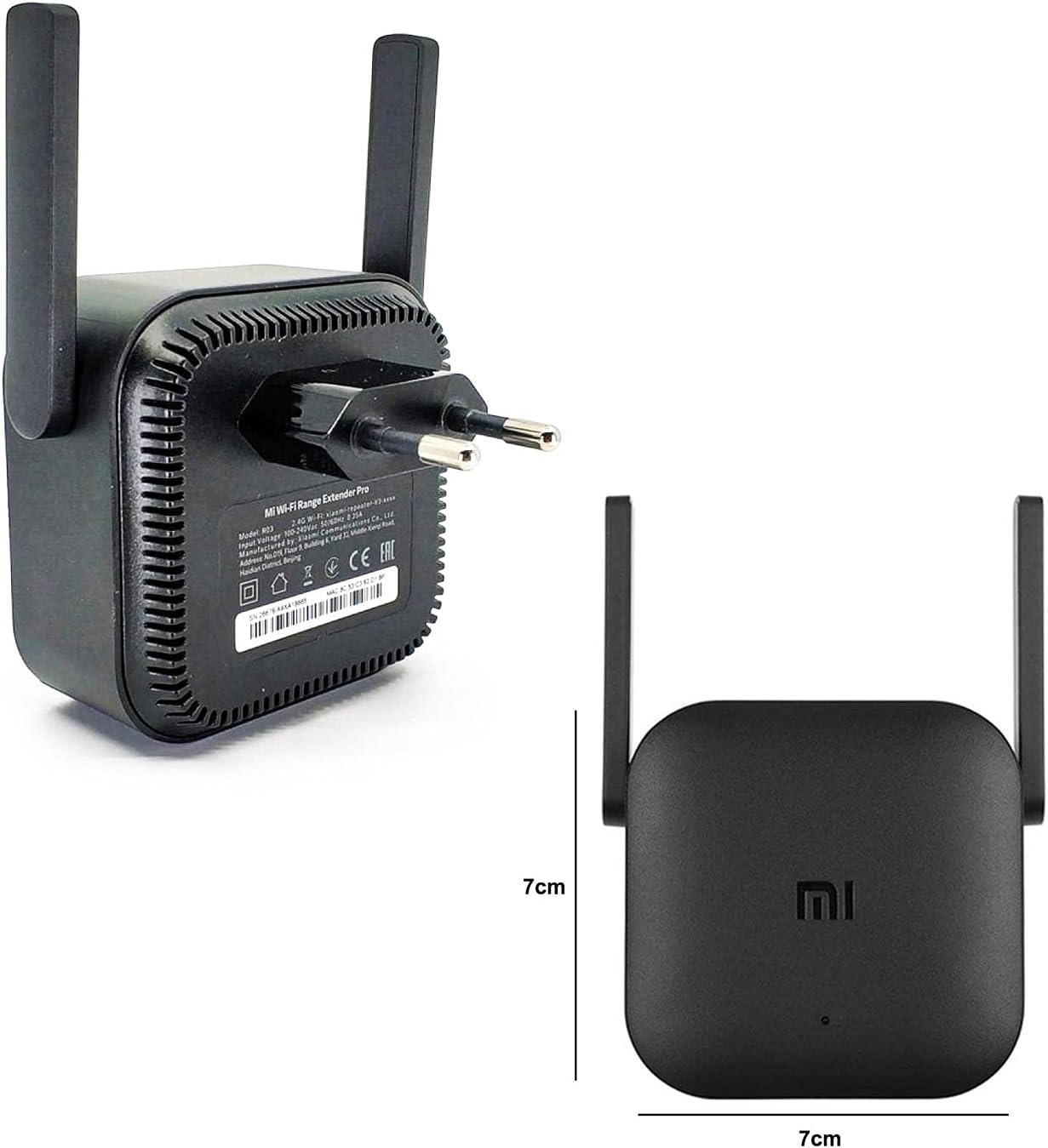
ചിത്രം 2: പിൻഭാഗം View and Dimensions. Displays the two external antennas, the power plug (European standard), and product information labels. Dimensions are approximately 7cm x 7cm.
- Mi Logo: Located on the front panel.
- സ്റ്റാറ്റസ് ഇൻഡിക്കേറ്റർ LED: A small LED on the front that indicates the device's status (e.g., solid blue for connected, flashing yellow for setup mode).
- ബാഹ്യ ആൻ്റിനകൾ: Two adjustable antennas for optimal signal reception and transmission.
- പവർ പ്ലഗ്: Integrated European-style plug for direct wall outlet connection. An adapter may be required for other regions.
- റീസെറ്റ് ബട്ടൺ: A small button, usually recessed, for factory reset.
4. സജ്ജീകരണ നിർദ്ദേശങ്ങൾ
Follow these steps to set up your XIAOMI WiFi Range Extender:
4.1 പ്രാരംഭ പ്ലേസ്മെന്റ്
Choose a location between your main router and the area where you need improved Wi-Fi coverage. Ensure the extender is within range of your main router's signal for optimal performance. Avoid placing it near large metal objects, microwave ovens, or other sources of interference.
4.2 പവർ ചെയ്യുന്നു
- Plug the range extender directly into a power outlet.
- Wait for the status indicator LED on the front of the device to start flashing yellow. This indicates it is ready for setup.
4.3 ആപ്പ് ഇൻസ്റ്റാളേഷനും കോൺഫിഗറേഷനും
The XIAOMI WiFi Range Extender is configured using the Mi Home app. This app allows you to manage the device settings and monitor its status.
- Download the "Mi Home" app from your smartphone's app store (Google Play Store for Android or Apple App Store for iOS). You can also scan the QR code provided in the product packaging to download the app.
- Open the Mi Home app and sign in with your Mi Account. If you don't have one, create a new account.
- Tap the "+" icon in the top right corner to add a new device. The app will scan for nearby devices.
- Select the "Mi Wi-Fi Range Extender Pro" from the list of found devices.
- Follow the on-screen prompts to connect the extender to your existing Wi-Fi network. You will need to enter your main Wi-Fi network's password.
- Once connected, the status indicator LED on the extender will turn solid blue.
- You can then rename the extended network (SSID) and set a password for it within the app.
Video: Xiaomi Wi-Fi Range Extender Pro - Setup and Test. This video demonstrates the unboxing, initial setup, and a speed test of the Xiaomi Wi-Fi Range Extender Pro, including app configuration steps.
5. Operating the WiFi Range Extender
Once configured, the extender will automatically connect to your main router and broadcast an extended Wi-Fi signal. Devices can connect to this extended network using the new SSID and password you set during setup.
LED ഇൻഡിക്കേറ്റർ നില:
- കടും നീല: The extender is successfully connected and operating normally.
- മിന്നുന്ന മഞ്ഞ: The extender is in setup mode or has lost connection to the main router.
- കടും ചുവപ്പ്: Indicates a problem with the connection or an error.
Video: 300Mbps WiFi Amplifier/Universal Wireless Quick Review! This short video provides a quick overview of the Xiaomi WiFi Amplifier, highlighting its design and basic functionality.
6. പരിപാലനം
- വൃത്തിയാക്കൽ: ഉപകരണം വൃത്തിയാക്കാൻ മൃദുവായതും ഉണങ്ങിയതുമായ തുണി ഉപയോഗിക്കുക. ലിക്വിഡ് ക്ലീനറുകളോ എയറോസോളുകളോ ഉപയോഗിക്കരുത്.
- ഫേംവെയർ അപ്ഡേറ്റുകൾ: The Mi Home app will notify you of available firmware updates. It is recommended to keep the device's firmware updated for optimal performance and security.
- ഒപ്റ്റിമൽ പ്ലേസ്മെൻ്റ്: Periodically check the extender's placement to ensure it is still in an optimal position for signal strength.
7. പ്രശ്നപരിഹാരം
If you encounter issues with your WiFi Range Extender, try the following solutions:
- സിഗ്നൽ ഇല്ല അല്ലെങ്കിൽ ദുർബലമായ സിഗ്നൽ:
- Ensure the extender is plugged into a working power outlet.
- Relocate the extender closer to your main router.
- Check for physical obstructions or interference sources.
- Verify that your main router's Wi-Fi is active and broadcasting.
- കണക്ഷൻ പ്രശ്നങ്ങൾ:
- Confirm that the correct Wi-Fi password was entered during setup.
- എക്സ്റ്റെൻഡറും നിങ്ങളുടെ പ്രധാന റൂട്ടറും പുനരാരംഭിക്കുക.
- If the LED is flashing yellow, the extender may have lost connection to the main router. Reconfigure using the Mi Home app.
- വേഗത കുറഞ്ഞ വേഗത:
- Ensure the extender is placed optimally, not too far from the main router.
- Reduce the number of devices connected to the extended network.
- Check for firmware updates via the Mi Home app.
- ഫാക്ടറി പുന et സജ്ജമാക്കുക:
If problems persist, you may need to perform a factory reset. Use a pin or paperclip to press and hold the recessed reset button for approximately 5-10 seconds until the LED indicator changes. After resetting, you will need to reconfigure the extender using the Mi Home app.
8 സ്പെസിഫിക്കേഷനുകൾ
| ബ്രാൻഡ് | XIAOMI |
| മോഡൽ നമ്പർ | MI-R03-ROUTER |
| വയർലെസ് കമ്മ്യൂണിക്കേഷൻ സ്റ്റാൻഡേർഡ് | 802.11ബി, 802.11ഗ്രാം, 802.11എൻ |
| ഡാറ്റ കൈമാറ്റ നിരക്ക് | സെക്കൻഡിൽ 300 മെഗാബൈറ്റുകൾ |
| ഉൽപ്പന്ന അളവുകൾ | 3.94 x 1.18 x 3.94 ഇഞ്ച് |
| ഇനത്തിൻ്റെ ഭാരം | 3.53 ഔൺസ് (100 ഗ്രാം) |
| നിറം | കറുപ്പ് |
| നിർമ്മാതാവ് | zhlymx |
| ആദ്യം ലഭ്യമായ തീയതി | സെപ്റ്റംബർ 30, 2017 |
9. വാറൻ്റി വിവരങ്ങൾ
This product is covered by a manufacturer's warranty. Please refer to the warranty notice included in your package for specific terms and conditions. Retain your proof of purchase for warranty claims.
10. പിന്തുണ
For technical assistance, troubleshooting, or further inquiries, please visit the official XIAOMI support webസൈറ്റിൽ സന്ദർശിക്കുക അല്ലെങ്കിൽ അവരുടെ ഉപഭോക്തൃ സേവനവുമായി ബന്ധപ്പെടുക. കൂടുതൽ വിവരങ്ങൾ നിങ്ങൾക്ക് ഇവിടെ കണ്ടെത്താനാകും ആമസോണിലെ XIAOMI സ്റ്റോർ.


