1. ആമുഖം
The WD Blue 500GB 3D NAND SATA III 2.5" Internal SSD is designed to meet the high-performance computing needs of users, offering enhanced reliability and speed. Utilizing 3D NAND technology, this SSD provides significant improvements in capacity and reduces cell-to-cell interference for increased data integrity. It is engineered with no moving parts, providing robust protection against data loss from accidental bumps or drops, and boasts a high Mean Time To Failure (MTTF) and Terabytes Written (TBW) rating for long-term durability.
ബോക്സിൽ എന്താണുള്ളത്
- WD Blue 500GB 3D NAND SATA III 2.5" Internal Solid State Drive
2 പ്രധാന സവിശേഷതകൾ
The WD Blue 3D NAND SATA SSD offers a range of features designed for optimal performance and reliability:
- ഉയർന്ന ശേഷി: 500 GB storage capacity, suitable for operating systems, applications, and large files.
- മെച്ചപ്പെടുത്തിയ വിശ്വാസ്യത: Utilizes 3D NAND technology to reduce cell-to-cell interference, improving data integrity and drive longevity.
- മികച്ച പ്രകടനം: Achieves sequential read speeds up to 560 MB/s and sequential write speeds up to 530 MB/s, accelerating system boot-ups and application loading.
- മോടിയുള്ള ഡിസൈൻ: With no moving parts, the SSD is more resistant to shock and vibration compared to traditional hard drives, protecting your data.
- വിശാലമായ അനുയോജ്യത: Verified for compatibility with a wide range of desktop and laptop computers through extensive testing at the WD Functional Integrity Testing Lab (F.I.T. Lab).

Figure 2.1: The WD Blue 500GB 3D NAND SATA III 2.5" Internal SSD.

Figure 2.2: Illustration of productivity-boosting read speeds up to 560MB/s.
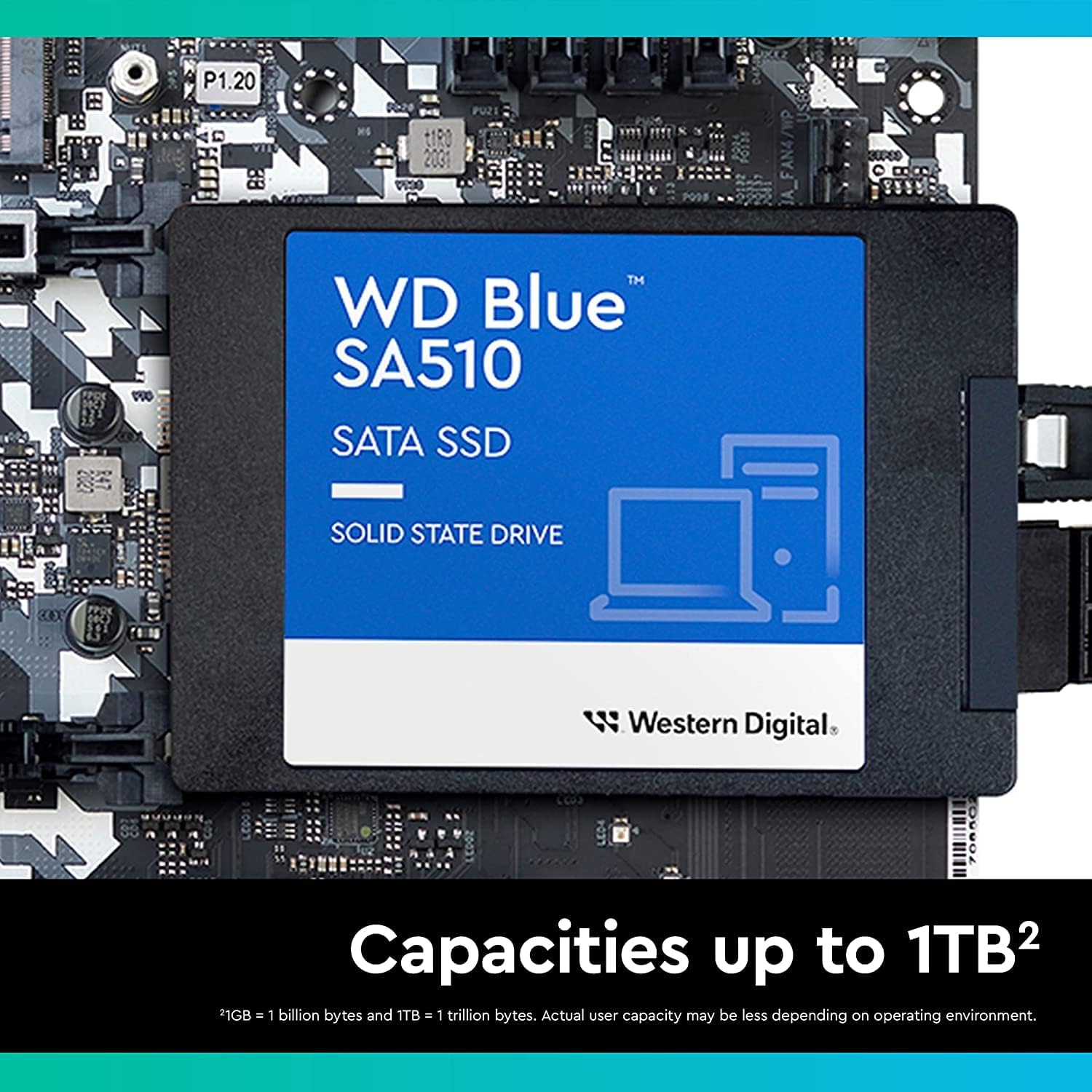
Figure 2.3: The WD Blue 3D NAND SSD is available in various capacities, including 500GB.
3. സജ്ജീകരണവും ഇൻസ്റ്റാളേഷനും
This section outlines the general steps for installing your WD Blue 2.5" SATA SSD into a desktop or laptop computer. Always refer to your computer's specific manual for detailed instructions on opening the chassis and accessing drive bays.
3.1 നിങ്ങൾ ആരംഭിക്കുന്നതിന് മുമ്പ്
- ബാക്കപ്പ് ഡാറ്റ: നിലവിലുള്ള ഒരു ഡ്രൈവ് മാറ്റിസ്ഥാപിക്കുകയാണെങ്കിൽ, പ്രധാനപ്പെട്ട എല്ലാ ഡാറ്റയും ബാക്കപ്പ് ചെയ്തിട്ടുണ്ടെന്ന് ഉറപ്പാക്കുക.
- ഉപകരണങ്ങൾ ശേഖരിക്കുക: You may need a Phillips head screwdriver, an anti-static wrist strap, and a SATA data cable (if not already present in your system).
- പവർ ഓഫ്: Completely shut down your computer and disconnect it from the power source.
- സ്വയം ഗ്രൗണ്ട് ചെയ്യുക: Touch a metal part of your computer chassis to discharge any static electricity.
3.2 ഡെസ്ക്ടോപ്പ് ഇൻസ്റ്റലേഷൻ
- നിങ്ങളുടെ കമ്പ്യൂട്ടർ കേസ് തുറക്കുക.
- ലഭ്യമായ 2.5 ഇഞ്ച് ഡ്രൈവ് ബേ കണ്ടെത്തുക. നിങ്ങളുടെ കേസിൽ 3.5 ഇഞ്ച് ബേകൾ മാത്രമേ ഉള്ളൂവെങ്കിൽ, നിങ്ങൾക്ക് 2.5 ഇഞ്ച് മുതൽ 3.5 ഇഞ്ച് വരെ അഡാപ്റ്റർ ബ്രാക്കറ്റ് ആവശ്യമായി വന്നേക്കാം (ഉൾപ്പെടുത്തിയിട്ടില്ല).
- SSD ഡ്രൈവ് ബേയിലേക്ക് സ്ലൈഡ് ചെയ്ത് സ്ക്രൂകൾ ഉപയോഗിച്ച് ഉറപ്പിക്കുക.
- നിങ്ങളുടെ മദർബോർഡിലെ ലഭ്യമായ SATA പോർട്ടിലേക്ക് SSD-യിൽ നിന്ന് ഒരു SATA ഡാറ്റ കേബിൾ ബന്ധിപ്പിക്കുക.
- നിങ്ങളുടെ പവർ സപ്ലൈ യൂണിറ്റിൽ (പിഎസ്യു) നിന്ന് എസ്എസ്ഡിയിലേക്ക് ഒരു എസ്എടിഎ പവർ കേബിൾ ബന്ധിപ്പിക്കുക.
- Close your computer case and reconnect power.
3.3 ലാപ്ടോപ്പ് ഇൻസ്റ്റാളേഷൻ
- Open the laptop's drive bay cover (location varies by model).
- Remove the existing 2.5-inch drive (if any) by unscrewing it and sliding it out.
- Carefully slide the WD Blue SSD into the drive bay, ensuring it connects firmly to the SATA connector.
- Secure the SSD with screws if applicable.
- Replace the drive bay cover.
3.4 SSD ആരംഭിക്കൽ (ആദ്യ ഉപയോഗം)
ഫിസിക്കൽ ഇൻസ്റ്റാളേഷന് ശേഷം, SSD ഉപയോഗിക്കാൻ കഴിയുന്നതിന് മുമ്പ് നിങ്ങളുടെ ഓപ്പറേറ്റിംഗ് സിസ്റ്റം അത് ഇനീഷ്യലൈസ് ചെയ്യുകയും ഫോർമാറ്റ് ചെയ്യുകയും വേണം.
- വിൻഡോസ്: Open Disk Management (right-click Start button > Disk Management). Locate the new SSD, right-click it, and select 'Initialize Disk'. Choose MBR (Master Boot Record) or GPT (GUID Partition Table) based on your system requirements (GPT is recommended for modern systems and drives larger than 2TB). Then, right-click the unallocated space and select 'New Simple Volume' to format it.
- മാകോസ്: Open Disk Utility (Applications > Utilities > Disk Utility). Select the new SSD from the sidebar, click 'Erase', choose a format (e.g., APFS or Mac OS Extended (Journaled)), and click 'Erase'.
4. നിങ്ങളുടെ SSD പ്രവർത്തിപ്പിക്കുന്നു
Once installed and initialized, your WD Blue SSD operates like any other storage drive. For optimal performance and management, Western Digital provides the WD SSD Dashboard software.
4.1 Using the WD SSD Dashboard
The WD SSD Dashboard is a free software application that helps users maintain the peak performance of their WD SSDs. It provides a user-friendly graphical interface for monitoring the drive's health, performance, and firmware updates.
- ഡൗൺലോഡ്: Download the latest version of the WD SSD Dashboard from the official Western Digital support webസൈറ്റ്.
- ഇൻസ്റ്റലേഷൻ: സോഫ്റ്റ്വെയർ ഇൻസ്റ്റാൾ ചെയ്യാൻ ഓൺ-സ്ക്രീൻ നിർദ്ദേശങ്ങൾ പാലിക്കുക.
- ഫീച്ചറുകൾ: The dashboard allows you to view drive information, monitor S.M.A.R.T. attributes, check drive health, perform TRIM optimization, and update firmware.

ചിത്രം 4.1: ഓവർview of the Western Digital SSD Dashboard interface.
5. പരിപാലനം
Regular maintenance helps ensure the longevity and optimal performance of your WD Blue SSD.
5.1 ഫേംവെയർ അപ്ഡേറ്റുകൾ
Periodically check for firmware updates using the WD SSD Dashboard. Firmware updates can improve performance, enhance compatibility, and fix bugs. Always follow the instructions provided by the software carefully during a firmware update.
5.2 TRIM Optimization
TRIM is a command that helps an operating system tell an SSD which data blocks are no longer in use and can be wiped. This helps the SSD's garbage collection process and maintains performance over time. Ensure TRIM is enabled in your operating system (it is usually enabled by default for SSDs in modern OS versions). The WD SSD Dashboard can also help manage TRIM.
5.3 Monitoring Drive Health
Use the WD SSD Dashboard to monitor the drive's health status and S.M.A.R.T. (Self-Monitoring, Analysis and Reporting Technology) attributes. This can provide early warnings of potential issues, allowing you to back up data before a failure occurs.
6. പ്രശ്നപരിഹാരം
This section addresses common issues you might encounter with your WD Blue SSD.
6.1 ഡ്രൈവ് കണ്ടെത്തിയില്ല
- കണക്ഷനുകൾ പരിശോധിക്കുക: Ensure the SATA data and power cables are securely connected to both the SSD and the motherboard/PSU.
- ബയോസ്/യുഇഎഫ്ഐ സജ്ജീകരണങ്ങൾ: Verify that the SATA port the SSD is connected to is enabled in your system's BIOS/UEFI settings. Ensure the SATA mode is set to AHCI for optimal SSD performance.
- ഡിസ്ക് മാനേജ്മെന്റ്/ഡിസ്ക് യൂട്ടിലിറ്റി: For new drives, ensure it has been initialized and formatted as described in Section 3.4.
- മറ്റൊരു പോർട്ട്/കേബിൾ പരീക്ഷിച്ചുനോക്കൂ: Test the SSD with a different SATA data cable, power cable, or motherboard SATA port.
6.2 മന്ദഗതിയിലുള്ള പ്രകടനം
- TRIM പ്രവർത്തനക്ഷമമാക്കി: Ensure TRIM is enabled for your operating system.
- SATA മോഡ്: Confirm your motherboard's SATA controller is set to AHCI mode in BIOS/UEFI.
- ഡ്രൈവർ അപ്ഡേറ്റുകൾ: നിങ്ങളുടെ മദർബോർഡിന്റെ SATA കൺട്രോളർ ഡ്രൈവറുകൾ കാലികമാണെന്ന് ഉറപ്പാക്കുക.
- അമിത വ്യവസ്ഥ: While not strictly necessary for all users, setting aside a small percentage of the drive for over-provisioning can help maintain performance over time. This can be managed via the WD SSD Dashboard.
- Drive Fullness: SSD performance can degrade when the drive is nearly full. Try to keep at least 10-15% of the drive capacity free.
6.3 Operating System Not Booting from SSD
- ബൂട്ട് ഓർഡർ: SSD പ്രാഥമിക ബൂട്ട് ഉപകരണമായി സജ്ജീകരിച്ചിട്ടുണ്ടെന്ന് ഉറപ്പാക്കാൻ നിങ്ങളുടെ BIOS/UEFI ക്രമീകരണങ്ങൾ പരിശോധിക്കുക.
- OS ഇൻസ്റ്റാളേഷൻ: Verify that an operating system has been correctly installed on the SSD.
- Migration Tool: If you cloned your OS, ensure the cloning process was successful and the new drive is bootable.
For further assistance, refer to the Western Digital support webസൈറ്റ് അല്ലെങ്കിൽ അവരുടെ ഉപഭോക്തൃ സേവനവുമായി ബന്ധപ്പെടുക.
7 സ്പെസിഫിക്കേഷനുകൾ
| ഫീച്ചർ | സ്പെസിഫിക്കേഷൻ |
|---|---|
| മോഡൽ നമ്പർ | WDBNCE5000PNC-WRSN |
| ശേഷി | 500 ജിബി |
| ഫോം ഫാക്ടർ | 2.5 ഇഞ്ച് |
| ഇൻ്റർഫേസ് | SATA III (6 ജിബി/സെ) |
| Sequential Read Speed (Up To) | 560 MB/s |
| Sequential Write Speed (Up To) | 530 MB/s |
| NAND തരം | 3D നന്ദ് |
| MTTF (പരാജയപ്പെടാനുള്ള ശരാശരി സമയം) | 1.75 Million Hours |
| TBW (ടെറാബൈറ്റുകൾ എഴുതിയത്) | Up to 600 TBW |
| അളവുകൾ (LxWxH) | 4.5 x 3 x 0.6 ഇഞ്ച് |
| ഭാരം | 0.247 ഔൺസ് |
| അനുയോജ്യമായ ഉപകരണങ്ങൾ | Personal Computer (PC, Laptop) |
8. വാറൻ്റിയും പിന്തുണയും
Western Digital products are manufactured to the highest standards of quality and reliability. Your WD Blue 500GB 3D NAND SATA III 2.5" Internal SSD comes with a limited warranty. Please refer to the official Western Digital webനിങ്ങളുടെ പ്രദേശത്തിന് ബാധകമായ ഏറ്റവും പുതിയ വാറന്റി നിബന്ധനകൾക്കും വ്യവസ്ഥകൾക്കും സൈറ്റ് സന്ദർശിക്കുക.
For technical support, product registration, and additional resources, please visit the official Western Digital support webസൈറ്റ്:
You can also find FAQs, troubleshooting guides, and software downloads (like the WD SSD Dashboard) on their support portal.