1. ആമുഖം
This manual provides comprehensive instructions for the installation, operation, and maintenance of your ARRIS Touchstone® TG2472G Cable Voice Gateway. The TG2472G is a high-performance DOCSIS 3.0 home telephony gateway designed to deliver high-speed data, voice, and IP video services to your home network. It integrates a cable modem, a voice adapter, a 4-port Gigabit Ethernet router, MoCA 2.0, and a dual-band 802.11ac wireless access point into a single device.
Please read this manual carefully before setting up your device to ensure proper installation and optimal performance.
2 സുരക്ഷാ വിവരങ്ങൾ
Observe the following safety precautions to reduce the risk of fire, electric shock, and injury:
- ഈ ഉപകരണം വെള്ളത്തിലേക്കോ ഈർപ്പത്തിലേക്കോ തുറന്നുകാണിക്കരുത്.
- വെള്ളത്തിനടുത്ത് ഈ ഉൽപ്പന്നം ഉപയോഗിക്കരുത്, ഉദാഹരണത്തിന്ample, ഒരു ബാത്ത് ടബ്ബിന് സമീപം, വാഷ് ബൗൾ, അടുക്കള സിങ്ക് അല്ലെങ്കിൽ അലക്കു പാത്രം, നനഞ്ഞ ബേസ്മെന്റിൽ, അല്ലെങ്കിൽ ഒരു നീന്തൽക്കുളത്തിന് സമീപം.
- Do not block or cover any ventilation openings on the device.
- Do not place the device on a soft surface such as a bed or sofa, which could block the ventilation openings.
- Do not place the device in a confined space, such as a cabinet or bookshelf, unless proper ventilation is provided.
- Use only the power adapter supplied with this unit.
- പ്രത്യേകിച്ച് പ്ലഗുകൾ, കൺവീനിയൻസ് റെസെപ്റ്റക്കിളുകൾ, ഉപകരണത്തിൽ നിന്ന് പുറത്തുകടക്കുന്ന പോയിന്റ് എന്നിവയിൽ നടക്കുകയോ പിഞ്ച് ചെയ്യുകയോ ചെയ്യുന്നതിൽ നിന്ന് പവർ കോർഡ് സംരക്ഷിക്കുക.
- Disconnect the power from the device before cleaning. Use a damp വൃത്തിയാക്കാനുള്ള തുണി. ലിക്വിഡ് അല്ലെങ്കിൽ എയറോസോൾ ക്ലീനറുകൾ ഉപയോഗിക്കരുത്.
- ഈ ഉപകരണം ഇൻഡോർ ഉപയോഗത്തിന് മാത്രമുള്ളതാണ്.
3. പാക്കേജ് ഉള്ളടക്കം
നിങ്ങളുടെ പാക്കേജിൽ എല്ലാ ഇനങ്ങളും ഉണ്ടെന്ന് ഉറപ്പാക്കുക:
- ARRIS Touchstone® TG2472G Cable Voice Gateway
- പവർ അഡാപ്റ്റർ
- ഇഥർനെറ്റ് കേബിൾ
- ദ്രുത ആരംഭ ഗൈഡ്
4. ഉൽപ്പന്നം കഴിഞ്ഞുview
4.1 ഫ്രണ്ട് പാനൽ

ചിത്രം 4.1: മുൻഭാഗം view of the ARRIS Touchstone TG2472G, displaying the ARRIS logo, model name, and a vertical row of LED indicators. These indicators provide status for Power, Upstream/Downstream (US/DS), Online connectivity, 2.4 GHz Wi-Fi, 5 GHz Wi-Fi, Telephone Line 1 (Tel 1), Telephone Line 2 (Tel 2), Battery status, and MoCA (Multimedia over Coax Alliance) activity.
The front panel of the TG2472G features several LED indicators that provide real-time status of the device's operation:
- ശക്തി: Indicates the power status of the gateway.
- യുഎസ്/ഡിഎസ് (അപ്സ്ട്രീം/ഡൗൺസ്ട്രീം): Shows the status of the upstream and downstream cable connection.
- ഓൺലൈൻ: Indicates successful internet connectivity.
- 2.4 GHz: Shows the status of the 2.4 GHz Wi-Fi network.
- 5 GHz: Shows the status of the 5 GHz Wi-Fi network.
- ടെൽ 1: Indicates the status of telephone line 1.
- ടെൽ 2: Indicates the status of telephone line 2.
- ബാറ്ററി: Displays the status of the optional battery backup.
- മോസിഎ: Indicates the status of the MoCA network connection.
4.2 പിൻ പാനൽ
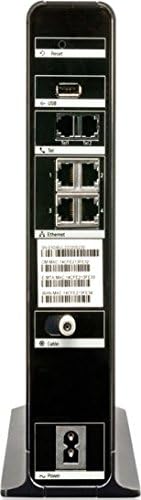
ചിത്രം 4.2: പിൻഭാഗം view of the ARRIS Touchstone TG2472G, detailing its connectivity options. From top to bottom, it includes a recessed Reset button, two USB ports, two telephone (Tel) ports, four Gigabit Ethernet ports, a coaxial cable connector for the internet input, and the power input port at the bottom. Various labels and a MAC address sticker are also visible.
The rear panel provides all the necessary connection ports:
- റീസെറ്റ് ബട്ടൺ: Used to reset the device to factory default settings.
- USB പോർട്ടുകൾ: For future use or connecting compatible devices.
- Tel 1/Tel 2 Ports: Connect your telephone devices for voice services.
- ഇഥർനെറ്റ് പോർട്ടുകൾ (1-4): Connect wired devices such as computers, gaming consoles, or smart TVs.
- കോക്സ് പോർട്ട്: Connects to your cable service provider's coaxial cable.
- പവർ പോർട്ട്: വിതരണം ചെയ്ത പവർ അഡാപ്റ്ററുമായി ബന്ധിപ്പിക്കുന്നു.
5. സജ്ജീകരണം
Follow these steps to set up your ARRIS TG2472G gateway:
- ഒരു ലൊക്കേഷൻ തിരഞ്ഞെടുക്കുക: ഒപ്റ്റിമൽ വൈ-ഫൈ കവറേജ് ഉറപ്പാക്കാൻ, തടസ്സങ്ങളിൽ നിന്നും താപ സ്രോതസ്സുകളിൽ നിന്നും അകന്ന്, നിങ്ങളുടെ വീട്ടിലെ ഒരു കേന്ദ്ര സ്ഥാനത്ത് ഗേറ്റ്വേ സ്ഥാപിക്കുക.
- കോക്സിയൽ കേബിൾ ബന്ധിപ്പിക്കുക: Connect one end of a coaxial cable (not included) to the Coax port on the rear of the gateway and the other end to a cable wall outlet. Ensure the connection is finger-tight.
- Connect Telephone (Optional): If you have voice service, connect your telephone to the Tel 1 or Tel 2 port on the rear of the gateway using a standard telephone cable.
- Connect Ethernet Devices (Optional): For wired connections, connect an Ethernet cable from one of the Ethernet ports (1-4) on the gateway to the Ethernet port on your computer or other network device.
- പവർ ബന്ധിപ്പിക്കുക: Connect the supplied power adapter to the Power port on the rear of the gateway, then plug the other end into an electrical outlet.
- പവർ ഓൺ: The gateway will automatically power on. Wait for the Power, US/DS, and Online LEDs on the front panel to become solid blue, indicating a successful connection to your internet service provider. This process may take several minutes.
- സേവനം സജീവമാക്കുക: Contact your internet service provider (ISP) to activate your new gateway. You will need to provide the MAC address and serial number, usually found on a sticker on the bottom or rear of the device.
6. പ്രവർത്തന നിർദ്ദേശങ്ങൾ
6.1 Wi-Fi-ലേക്ക് ബന്ധിപ്പിക്കുന്നു
To connect your wireless devices to the TG2472G's Wi-Fi network:
- Locate the Wi-Fi Network Name (SSID) and Password (Network Key) on the sticker on the bottom or side of your gateway.
- On your wireless device (smartphone, tablet, laptop), open the Wi-Fi settings.
- Select the SSID that matches your gateway's network name (e.g., "ARRIS-XXXX").
- ആവശ്യപ്പെടുമ്പോൾ Wi-Fi പാസ്വേഡ് നൽകുക.
- നിങ്ങളുടെ ഉപകരണം ഇപ്പോൾ ഇന്റർനെറ്റുമായി ബന്ധിപ്പിച്ചിരിക്കണം.
6.2 ആക്സസ് ചെയ്യുന്നു Web മാനേജ്മെന്റ് ഇന്റർഫേസ്
The TG2472G features a web-based management interface for advanced configuration:
- Ensure your computer is connected to the gateway via Ethernet or Wi-Fi.
- എ തുറക്കുക web ബ്രൗസർ (ഉദാ. ക്രോം, ഫയർഫോക്സ്, എഡ്ജ്).
- വിലാസ ബാറിൽ, സ്ഥിരസ്ഥിതി IP വിലാസം ടൈപ്പ് ചെയ്യുക (സാധാരണയായി
192.168.0.1or192.168.100.1) and press Enter. Refer to your ISP's documentation or the gateway's sticker for the exact IP address. - Enter the default username and password. These are often "admin" and "password" or found on the gateway's sticker. It is highly recommended to change these default credentials for security.
- From the interface, you can configure Wi-Fi settings, network security, parental controls, and other advanced features.
6.3 വോയ്സ് സേവനങ്ങൾ
If your service plan includes voice, ensure your telephone is connected to the Tel 1 or Tel 2 port. The Tel LEDs on the front panel will illuminate when the line is active and ready for use.
7. പരിപാലനം
Proper maintenance ensures the longevity and optimal performance of your gateway:
- വൃത്തിയാക്കൽ: വൃത്തിയാക്കുന്നതിന് മുമ്പ് വൈദ്യുതി ബന്ധം വിച്ഛേദിക്കുക. പുറംഭാഗം തുടയ്ക്കാൻ മൃദുവായതും ഉണങ്ങിയതുമായ തുണി ഉപയോഗിക്കുക. ലിക്വിഡ് അല്ലെങ്കിൽ എയറോസോൾ ക്ലീനറുകൾ ഉപയോഗിക്കരുത്.
- വെൻ്റിലേഷൻ: Ensure the ventilation openings are not blocked. Maintain adequate space around the device for airflow.
- ഫേംവെയർ അപ്ഡേറ്റുകൾ: Firmware updates are typically managed by your internet service provider. Do not attempt to manually update firmware unless instructed by your ISP.
- പുനരാരംഭിക്കുന്നു: If you experience connectivity issues, try restarting the gateway by unplugging the power cord for 10 seconds and then plugging it back in.
8. പ്രശ്നപരിഹാരം
നിങ്ങൾ നേരിട്ടേക്കാവുന്ന പൊതുവായ പ്രശ്നങ്ങളെ ഈ വിഭാഗം അഭിസംബോധന ചെയ്യുന്നു:
| പ്രശ്നം | സാധ്യമായ കാരണം | പരിഹാരം |
|---|---|---|
| പവർ എൽഇഡി ഇല്ല | പവർ അഡാപ്റ്റർ ബന്ധിപ്പിച്ചിട്ടില്ല അല്ലെങ്കിൽ ഔട്ട്ലെറ്റ് തകരാറിലാണ്. | Ensure power adapter is securely connected to the gateway and a working electrical outlet. Try a different outlet. |
| US/DS LED blinking or off | No signal from cable provider or poor coaxial connection. | Check coaxial cable connections at the gateway and wall outlet. Ensure they are tight. Contact your ISP if the issue persists. |
| Online LED off or blinking | Gateway not activated or no internet connection. | Ensure US/DS LED is solid. Contact your ISP to activate the gateway or troubleshoot internet service. |
| Wi-Fi കണക്ഷനില്ല | തെറ്റായ Wi-Fi പാസ്വേഡ്, Wi-Fi പ്രവർത്തനരഹിതമാക്കി, അല്ലെങ്കിൽ സിഗ്നൽ ഇടപെടൽ. | Verify Wi-Fi password. Check 2.4 GHz/5 GHz LEDs. Restart gateway. Reduce interference by moving gateway away from other electronics. |
| No dial tone on phone | Phone not connected correctly or voice service not active. | Ensure phone is connected to Tel 1/Tel 2 port. Check Tel LEDs. Contact your ISP to verify voice service activation. |
If you continue to experience issues after attempting these solutions, please contact your internet service provider for further assistance.
9 സ്പെസിഫിക്കേഷനുകൾ
- മോഡലിൻ്റെ പേര്: ടിജി 2472 ജി
- DOCSIS Standard: ഡോക്സിസ് 3.0
- Channel Bonding: 24x8 Downstream/Upstream
- വൈഫൈ സ്റ്റാൻഡേർഡ്: 802.11ac (Dual-Band Concurrent 2.4GHz and 5GHz)
- ഇഥർനെറ്റ് പോർട്ടുകൾ: 4 x ജിഗാബൈറ്റ് ഇഥർനെറ്റ്
- വോയ്സ് പോർട്ടുകൾ: 2 x FXS (PacketCable 2.0 compliant)
- മോസിഎ: MoCA 2.0
- പ്രോസസ്സർ: 1.2GHz Intel Atom Core Application Processor
- അളവുകൾ: ഏകദേശം 13.94 x 11.77 x 4.13 ഇഞ്ച്
- ഭാരം: ഏകദേശം 3 പൗണ്ട്
- വൈദ്യുതി വിതരണം: ബാഹ്യ പവർ അഡാപ്റ്റർ
- പ്രത്യേക സവിശേഷതകൾ: Access Point Mode, Guest SSID, DLNA, File Sharing, ARRIS HomeAssure Enabled
10. വാറൻ്റി വിവരങ്ങൾ
ARRIS products typically come with a limited warranty. The specific terms and duration of your warranty may vary depending on your region and the retailer from whom you purchased the device. Please refer to the warranty card included in your product packaging or visit the official ARRIS webവിശദമായ വാറന്റി വിവരങ്ങൾക്ക് സൈറ്റ്.
വാറന്റി ക്ലെയിമുകൾക്കുള്ള വാങ്ങിയതിന്റെ തെളിവായി നിങ്ങളുടെ വാങ്ങൽ രസീത് സൂക്ഷിക്കുക.
11. പിന്തുണ
For technical support, troubleshooting, or service activation, please contact your internet service provider (ISP). Your ISP is responsible for supporting the ARRIS TG2472G gateway as it is typically provided and managed by them.
You can also visit the official ARRIS support website for general product information and FAQs:
For additional resources, you may refer to the ARRIS brand store on Amazon: ARRIS Store


