1. ഉൽപ്പന്നം കഴിഞ്ഞുview
The ELECOM DEFT PRO Trackball Mouse is a high-performance input device designed for superior accuracy and ergonomic comfort. It offers versatile connectivity options and customizable functions to enhance productivity.
- ഒപ്റ്റിക്കൽ ട്രാക്കിംഗ് സാങ്കേതികവിദ്യ: Provides precise cursor movement with less hand movement.
- Functional 8 Buttons: Assign favorite functions using the "ELECOM Mouse Assistant" software.
- DPI Cursor: Easily switch between 500, 1000, and 1500 DPI for customized cursor speed.
- എളുപ്പമുള്ള പരിപാലനം: Features three 2.5 mm artificial ruby ball bearings for smooth rolling and easy cleaning.
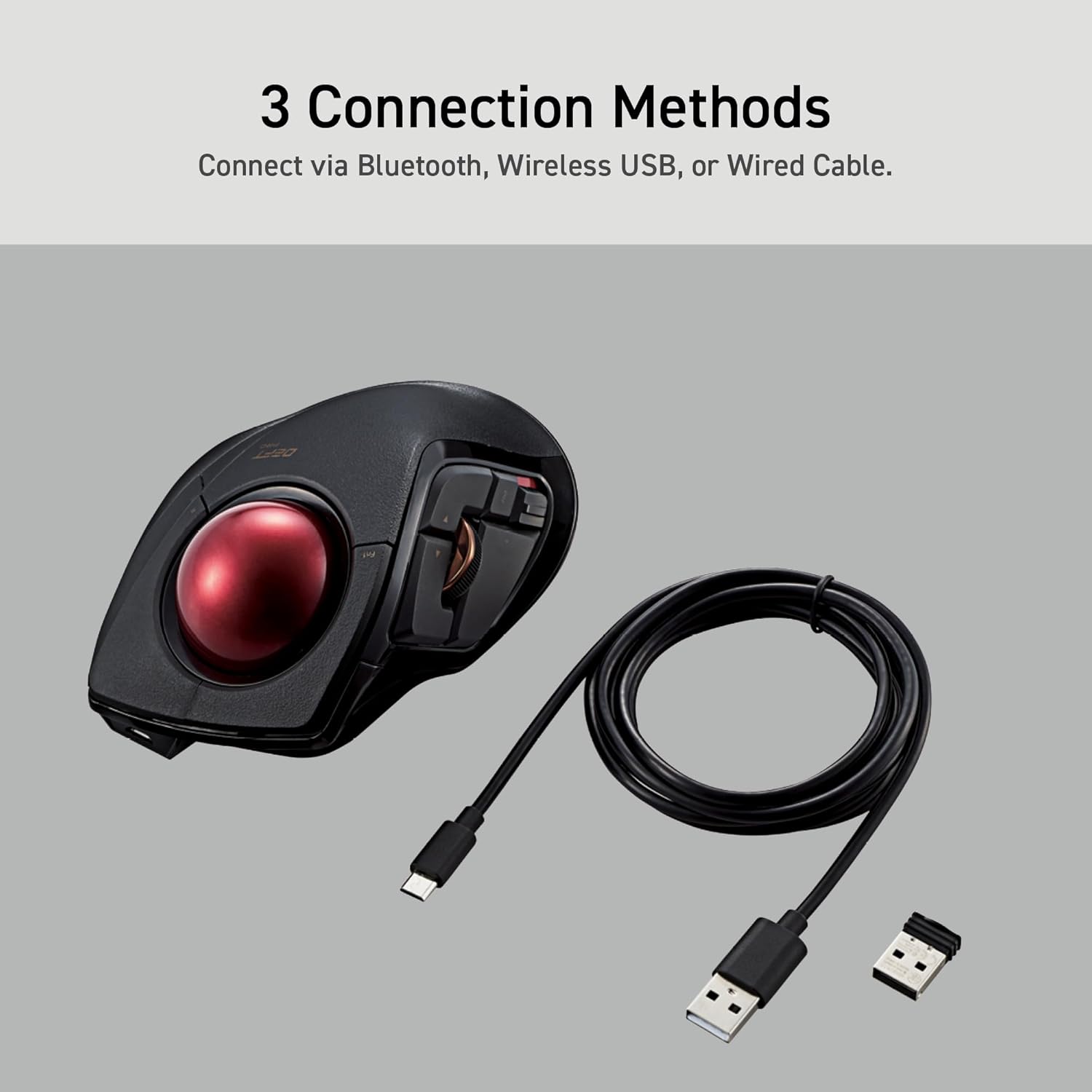
- ഒന്നിലധികം കണക്റ്റിവിറ്റി: Supports wired, wireless (2.4GHz USB receiver), and Bluetooth connections.

2. സജ്ജീകരണ ഗൈഡ്
2.1. ബോക്സിൽ എന്താണുള്ളത്?
ആരംഭിക്കുന്നതിന് മുമ്പ്, എല്ലാ ഘടകങ്ങളും ഉണ്ടെന്ന് ഉറപ്പാക്കുക:
- ELECOM DEFT PRO Trackball Mouse
- 1 x AA ബാറ്ററി
- USB Cable (for wired connection)
- USB Receiver (for wireless 2.4GHz connection)
- ഉപയോക്തൃ മാനുവൽ (ഈ പ്രമാണം)

2.2. ബാറ്ററി ഇൻസ്റ്റാളേഷൻ
- മൗസിന്റെ അടിഭാഗത്ത് ബാറ്ററി കമ്പാർട്ട്മെന്റ് കണ്ടെത്തുക.
- ബാറ്ററി കമ്പാർട്ട്മെൻ്റ് കവർ തുറക്കുക.
- നൽകിയിരിക്കുന്ന AA ബാറ്ററി ഇടുക, ശരിയായ പോളാരിറ്റി (+/-) ഉറപ്പാക്കുക.
- ബാറ്ററി കമ്പാർട്ട്മെൻ്റ് കവർ സുരക്ഷിതമായി അടയ്ക്കുക.
2.3. നിങ്ങളുടെ മൗസ് ബന്ധിപ്പിക്കുന്നു
The DEFT PRO offers three connection methods:
- വയർഡ് കണക്ഷൻ: Connect the mouse directly to your computer using the provided USB cable.
- Wireless (2.4GHz) Connection:
- നിങ്ങളുടെ കമ്പ്യൂട്ടറിൽ ലഭ്യമായ USB പോർട്ടിലേക്ക് USB റിസീവർ ചേർക്കുക.
- Slide the connection switch on the underside of the mouse to the "Wireless" (W) position.
- ബ്ലൂടൂത്ത് കണക്ഷൻ:
- Slide the connection switch on the underside of the mouse to the "Bluetooth" (B) position.
- Press the pairing button on the underside of the mouse until the indicator light flashes.
- On your computer, go to Bluetooth settings and select "ELECOM DEFT PRO" to pair.

3. പ്രവർത്തന നിർദ്ദേശങ്ങൾ
3.1. Ergonomic Design and Control
The DEFT PRO is designed to position your hand and wrist in a natural, comfortable position, reducing strain during extended use. Its index-finger control allows for precise cursor manipulation.


The extra-large 44mm trackball allows you to span the full screen with speed and accuracy.

3.2. Programmable Buttons and DPI Settings
The mouse features 8 programmable buttons, allowing you to assign various functions for a personalized workflow. The DPI button enables quick adjustments between 500, 1000, and 1500 DPI to suit your preference for cursor speed.
3.3. Mouse Assistant Software
To fully utilize the programmable features, download the "ELECOM Mouse Assistant" software from the ELECOM NET website. This software allows for enhanced customization, including presentation mode and gesture creation.

4. പരിപാലനം
Regular maintenance ensures optimal performance and longevity of your trackball mouse.
4.1. ട്രാക്ക്ബോൾ വൃത്തിയാക്കൽ
The trackball is designed for easy removal and cleaning. The ball rolls on three 2.5 mm large artificial ruby ball bearings, which are smooth and resistant to dust accumulation. However, occasional cleaning is recommended.
- Locate the hole on the underside of the mouse.
- Gently push the trackball through this hole to pop it out.
- Use a soft, lint-free cloth to wipe the trackball and the ball bearings clean.
- Reinsert the trackball into its slot, ensuring it clicks into place.

5. പ്രശ്നപരിഹാരം
If you encounter any issues with your ELECOM DEFT PRO Trackball Mouse, please refer to the following common solutions:
- കഴ്സർ ചലനമില്ല:
- മൗസ് ഓണാക്കിയിട്ടുണ്ടെന്നും ബാറ്ററി ശരിയായി ഇൻസ്റ്റാൾ ചെയ്തിട്ടുണ്ടെന്നും ഉറപ്പാക്കുക.
- Check the connection method switch (wired/wireless/Bluetooth) is in the correct position.
- For wireless/Bluetooth, ensure the USB receiver is properly inserted or the device is paired.
- Clean the trackball and its bearings as described in the Maintenance section.
- ബട്ടണുകൾ പ്രതികരിക്കുന്നില്ല:
- Verify that the Mouse Assistant software is correctly installed and configured.
- നിങ്ങളുടെ കമ്പ്യൂട്ടറും മൗസും പുനരാരംഭിക്കുക.
- ഇടവിട്ടുള്ള കണക്ഷൻ:
- Move the mouse closer to the computer to reduce interference.
- Avoid using the mouse on metallic surfaces that may interfere with wireless signals.
For further assistance, please refer to the official user guides linked in the Support section.
6. ഉൽപ്പന്ന സവിശേഷതകൾ
| ഫീച്ചർ | വിശദാംശങ്ങൾ |
|---|---|
| ബ്രാൻഡ് | ELECOM |
| പരമ്പര | Deft Pro |
| മോഡൽ നമ്പർ | M-DPT1MRXBK |
| ഹാർഡ്വെയർ പ്ലാറ്റ്ഫോം | ലാപ്ടോപ്പ്, പി.സി |
| ഓപ്പറേറ്റിംഗ് സിസ്റ്റം | Windows 8, Windows 10, Windows 11 or later, macOS 10.13 or later |
| ഇനത്തിൻ്റെ ഭാരം | 5.7 oz (without battery) |
| ഉൽപ്പന്ന അളവുകൾ | W3.6"(91.4mm) X L5.3"(133.4mm) X H2.3"(57.3mm) |
| നിറം | Black / Red ball |
| പവർ ഉറവിടം | ബാറ്ററി പവർഡ് (1 AA ബാറ്ററി ഉൾപ്പെടുത്തിയിരിക്കുന്നു) |
| ഡിപിഐ ക്രമീകരണങ്ങൾ | 500/1000/1500 count (switchable) |
| കണക്റ്റിവിറ്റി | Wired, Wireless (2.4GHz), Bluetooth |
| പ്രത്യേക ഫീച്ചർ | Programmable Buttons, Ergonomic Design |
7. ഔദ്യോഗിക ഉൽപ്പന്ന വീഡിയോകൾ
ഉൽപ്പന്നം കഴിഞ്ഞുview
ഈ വീഡിയോ ഒരു പൊതു വിശദീകരണം നൽകുന്നുview of the ELECOM DEFT PRO Trackball Mouse, highlighting its key features and design.
Boost Your Creative Mind
Discover how the ELECOM DEFT PRO Trackball Mouse can enhance your creative workflow and productivity.
8. പിന്തുണയും വാറന്റിയും
For detailed information, troubleshooting, and warranty claims, please refer to the official documents:
Warranty information is typically provided within the official user manual or product packaging. Please retain your proof of purchase for warranty service.