1. ആമുഖം
This manual provides essential information for the proper setup, operation, and maintenance of your iiyama Prolite T2454MSC-B1AG 23.8-inch Full HD Multi-Touch Monitor. Please read this manual thoroughly before using the product to ensure optimal performance and safety.

ചിത്രം: മുൻഭാഗം view of the iiyama Prolite T2454MSC-B1AG touch screen monitor.
2 സുരക്ഷാ വിവരങ്ങൾ
Observe the following safety precautions to prevent damage to the monitor and ensure your safety.
- തീപിടുത്തമോ ഷോക്കോ മൂലമുള്ള അപകടങ്ങൾ ഒഴിവാക്കാൻ മോണിറ്ററിനെ മഴയിലോ ഈർപ്പത്തിലോ തുറന്നുവെക്കരുത്.
- മോണിറ്റർ തുറക്കരുത് casing. ഉള്ളിൽ ഉപയോക്തൃ-സേവനയോഗ്യമായ ഭാഗങ്ങളൊന്നുമില്ല. എല്ലാ സേവനങ്ങളും യോഗ്യതയുള്ള സേവന ഉദ്യോഗസ്ഥരെ ഏൽപ്പിക്കുക.
- വീഴാതിരിക്കാൻ മോണിറ്റർ ഒരു സ്ഥിരതയുള്ളതും പരന്നതുമായ പ്രതലത്തിൽ വയ്ക്കുക.
- മോണിറ്ററിന് ചുറ്റും ശരിയായ വായുസഞ്ചാരം ഉറപ്പാക്കുക. വായുസഞ്ചാര ദ്വാരങ്ങൾ അടയ്ക്കരുത്.
- മോണിറ്ററിനൊപ്പം നൽകിയിരിക്കുന്ന പവർ കോഡും അഡാപ്റ്ററും മാത്രം ഉപയോഗിക്കുക.
- മോണിറ്റർ കൂടുതൽ നേരം ഉപയോഗിക്കുന്നില്ലെങ്കിൽ ഔട്ട്ലെറ്റിൽ നിന്ന് പവർ പ്ലഗ് വിച്ഛേദിക്കുക.
3. പാക്കേജ് ഉള്ളടക്കം
താഴെ ലിസ്റ്റ് ചെയ്തിരിക്കുന്ന എല്ലാ ഇനങ്ങളും നിങ്ങളുടെ പാക്കേജിൽ ഉൾപ്പെടുത്തിയിട്ടുണ്ടെന്ന് ഉറപ്പാക്കുക. ഏതെങ്കിലും ഇനങ്ങൾ നഷ്ടപ്പെട്ടിട്ടുണ്ടെങ്കിലോ കേടായിട്ടുണ്ടെങ്കിലോ, നിങ്ങളുടെ റീട്ടെയിലറെ ബന്ധപ്പെടുക.
- iiyama Prolite T2454MSC-B1AG Monitor
- Power Cable(s) (region specific)
- USB കേബിൾ
- HDMI കേബിൾ
- ക്വിക്ക് സ്റ്റാർട്ട് ഗൈഡ് (ഈ ഡിജിറ്റൽ മാനുവലിൽ ഉൾപ്പെടുത്തിയിട്ടില്ല)

Image: Included cables for the monitor, typically power, USB, and HDMI.
4. സജ്ജീകരണം
4.1 Physical Setup and Connections
Follow these steps to set up your monitor and connect it to your computer.
- മോണിറ്ററിന്റെ സ്ഥാനം: Place the monitor on a stable, flat surface. The flexible stand allows for various viewing angles. Adjust the stand to your preferred ergonomic position.
- Connecting Video Cable: Connect one end of the HDMI or VGA cable to the corresponding port on your computer's graphics card and the other end to the monitor's input port.
- Connecting USB Cable: For touch functionality, connect the supplied USB cable from your computer's USB port to the USB upstream port on the monitor.
- ബന്ധിപ്പിക്കുന്ന പവർ: Connect the power cable to the monitor's power input and then plug it into a wall outlet.
- VESA മൗണ്ടിംഗ് (ഓപ്ഷണൽ): The monitor is VESA mount compliant (100x100mm). If you wish to wall mount or use a different stand, remove the factory stand and attach your VESA-compatible mounting solution.


Image: The monitor's adjustable stand allows for various viewing angles, from upright to reclined.

ചിത്രം: ക്ലോസ്-അപ്പ് view of the monitor's rear input ports, including HDMI, VGA, and USB connections.

ചിത്രം: പിൻഭാഗം view of the monitor, highlighting the VESA mounting points for alternative installation.
4.2 പ്രാരംഭ പവർ ഓൺ
After connecting all cables, press the power button on the monitor to turn it on. The monitor should automatically detect the input signal.
5. പ്രവർത്തന നിർദ്ദേശങ്ങൾ
5.1 Basic Touch Operation
The Prolite T2454MSC-B1AG features Projective Capacitive 10-point touch technology, allowing for intuitive interaction with your operating system and applications.
- ടാപ്പ് ചെയ്യുക: Equivalent to a single mouse click.
- ഇരട്ട ടാപ്പ്: Equivalent to a double mouse click.
- അമർത്തിപ്പിടിക്കുക: ഒരു വലത്-ക്ലിക്കിന് തുല്യം.
- വലിച്ചിടുക: Move an item by touching and dragging your finger across the screen.
- പിഞ്ച്-ടു-സൂം: ഉള്ളടക്കം സൂം ഇൻ ചെയ്യാനോ ഔട്ട് ചെയ്യാനോ രണ്ട് വിരലുകൾ ഉപയോഗിക്കുക.
- മൾട്ടി-ടച്ച് ആംഗ്യങ്ങൾ: Your operating system may support additional multi-touch gestures. Refer to your OS documentation for details.

Image: A user interacting with the multi-touch screen of the iiyama Prolite T2454MSC-B1AG monitor.
5.2 ഓൺ-സ്ക്രീൻ ഡിസ്പ്ലേ (OSD) മെനു
The OSD menu allows you to adjust various display settings. The control buttons are located on the rear right side of the monitor.
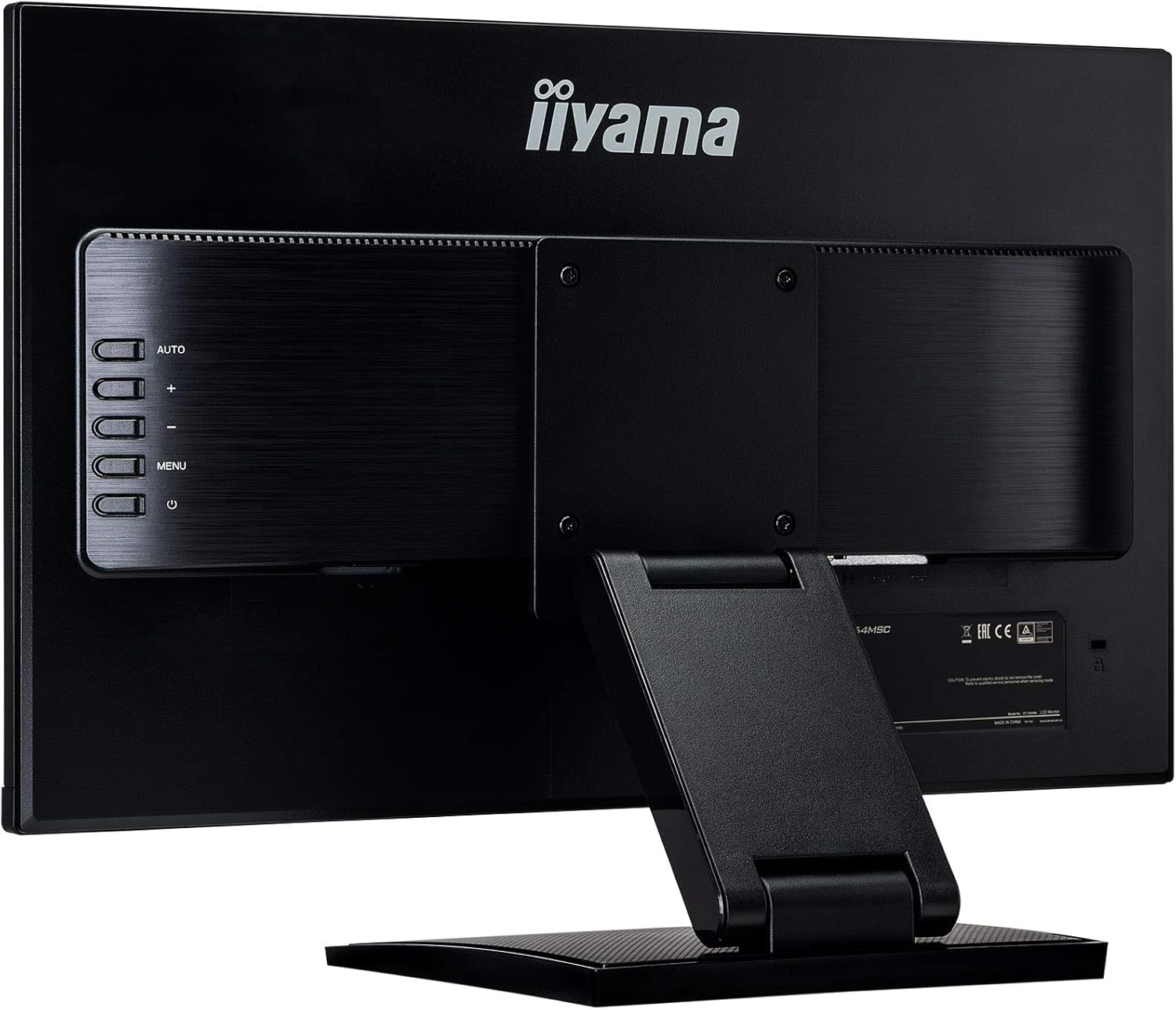
ചിത്രം: പിൻഭാഗം view of the monitor, highlighting the OSD control buttons for menu navigation.
- പവർ ബട്ടൺ: മോണിറ്റർ ഓണാക്കുകയോ ഓഫാക്കുകയോ ചെയ്യുന്നു.
- മെനു ബട്ടൺ: Opens the OSD menu. Press again to exit or go back.
- മുകളിലേക്കും താഴേക്കും ബട്ടണുകൾ (+/-): മെനു ഓപ്ഷനുകളിലൂടെ നാവിഗേറ്റ് ചെയ്യുക അല്ലെങ്കിൽ മൂല്യങ്ങൾ ക്രമീകരിക്കുക.
- യാന്ത്രിക ബട്ടൺ: Automatically adjusts image settings for optimal display (primarily for analog VGA input).
Navigate the menu using the Up/Down buttons and confirm selections with the Menu button. Common settings include brightness, contrast, input selection, and color temperature.
6. പരിപാലനം
Proper maintenance ensures the longevity and performance of your monitor.
- സ്ക്രീൻ വൃത്തിയാക്കൽ: മൃദുവായ, ലിന്റ് രഹിത തുണി ഉപയോഗിച്ച് സ്ക്രീൻ സൌമ്യമായി തുടയ്ക്കുക. കഠിനമായ പാടുകൾക്ക്, dampമൃദുവായതും ഉരച്ചിലുകളില്ലാത്തതുമായ സ്ക്രീൻ ക്ലീനർ ഉപയോഗിച്ച് തുണിയിൽ തടവുക. സ്ക്രീനിൽ നേരിട്ട് ക്ലീനർ സ്പ്രേ ചെയ്യരുത്.
- സി വൃത്തിയാക്കൽasing: മോണിറ്റർ തുടയ്ക്കാൻ മൃദുവായതും ഉണങ്ങിയതുമായ തുണി ഉപയോഗിക്കുക casing. വീര്യം കൂടിയ ഡിറ്റർജന്റുകൾ അല്ലെങ്കിൽ ഉരച്ചിലുകൾ ഉള്ള ക്ലീനറുകൾ ഉപയോഗിക്കുന്നത് ഒഴിവാക്കുക.
- സംഭരണം: മോണിറ്റർ ദീർഘനേരം സൂക്ഷിക്കുകയാണെങ്കിൽ, എല്ലാ കേബിളുകളും വിച്ഛേദിച്ച് തണുത്തതും വരണ്ടതുമായ സ്ഥലത്ത് സൂക്ഷിക്കുക, ഏറ്റവും നല്ലത് അതിന്റെ യഥാർത്ഥ പാക്കേജിംഗിൽ.
7. പ്രശ്നപരിഹാരം
പൊതുവായ പ്രശ്നങ്ങളും അവയുടെ പരിഹാരങ്ങളും അറിയാൻ താഴെയുള്ള പട്ടിക കാണുക.
| പ്രശ്നം | സാധ്യമായ കാരണം | പരിഹാരം |
|---|---|---|
| ശക്തിയില്ല | പവർ കേബിൾ ബന്ധിപ്പിച്ചിട്ടില്ല അല്ലെങ്കിൽ പവർ ഔട്ട്ലെറ്റ് സജീവമല്ല. | Ensure power cable is securely connected to the monitor and a working power outlet. Check power switch. |
| സിഗ്നൽ ഇല്ല / ശൂന്യമായ സ്ക്രീൻ | വീഡിയോ കേബിൾ ബന്ധിപ്പിച്ചിട്ടില്ല അല്ലെങ്കിൽ തെറ്റായ ഇൻപുട്ട് തിരഞ്ഞെടുത്തു. | Check video cable connections (HDMI/VGA). Use the OSD menu to select the correct input source. |
| ടച്ച് ഫംഗ്ഷൻ പ്രവർത്തിക്കുന്നില്ല | USB cable not connected or driver issue. | Ensure the USB upstream cable is connected between the monitor and your computer. For Windows, touch drivers are usually automatic; for other OS, check manufacturer's webസൈറ്റ്. |
| ചിത്രം മങ്ങിയതോ വളച്ചൊടിച്ചതോ ആണ് | Incorrect resolution or refresh rate, or analog signal interference. | Set your computer's display resolution to 1920x1080 and refresh rate to 60Hz. For VGA, use the OSD's "Auto" adjustment. |
| Speakers not producing sound | Audio cable not connected (if using VGA) or volume too low. | If using HDMI, audio is carried over HDMI. If using VGA, ensure an audio cable is connected. Check monitor and computer volume settings. |
8 സ്പെസിഫിക്കേഷനുകൾ
Detailed technical specifications for the iiyama Prolite T2454MSC-B1AG monitor.
| ഫീച്ചർ | വിശദാംശങ്ങൾ |
|---|---|
| ബ്രാൻഡ് | ഇയ്യാമ |
| മോഡൽ | T2454MSC-B1AG |
| സ്ക്രീൻ വലിപ്പം | 24 ഇഞ്ച് (23.8") viewകഴിയും) |
| ഡിസ്പ്ലേ തരം | LED LCD, IPS Technology |
| റെസലൂഷൻ | 1920 x 1080 (പൂർണ്ണ HD) |
| വീക്ഷണാനുപാതം | 16:9 |
| ടച്ച് ടെക്നോളജി | Projective Capacitive (P-CAP) 10-point multi-touch |
| പ്രതികരണ സമയം | 4 മില്ലിസെക്കൻഡ് |
| പുതുക്കിയ നിരക്ക് | 60 Hz |
| Viewing ആംഗിൾ | 178 Degrees (Horizontal/Vertical) |
| ഇമേജ് ദൃശ്യതീവ്രത അനുപാതം | 1000:1 |
| പ്രത്യേക സവിശേഷതകൾ | Height Adjustment, Anti-Glare Coating, Built-in Speakers |
| ഹാർഡ്വെയർ ഇന്റർഫേസ് | എച്ച്ഡിഎംഐ, യുഎസ്ബി, വിജിഎ |
| മൊത്തം USB പോർട്ടുകൾ | 2 |
| മൗണ്ടിംഗ് തരം | Desk Mount, Wall Mount (VESA 100x100mm) |
| ഉൽപ്പന്ന അളവുകൾ | 54.05 x 12.8 x 38.8 സെ.മീ (W x D x H) |
| ഇനത്തിൻ്റെ ഭാരം | 5.5 കി.ഗ്രാം |
| വൈദ്യുതി ഉപഭോഗം | 24 വാട്ട്സ് (സാധാരണ) |

Image: Diagram illustrating the physical dimensions of the monitor.

Image: EU Energy Label for the iiyama T2454MSC-B1AG monitor, showing energy efficiency class E.
കൂടുതൽ വിവരങ്ങൾക്ക്, കാണുക EPREL ഡാറ്റാബേസ്.
9. വാറൻ്റിയും പിന്തുണയും
The iiyama Prolite T2454MSC-B1AG monitor typically comes with a manufacturer's warranty. Based on available information, the minimum guaranteed product support is 3 years.
- വാറൻ്റി കാലയളവ്: Please refer to your purchase documentation or the official iiyama website for the exact warranty period applicable in your region.
- സാങ്കേതിക സഹായം: For technical assistance, troubleshooting beyond this manual, or warranty claims, please visit the official iiyama support webസൈറ്റ് അല്ലെങ്കിൽ അവരുടെ ഉപഭോക്തൃ സേവനവുമായി ബന്ധപ്പെടുക.
- ഓൺലൈൻ ഉറവിടങ്ങൾ: Additional drivers, firmware updates, and detailed manuals may be available on the iiyama official webസൈറ്റ്.


