1. ആമുഖം
MUNBYN പോർട്ടബിൾ സ്കാനർ വിവിധ തരം ഡോക്യുമെന്റുകൾ, ഫോട്ടോകൾ, ടെക്സ്റ്റുകൾ എന്നിവ ഡിജിറ്റൈസ് ചെയ്യുന്നതിനായി രൂപകൽപ്പന ചെയ്ത ഒരു വൈവിധ്യമാർന്ന ഹാൻഡ്ഹെൽഡ് ഉപകരണമാണ്. ഇതിന്റെ ഒതുക്കമുള്ളതും ഭാരം കുറഞ്ഞതുമായ രൂപകൽപ്പന എളുപ്പത്തിൽ പോർട്ടബിലിറ്റി അനുവദിക്കുന്നു, എവിടെയും എപ്പോൾ വേണമെങ്കിലും സ്കാൻ ചെയ്യാൻ പ്രാപ്തമാക്കുന്നു. ഒപ്റ്റിമൽ പ്രകടനവും ദീർഘായുസ്സും ഉറപ്പാക്കാൻ നിങ്ങളുടെ സ്കാനർ എങ്ങനെ സജ്ജീകരിക്കാം, പ്രവർത്തിപ്പിക്കാം, പരിപാലിക്കാം, ട്രബിൾഷൂട്ട് ചെയ്യാം എന്നതിനെക്കുറിച്ചുള്ള വിശദമായ നിർദ്ദേശങ്ങൾ ഈ മാനുവൽ നൽകുന്നു.

ചിത്രം: വെള്ളിയും കറുപ്പും നിറങ്ങളിലുള്ള ഒരു സ്ലീക്ക് ഉപകരണമായ MUNBYN പോർട്ടബിൾ സ്കാനർ, "വാസ്തുവിദ്യാ സിദ്ധാന്തം" എന്ന പേരിലുള്ള ഒരു പുസ്തകത്തിൽ നിന്ന് ഒരു പേജ് സജീവമായി സ്കാൻ ചെയ്യുന്നത് കാണിച്ചിരിക്കുന്നു. ഒരു കൈ സ്കാനറിനെ മുറുകെ പിടിച്ച്, അതിന്റെ ഹാൻഡ്ഹെൽഡ് പ്രവർത്തനം പ്രകടമാക്കുന്നു.
2. ഉൽപ്പന്നം കഴിഞ്ഞുview
2.1 ഘടകങ്ങൾ
MUNBYN പോർട്ടബിൾ സ്കാനർ പാക്കേജിൽ സാധാരണയായി ഇനിപ്പറയുന്ന ഘടകങ്ങൾ ഉൾപ്പെടുന്നു:
- MUNBYN പോർട്ടബിൾ സ്കാനർ യൂണിറ്റ്
- 16GB മൈക്രോ SD കാർഡ് (മുൻകൂട്ടി ഇൻസ്റ്റാൾ ചെയ്തതോ പ്രത്യേകം ഉൾപ്പെടുത്തിയതോ)
- ഡാറ്റ കൈമാറ്റത്തിനുള്ള യുഎസ്ബി കേബിൾ
- ക്ലീനിംഗ് തുണി
- ഉപയോക്തൃ മാനുവൽ (ഈ പ്രമാണം)
2.2 പ്രധാന സവിശേഷതകൾ
- ഹാൻഡ്ഹെൽഡ് സ്കാനിംഗ്: വിവിധ വസ്തുക്കളുടെ എളുപ്പത്തിലും കൊണ്ടുനടക്കാവുന്നതുമായ സ്കാനിംഗിനായി രൂപകൽപ്പന ചെയ്തിരിക്കുന്നു.
- ഉയർന്ന മിഴിവ്: വ്യക്തവും വിശദവുമായ ഫലങ്ങൾക്കായി 900 DPI-യിൽ ചിത്രങ്ങൾ സ്കാൻ ചെയ്യുന്നു.
- ഫ്ലാറ്റ് സ്കാനിംഗ്: ഫീഡിംഗ് സ്കാനറുകൾ മൂലമുണ്ടാകുന്ന കേടുപാടുകൾ തടയുന്ന, അതിലോലമായതോ ബന്ധിതമോ ആയ വസ്തുക്കൾക്ക് അനുയോജ്യം.
- വിവിധോദ്ദേശ്യങ്ങൾ: ഫോട്ടോകൾ, ഡോക്യുമെന്റുകൾ, ടെക്സ്റ്റ്, ചാർട്ടുകൾ, ഡ്രാഫ്റ്റുകൾ, പേജുകൾ, മാഗസിനുകൾ, പാചകക്കുറിപ്പുകൾ, ചെറിയ മാപ്പുകൾ എന്നിവ ഡിജിറ്റൈസ് ചെയ്യാൻ കഴിവുള്ള.
- എളുപ്പത്തിലുള്ള ഡാറ്റ കൈമാറ്റം: സ്റ്റാൻഡേർഡ് ഹാർഡ്വെയർ (ക്യാമറ അല്ലെങ്കിൽ SD കാർഡ്) ആയി അംഗീകരിക്കപ്പെട്ട USB കേബിൾ വഴി കമ്പ്യൂട്ടറുകളിലേക്ക് ബന്ധിപ്പിക്കുന്നു.
- ഡ്രൈവർ-രഹിത പ്രവർത്തനം: Mac, Windows 7/8/10/XP, Linux സിസ്റ്റങ്ങളിലെ അടിസ്ഥാന പ്രവർത്തനങ്ങൾക്ക് സോഫ്റ്റ്വെയർ ഇൻസ്റ്റാളേഷൻ ആവശ്യമില്ല.
- ഉൾപ്പെടുത്തിയ സംഭരണം: ആയിരക്കണക്കിന് ഡിജിറ്റൽ ഡാറ്റ സംഭരിക്കാൻ കഴിവുള്ള 16 ജിബി എസ്ഡി കാർഡും ഇതിലുണ്ട്. files.

ചിത്രം: ഫലപ്രദമായി ഡോക്യുമെന്റ് ക്യാപ്ചർ ചെയ്യുന്നതിന് ആവശ്യമായ ലംബ സ്കാനിംഗ് ചലനം ചിത്രീകരിക്കുന്ന, ഒരു ഉപയോക്താവ് ഹാൻഡ്ഹെൽഡ് വാൻഡ് സ്കാനർ പ്രദർശിപ്പിക്കുന്നു.

ചിത്രം: ഒരു നോട്ട്ബുക്കിന് അടുത്തായി പോർട്ടബിൾ സ്കാനർ കാണിച്ചിരിക്കുന്നു, അത് ഉടനടി ഉപയോഗിക്കുന്നതിനായി അതിന്റെ ഡ്രൈവർ-ഫ്രീ ഇൻസ്റ്റാളേഷൻ സവിശേഷതയെ ഊന്നിപ്പറയുന്നു.
3. സജ്ജീകരണം
3.1 ബാറ്ററി ഇൻസ്റ്റാളേഷൻ
സ്കാനർ പ്രവർത്തിക്കാൻ രണ്ട് (2) AA ആൽക്കലൈൻ ബാറ്ററികൾ ആവശ്യമാണ്. ബാറ്ററികൾ പാക്കേജിൽ ഉൾപ്പെടുത്തിയിട്ടില്ല.
- സ്കാനറിൽ ബാറ്ററി കമ്പാർട്ട്മെന്റ് കണ്ടെത്തുക.
- ബാറ്ററി കമ്പാർട്ട്മെൻ്റ് കവർ തുറക്കുക.
- കമ്പാർട്ടുമെന്റിനുള്ളിൽ സൂചിപ്പിച്ചിരിക്കുന്നതുപോലെ ശരിയായ പോളാരിറ്റി (+/-) ഉറപ്പാക്കിക്കൊണ്ട് രണ്ട് AA ബാറ്ററികൾ ഇടുക.
- ബാറ്ററി കമ്പാർട്ട്മെൻ്റ് കവർ സുരക്ഷിതമായി അടയ്ക്കുക.

ചിത്രം: സ്കാനറിന്റെ ബാറ്ററി കമ്പാർട്ട്മെന്റ് തുറന്നിരിക്കുന്നു, അതിൽ രണ്ട് AA ബാറ്ററികൾ ശരിയായി ചേർത്തിരിക്കുന്നതും പ്രവർത്തനത്തിന് തയ്യാറായിരിക്കുന്നതും കാണാം.
3.2 SD കാർഡ് ചേർക്കൽ
സ്കാനർ സ്കാൻ ചെയ്ത ചിത്രങ്ങൾ ഒരു മൈക്രോ എസ്ഡി കാർഡിൽ സൂക്ഷിക്കുന്നു. 16 ജിബി എസ്ഡി കാർഡ് ഉൾപ്പെടുത്തിയിട്ടുണ്ട്.
- സ്കാനറിന്റെ വശത്ത് മൈക്രോ എസ്ഡി കാർഡ് സ്ലോട്ട് കണ്ടെത്തുക.
- 16GB മൈക്രോ SD കാർഡ് സ്ലോട്ടിൽ ക്ലിക്ക് ആകുന്നതുവരെ ഇടുക. കാർഡ് ശരിയായി ഓറിയന്റഡ് ആണെന്ന് ഉറപ്പാക്കുക.
- കാർഡ് നീക്കം ചെയ്യാൻ, അത് പുറത്തേക്ക് വരുന്നത് വരെ സൌമ്യമായി ഉള്ളിലേക്ക് തള്ളുക.
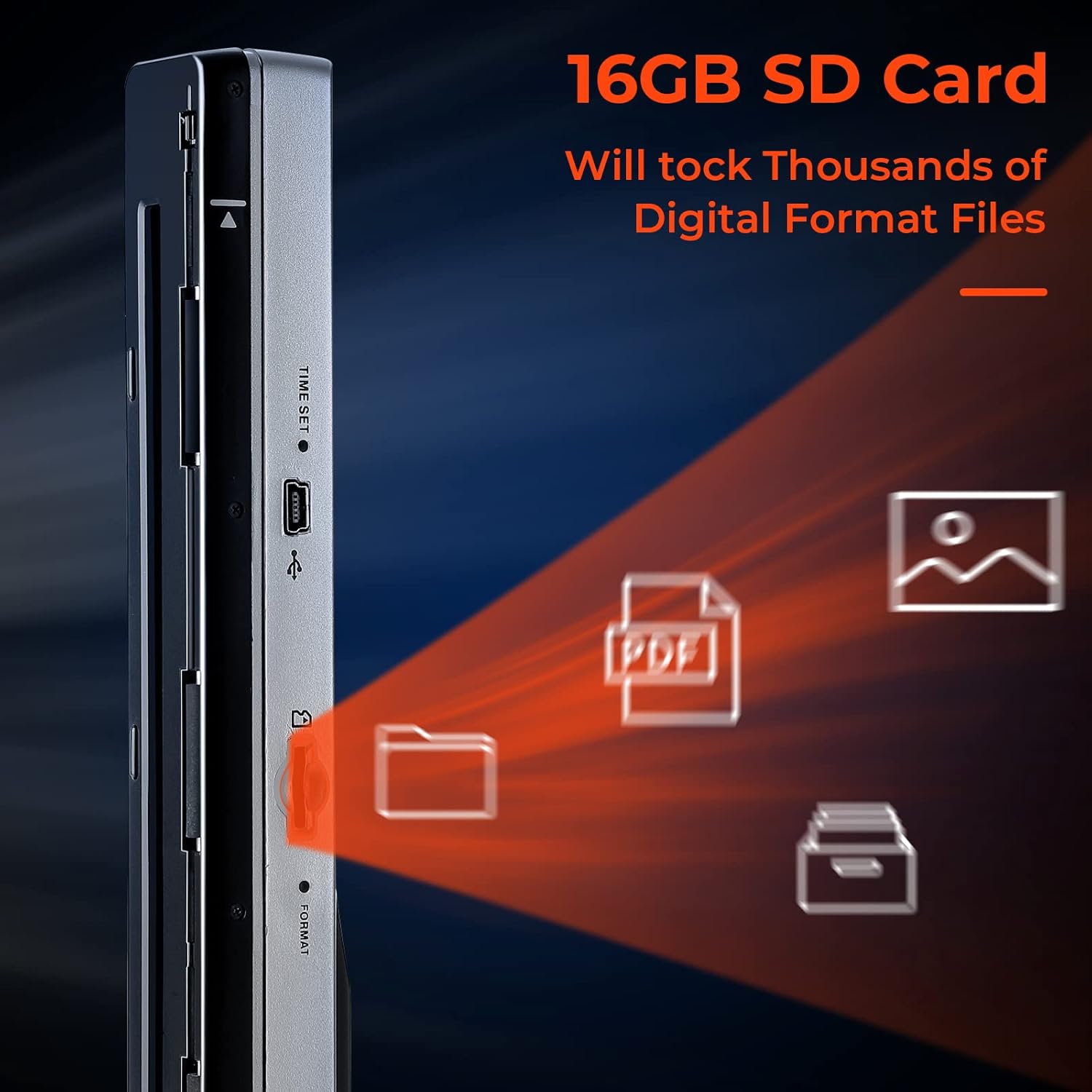
ചിത്രം: ഒരു ക്ലോസ്-അപ്പ് view സ്കാനറിന്റെ 16GB SD കാർഡ് സ്ലോട്ട് എടുത്തുകാണിക്കുന്നു, ഇത് ആയിരക്കണക്കിന് ഡിജിറ്റൽ ഡാറ്റ സംഭരിക്കാനുള്ള അതിന്റെ ശേഷിയെ സൂചിപ്പിക്കുന്നു. files.
4. ഓപ്പറേഷൻ
4.1 അടിസ്ഥാന സ്കാനിംഗ് നടപടിക്രമം
ഫലപ്രദമായ ഹാൻഡ്ഹെൽഡ് സ്കാനിംഗിന് ഈ ഘട്ടങ്ങൾ പാലിക്കുക:
- ലക്ഷ്യം തയ്യാറാക്കുക: ഡോക്യുമെന്റ്, ഫോട്ടോ അല്ലെങ്കിൽ ടെക്സ്റ്റ് ഒരു സ്ഥിരതയുള്ള പ്രതലത്തിൽ പരന്നതായി വയ്ക്കുക.
- സ്കാനർ സ്ഥാപിക്കുക: സ്കാനർ മുറുകെ പിടിച്ച് സ്കാൻ ടാർഗെറ്റിന്റെ മുകളിലെ അറ്റത്തിന് സമീപം വയ്ക്കുക.
- സ്കാൻ ആരംഭിക്കുക: ആരംഭിക്കാൻ സ്കാൻ ബട്ടൺ അമർത്തുക.
- സ്കാൻ ചലനം: സ്കാനർ സാവധാനത്തിലും സ്ഥിരതയോടെയും ഡോക്യുമെന്റിന്റെ മുകളിൽ നിന്ന് താഴേക്ക് സ്ഥിരമായ വേഗതയിൽ നീക്കുക. സ്കാൻ ചെയ്യുമ്പോൾ സ്കാനർ ചരിക്കുകയോ ഉയർത്തുകയോ ചെയ്യുന്നത് ഒഴിവാക്കുക.
- പൂർണ്ണ സ്കാൻ: സ്കാൻ പൂർത്തിയായിക്കഴിഞ്ഞാൽ, സ്കാൻ ബട്ടൺ വിടുക. സ്കാൻ ചെയ്ത ചിത്രം SD കാർഡിൽ സംരക്ഷിക്കപ്പെടും.
കുറിപ്പ്: സ്കാൻ ചെയ്ത ഇമേജ് റെസല്യൂഷൻ 900 DPI ആയി നിശ്ചയിച്ചിരിക്കുന്നു. ഒപ്റ്റിമൽ ഫലങ്ങൾക്കായി സ്ഥിരമായ സ്കാനിംഗ് വേഗത കൈവരിക്കാൻ കുറച്ച് തവണ പരിശീലിക്കുക.

ചിത്രം: ഒരു ക്ലോസ്-അപ്പ് ഷോട്ട്, ഒരു ഡോക്യുമെന്റിന് മുകളിലൂടെ MUNBYN പോർട്ടബിൾ സ്കാനറിനെ കൃത്യമായി നയിക്കുന്ന ഒരു കൈ കാണിക്കുന്നു, ഇത് ഹാൻഡ്ഹെൽഡ് സ്കാനിംഗ് പ്രക്രിയയെ ചിത്രീകരിക്കുന്നു.
4.2 ഫോട്ടോകളും അതിലോലമായ വസ്തുക്കളും സ്കാൻ ചെയ്യുന്നു
ഈ സ്കാനറിന്റെ ഹാൻഡ്ഹെൽഡ് ഡിസൈൻ പ്രത്യേകിച്ചും മികച്ചതാണ്.tagഫീഡിംഗ് സ്കാനറുകൾക്ക് സംഭവിക്കാവുന്ന വളയലോ കേടുപാടുകളോ കുറയ്ക്കുന്നതിനാൽ, പഴയതോ അതിലോലമായതോ ആയ ഫോട്ടോകളും രേഖകളും ഡിജിറ്റൈസ് ചെയ്യുന്നതിന് എളുപ്പമാണ്.

ചിത്രം: പഴയ കുടുംബ ഫോട്ടോഗ്രാഫുകൾ ഡിജിറ്റൈസ് ചെയ്യുന്നതിനും വിലപ്പെട്ട ഓർമ്മകൾ സംരക്ഷിക്കുന്നതിനും ഒരു വ്യക്തി MUNBYN പോർട്ടബിൾ സ്കാനർ ഉപയോഗിക്കുന്നു.
5. സ്കാനുകൾ കൈമാറൽ
5.1 ഒരു കമ്പ്യൂട്ടറിലേക്ക് ബന്ധിപ്പിക്കുന്നു
സ്കാൻ ചെയ്ത ചിത്രങ്ങൾ ഉൾപ്പെടുത്തിയിരിക്കുന്ന 16GB SD കാർഡിൽ സൂക്ഷിക്കുന്നു. ഈ ചിത്രങ്ങൾ നിങ്ങളുടെ കമ്പ്യൂട്ടറിലേക്ക് മാറ്റാൻ:
- നൽകിയിരിക്കുന്ന USB കേബിൾ ഉപയോഗിച്ച് നിങ്ങളുടെ കമ്പ്യൂട്ടറിലേക്ക് സ്കാനർ ബന്ധിപ്പിക്കുക.
- നിങ്ങളുടെ കമ്പ്യൂട്ടർ സ്കാനറിനെ ഒരു ക്യാമറ അല്ലെങ്കിൽ ഒരു ബാഹ്യ SD കാർഡ് റീഡർ പോലെയുള്ള ഒരു നീക്കം ചെയ്യാവുന്ന സംഭരണ ഉപകരണമായി തിരിച്ചറിയും.
- നിങ്ങളുടെ സ്കാൻ ചെയ്ത ചിത്രങ്ങൾ ആക്സസ് ചെയ്യുന്നതിന് സ്കാനറിന്റെ സ്റ്റോറേജ് ഡ്രൈവിലേക്ക് (സാധാരണയായി നീക്കം ചെയ്യാവുന്ന ഡിസ്ക് എന്ന് ലേബൽ ചെയ്തിരിക്കുന്നു) നാവിഗേറ്റ് ചെയ്യുക.
- ആവശ്യമുള്ള ചിത്രം പകർത്തുക അല്ലെങ്കിൽ നീക്കുക fileനിങ്ങളുടെ കമ്പ്യൂട്ടറിലേക്ക് എസ്.
ഈ പോർട്ടബിൾ സ്കാനർ മാക്, വിൻഡോസ് 7/8/10/XP, ലിനക്സ് ഓപ്പറേറ്റിംഗ് സിസ്റ്റങ്ങൾ എന്നിവയുമായി പൊരുത്തപ്പെടുന്നു, പ്രത്യേക ഡ്രൈവർ ഇൻസ്റ്റാളേഷൻ ആവശ്യമില്ല.

ചിത്രം: MUNBYN സ്കാനർ അതിന്റെ USB കേബിൾ വഴി ഒരു ലാപ്ടോപ്പുമായി ബന്ധിപ്പിച്ചിരിക്കുന്നു, സ്കാൻ ചെയ്ത പ്രമാണങ്ങൾ ഒരു കമ്പ്യൂട്ടറിലേക്ക് മാറ്റുന്നതിന്റെ എളുപ്പം ഇത് തെളിയിക്കുന്നു.
6. പരിപാലനം
6.1 സ്കാനർ വൃത്തിയാക്കൽ
സ്ഥിരമായ സ്കാൻ ഗുണനിലവാരം ഉറപ്പാക്കാൻ, സ്കാനറിന്റെ ഒപ്റ്റിക്കൽ ഘടകങ്ങൾ വൃത്തിയായി സൂക്ഷിക്കേണ്ടത് പ്രധാനമാണ്.
- സ്കാനർ ഓഫ് ചെയ്യുക.
- നൽകിയിരിക്കുന്ന ക്ലീനിംഗ് തുണി അല്ലെങ്കിൽ മൃദുവായ, ലിന്റ് രഹിത തുണി ഉപയോഗിച്ച് അടിഭാഗത്തെ സ്കാനിംഗ് പ്രതലവും (CIS സ്കാൻ ട്യൂബ്) ചെറിയ ചക്രങ്ങളും സൌമ്യമായി തുടയ്ക്കുക.
- ഉരച്ചിലുകളോ ലായകങ്ങളോ ഉപയോഗിക്കുന്നത് ഒഴിവാക്കുക.

ചിത്രം: മികച്ച പ്രകടനം ഉറപ്പാക്കിക്കൊണ്ട്, MUNBYN സ്കാനറിന്റെ അടിവശം മൃദുവായ തുണി ഉപയോഗിച്ച് വൃത്തിയാക്കുന്നത് ഒരു ഉപയോക്താവ് പ്രദർശിപ്പിക്കുന്നു.
6.2 ബാറ്ററി കെയർ
ബാറ്ററി ആയുസ്സ് പരമാവധിയാക്കുന്നതിനും വിശ്വസനീയമായ പ്രവർത്തനം ഉറപ്പാക്കുന്നതിനും:
- പുതിയതും ഉയർന്ന നിലവാരമുള്ളതുമായ AA ആൽക്കലൈൻ ബാറ്ററികൾ ഉപയോഗിക്കുക.
- സ്കാനർ ദീർഘനേരം ഉപയോഗിക്കുന്നില്ലെങ്കിൽ, ചോർച്ച തടയാൻ ബാറ്ററികൾ നീക്കം ചെയ്യുക.
- സ്കാനറിന്റെ ഡിസ്പ്ലേയിൽ ബാറ്ററി കുറവാണെന്ന് കാണിക്കുമ്പോൾ ബാറ്ററികൾ മാറ്റി സ്ഥാപിക്കുക.
7. പ്രശ്നപരിഹാരം
നിങ്ങളുടെ MUNBYN പോർട്ടബിൾ സ്കാനറിൽ പ്രശ്നങ്ങൾ നേരിടുകയാണെങ്കിൽ, ഇനിപ്പറയുന്ന പൊതുവായ പ്രശ്നങ്ങളും അവയുടെ പരിഹാരങ്ങളും പരിശോധിക്കുക:
| പ്രശ്നം | സാധ്യമായ കാരണം | പരിഹാരം |
|---|---|---|
| ചിത്രത്തിന്റെ ഗുണനിലവാരം മോശമാണ് (മങ്ങിയത്, വരകൾ ഉള്ളത്) | വൃത്തികെട്ട സ്കാനിംഗ് പ്രതലം; പൊരുത്തമില്ലാത്ത സ്കാനിംഗ് വേഗത; തെറ്റായ വൈറ്റ് ബാലൻസ്. | സ്കാനറിന്റെ അടിഭാഗം മൃദുവായ തുണി ഉപയോഗിച്ച് വൃത്തിയാക്കുക. സ്ഥിരവും സ്ഥിരവുമായ സ്കാനിംഗ് വേഗത നിലനിർത്താൻ പരിശീലിക്കുക. സ്കാനർ പുനരാരംഭിക്കുക. ലഭ്യമെങ്കിൽ വൈറ്റ് ബാലൻസ് കാലിബ്രേഷൻ നടത്തുക (ഓപ്ഷനുകൾക്കായി ഉപകരണ ഡിസ്പ്ലേ കാണുക). |
| ചുവന്ന ലൈറ്റ് ഇൻഡിക്കേറ്റർ ഓണാണ് | സ്കാനിംഗ് വളരെ വേഗത്തിലാണ്; സ്കാനർ തകരാറ്. | നിങ്ങളുടെ സ്കാനിംഗ് വേഗത കുറയ്ക്കുക. സ്കാനർ പുനരാരംഭിക്കുക. |
| സ്കാനർ ഓണാക്കുന്നില്ല | ഡെഡ് അല്ലെങ്കിൽ തെറ്റായി ഇൻസ്റ്റാൾ ചെയ്ത ബാറ്ററികൾ. | ബാറ്ററികൾ പുതിയ AA ആൽക്കലൈൻ ബാറ്ററികൾ ഉപയോഗിച്ച് മാറ്റിസ്ഥാപിക്കുക. ശരിയായ പോളാരിറ്റിയോടെ ബാറ്ററികൾ ചേർത്തിട്ടുണ്ടെന്ന് ഉറപ്പാക്കുക. |
| കൈമാറാൻ കഴിയില്ല Fileകമ്പ്യൂട്ടറിലേക്ക് എസ് | യുഎസ്ബി കണക്ഷൻ അയഞ്ഞിരിക്കുന്നു; എസ്ഡി കാർഡ് പ്രശ്നം. | സ്കാനറിലേക്കും കമ്പ്യൂട്ടറിലേക്കും USB കേബിൾ സുരക്ഷിതമായി ബന്ധിപ്പിച്ചിട്ടുണ്ടെന്ന് ഉറപ്പാക്കുക. മറ്റൊരു USB പോർട്ട് പരീക്ഷിക്കുക. സ്കാനറിലേക്ക് SD കാർഡ് വീണ്ടും ചേർക്കുക. SD കാർഡ് നിറഞ്ഞിട്ടില്ല അല്ലെങ്കിൽ കേടായിട്ടില്ല എന്ന് ഉറപ്പാക്കുക. |
8 സ്പെസിഫിക്കേഷനുകൾ
| ഫീച്ചർ | സ്പെസിഫിക്കേഷൻ |
|---|---|
| മോഡൽ നമ്പർ | 8541623577 (IDS001) |
| ഉൽപ്പന്ന അളവുകൾ | 10.04 x 1.1 x 0.98 ഇഞ്ച് |
| ഇനത്തിൻ്റെ ഭാരം | 5.1 ഔൺസ് (145 ഗ്രാം) |
| സ്കാനർ തരം | ഫോട്ടോ / ഡോക്യുമെന്റ് ഹാൻഡ്ഹെൽഡ് സ്കാനർ |
| കണക്റ്റിവിറ്റി ടെക്നോളജി | വയർലെസ്സ് സ്കാൻ / യുഎസ്ബി ട്രാൻസ്ഫർ |
| റെസലൂഷൻ | 900 ഡിപിഐ |
| ഒപ്റ്റിക്കൽ സെൻസർ ടെക്നോളജി | സിഐഎസ് |
| പവർ ഉറവിടം | 2 x AA ആൽക്കലൈൻ ബാറ്ററികൾ (ഉൾപ്പെടുത്തിയിട്ടില്ല) |
| സംഭരണം | 16GB മൈക്രോ എസ്ഡി കാർഡ് (ഉൾപ്പെടുന്നു) |
| ഏറ്റവും കുറഞ്ഞ സിസ്റ്റം ആവശ്യകതകൾ | വിൻഡോസ് 7 (മാക്, വിൻഡോസ് 7/8/10/എക്സ്പി, ലിനക്സ് എന്നിവയുമായി പൊരുത്തപ്പെടുന്നു) |
| യു.പി.സി | 787791820818 |
9. വാറൻ്റിയും പിന്തുണയും
MUNBYN അതിന്റെ ഉൽപ്പന്നങ്ങൾക്ക് മികച്ച പിന്തുണ നൽകാൻ പ്രതിജ്ഞാബദ്ധമാണ്. നിങ്ങളുടെ പോർട്ടബിൾ സ്കാനറുമായി ബന്ധപ്പെട്ട എന്തെങ്കിലും പ്രശ്നങ്ങൾക്കോ ആശങ്കകൾക്കോ, ദയവായി MUNBYN ഉപഭോക്തൃ സേവനവുമായി ബന്ധപ്പെടുക. ആമസോണിലെ ഔദ്യോഗിക MUNBYN സ്റ്റോർ സന്ദർശിച്ച് നിങ്ങൾക്ക് കൂടുതൽ വിവരങ്ങളും പിന്തുണാ ഉറവിടങ്ങളും കണ്ടെത്താനാകും: മുൻബൈൻ സ്റ്റോർ.
വാറന്റി ക്ലെയിമുകൾക്കായി നിങ്ങളുടെ വാങ്ങിയതിന്റെ തെളിവ് സൂക്ഷിക്കുക. നിർദ്ദിഷ്ട വാറന്റി നിബന്ധനകളും വ്യവസ്ഥകളും ബാധകമായേക്കാം, അവ സാധാരണയായി ഉൽപ്പന്ന പാക്കേജിംഗിലോ നിർമ്മാതാവിന്റെ ഔദ്യോഗിക പ്രഖ്യാപനത്തിലോ വിവരിച്ചിരിക്കുന്നു. webസൈറ്റ്.


