1. ആമുഖം
Welcome to the user manual for your new Finder BLISS WiFi NEXT Digital Connected Thermostat. This manual provides comprehensive instructions for the installation, operation, maintenance, and troubleshooting of your device. Please read this manual carefully before using the product to ensure safe and efficient operation.
The Finder BLISS WiFi NEXT is designed to offer precise temperature control and smart home integration, allowing you to manage your heating system remotely via a dedicated app or through voice commands. Its sleek design and intuitive interface make it a valuable addition to any modern home.
2. ഉൽപ്പന്നം കഴിഞ്ഞുview
The Finder BLISS WiFi NEXT thermostat features a minimalist LED display and capacitive touch buttons for manual control. It offers flexible power options, either via batteries or an optional power supply.

ചിത്രം 2.1: മുൻഭാഗം view of the Finder BLISS WiFi NEXT Thermostat.
പ്രധാന സവിശേഷതകളിൽ ഇവ ഉൾപ്പെടുന്നു:
- Essential LED Display: Clear and easy-to-read temperature display.
- Capacitive Touch Buttons: Responsive controls for manual adjustments.
- ഫ്ലെക്സിബിൾ പവർ ഓപ്ഷനുകൾ: Can be powered by 4 AAA batteries or an optional Type 01C.02.8.230.0300 power supply.
- No Gateway Required: Connects directly to your Wi-Fi network for internet functionality.
- സ്മാർട്ട് ഫംഗ്ഷനുകൾ: Remote control, geofencing (auto-away), consumption history, and voice control via Amazon Alexa and Google Home.

Figure 2.2: The thermostat mounted, showcasing its modern display and energy efficiency.
3. സജ്ജീകരണം
3.1 തെർമോസ്റ്റാറ്റ് മൌണ്ട് ചെയ്യൽ
The thermostat can be mounted on a wall. Ensure the mounting location is away from direct sunlight, drafts, or heat sources that could affect temperature readings.

Figure 3.1: Product dimensions and mounting hole specifications.
3.2 പവർ സപ്ലൈ ഓപ്ഷനുകൾ
The BLISS WiFi NEXT can be powered by 4 AAA batteries or an optional Type 01C.02.8.230.0300 power supply.
- ബാറ്ററി പവർ: Insert 4 AAA batteries into the designated compartment. Ensure correct polarity.
- ഓപ്ഷണൽ പവർ സപ്ലൈ: If using the optional power supply, connect it according to the wiring diagram provided.
3.3 Wiring (for Boiler Connection)
Connect the thermostat to your boiler using the appropriate wiring. The BLISS WiFi NEXT does not require a separate gateway for internet connectivity.
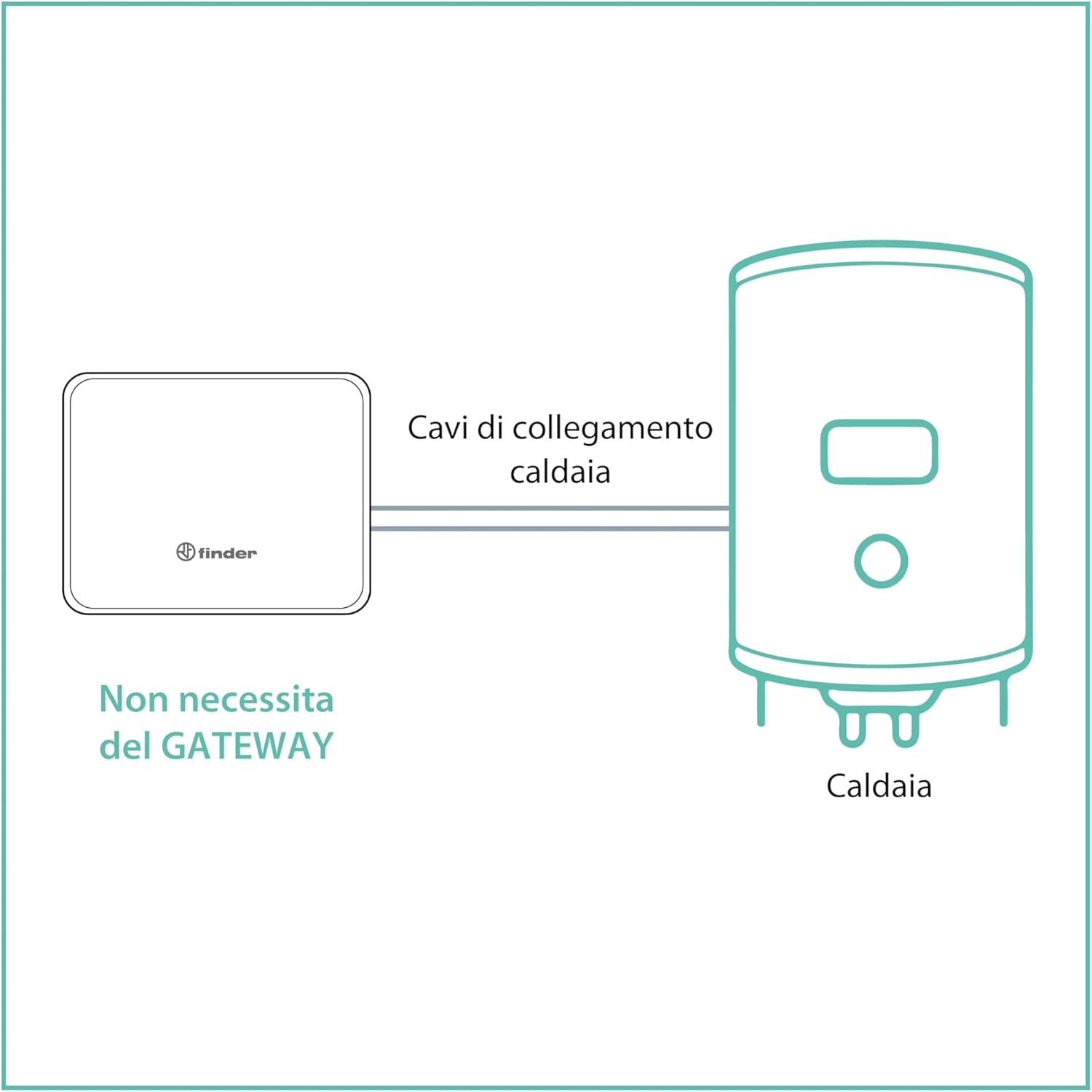
Figure 3.2: Direct connection to boiler, no gateway required.
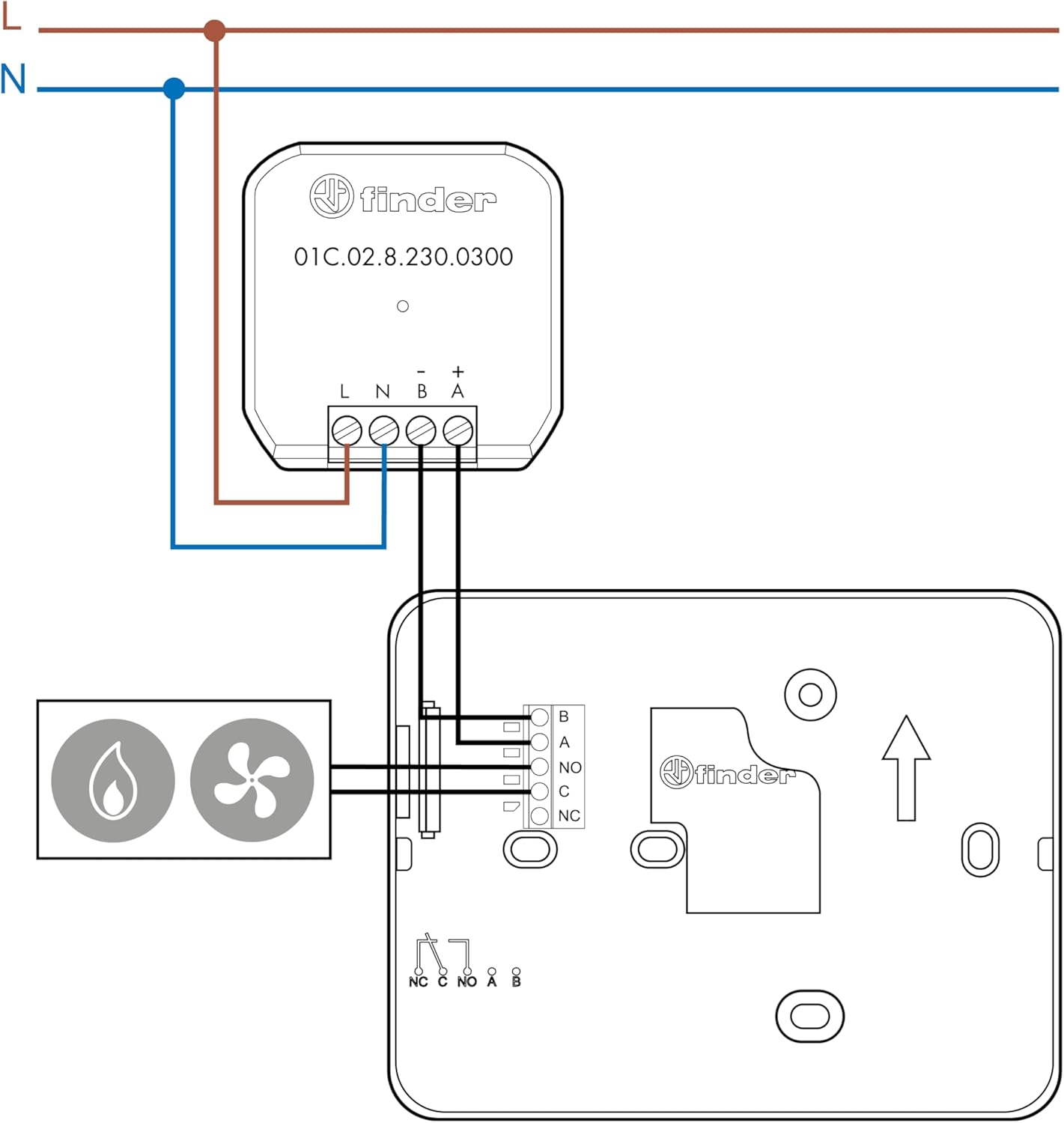
Figure 3.3: Detailed wiring connections for the thermostat.
3.4 App Installation and Initial Pairing
Download the official Finder app from your device's app store (Google Play or Apple App Store). Follow the in-app instructions to pair your thermostat with your Wi-Fi network and complete the initial setup.

Figure 3.4: The thermostat supports integration with Google Assistant and Amazon Alexa.
4. തെർമോസ്റ്റാറ്റ് പ്രവർത്തിപ്പിക്കൽ
4.1 മാനുവൽ നിയന്ത്രണം
You can adjust the temperature directly on the thermostat using the capacitive touch buttons. The LED display will show the current temperature and settings.
4.2 App Control and Programming
The Finder app provides comprehensive control and programming options for your thermostat. You can set schedules, adjust temperatures, and monitor consumption from anywhere.

Figure 4.1: The Finder app interface for remote control and scheduling.
- Manual or Guided Programming: Create custom heating schedules or use guided programming for quick setup.
- റിമോട്ട് കൺട്രോൾ: Adjust settings and monitor your home's temperature from anywhere with an internet connection.
- Geofencing (Auto-Away): Automatically adjust temperature based on your proximity to home.
- Consumption History: Track your energy usage to optimize efficiency.
4.3 ശബ്ദ നിയന്ത്രണം
The thermostat is compatible with Amazon Alexa and Google Home. Link your Finder account to your voice assistant app to enable voice commands for temperature adjustments and status checks.

Figure 4.2: System diagram illustrating smart home integration.
5. പരിപാലനം
5.1 ബാറ്ററി മാറ്റിസ്ഥാപിക്കൽ
If powered by batteries, the thermostat will indicate when the battery level is low. Replace all 4 AAA batteries simultaneously to ensure optimal performance. Use high-quality alkaline batteries.
കുറിപ്പ്: Frequent Wi-Fi communication can increase battery consumption. Adjust the synchronization frequency in the app to balance battery life and responsiveness.
5.2 വൃത്തിയാക്കൽ
Clean the thermostat's surface with a soft, dry cloth. Do not use abrasive cleaners or solvents, as they may damage the display or casing.
6. പ്രശ്നപരിഹാരം
6.1 കണക്റ്റിവിറ്റി പ്രശ്നങ്ങൾ
- Thermostat not connecting to Wi-Fi: നിങ്ങളുടെ വൈഫൈ നെറ്റ്വർക്ക് 2.4 GHz ആണെന്ന് ഉറപ്പാക്കുക. തെർമോസ്റ്റാറ്റ് 5 GHz നെറ്റ്വർക്കുകളെ പിന്തുണയ്ക്കുന്നില്ല.
- ഇടവിട്ടുള്ള കണക്ഷൻ: Check your Wi-Fi signal strength at the thermostat's location. If weak, consider a Wi-Fi extender or repositioning your router.
- വൈദ്യുതിക്ക് ശേഷംtage/router reset: The thermostat should automatically reconnect. If not, try restarting your router.
- ആപ്പ് സമന്വയിപ്പിക്കുന്നില്ല: Ensure the thermostat has fresh batteries (if applicable) and a stable Wi-Fi connection. Check the synchronization frequency setting in the app.
6.2 ബാറ്ററി ഡ്രെയിൻ
- ഹ്രസ്വ ബാറ്ററി ലൈഫ്: This can be caused by frequent Wi-Fi communication. Adjust the synchronization interval in the app to a higher value (e.g., from minutes to hours) to conserve battery life.
- Consider optional power supply: For continuous operation without battery concerns, especially in secondary homes, consider installing the optional Type 01C.02.8.230.0300 power supply.
6.3 കൃത്യമല്ലാത്ത താപനില റീഡിംഗുകൾ
- Check placement: തെർമോസ്റ്റാറ്റിൽ നേരിട്ടുള്ള സൂര്യപ്രകാശം, ജനാലകളിൽ നിന്നോ വാതിലുകളിൽ നിന്നോ ഉള്ള ഡ്രാഫ്റ്റുകൾ, അല്ലെങ്കിൽ താപ സ്രോതസ്സുകൾ (ഉദാ. l) എന്നിവ ഏൽക്കുന്നില്ലെന്ന് ഉറപ്പാക്കുക.amp(ഉപകരണങ്ങൾ) വായനകളെ വളച്ചൊടിച്ചേക്കാം.
7 സ്പെസിഫിക്കേഷനുകൾ
| ഫീച്ചർ | സ്പെസിഫിക്കേഷൻ |
|---|---|
| മോഡൽ നമ്പർ | 1C.91.9.003.0W07 |
| അളവുകൾ (L x W x H) | 12.59 x 9.89 x 1.95 സെ.മീ |
| ഭാരം | 120 ഗ്രാം |
| വൈദ്യുതി വിതരണം | 4 x AA batteries (not included) or optional Type 01C.02.8.230.0300 power supply |
| വാല്യംtage | 3 Volt (battery) |
| നിറം | വെള്ള |
| ഡിസ്പ്ലേ തരം | Touch screen (LED) |
| മൗണ്ടിംഗ് തരം | മതിൽ മൗണ്ട് |
| കൺട്രോളർ തരം | iOS, Android |
| പ്രത്യേക സവിശേഷതകൾ | Adjustable, Remote Control, Geofencing, Consumption History, Voice Control (Alexa, Google Home) |
| ഉപയോഗം | ബോയിലർ നിയന്ത്രണം |
8. വാറൻ്റിയും പിന്തുണയും
For detailed warranty information and technical support, please refer to the official Finder website or contact Finder customer service. You can also find additional technical details and the full instruction manual (PDF) by scrolling to the "Safety and Product Resources" section on the product's online listing and clicking on "Instructions for Use (PDF)".
Ensure you keep your proof of purchase for any warranty claims.


