1. ആമുഖം
This manual provides essential information for the proper setup, operation, and maintenance of your Wacom Cintiq 16 creative pen display tablet. Please read this manual thoroughly before using the device to ensure optimal performance and longevity.
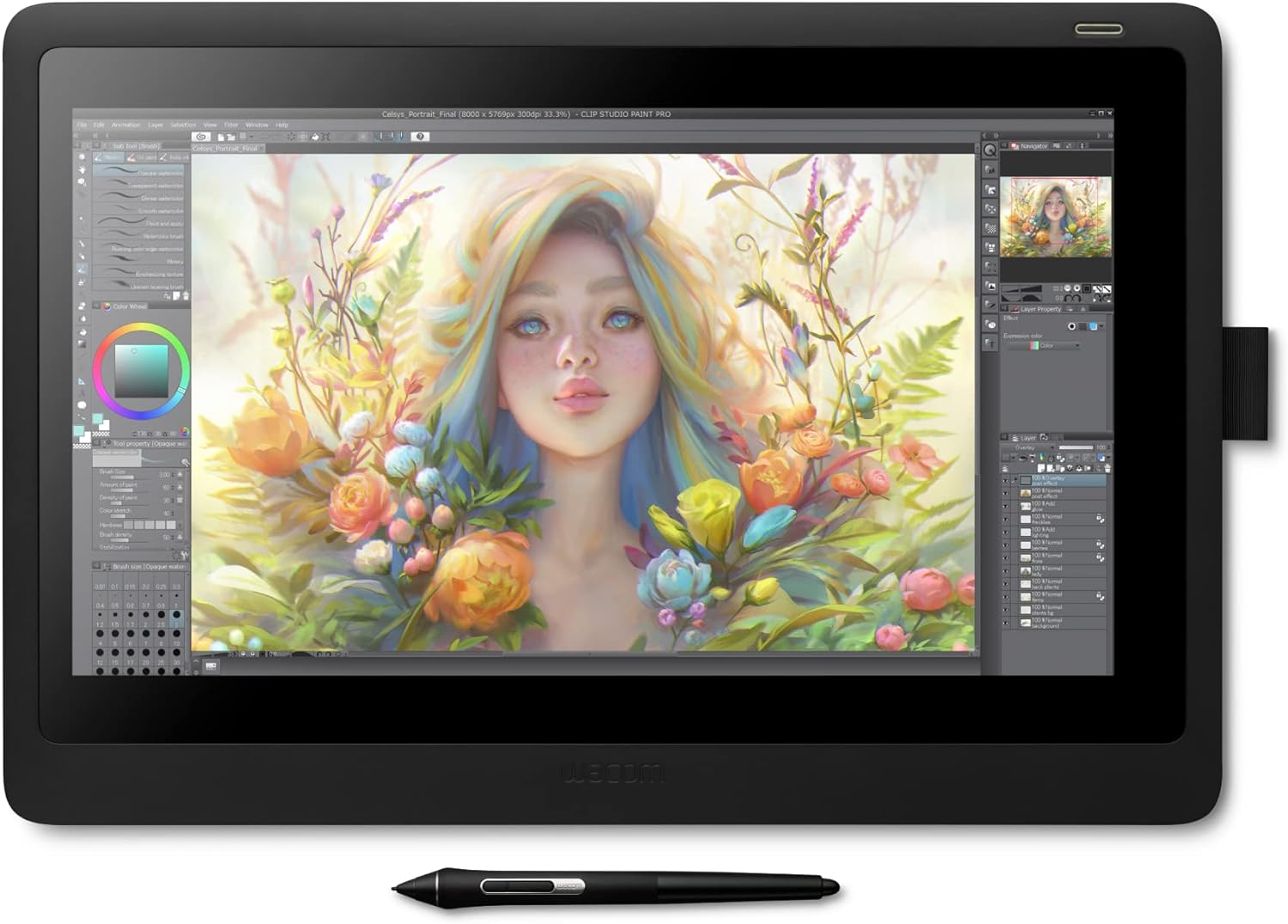
Image 1.1: The Wacom Cintiq 16 creative pen display tablet with digital artwork on its screen.
The Wacom Cintiq 16 is designed to facilitate digital art creation directly on its 15.4-inch Full HD display. It features a durable, scratch-resistant surface and integrated foldable legs for adjustable positioning. The included Pro Pen 2 offers precise control with 8,192 levels of pressure sensitivity and tilt response, operating without a battery due to Electro Magnetic Resonance (EMR) technology.
2. ബോക്സിൽ എന്താണുള്ളത്?
നിങ്ങളുടെ പാക്കേജിൽ ഇനിപ്പറയുന്ന എല്ലാ ഇനങ്ങളും ഉൾപ്പെടുത്തിയിട്ടുണ്ടെന്ന് ഉറപ്പാക്കുക:
- Wacom Cintiq 16 pen display
- വാകോം പ്രോ പെൻ 2
- Detachable pen holder with 3 replacement nibs (standard) and nib removal tool
- 3-in-1 cable (1.8m)
- AC adaptor (12V, 3A, 36W)
- പവർ കേബിൾ (1.8മീ)
- ദ്രുത ആരംഭ ഗൈഡ്
- Warranty card (Japan, Asia Pacific, China only)
- റെഗുലേഷൻ ഷീറ്റ്

Image 2.1: An illustration showing the Wacom Cintiq 16, its included accessories, and compatibility details.
3. സജ്ജീകരണ നിർദ്ദേശങ്ങൾ
3.1 സിസ്റ്റം ആവശ്യകതകൾ
- ഓപ്പറേറ്റിംഗ് സിസ്റ്റം: Windows 7 or later, macOS X 10.12 or later
- കണക്റ്റിവിറ്റി: Available HDMI port, available USB-A port
- ഇന്റർനെറ്റ് ആക്സസ്: Required for driver download and software registration
3.2 ടാബ്ലെറ്റ് ബന്ധിപ്പിക്കുന്നു
- Connect the 3-in-1 cable to the Wacom Cintiq 16. This cable combines HDMI, USB, and power connections.
- Connect the HDMI connector of the 3-in-1 cable to an available HDMI port on your computer.
- Connect the USB-A connector of the 3-in-1 cable to an available USB-A port on your computer.
- Connect the AC adaptor to the power connector of the 3-in-1 cable, then plug the power cable into an electrical outlet.
- Power on your computer and the Wacom Cintiq 16.
3.3 ഡ്രൈവർ ഇൻസ്റ്റലേഷൻ
For full functionality, the latest Wacom driver must be installed. Drivers are not typically pre-installed on the device.
- Visit the official Wacom webസൈറ്റ് (www.wacom.com/support/product-support/drivers) using a web നിങ്ങളുടെ കമ്പ്യൂട്ടറിലെ ബ്രൗസർ.
- Download the latest driver compatible with your operating system (Windows or macOS).
- Follow the on-screen instructions to install the driver. You may need to restart your computer after installation.
- After installation, open the Wacom Desktop Center or Wacom Tablet Properties to customize pen and display settings.
4. Operating the Wacom Cintiq 16
4.1 Using the Pro Pen 2
The Wacom Pro Pen 2 is a battery-free pen that utilizes Electro Magnetic Resonance (EMR) technology. It offers:
- 8,192 Levels of Pressure Sensitivity: Allows for fine control over line thickness and opacity.
- Tilt Response: Detects the angle of the pen for natural brush strokes and shading.
- Two Customizable Side Switches: Assign shortcuts for common functions like right-click, pan, or zoom.
- ഇറേസർ: The opposite end of the pen functions as an eraser in compatible software.

Image 4.1: Key features of the Wacom Pro Pen 2, highlighting its advanced technology.
4.2 Adjusting the Display Angle
The Cintiq 16 features integrated foldable legs that allow you to adjust the working angle for comfort. Simply extend the legs from the back of the tablet to achieve an elevated 19-degree working position.

Image 4.2: The Wacom Cintiq 16 showing its adjustable design with integrated foldable legs.
4.3 ഡിസ്പ്ലേ സവിശേഷതകൾ
The 15.4-inch Full HD (1920x1080) display offers a high-contrast visual experience with an anti-glare, tactile surface. This design minimizes reflections and provides a natural drawing feel, similar to pen on paper.

Image 4.3: The Wacom Cintiq 16 display, emphasizing its anti-glare and tactile screen properties.
5. പരിപാലനം
5.1 ഡിസ്പ്ലേ വൃത്തിയാക്കുന്നു
ഡിസ്പ്ലേ വൃത്തിയാക്കാൻ, മൃദുവായ, ലിന്റ് രഹിത തുണി ഉപയോഗിച്ച് ചെറുതായി വൃത്തിയാക്കുക d.ampened with water or a screen cleaner specifically designed for electronics. Avoid harsh chemicals, abrasive materials, or excessive moisture, as these can damage the screen surface.
5.2 പെൻ നിബ് മാറ്റിസ്ഥാപിക്കൽ
Over time, the pen nib will wear down. Replace it when it becomes too short or sharp to maintain optimal drawing performance. Use the nib removal tool provided in the pen holder to carefully extract the old nib and insert a new one.
5.3 പൊതു പരിചരണം
- ടാബ്ലെറ്റ് തീവ്രമായ താപനിലയിലോ, നേരിട്ടുള്ള സൂര്യപ്രകാശത്തിലോ, ഉയർന്ന ആർദ്രതയിലോ ഏൽക്കുന്നത് ഒഴിവാക്കുക.
- Do not place heavy objects on the tablet.
- Store the Pro Pen 2 in its holder or a secure location to prevent loss or damage.
6. പ്രശ്നപരിഹാരം
6.1 No Display Signal
- Ensure all cables (HDMI, USB, Power) are securely connected to both the tablet and your computer.
- Verify that the tablet is powered on.
- Check your computer's display settings to ensure the Cintiq 16 is recognized as an external monitor and configured correctly (e.g., extended display, duplicate display).
- Try connecting the tablet to a different HDMI port or using a different HDMI cable if available.
6.2 Pen Not Responding
- Confirm that the Wacom driver is correctly installed and up to date. Reinstall the driver if necessary.
- Ensure the USB cable is properly connected to your computer.
- Check the Wacom Desktop Center or Tablet Properties to see if the pen is detected and calibrated.
- നിങ്ങളുടെ കമ്പ്യൂട്ടർ പുനരാരംഭിക്കുക.
6.3 Inaccurate Pen Tracking
- Recalibrate the pen in the Wacom Tablet Properties.
- Ensure there are no strong electromagnetic fields or other electronic devices near the tablet that could interfere with pen tracking.
- സ്ക്രീൻ പ്രതലത്തിൽ എന്തെങ്കിലും ഭൗതിക തടസ്സങ്ങൾ ഉണ്ടോയെന്ന് പരിശോധിക്കുക.
കൂടുതൽ സഹായത്തിന്, Wacom പിന്തുണ കാണുക. webസൈറ്റ് അല്ലെങ്കിൽ ഉപഭോക്തൃ സേവനവുമായി ബന്ധപ്പെടുക.
7 സ്പെസിഫിക്കേഷനുകൾ
| ഫീച്ചർ | വിശദാംശങ്ങൾ |
|---|---|
| മോഡൽ നമ്പർ | DTK1660K0A |
| ഉൽപ്പന്ന അളവുകൾ | 16.6 x 11.2 x 1.0 ഇഞ്ച് (422 x 285 x 25 മിമി) |
| ഇനത്തിൻ്റെ ഭാരം | 4.19 പൗണ്ട് (1.9 കി.ഗ്രാം) |
| ഡിസ്പ്ലേ വലിപ്പം | 15.4 ഇഞ്ച് (ഡയഗണൽ) |
| റെസലൂഷൻ | Full HD (1920x1080) |
| പ്രഷർ സെൻസിറ്റിവിറ്റി | 8192 ലെവലുകൾ |
| കണക്റ്റിവിറ്റി ടെക്നോളജി | HDMI, USB |
| ഓപ്പറേറ്റിംഗ് സിസ്റ്റം അനുയോജ്യത | Windows 7 or later, macOS X 10.12 or later |
| പ്രത്യേക ഫീച്ചർ | ആൻ്റി-ഗ്ലെയർ ഗ്ലാസ് |
| നിർമ്മാതാവ് | വാകോം ടെക്നോളജി കോർപ്പറേഷൻ |
8. വാറൻ്റിയും പിന്തുണയും
8.1 ഉൽപ്പന്ന വാറന്റി
Wacom products are covered by a limited warranty. For specific warranty terms and conditions applicable to your region, please refer to the warranty card included in your product packaging or visit the official Wacom webസൈറ്റ്.
8.2 ഉപഭോക്തൃ പിന്തുണ
For technical support, driver downloads, FAQs, and additional resources, please visit the Wacom support page:
www.wacom.com/support (www.wacom.com/support) എന്ന വെബ്സൈറ്റ് സന്ദർശിക്കുക.
You can also find contact information for Wacom customer service in your region on the support webസൈറ്റ്.


