ആമുഖം
This manual provides essential information for setting up, operating, maintaining, and troubleshooting your Acer Swift 3 SF314-55G-78U1 laptop. Please read this guide thoroughly to ensure proper use and to maximize the performance and lifespan of your device.

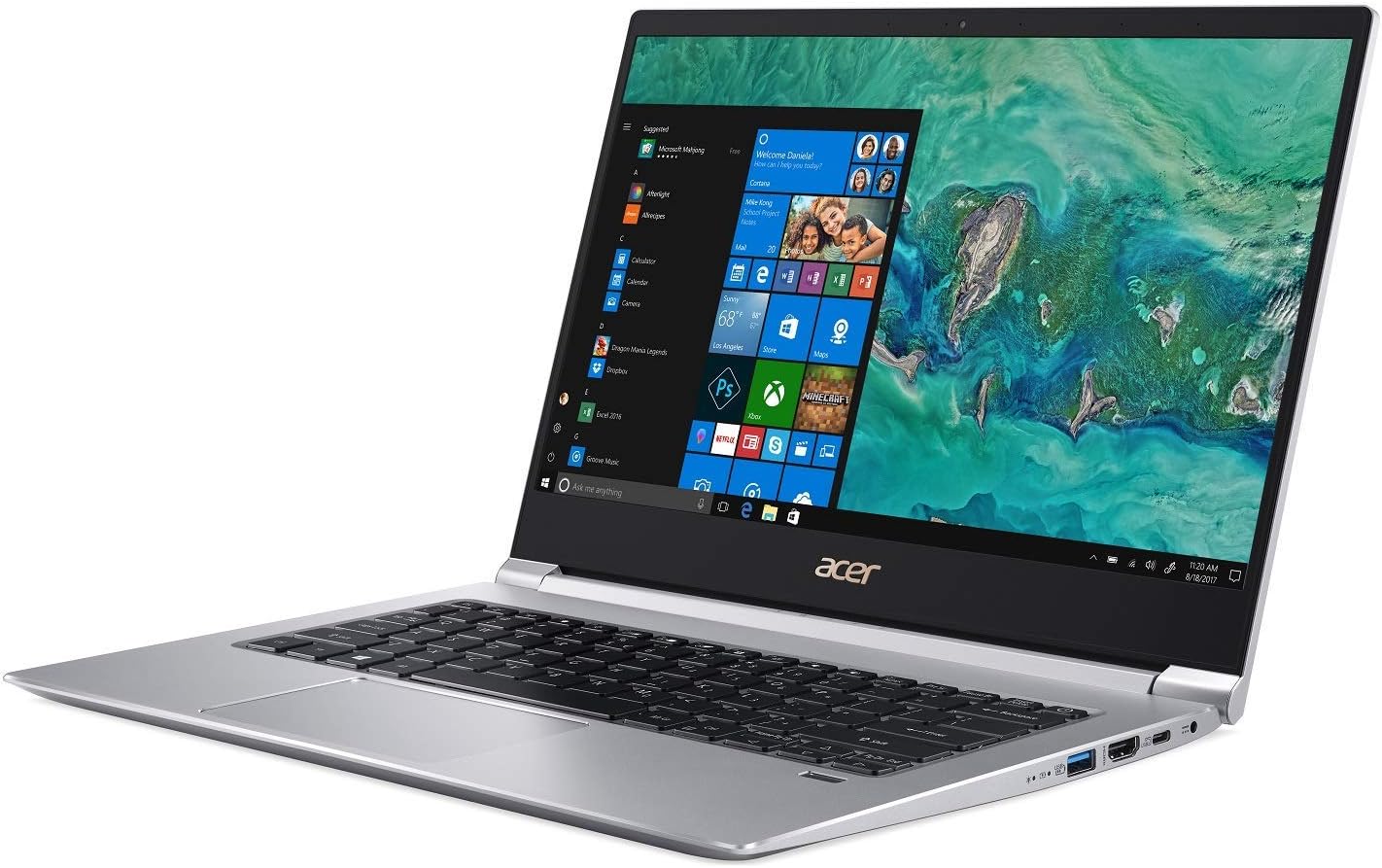
Image: The Acer Swift 3 SF314-55G-78U1 laptop, shown open with the screen displaying the Windows 10 operating system interface. The keyboard and touchpad are visible.
1. സജ്ജീകരണം
1.1 അൺബോക്സിംഗും പ്രാരംഭ പരിശോധനയും
പാക്കേജിംഗിൽ നിന്ന് എല്ലാ ഘടകങ്ങളും ശ്രദ്ധാപൂർവ്വം നീക്കം ചെയ്യുക. ഇനിപ്പറയുന്ന ഇനങ്ങൾ ഉണ്ടെന്ന് ഉറപ്പാക്കുക:
- Acer Swift 3 SF314-55G-78U1 Laptop
- എസി അഡാപ്റ്റർ
- പവർ കോർഡ്
Inspect the laptop for any physical damage. If any components are missing or damaged, contact your retailer or Acer support immediately.
1.2 പവറുമായി ബന്ധിപ്പിക്കുന്നു
Before first use, it is recommended to fully charge the laptop battery. Connect the AC adapter to the laptop's power input port and then plug the power cord into a wall outlet.
ചിത്രം: വശം view of the Acer Swift 3 laptop, highlighting the various input/output ports including USB, HDMI, and the power input.
The battery indicator light will illuminate, typically orange, to show that the laptop is charging. It will change color (e.g., blue or green) or turn off when fully charged.
1.3 പ്രാരംഭ പവർ ഓണും വിൻഡോസ് സജ്ജീകരണവും
Press the power button to turn on the laptop. The first boot will guide you through the Windows 10 Home setup process. Follow the on-screen instructions to:
- നിങ്ങളുടെ പ്രദേശവും ഭാഷയും തിരഞ്ഞെടുക്കുക.
- ലൈസൻസ് നിബന്ധനകൾ അംഗീകരിക്കുക.
- ഒരു ഉപയോക്തൃ അക്കൗണ്ട് സൃഷ്ടിക്കുക അല്ലെങ്കിൽ ഒരു Microsoft അക്കൗണ്ട് ഉപയോഗിച്ച് സൈൻ ഇൻ ചെയ്യുക.
- Set up privacy settings.
1.4 ഒരു വയർലെസ് നെറ്റ്വർക്കിലേക്ക് (വൈ-ഫൈ) കണക്റ്റുചെയ്യുന്നു
During the Windows setup, you will be prompted to connect to a Wi-Fi network. Select your network from the list and enter the password if required. If you skip this step, you can connect later via the Windows settings:
- സിസ്റ്റം ട്രേയിലെ (സ്ക്രീനിന്റെ താഴെ-വലത് കോണിലുള്ള) Wi-Fi ഐക്കണിൽ ക്ലിക്കുചെയ്യുക.
- Select your desired network and click "Connect".
- Enter the security key (password) if prompted.
1.5 Setting Up Fingerprint Recognition (Windows Hello)
Your laptop features an Acer Bio-Protection Fingerprint Solution for secure login. To set it up:
- പോകുക ക്രമീകരണങ്ങൾ > അക്കൗണ്ടുകൾ > സൈൻ ഇൻ ഓപ്ഷനുകൾ.
- Under "Windows Hello Fingerprint", click സജ്ജമാക്കുക.
- Follow the on-screen instructions to scan your finger.
2. നിങ്ങളുടെ ലാപ്ടോപ്പ് പ്രവർത്തിപ്പിക്കുക
2.1 കീബോർഡും ടച്ച്പാഡും
The laptop features a full-size, backlit keyboard for comfortable typing. The touchpad supports multi-touch gestures for navigation and interaction with Windows 10.
- ബാക്ക്ലൈറ്റ് കീബോർഡ്: Use the function keys (Fn + F key combination, typically F8 or F9) to adjust the backlight brightness or turn it on/off.
- ടച്ച്പാഡ് ആംഗ്യങ്ങൾ: Refer to Windows 10 settings for a list of supported gestures (e.g., two-finger scroll, pinch-to-zoom).
2.2 ബാഹ്യ ഉപകരണങ്ങൾ ബന്ധിപ്പിക്കുന്നു
Your Acer Swift 3 is equipped with various ports for connecting peripherals:
- USB ടൈപ്പ്-സി (USB 3.1 Gen 2): One port for data transfer up to 10 Gbps, DisplayPort over USB Type-C, and USB charging.
- USB 3.0: Two ports, one supporting power-off charging for devices.
- എച്ച്ഡിഎംഐ: One port for connecting to external displays or projectors.
- SD കാർഡ് സ്ലോട്ട്: For reading and writing data from Secure Digital cards.
- ഓഡിയോ ജാക്ക്: ഹെഡ്ഫോണുകളോ ബാഹ്യ സ്പീക്കറുകളോ ബന്ധിപ്പിക്കുന്നതിന്.
2.3 ഡിസ്പ്ലേയും ഓഡിയോയും
The 14-inch Full HD (1920 x 1080) widescreen LED-backlit IPS display provides clear visuals. The laptop also features Acer True Harmony Technology and Acer Purified.Voice technology with two built-in microphones for enhanced audio and communication.
- തെളിച്ചം ക്രമീകരിക്കൽ: Use the function keys (Fn + F key combination, typically F5/F6) to adjust screen brightness.
- ഓഡിയോ ഔട്ട്പുട്ട്: Ensure audio drivers are up-to-date for optimal sound quality. Connect headphones to the audio jack for private listening.
3. പരിപാലനം
3.1 നിങ്ങളുടെ ലാപ്ടോപ്പ് വൃത്തിയാക്കൽ
To maintain the appearance and functionality of your laptop:
- Use a soft, lint-free cloth to wipe the screen and chassis.
- ശാഠ്യമുള്ള അടയാളങ്ങൾക്ക്, dampതുണിയിൽ വെള്ളം അല്ലെങ്കിൽ സ്ക്രീൻ ക്ലീനർ ഉപയോഗിച്ച് ചെറുതായി നനയ്ക്കുക.
- കഠിനമായ രാസവസ്തുക്കൾ, ഉരച്ചിലുകൾ, അല്ലെങ്കിൽ ലായകങ്ങൾ എന്നിവ ഒഴിവാക്കുക.
- Regularly clean the keyboard and touchpad to remove dust and debris.
3.2 ബാറ്ററി കെയർ
The laptop is equipped with a 4-cell Li-Ion battery. To prolong battery life:
- തീവ്രമായ താപനില ഒഴിവാക്കുക.
- ലാപ്ടോപ്പ് പൂർണ്ണമായി ചാർജ് ചെയ്തിട്ടോ അല്ലെങ്കിൽ പൂർണ്ണമായി ഡിസ്ചാർജ് ചെയ്തിട്ടോ ദീർഘനേരം വയ്ക്കരുത്.
- ദീർഘകാല സംഭരണത്തിനായി, ബാറ്ററി ഏകദേശം 50-60% വരെ ചാർജ് ചെയ്യുക.
- Calibrate the battery periodically by fully discharging and recharging it.
3.3 സോഫ്റ്റ്വെയർ, ഡ്രൈവർ അപ്ഡേറ്റുകൾ
Regularly update your operating system and device drivers to ensure optimal performance and security. Outdated drivers can lead to various issues, including audio problems or keyboard malfunctions.
- വിൻഡോസ് അപ്ഡേറ്റുകൾ: പോകുക ക്രമീകരണങ്ങൾ > അപ്ഡേറ്റും സുരക്ഷയും > വിൻഡോസ് അപ്ഡേറ്റ്.
- ഡ്രൈവർ അപ്ഡേറ്റുകൾ: ഔദ്യോഗിക ഏസർ പിന്തുണ സന്ദർശിക്കുക website for your specific model (SF314-55G-78U1) to download the latest drivers, especially for audio, graphics (NVIDIA GeForce MX150), and chipset.
4. പ്രശ്നപരിഹാരം
This section addresses common issues you might encounter with your Acer Swift 3 laptop.
4.1 No Power or Laptop Not Turning On
- ലാപ്ടോപ്പിലേക്കും പ്രവർത്തിക്കുന്ന പവർ ഔട്ട്ലെറ്റിലേക്കും എസി അഡാപ്റ്റർ സുരക്ഷിതമായി ബന്ധിപ്പിച്ചിട്ടുണ്ടെന്ന് ഉറപ്പാക്കുക.
- മറ്റൊരു ഉപകരണം പ്ലഗ് ഇൻ ചെയ്ത് പവർ ഔട്ട്ലെറ്റ് പ്രവർത്തനക്ഷമമാണോ എന്ന് പരിശോധിക്കുക.
- ബാറ്ററി പൂർണ്ണമായും തീർന്നാൽ, ലാപ്ടോപ്പ് ഓൺ ആകുന്നതിന് മുമ്പ് ചാർജ് ചെയ്യാൻ കുറച്ച് മിനിറ്റ് എടുത്തേക്കാം.
4.2 Audio Issues (Crackling, No Sound)
- Update Audio Drivers: This is a common solution. Visit the Acer support website for the latest audio drivers for your model.
- Check volume settings in Windows and for individual applications.
- Ensure headphones or external speakers are properly connected if used.
- ലാപ്ടോപ്പ് പുനരാരംഭിക്കുക.
4.3 Keyboard or Touchpad Not Responding
- ലാപ്ടോപ്പ് പുനരാരംഭിക്കുക.
- Ensure no external devices are interfering (e.g., external keyboard/mouse).
- Check for driver updates for the keyboard and touchpad on the Acer support webസൈറ്റ്.
- If the keyboard freezes after sleep mode, try disabling fast startup in Windows power options.
4.4 Battery Drains Quickly or Incorrectly Reports Charge
- Ensure all background applications are closed when not in use.
- സ്ക്രീൻ തെളിച്ചം താഴ്ന്ന സെറ്റിംഗിലേക്ക് ക്രമീകരിക്കുക.
- Check power settings in Windows to optimize battery usage.
- Perform a battery calibration (full discharge then full recharge).
- Update chipset and power management drivers from the Acer support webസൈറ്റ്.
4.5 Fingerprint Reader Not Working Consistently
- Ensure your finger is clean and dry when scanning.
- Try re-registering your fingerprint in Windows Hello settings.
- Check for updated fingerprint sensor drivers on the Acer support webസൈറ്റ്.
5 സ്പെസിഫിക്കേഷനുകൾ
Below are the key technical specifications for the Acer Swift 3 SF314-55G-78U1 laptop:
| ഫീച്ചർ | സ്പെസിഫിക്കേഷൻ |
|---|---|
| മോഡലിൻ്റെ പേര് | SF314-55G-78U1 |
| പ്രോസസ്സർ | 8th Gen Intel Core i7-8565U (up to 4.6 GHz) |
| ഗ്രാഫിക്സ് | NVIDIA GeForce MX150 with 2 GB GDDR5 VRAM |
| പ്രദർശിപ്പിക്കുക | 14" Full HD (1920 x 1080) IPS LED-backlit |
| റാം | 8GB DDR4 Dual Channel Memory |
| സംഭരണം | 256 ജിബി പിസിഐഇ എസ്എസ്ഡി |
| ഓപ്പറേറ്റിംഗ് സിസ്റ്റം | വിൻഡോസ് 10 ഹോം |
| വയർലെസ് കണക്റ്റിവിറ്റി | Intel Wireless-AC 9560 802.11ac Gigabit Wi-Fi, Bluetooth 5.0 |
| തുറമുഖങ്ങൾ | 1x USB Type-C (USB 3.1 Gen 2, DisplayPort, Charging), 2x USB 3.0 (1x power-off charging), 1x HDMI, SD Card Reader, Audio Jack |
| ബാറ്ററി | 4-cell Li-Ion (3220 mAh), Up to 12 hours battery life |
| ഭാരം | ഏകദേശം 2.98 പൗണ്ട് (1.35 കി.ഗ്രാം) |
| അളവുകൾ (LxWxH) | 12.72 x 8.98 x 0.59 ഇഞ്ച് |
| പ്രത്യേക സവിശേഷതകൾ | Backlit Keyboard, Acer Bio-Protection Fingerprint Solution, HD Webcam, Acer True Harmony Technology, Acer Purified.Voice |
6. വാറൻ്റിയും പിന്തുണയും
6.1 വാറൻ്റി വിവരങ്ങൾ
Your Acer Swift 3 SF314-55G-78U1 laptop comes with a standard manufacturer's warranty. The specific terms and duration of the warranty may vary by region and retailer. Please refer to the warranty card included with your product or visit the official Acer webവിശദമായ വാറന്റി വിവരങ്ങൾക്ക് സൈറ്റ്.
വാറന്റി ക്ലെയിമുകൾക്ക് ആവശ്യമായി വരുന്നതിനാൽ, നിങ്ങളുടെ വാങ്ങലിന്റെ തെളിവ് (രസീത് അല്ലെങ്കിൽ ഇൻവോയ്സ്) സൂക്ഷിക്കുക.
6.2 സാങ്കേതിക പിന്തുണ
For technical assistance, driver downloads, or service inquiries, please contact Acer support:
- ഏസർ പിന്തുണ Webസൈറ്റ്: സന്ദർശിക്കുക www.acer.com/support (www.acer.com/support) എന്ന വെബ്സൈറ്റിൽ ലഭ്യമാണ്. for FAQs, driver downloads, and contact options.
- ബന്ധപ്പെടാനുള്ള വിവരങ്ങൾ: Specific phone numbers and email support options are available on the Acer support webനിങ്ങളുടെ പ്രദേശത്തിനായുള്ള സൈറ്റ്.
When contacting support, have your laptop's model name (SF314-55G-78U1) and serial number ready. The serial number is typically located on a sticker on the bottom of the laptop.


