1. ആമുഖം
The Comtrend PG-9172PT-KIT G.hn Powerline Ethernet Adapter transforms your standard electrical outlets into a high-speed wired network connection. This kit provides a reliable internet connection, extending network access to areas where Wi-Fi signals may be weak or inconsistent. It is an ideal solution for applications requiring stable bandwidth, such as online gaming, high-definition streaming, and home office setups.
2. പാക്കേജ് ഉള്ളടക്കം
നിങ്ങളുടെ പാക്കേജിൽ എല്ലാ ഇനങ്ങളും ഉണ്ടെന്ന് ഉറപ്പാക്കുക:
- 2 x Comtrend G.hn Powerline Adapters (PG-9172PT)
- 1 x RJ-45 ഇഥർനെറ്റ് കേബിൾ
- 1 x ദ്രുത ഇൻസ്റ്റലേഷൻ ഗൈഡ്
3. ഉൽപ്പന്നം കഴിഞ്ഞുview
Each Comtrend PG-9172PT adapter features a compact design with a pass-through electrical outlet and essential indicators for easy monitoring.

Figure 1: Two Comtrend PG-9172PT G.hn Powerline Ethernet Adapters included in the kit.
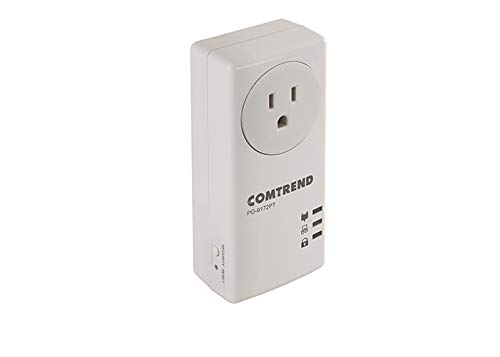
3.1 ഫ്രണ്ട് പാനൽ
The front panel includes the pass-through electrical outlet and LED indicators.

ചിത്രം 2: മുൻഭാഗം view of a single Comtrend PG-9172PT Powerline Adapter, showing the pass-through outlet and LED indicators.
- പാസ്-ത്രൂ ഔട്ട്ലെറ്റ്: Allows you to plug in another electrical device, ensuring the power outlet remains available.
- പവർ എൽഇഡി: Indicates the power status of the adapter.
- പവർലൈൻ എൽഇഡി: Indicates the status of the powerline connection. A solid light typically means a stable connection.
- ഇഥർനെറ്റ് LED: Indicates the status of the Ethernet connection to a device.
3.2 താഴെ പാനൽ
The bottom panel houses the Ethernet port.

ചിത്രം 3: താഴെ view of the Comtrend PG-9172PT Powerline Adapter, highlighting the Ethernet port.
- ഇഥർനെറ്റ് പോർട്ട്: Connects to your router, computer, gaming console, or other network-enabled devices using an RJ-45 Ethernet cable.
3.3 സൈഡ് പാനൽ
The side panel features the Security/Reset button.
ചിത്രം 4: വശം view of the Comtrend PG-9172PT Powerline Adapter, showing the Security/Reset button.
- Security/Reset Button: Used for establishing a secure powerline network or resetting the device to factory defaults.
4. സജ്ജീകരണവും ഇൻസ്റ്റാളേഷനും
The Comtrend PG-9172PT-KIT is designed for easy plug-and-play setup. Follow these steps to establish your powerline network:
- ആദ്യത്തെ അഡാപ്റ്റർ ബന്ധിപ്പിക്കുക: Plug one PG-9172PT adapter directly into a wall electrical outlet near your internet router. Avoid using surge protectors or power strips, as they can interfere with powerline performance.
- റൂട്ടറുമായി ബന്ധിപ്പിക്കുക: Use an Ethernet cable to connect the Ethernet port on this adapter to an available LAN port on your internet router.
- രണ്ടാമത്തെ അഡാപ്റ്റർ ബന്ധിപ്പിക്കുക: Plug the second PG-9172PT adapter directly into a wall electrical outlet in the room where you need network access. Again, avoid surge protectors or power strips.
- ഉപകരണത്തിലേക്ക് കണക്റ്റുചെയ്യുക: Use an Ethernet cable to connect the Ethernet port on this second adapter to your computer, smart TV, gaming console, or other network-enabled device.
- കണക്ഷൻ സ്ഥിരീകരിക്കുക: Wait a few moments for the adapters to establish a connection. The Powerline LED on both adapters should turn solid, indicating a successful connection. The Ethernet LED should also light up when connected to a device.
- Secure Network (Optional): To enhance security, press the Security/Reset button on one adapter for 1-2 seconds, then within two minutes, press the Security/Reset button on the other adapter for 1-2 seconds. The Powerline LEDs will flash during this process and then turn solid when a secure connection is established.
Note: Performance may vary based on home wiring and electrical conditions. For optimal performance, plug adapters directly into wall outlets.
5. പ്രവർത്തന നിർദ്ദേശങ്ങൾ
Once installed, the Comtrend G.hn Powerline Ethernet Adapters operate automatically. They extend your network by transmitting data over your home's electrical wiring. Any device connected via Ethernet to an adapter will have network access.
- G.hn Technology: This technology optimizes bandwidth efficiency, which can improve video quality and reduce lag for online activities.
- പാസ്-ത്രൂ ഔട്ട്ലെറ്റ്: The integrated pass-through outlet allows you to continue using the electrical socket for other devices without compromising the powerline connection.
6. പരിപാലനം
To ensure the longevity and optimal performance of your Comtrend Powerline Ethernet Adapters, consider the following:
- Keep the adapters clean and free from dust. Use a soft, dry cloth for cleaning.
- Avoid placing the adapters in direct sunlight or in areas with high humidity or extreme temperatures.
- Do not block the ventilation holes on the adapters.
- Always plug the adapters directly into a wall outlet. Avoid power strips, extension cords, or surge protectors, as these can degrade performance.
7. പ്രശ്നപരിഹാരം
If you encounter issues with your Comtrend Powerline Ethernet Adapters, refer to the following common solutions:
- No Powerline Connection (Powerline LED Off/Flashing):
- Ensure both adapters are plugged directly into wall outlets and powered on.
- Try plugging the adapters into different outlets to rule out issues with a specific electrical circuit.
- Avoid plugging adapters into surge protectors, power strips, or extension cords.
- Ensure the electrical wiring in your home is suitable for powerline communication. Performance can be affected by older or complex wiring.
- No Internet Access on Connected Device:
- Verify that the Powerline LED is solid on both adapters.
- Check the Ethernet cable connection between the adapter and your device, and between the first adapter and your router.
- Ensure your router has an active internet connection.
- Restart your router and both powerline adapters.
- കുറഞ്ഞ കണക്ഷൻ വേഗത:
- Performance is highly dependent on electrical wiring conditions. Try moving adapters to outlets on the same electrical circuit if possible.
- Ensure no high-power electrical appliances (e.g., washing machines, refrigerators) are on the same circuit as the adapters, as they can cause interference.
- Avoid using surge protectors or power strips.
- Configuration Issues (Advanced Users):
- The adapters may default to a static IP address (e.g., 192.168.0.5) with DHCP disabled. If you need to access the web interface for advanced configuration, connect a computer directly to one adapter and manually configure your computer's IP address to be on the same subnet (e.g., 192.168.0.10).
- A factory reset will revert all settings, including IP configuration, to their defaults. To perform a factory reset, press and hold the Security/Reset button for more than 10 seconds until the LEDs flash, then release.
8 സ്പെസിഫിക്കേഷനുകൾ
| ഫീച്ചർ | വിശദാംശങ്ങൾ |
|---|---|
| മോഡൽ നമ്പർ | PG-9172PT-KIT |
| ബ്രാൻഡ് | കമന്റ് |
| ഹാർഡ്വെയർ ഇന്റർഫേസ് | ഇഥർനെറ്റ് |
| ഡാറ്റ ലിങ്ക് പ്രോട്ടോക്കോൾ | ഇഥർനെറ്റ് |
| ഡാറ്റ കൈമാറ്റ നിരക്ക് | സെക്കൻഡിൽ 1200 മെഗാബൈറ്റ്സ് (Mbps) |
| ഉൽപ്പന്ന അളവുകൾ | 2.25 x 4.85 x 1.45 ഇഞ്ച് |
| ഇനത്തിൻ്റെ ഭാരം | 1.32 പൗണ്ട് |
| യു.പി.സി | 897384000876 |
| നിറം | വെള്ള |
9. വാറൻ്റി വിവരങ്ങൾ
Specific warranty details for the Comtrend PG-9172PT-KIT are typically provided with the product packaging or available on the manufacturer's official webസൈറ്റ്. സമഗ്ര വാറന്റി നിബന്ധനകൾക്കും വ്യവസ്ഥകൾക്കും ദയവായി ഈ ഉറവിടങ്ങൾ പരിശോധിക്കുക.
10. പിന്തുണ
For further assistance, technical support, or to download the latest firmware and documentation, please visit the official Comtrend website. Support resources often include FAQs, troubleshooting guides, and contact information for customer service.


