ആമുഖം
The Saramonic UwMic9 RX-XLR9 is a portable, XLR plug-in and camera-mountable dual-channel UHF wireless receiver designed for professional audio capture. It allows the use of two separate wireless transmitters (sold separately) with a single, ultra-compact receiver, making it ideal for cameras, recorders, and mixers equipped with XLR or 3.5mm mic inputs. This receiver delivers broadcast-quality sound and offers versatile mounting and power options.
പ്രധാന സവിശേഷതകൾ:
- Dual-channel wireless UHF receiver in a compact, portable body.
- Mounts directly to XLR inputs on professional video cameras, mixers, or recorders.
- Includes hardware for mounting to DSLR, Mirrorless, and video cameras, connecting to 1/8" (3.5mm) mic inputs.
- Receiver rotates 320° for flexible positioning.
- Built-in headphone output for audio monitoring.
- Easy-to-read backlit LCD display.
- Operating distance up to 330 feet (100m).
- ഈടുനിൽക്കുന്ന ലോഹ നിർമ്മാണം.
എന്താണ് ഉൾപ്പെടുത്തിയിരിക്കുന്നത്
എല്ലാ ഇനങ്ങളും ഉണ്ടെന്ന് ഉറപ്പാക്കാൻ പാക്കേജ് ഉള്ളടക്കങ്ങൾ പരിശോധിക്കുക:
- 1 x Plug-In dual-channel wireless receiver (UwMic9 RX-XLR9)
- 1 x Camera shoe mount with an integrated metal 1/4 20 tripod thread
- 1 x 13-inch (33cm) XLR female to gold-plated 1/8" (3.5) TRS male cable
- 1 x 4-ft (1.2m) gold-plated USB-C to USB-A cable
- 1 x Printed user manual
- 1 x വാറൻ്റി കാർഡ്

Image: Contents of the Saramonic UwMic9 RX-XLR9 package, including the receiver, various cables, and mounting accessories.
ഉൽപ്പന്നം കഴിഞ്ഞുview
Receiver Unit (UwMic9 RX-XLR9)
The main receiver unit features a robust metal construction with an integrated XLR connector for direct attachment to professional audio equipment. It includes a backlit LCD display for monitoring channels, battery status, and other settings. Power and RF indicator lights provide quick status updates.

Image: Close-up of the UwMic9 RX-XLR9 receiver's top panel, highlighting the LCD screen, power, and RF lights.

ചിത്രം: വശം view of the UwMic9 RX-XLR9 receiver, showing the headphone output and control buttons.
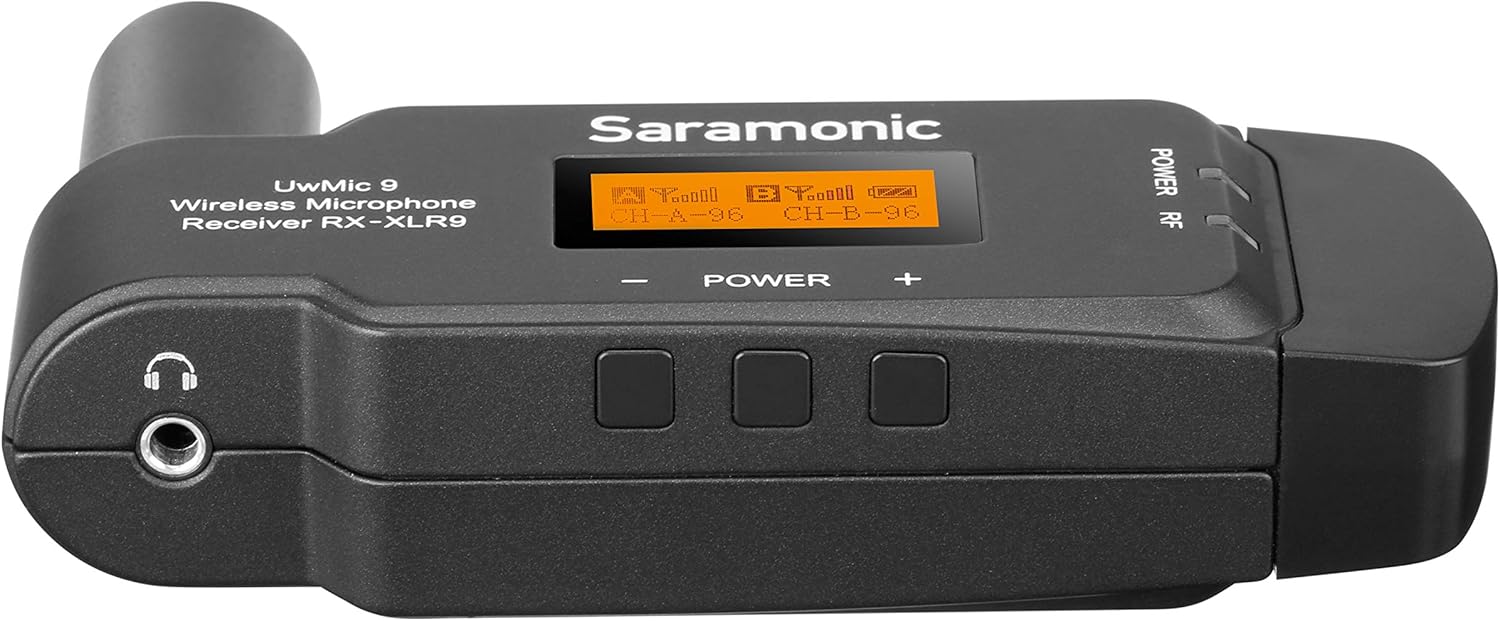
ചിത്രം: മറ്റൊരു വശം view of the UwMic9 RX-XLR9 receiver, displaying the USB-C power input and the integrated XLR connector.
സജ്ജമാക്കുക
1. Powering the Receiver
The RX-XLR9 receiver operates on two AA batteries or can be powered externally via its USB-C port. To install batteries:
- Locate the battery compartment on the receiver.
- Open the compartment and insert two fresh AA batteries, ensuring correct polarity.
- ബാറ്ററി കമ്പാർട്ട്മെൻ്റ് സുരക്ഷിതമായി അടയ്ക്കുക.
For external power, connect the supplied USB-C to USB-A cable to the receiver's USB-C port and a compatible USB power source (e.g., a power bank or USB wall adapter).
2. റിസീവർ മൌണ്ട് ചെയ്യുന്നു
The RX-XLR9 offers flexible mounting options:
- Direct XLR Connection: Plug the receiver directly into an XLR input on your professional video camera, mixer, or audio recorder. The receiver's design allows it to rotate 320° to avoid interference with other equipment.
- Camera Shoe Mount: For cameras without an XLR input, attach the included camera shoe mount to the receiver. Then, slide the shoe mount onto your camera's hot shoe or cold shoe.

Image: The UwMic9 RX-XLR9 receiver attached to a camera's XLR input, demonstrating its compact form factor.
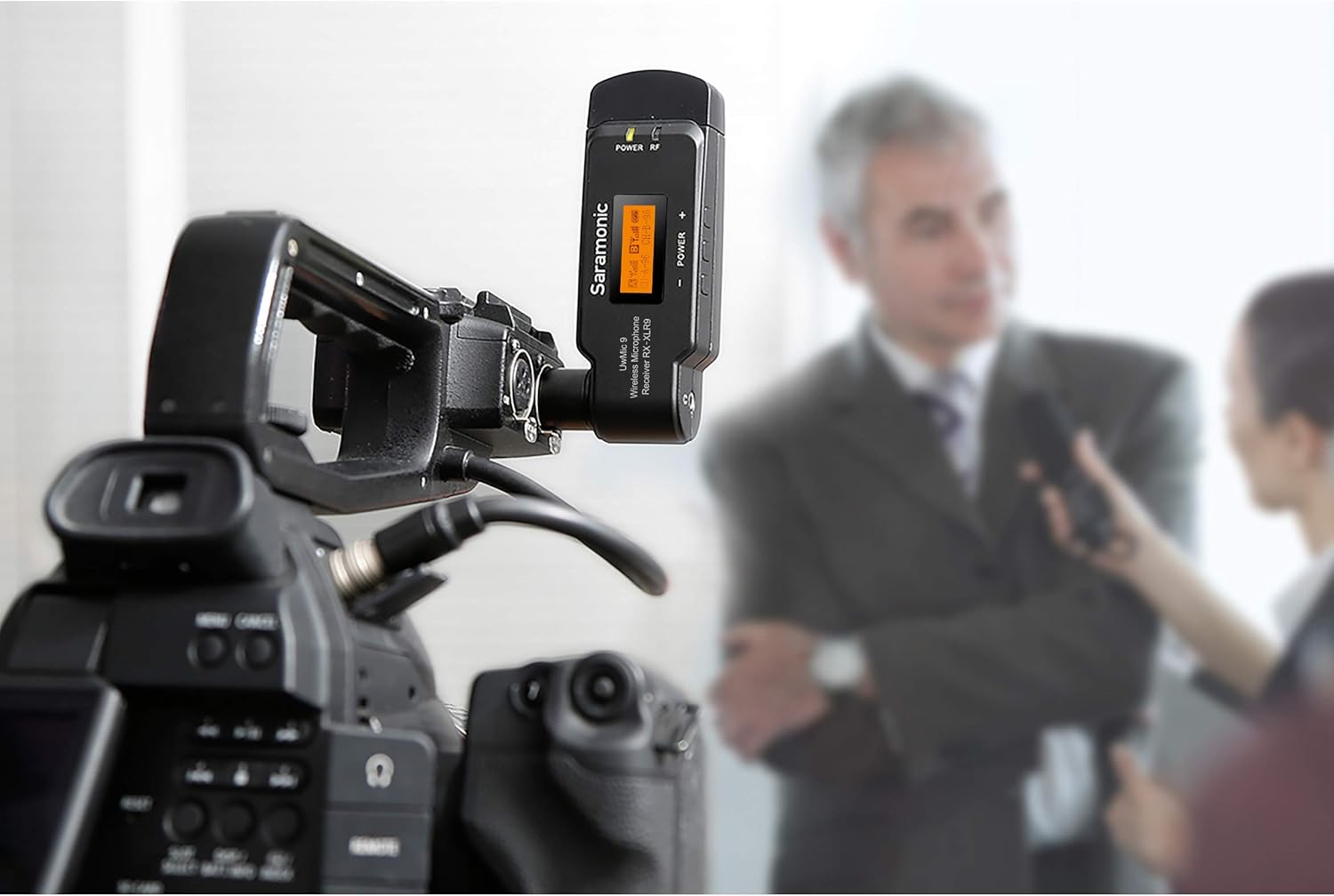
Image: The UwMic9 RX-XLR9 receiver in use, mounted on a video camera during an interview സജ്ജമാക്കുക.
3. നിങ്ങളുടെ ഉപകരണത്തിലേക്ക് കണക്റ്റുചെയ്യുന്നു
Depending on your recording device, use the appropriate cable:
- For XLR Inputs: If your camera or mixer has an XLR input, simply plug the receiver directly into it.
- For 3.5mm Mic Inputs: Use the provided 13-inch (33cm) XLR female to gold-plated 1/8" (3.5mm) TRS male cable. Connect the XLR end to the receiver and the 3.5mm end to your camera's microphone input.
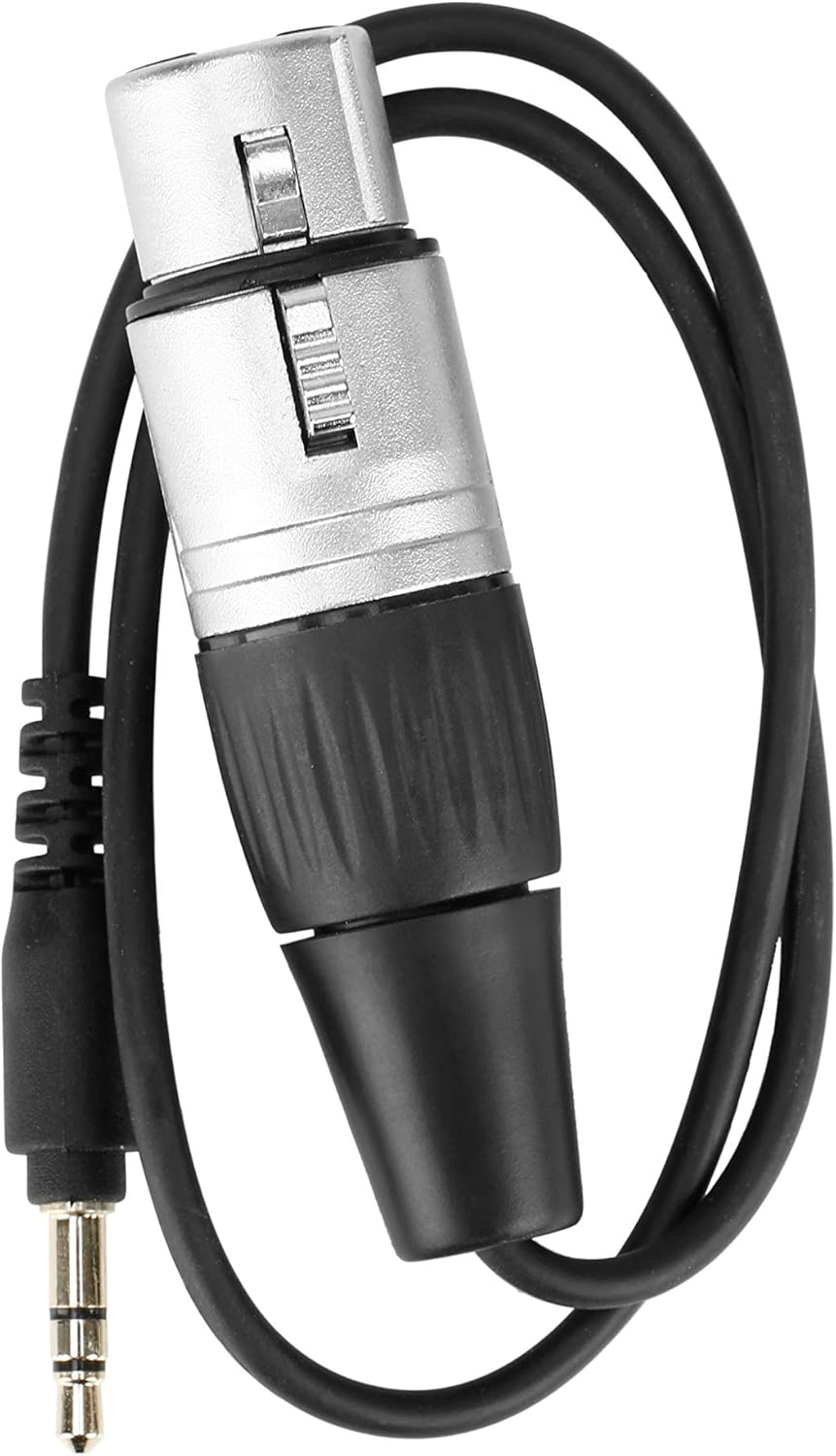
Image: The included XLR female to 3.5mm TRS male cable, used for connecting the receiver to devices with 3.5mm microphone inputs.
പ്രവർത്തന നിർദ്ദേശങ്ങൾ
1. പവർ ഓൺ/ഓഫ്
Press and hold the Power button on the receiver to turn it on or off. The LCD display will illuminate upon power-on.
2. LCD Display and Indicators
The backlit LCD display shows critical information:
- ചാനൽ നില: Displays the active channels (CH-A, CH-B) and their frequencies.
- RF Signal Strength: Indicates the strength of the wireless signal from the paired transmitters.
- ഓഡിയോ ലെവൽ: Shows the incoming audio level for each channel.
- ബാറ്ററി നില: Provides a visual indicator of the remaining battery life.
- മ്യൂട്ട് സ്റ്റാറ്റസ്: Indicates if a channel is muted.
The 'POWER' and 'RF' indicator lights on the receiver provide quick visual cues for power status and active radio frequency connection.
3. Pairing with Transmitters
The UwMic9 RX-XLR9 is a dual-channel receiver, capable of working with two compatible Saramonic transmitters simultaneously. Refer to the specific transmitter's manual for detailed pairing instructions. Generally, both the receiver and transmitter must be set to the same channel and frequency for a successful connection.
4. Audio Monitoring
Connect headphones to the 3.5mm headphone jack on the receiver to monitor your audio in real-time. This is particularly useful when your camera or recording device lacks a dedicated headphone output.
മെയിൻ്റനൻസ്
Proper maintenance ensures the longevity and optimal performance of your Saramonic UwMic9 RX-XLR9 receiver.
- വൃത്തിയാക്കൽ: Use a soft, dry cloth to clean the exterior of the receiver. Avoid using harsh chemicals or abrasive materials.
- സംഭരണം: ഉപയോഗത്തിലില്ലാത്തപ്പോൾ, റിസീവർ തണുത്തതും വരണ്ടതുമായ സ്ഥലത്ത് സൂക്ഷിക്കുക, നേരിട്ടുള്ള സൂര്യപ്രകാശത്തിൽ നിന്നും കടുത്ത താപനിലയിൽ നിന്നും അകറ്റി നിർത്തുക.
- ബാറ്ററി കെയർ: Remove AA batteries if the receiver will not be used for an extended period to prevent leakage.
- കേബിൾ കെയർ: Handle cables gently. Avoid sharp bends or excessive pulling that could damage connectors or wiring.
ട്രബിൾഷൂട്ടിംഗ്
If you encounter issues with your UwMic9 RX-XLR9 receiver, refer to the following common problems and solutions:
- ശബ്ദമില്ല/ശബ്ദം കുറവാണ്:
- Ensure the receiver is powered on and batteries are fresh or external power is connected.
- Verify that the receiver is correctly connected to your camera/mixer's audio input.
- Check that the paired transmitters are powered on and sending a signal.
- Confirm that the receiver and transmitters are on the same channel and frequency.
- Adjust the audio output level on the receiver and input level on your recording device.
- Check headphone connection and volume if monitoring.
- Poor Signal/Interference:
- Ensure the receiver and transmitters are within the specified operating range (up to 330 feet / 100m).
- Minimize obstacles between the receiver and transmitters.
- Check for other wireless devices operating on similar frequencies that might cause interference.
- Try changing the operating channel on both the receiver and transmitters.
- Receiver Not Powering On:
- AA ബാറ്ററികൾ പുതിയവ ഉപയോഗിച്ച് മാറ്റിസ്ഥാപിക്കുക.
- Ensure the USB-C power cable is securely connected and the external power source is functional.
- ശാരീരിക ക്ഷതം: If the device experiences physical damage, such as a broken connector or internal component issues, discontinue use and contact customer support for assistance.
സ്പെസിഫിക്കേഷനുകൾ
| മോഡലിൻ്റെ പേര് | Uwmic9 Rx-XLR9 |
| ഇനം മോഡൽ നമ്പർ | UWMIC9RX-XLR9 |
| ബ്രാൻഡ് | സരമോണിക് |
| ഇനത്തിൻ്റെ ഭാരം | 3.36 ഔൺസ് (0.21 പൗണ്ട്) |
| ഉൽപ്പന്ന അളവുകൾ (L x W x H) | 4.41 x 2.48 x 0.14 ഇഞ്ച് |
| മൈക്രോഫോൺ ഫോം ഫാക്ടർ | പ്ലഗ് ഓൺ ചെയ്യുക |
| പവർ ഉറവിടം | Corded Electric (USB-C) / 2x AA Batteries |
| ഹാർഡ്വെയർ പ്ലാറ്റ്ഫോം | ക്യാമറ |
| ചാനലുകളുടെ എണ്ണം | 2 |
| ഫ്രീക്വൻസി പ്രതികരണം | 18000 Hz |
| കണക്റ്റിവിറ്റി ടെക്നോളജി | USB, XLR |
| കണക്റ്റർ തരം | 3.5 mm Jack, USB, XLR |
| ഉൽപ്പന്നത്തിനുള്ള ശുപാർശിത ഉപയോഗങ്ങൾ | Video Conference, Vlogging |
| നിറം | കറുപ്പ്/വെളുപ്പ് |
വാറൻ്റി
Saramonic products are covered by a limited warranty. Please refer to the warranty card included in your package or visit the official Saramonic webവിശദമായ വാറന്റി നിബന്ധനകൾക്കും വ്യവസ്ഥകൾക്കും സൈറ്റ് സന്ദർശിക്കുക. വാറന്റി ക്ലെയിമുകൾക്കായി നിങ്ങളുടെ വാങ്ങലിന്റെ തെളിവ് സൂക്ഷിക്കുക.
പിന്തുണ
For technical assistance, product inquiries, or service requests, please contact Saramonic customer support. You can find contact information on the official Saramonic webസൈറ്റ് അല്ലെങ്കിൽ നിങ്ങൾ ഉൽപ്പന്നം വാങ്ങിയ റീട്ടെയിലർ വഴി.