1. ആമുഖം
The GAOMON S620 Drawing Tablet is a versatile graphics tablet designed for digital art, sketching, graphic design, 3D artwork, animation, and more. Its compact and lightweight design makes it ideal for portability, while its advanced features, including a battery-free passive pen and customizable express keys, provide precise control and enhanced creative performance. This manual provides detailed instructions for setting up, operating, and maintaining your GAOMON S620 tablet.
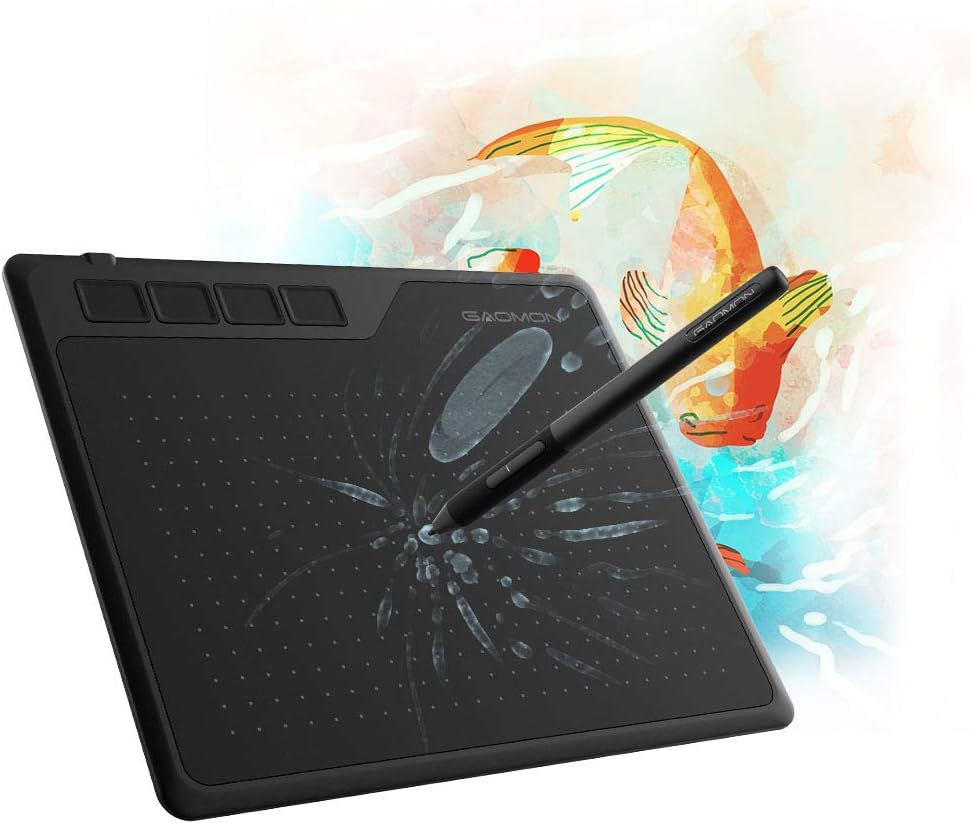
Image: The GAOMON S620 Drawing Tablet with its passive pen, ready for creative work.

Image: The GAOMON S620 tablet is designed to be lightweight and portable, weighing only 0.55 pounds and measuring 0.31 inches thin.
2. ബോക്സിൽ എന്താണുള്ളത്?
Upon unboxing your GAOMON S620 Drawing Tablet, please ensure all the following items are present:
- GAOMON S620 പെൻ ടാബ്ലെറ്റ്
- AP32 Digital Pen
- മൈക്രോ USB കേബിൾ (1.5m)
- 8 Replacement Nibs
- ദ്രുത ആരംഭ ഗൈഡ്
- Type-C OTG Adapter

Image: Visual representation of all items included in the GAOMON S620 package.
3. സജ്ജീകരണ ഗൈഡ്
3.1 ഡ്രൈവർ ഇൻസ്റ്റലേഷൻ
- Before installing the GAOMON driver, uninstall any existing tablet drivers from your computer to avoid conflicts.
- Download the latest driver for the GAOMON S620 from the official GAOMON webസൈറ്റ് (www.gaomon.net). Alternatively, refer to the included Quick Start Guide for specific download instructions.
- Run the downloaded installer and follow the on-screen prompts to complete the installation.
- Restart your computer after installation to ensure the driver is properly loaded.
3.2 ടാബ്ലെറ്റ് ബന്ധിപ്പിക്കുന്നു
- Connect the Micro USB end of the provided cable to the port on the GAOMON S620 tablet.
- നിങ്ങളുടെ കമ്പ്യൂട്ടറിൽ ലഭ്യമായ ഒരു USB പോർട്ടിലേക്ക് കേബിളിന്റെ USB-A അറ്റം ബന്ധിപ്പിക്കുക.
- If connecting to an Android device, use the provided Type-C OTG Adapter to connect the tablet's USB cable to your phone's USB-C port.

Image: The GAOMON S620 tablet offers broad compatibility with various operating systems, including Windows, macOS, Android, and Chrome OS.
4. Operating the GAOMON S620
4.1 The AP32 Passive Pen
The AP32 pen is battery-free, eliminating the need for charging. It features 8192 levels of pressure sensitivity, providing precise control and natural lines for your creative work. The pen also has two customizable buttons that can be configured via the GAOMON driver for various functions.

Image: Detailed features of the AP32 passive pen, highlighting its 8192 pressure levels and battery-free operation.

Image: The AP32 pen utilizes advanced passive technology, requiring no charging or battery replacement.
4.2 ഇഷ്ടാനുസൃതമാക്കാവുന്ന എക്സ്പ്രസ് കീകൾ
The GAOMON S620 tablet features 4 customizable express keys. These keys can be assigned to various functions (e.g., undo, zoom, brush size) through the GAOMON driver settings, significantly improving your workflow and efficiency.

Image: The four customizable express keys on the GAOMON S620 tablet.

Image: The four customizable press keys are designed to boost your productivity.
4.3 Applications and Compatibility
The GAOMON S620 is suitable for a wide range of applications:
- Digital Art & Creation: Ideal for drawing, sketching, graphic design, and animation.
- Annotating & Signature: Easily sign and write on documents in Excel, Word, PDF, and PowerPoint.
- Online Meeting & Online Class: Works seamlessly with most online meeting programs like Zoom, facilitating interactive presentations and teaching.
- OSU! & Gaming: Provides a significant advantage for rhythm games like OSU!
It is compatible with Windows 7 or later, macOS 10.12 or later, and Android 6.0 or later. It works with popular art programs such as Adobe Photoshop, Illustrator, Clip Studio, Lightroom, Sketchbook Pro, Manga Studio, CorelPainter, FireAlpaca, OpenCanvas, Paint Tool Sai2, and Krita.

Image: The GAOMON S620 tablet is versatile for various applications, including gaming, online education, digital art, and e-signatures.

Image: The tablet meets diverse needs, supporting digital drawing, photo editing, annotating, online meetings, and gaming.

Image: The GAOMON S620 is compatible with a wide range of devices and software applications.

Image: The tablet supports professional creation directly on your phone, with optimized working areas for PC and phone modes.
4.4 Left & Right Handed Support
The GAOMON S620 supports both left-handed and right-handed users. To switch to left-handed mode, rotate the tablet 180 degrees and adjust the settings within the GAOMON Driver.
4.5 ഔദ്യോഗിക ഉൽപ്പന്ന വീഡിയോ
Video: An official GAOMON video demonstrating the features and usage of the GAOMON S620 6.5 x 4 Inches Graphics Tablet, highlighting its 8192 pressure sensitivity.
5. പരിപാലനം
- വൃത്തിയാക്കൽ: Use a soft, dry cloth to clean the tablet surface and pen. Avoid using harsh chemicals or abrasive materials that could damage the surface.
- സംഭരണം: When not in use, store the tablet and pen in a safe place to prevent scratches or damage. Avoid exposing the device to extreme temperatures or humidity.
- പെൻ നിബ്സ്: Replace the pen nib when it becomes worn to ensure optimal performance. Use the included pen nib clip to carefully remove and insert new nibs.
6. പ്രശ്നപരിഹാരം
- ടാബ്ലെറ്റ് പ്രതികരിക്കുന്നില്ല:
- യുഎസ്ബി കേബിൾ ടാബ്ലെറ്റിലേക്കും കമ്പ്യൂട്ടറിലേക്കും സുരക്ഷിതമായി ബന്ധിപ്പിച്ചിട്ടുണ്ടെന്ന് ഉറപ്പാക്കുക.
- Verify that the GAOMON driver is correctly installed and running. Try reinstalling the driver if issues persist.
- Test the tablet on a different USB port or computer to rule out port or system issues.
- പേന പ്രവർത്തിക്കുന്നില്ല / മർദ്ദ സംവേദനക്ഷമതയില്ല:
- Check if the pen nib is properly inserted. Replace it if it appears worn or damaged.
- Ensure the GAOMON driver is installed and calibrated.
- Confirm that the drawing software you are using supports tablet pressure sensitivity and that the feature is enabled within the software settings.
- ഡ്രൈവർ വൈരുദ്ധ്യങ്ങൾ:
- If you have previously used other graphics tablets, ensure all their drivers are completely uninstalled before installing the GAOMON driver.
- Download the latest universal driver from the GAOMON website if you encounter persistent driver issues.
7 സ്പെസിഫിക്കേഷനുകൾ
| ഫീച്ചർ | വിശദാംശങ്ങൾ |
|---|---|
| ഉൽപ്പന്ന അളവുകൾ | 4 x 6.5 x 0.04 ഇഞ്ച് |
| ഇനത്തിൻ്റെ ഭാരം | 8.8 ഔൺസ് |
| ഇനം മോഡൽ നമ്പർ | GAOMON S620 |
| കണക്റ്റിവിറ്റി ടെക്നോളജി | USB |
| പ്രഷർ സെൻസിറ്റിവിറ്റി | 8192 ലെവലുകൾ |
| ഓപ്പറേറ്റിംഗ് സിസ്റ്റം അനുയോജ്യത | Windows 7 അല്ലെങ്കിൽ അതിനുശേഷമുള്ളത്, macOS 10.12 അല്ലെങ്കിൽ അതിനുശേഷമുള്ളത്, Android 6.0 അല്ലെങ്കിൽ അതിനുശേഷമുള്ളത് |
| റിപ്പോർട്ട് നിരക്ക് | 266 പി.പി.എസ് |
| റെസലൂഷൻ | 5080 എൽപിഐ |
| Pen Reading Height | 10 മി.മീ |
| സജീവ മേഖല | 6.5 x 4 ഇഞ്ച് |
8. വാറൻ്റിയും പിന്തുണയും
GAOMON is committed to providing quality products and customer satisfaction. If you have any questions about your GAOMON S620 Drawing Tablet before or after purchasing, please contact GAOMON customer support directly via Amazon Message or through their official webസൈറ്റ്.
For additional information and detailed instructions, you can refer to the official User Manual (PDF) available online: GAOMON S620 User Manual (PDF)


