1. ആമുഖം
The iOCHOW Portable Scanner & Document Camera S1 is a versatile device designed for high-definition capture of documents and objects up to A3 size. It features an 8MP HD camera, multi-language Optical Character Recognition (OCR), auto-focus, and is suitable for various applications including home office, education, presentations, and live streaming. This manual provides essential information for setting up, operating, and maintaining your device.
2 സുരക്ഷാ വിവരങ്ങൾ
- ഉപകരണം വെള്ളത്തിലോ അമിതമായ ഈർപ്പത്തിലോ തുറന്നുകാട്ടരുത്.
- നേരിട്ട് സൂര്യപ്രകാശത്തിലോ ചൂട് സ്രോതസ്സുകൾക്ക് സമീപമോ ഉപകരണം സ്ഥാപിക്കുന്നത് ഒഴിവാക്കുക.
- നൽകിയിരിക്കുന്ന പവർ അഡാപ്റ്ററും USB കേബിളും മാത്രം ഉപയോഗിക്കുക.
- കുട്ടികൾക്ക് ലഭ്യമാകാതെ സൂക്ഷിക്കുക.
- ഉപകരണം സ്വയം വേർപെടുത്താനോ നന്നാക്കാനോ ശ്രമിക്കരുത്. യോഗ്യതയുള്ള സേവന ഉദ്യോഗസ്ഥരെ ബന്ധപ്പെടുക.
3. പാക്കേജ് ഉള്ളടക്കം
താഴെ പറയുന്ന ഇനങ്ങൾക്കായി ബോക്സ് ചെക്ക് ചെയ്യുക:
- iOCHOW Portable Scanner & Document Camera S1
- USB കേബിൾ
- Scanning Mat
- Software CD (or download link provided)
- ഉപയോക്തൃ മാനുവൽ (ഈ പ്രമാണം)
4. ഉൽപ്പന്നം കഴിഞ്ഞുview
The iOCHOW S1 features a compact and adjustable design, making it suitable for various desktop environments. Its main components include the camera head, adjustable arm, and stable base.
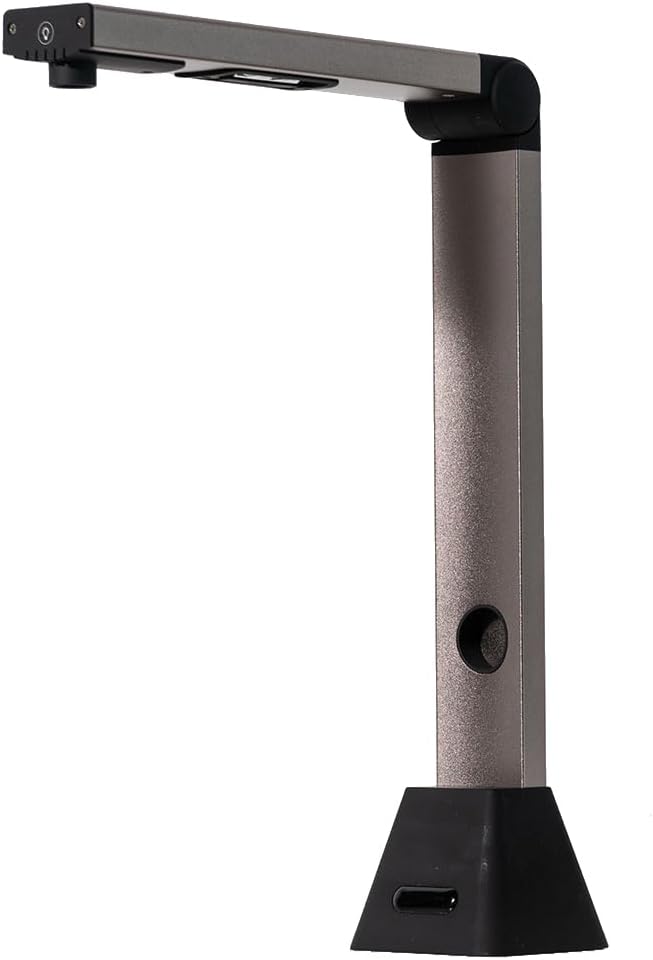
Figure 4.1: iOCHOW Portable Scanner S1 in its upright, ready-to-use position.

Figure 4.2: The iOCHOW S1 in its folded, compact state for easy storage and portability.

ചിത്രം 4.3: ക്ലോസപ്പ് view of the 8MP HD camera lens and integrated controls on the scanner head.

Figure 4.4: Detail of the built-in LED fill lights, which can be used to illuminate documents in dimly lit environments.
5. സജ്ജീകരണം
Setting up your iOCHOW S1 is straightforward. Follow these steps to get started:
- ഉപകരണം അൺപാക്ക് ചെയ്യുക: പാക്കേജിംഗിൽ നിന്ന് സ്കാനറും എല്ലാ അനുബന്ധ ഉപകരണങ്ങളും ശ്രദ്ധാപൂർവ്വം നീക്കം ചെയ്യുക.
- സ്കാനർ സ്ഥാപിക്കുക: Place the scanner on a flat, stable surface. Unfold the scanner arm to its upright position.
- പിസിയിലേക്ക് കണക്റ്റുചെയ്യുക: Connect the scanner to your computer using the provided USB cable. Ensure a secure connection.
- സോഫ്റ്റ്വെയർ ഇൻസ്റ്റാൾ ചെയ്യുക: Insert the software CD into your computer's CD drive. If your computer does not have a CD drive, download the latest software from the official iOCHOW webസൈറ്റ്. ഇൻസ്റ്റാളേഷൻ പൂർത്തിയാക്കാൻ ഓൺ-സ്ക്രീൻ നിർദ്ദേശങ്ങൾ പാലിക്കുക. Note: The software is compatible only with Windows operating systems (Windows 7 and above) and is not compatible with Apple Mac OS.
- Place Scanning Mat: Position the scanning mat directly under the camera lens. This mat helps in accurate document placement and provides a clear background for scanning.
For a visual guide on setup, please watch the official product video below:
Video 5.1: Official iOCHOW Document Camera setup and feature demonstration.
6. പ്രവർത്തന നിർദ്ദേശങ്ങൾ
6.1. പ്രമാണങ്ങൾ സ്കാൻ ചെയ്യുന്നു
The iOCHOW S1 software offers advanced features for efficient document scanning:
- ഒപ്റ്റിക്കൽ ക്യാരക്ടർ റെക്കഗ്നിഷൻ (OCR): The software can recognize multiple languages and convert scanned materials into editable text formats such as TXT, Word, or JPG. This allows for easy editing and searching of your documents.
- Automatic Cropping & Edge Filling: The scanner intelligently detects the edges of your document, automatically cropping and correcting any broken edges for a clean scan.
- സ്മാർട്ട് പേജിംഗ്: For multi-page documents, the software can automatically segment images and merge both sides of scanned ID photos, streamlining the scanning process.
- Smart Tilt Correction: The software automatically corrects skewed documents, ensuring perfectly aligned scans even if the document is not placed perfectly straight.
- Auto-Scan Technology: Set the scan mode to 'Multiple page' and 'Automatic' to enable continuous scanning without manual clicks, significantly increasing efficiency for large volumes of documents.
Refer to the official product video in Section 5 for demonstrations of these scanning features.
6.2. Video Recording and Real-time Projection
Beyond scanning, the iOCHOW S1 functions as a versatile visualizer:
- Real-time Projection: Connect the scanner to a computer or laptop to project live images of documents or objects onto a larger screen or projector. This is ideal for presentations, demonstrations, or collaborative work.
- വീഡിയോ റെക്കോർഡിംഗ്: Utilize the software to record video of your documents or objects. This feature is particularly useful for creating educational content, recording writing processes, or conducting online teaching sessions via platforms like Zoom.
7. പരിപാലനം
To ensure the longevity and optimal performance of your iOCHOW S1, follow these maintenance guidelines:
- വൃത്തിയാക്കൽ: Use a soft, dry cloth to wipe the exterior of the scanner. For the camera lens, use a lens cleaning cloth and solution if necessary. Avoid abrasive cleaners or solvents.
- സംഭരണം: When not in use, fold the scanner to its compact form and store it in a dry, dust-free environment. Keep the scanning mat clean and flat to prevent creases.
- സോഫ്റ്റ്വെയർ അപ്ഡേറ്റുകൾ: Periodically check the iOCHOW official webഏറ്റവും പുതിയ സവിശേഷതകളും ബഗ് പരിഹാരങ്ങളും ഉറപ്പാക്കാൻ സോഫ്റ്റ്വെയർ അപ്ഡേറ്റുകൾക്കായുള്ള സൈറ്റ്.
8. പ്രശ്നപരിഹാരം
If you encounter issues with your iOCHOW S1, refer to the table below for common problems and solutions:
| പ്രശ്നം | സാധ്യമായ കാരണം | പരിഹാരം |
|---|---|---|
| Scanner not recognized by PC. | Loose USB connection, driver not installed, or incompatible OS. | Ensure USB cable is securely connected. Install the correct drivers from the CD or iOCHOW website. Verify your operating system is Windows 7 or later. |
| Poor image quality (blurry, dark). | Insufficient lighting, dirty lens, or incorrect focus. | Turn on the built-in LED lights. Ensure the camera lens is clean. Allow the auto-focus to adjust, or manually adjust focus if available in software. Ensure the document is flat on the scanning mat. |
| OCR not working or inaccurate. | Incorrect language setting, poor scan quality, or complex font. | Check the language setting in the OCR software. Improve scan quality (see above). Ensure the document text is clear and legible. |
| സോഫ്റ്റ്വെയർ ക്രാഷ് ആകുകയോ ഫ്രീസ് ആകുകയോ ചെയ്യുന്നു. | Outdated software, system resource issues, or conflict with other programs. | Update the software to the latest version. Close other unnecessary applications. Restart your computer. |
9 സ്പെസിഫിക്കേഷനുകൾ
| ഫീച്ചർ | വിശദാംശങ്ങൾ |
|---|---|
| ബ്രാൻഡ് | iOCHOW |
| മോഡൽ നമ്പർ | എസ്-1 |
| സ്കാനർ തരം | Document, Photo |
| ക്യാമറ റെസല്യൂഷൻ | 8 മെഗാപിക്സൽ |
| പരമാവധി സ്കാൻ വലുപ്പം | A3 |
| പ്രകാശ സ്രോതസ്സ് തരം | എൽഇഡി |
| കണക്റ്റിവിറ്റി ടെക്നോളജി | USB |
| ഏറ്റവും കുറഞ്ഞ സിസ്റ്റം ആവശ്യകതകൾ | വിൻഡോസ് 7 |
| ഇനത്തിൻ്റെ ഭാരം | 3.61 പൗണ്ട് |
| പാക്കേജ് അളവുകൾ | 13.54 x 5.83 x 4.41 ഇഞ്ച് |
| യു.പി.സി | 631105889193 |
10. വാറൻ്റിയും പിന്തുണയും
iOCHOW products are manufactured to high-quality standards. For warranty information and technical support, please refer to the warranty card included with your product or visit the official iOCHOW website. You can also contact customer service through the retailer where you purchased the product.


