ഉൽപ്പന്നം കഴിഞ്ഞുview
The ASRock X570 Steel Legend motherboard is designed to support AMD AM4 Socket Ryzen 2000 and 3000 Series processors. It features a Hyper M.2 socket for next-generation PCIe Gen4 x4 M.2 SSDs, complemented by a full-coverage M.2 heatsink for efficient heat dissipation. This ensures optimal performance for high-speed M.2 SSDs. The motherboard is built with a 10 Power Phase Design and supports DDR4 4666+ (OC) memory, providing a stable and high-performance foundation for your system.

Image: ASRock X570 Steel Legend Motherboard and its retail packaging.
പ്രധാന സവിശേഷതകൾ
- പ്രോസസർ പിന്തുണ: Compatible with AMD AM4 Socket Ryzen 2000 and 3000 Series processors.
- പവർ ഡിസൈൻ: Features a 10 Power Phase Design for stable power delivery.
- മെമ്മറി: Supports DDR4 memory up to 4666+ (OC) speeds.
- വിപുലീകരണ സ്ലോട്ടുകൾ: Includes 2 PCIe 4.0 x16 slots, 3 PCIe 4.0 x1 slots, and 1 M.2 (Key E) slot for Wi-Fi modules.
- മൾട്ടി-ജിപിയു പിന്തുണ: Supports AMD Quad CrossFireX and CrossFireX technologies.
- ഗ്രാഫിക്സ് ഔട്ട്പുട്ട്: Equipped with HDMI and DisplayPort for video output.
- ഓഡിയോ: Features 7.1 CH HD Audio (Realtek ALC1220 Audio Codec) with Nichicon Audio Caps for high-quality sound.
- സംഭരണം: Provides 8 SATA3 ports, 1 Hyper M.2 (PCIe Gen4 x4 & SATA3) slot, and 1 Hyper M.2 (PCIe Gen4 x4) slot.
- USB കണക്റ്റിവിറ്റി: Offers 2 USB 3.2 Gen2 ports (Rear Type A+C) and 10 USB 3.2 Gen1 ports (4 Front, 6 Rear).
- നെറ്റ്വർക്കിംഗ്: Integrated Intel Gigabit LAN for reliable network connectivity.
- RGB ലൈറ്റിംഗ്: Supports ASRock Polychrome SYNC for customizable RGB lighting.

ചിത്രം: വിശദമായത് view of the motherboard's power delivery components, M.2 heatsink, and gold-plated contacts in critical slots.
സ്പെസിഫിക്കേഷനുകൾ
| ഫീച്ചർ | വിശദാംശങ്ങൾ |
|---|---|
| ബ്രാൻഡ് | ASRock |
| മോഡലിൻ്റെ പേര് | X570 സ്റ്റീൽ ലെജൻഡ് |
| സിപിയു സോക്കറ്റ് | സോക്കറ്റ് AM4 |
| അനുയോജ്യമായ പ്രോസസ്സറുകൾ | എഎംഡി റൈസൺ 2000 സീരീസ്, എഎംഡി റൈസൺ 3000 സീരീസ് |
| ചിപ്സെറ്റ് തരം | AMD X570 |
| റാം മെമ്മറി ടെക്നോളജി | DDR4 |
| മെമ്മറി സ്പീഡ് | 2400 MHz (up to 4666+ MHz OC) |
| പരമാവധി റാം | 128GB (4 DIMM slots) |
| ഗ്രാഫിക്സ് ഔട്ട്പുട്ട് | HDMI, ഡിസ്പ്ലേ പോർട്ട് |
| യുഎസ്ബി 3.2 ജെൻ 2 പോർട്ടുകൾ | 2 (Rear Type A+C) |
| യുഎസ്ബി 3.2 ജെൻ 1 പോർട്ടുകൾ | 10 (4 Front, 6 Rear) |
| ലാൻ | ഇന്റൽ ഗിഗാബിറ്റ് ലാൻ |
| ഓഡിയോ | 7.1 CH HD Audio (Realtek ALC1220) |
| അളവുകൾ (LxWxH) | 15.1 x 3.4 x 13.1 ഇഞ്ച് |
| ഇനത്തിൻ്റെ ഭാരം | 2.86 പൗണ്ട് |
ചിത്രം: കഴിഞ്ഞുview of the motherboard's layout with key components such as the CPU socket, RAM slots, and various expansion slots clearly marked.
സജ്ജീകരണവും ഇൻസ്റ്റാളേഷനും
Proper installation of your ASRock X570 Steel Legend motherboard is crucial for system stability and performance. Always ensure your system is powered off and unplugged before handling any components. Refer to the detailed diagrams below for component placement.
1. സിപിയു ഇൻസ്റ്റലേഷൻ
Carefully open the CPU socket lever. Align the triangular marker on your AMD AM4 processor with the corresponding marker on the motherboard's socket. Gently place the CPU into the socket without forcing it, then close the lever to secure it.
2. മെമ്മറി (റാം) ഇൻസ്റ്റലേഷൻ
Unlock the clips on the DDR4 DIMM slots. Align the notch on your RAM module with the key in the DIMM slot. Press down firmly on both ends of the RAM module until the clips snap into place. For optimal dual-channel performance, consult your motherboard manual for recommended slot configurations.
3. M.2 SSD ഇൻസ്റ്റലേഷൻ
The motherboard features Hyper M.2 slots. Remove the M.2 heatsink if present. Insert your M.2 SSD into the slot at an angle, then gently push it down and secure it with the provided screw. Reattach the M.2 heatsink for optimal thermal performance.
4. പെരിഫറലുകളും പവറും ബന്ധിപ്പിക്കൽ
Connect the 24-pin ATX power connector and the 8-pin CPU power connector from your power supply to the motherboard. Attach your storage devices to the SATA3 ports and connect front panel headers (USB, audio, power buttons, LEDs) according to the motherboard's pin layout.
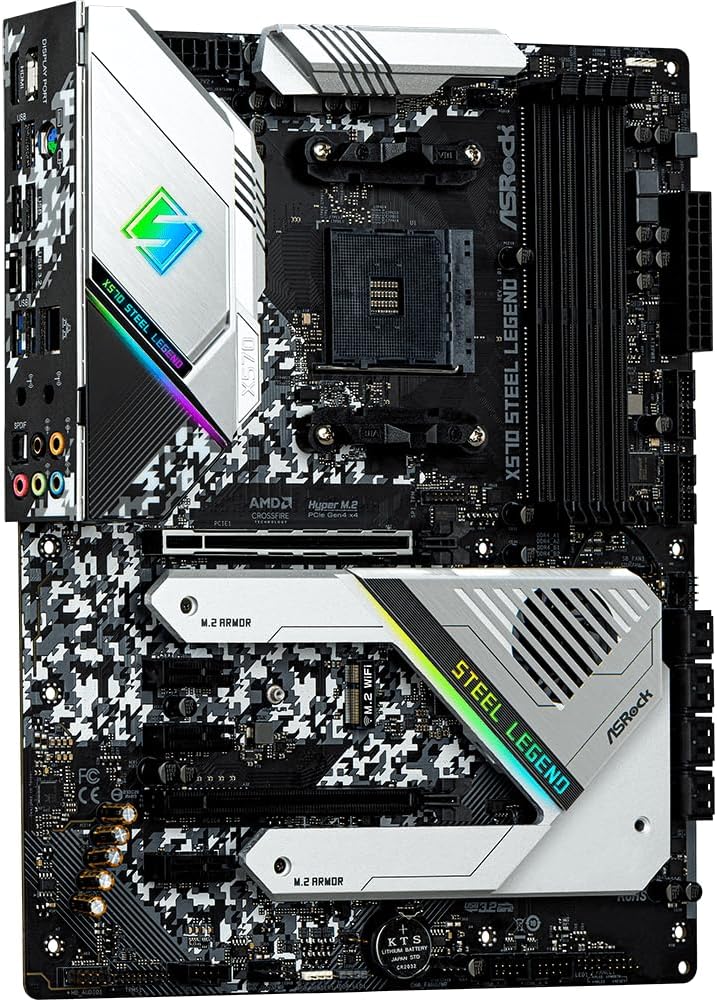
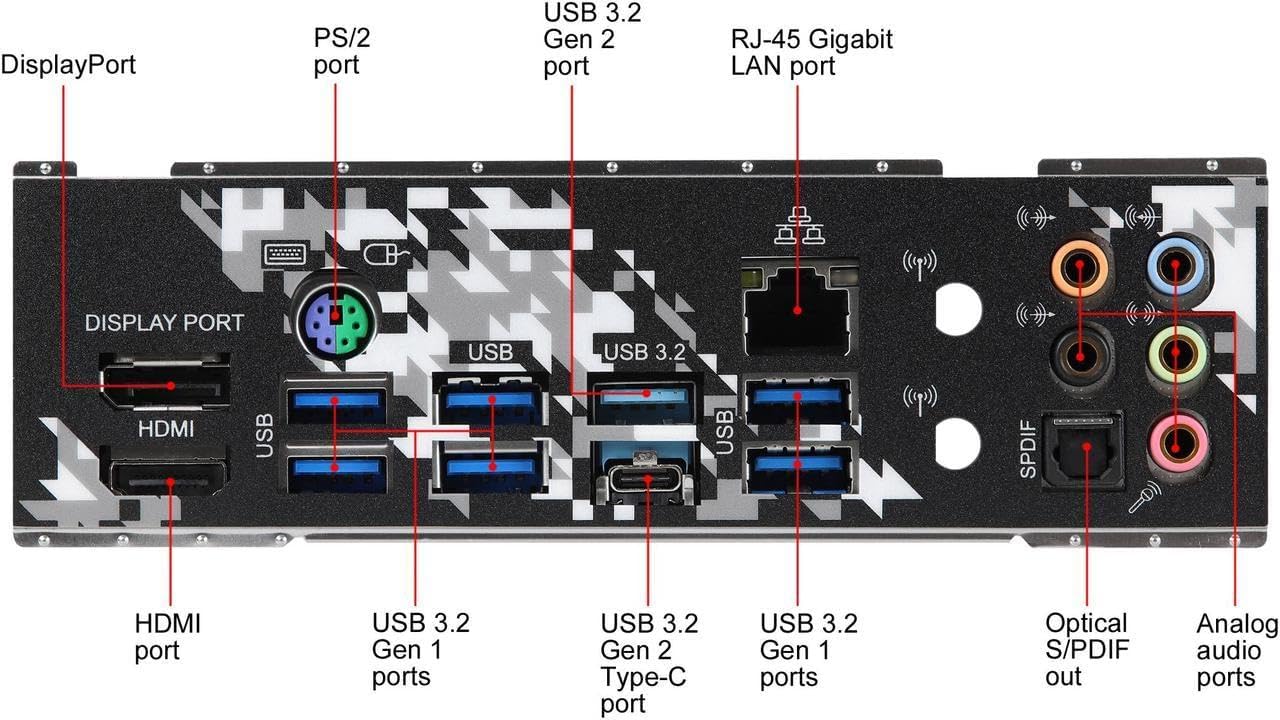
Image: The rear I/O panel, featuring HDMI, DisplayPort, USB 3.2 Gen2 Type-A and Type-C, USB 3.2 Gen1, Intel Gigabit LAN, and 7.1 channel audio jacks.
പ്രവർത്തന മാർഗ്ഗനിർദ്ദേശങ്ങൾ
Once all components are installed and connected, power on your system. The motherboard's UEFI BIOS provides extensive options for system configuration, including memory profiles, fan control, and boot device selection. Utilize the ASRock Polychrome SYNC software to customize the integrated RGB lighting effects.
- ബയോസ്/യുഇഎഫ്ഐ ആക്സസ്: അമർത്തുക ഡെൽ or F2 during system startup to enter the UEFI setup utility.
- ഡ്രൈവർ ഇൻസ്റ്റാളേഷൻ: Install all necessary drivers from the ASRock support website or the included driver CD for optimal performance and functionality.
- സോഫ്റ്റ്വെയർ യൂട്ടിലിറ്റികൾ: Use ASRock's utility software for system monitoring, fan tuning, and RGB lighting customization.
മെയിൻ്റനൻസ്
പതിവ് അറ്റകുറ്റപ്പണികൾ നിങ്ങളുടെ മദർബോർഡിന്റെ ആയുസ്സ് വർദ്ധിപ്പിക്കാനും സ്ഥിരമായ പ്രകടനം ഉറപ്പാക്കാനും സഹായിക്കുന്നു.
- പൊടി നീക്കം: Periodically clean dust from the motherboard and components using compressed air. Ensure fans and heatsinks are free from obstructions.
- ബയോസ് അപ്ഡേറ്റുകൾ: ASRock പരിശോധിക്കുക website for the latest BIOS updates. Updating the BIOS can improve compatibility, stability, and performance. Follow the instructions carefully to avoid system damage.
- കേബിൾ മാനേജുമെന്റ്: Ensure all cables are neatly routed and secured to promote good airflow within your PC case.
ട്രബിൾഷൂട്ടിംഗ്
നിങ്ങളുടെ മദർബോർഡിൽ പ്രശ്നങ്ങൾ നേരിടുകയാണെങ്കിൽ, ഇനിപ്പറയുന്ന പൊതുവായ ട്രബിൾഷൂട്ടിംഗ് ഘട്ടങ്ങൾ പരിഗണിക്കുക:
- പവർ ഇല്ല/ബൂട്ട് ഇല്ല:
- എല്ലാ പവർ കേബിളുകളും (24-പിൻ ATX, 8-പിൻ CPU) സുരക്ഷിതമായി ബന്ധിപ്പിച്ചിട്ടുണ്ടെന്ന് ഉറപ്പാക്കുക.
- വൈദ്യുതി വിതരണം ശരിയായി പ്രവർത്തിക്കുന്നുണ്ടോയെന്ന് പരിശോധിക്കുക.
- Ensure the CPU, RAM, and graphics card are properly seated.
- ഡിസ്പ്ലേ പ്രശ്നങ്ങൾ:
- Confirm your monitor is connected to the graphics card (if dedicated) or the motherboard's video output (if using an APU).
- മറ്റൊരു വീഡിയോ കേബിളോ മോണിറ്ററോ പരീക്ഷിച്ചുനോക്കൂ.
- സിസ്റ്റം അസ്ഥിരത/ക്രാഷുകൾ:
- എല്ലാ ഡ്രൈവറുകളും കാലികമാണെന്ന് ഉറപ്പാക്കുക.
- Test RAM modules individually or run a memory diagnostic tool.
- അമിതമായി ചൂടാകുന്നത് തടയാൻ സിപിയു, ജിപിയു താപനിലകൾ നിരീക്ഷിക്കുക.
- പെരിഫറൽ കണ്ടെത്തിയില്ല:
- മറ്റൊരു USB പോർട്ടിലേക്ക് പെരിഫറൽ ബന്ധിപ്പിക്കാൻ ശ്രമിക്കുക.
- ഡ്രൈവർ പ്രശ്നങ്ങൾക്കായി ഉപകരണ മാനേജർ പരിശോധിക്കുക.
For more detailed troubleshooting, refer to the official ASRock support webസൈറ്റ് അല്ലെങ്കിൽ അവരുടെ ഉപഭോക്തൃ സേവനവുമായി ബന്ധപ്പെടുക.
വാറൻ്റിയും പിന്തുണയും
ASRock അതിന്റെ മദർബോർഡുകൾക്ക് പരിമിതമായ വാറന്റി നൽകുന്നു. വാറണ്ടിയുടെ നിർദ്ദിഷ്ട നിബന്ധനകളും കാലാവധിയും പ്രദേശത്തെയും റീട്ടെയിലറെയും ആശ്രയിച്ച് വ്യത്യാസപ്പെടാം. വാറന്റി ക്ലെയിമുകൾക്കായി നിങ്ങളുടെ വാങ്ങലിന്റെ തെളിവ് സൂക്ഷിക്കുക.
- വാറൻ്റി വിവരങ്ങൾ: വിശദമായ വാറന്റി നിബന്ധനകൾക്കും വ്യവസ്ഥകൾക്കും, ദയവായി ഔദ്യോഗിക ASRock സന്ദർശിക്കുക. website or consult your product documentation.
- സാങ്കേതിക സഹായം: If you require technical assistance, drivers, or BIOS updates, visit the ASRock support page at www.asrock.com/support/.


