ഉൽപ്പന്നം കഴിഞ്ഞുview
The Waveshare 3.5-inch Resistive Touch Screen IPS LCD is designed for use with various Raspberry Pi models, including Pi 5, 4B, 3B+, 3B, 2B, A+, B+, Zero W, and Zero 2W. It features a 480x320 hardware resolution and resistive touch control, making it suitable for compact embedded systems and interactive projects.
This display utilizes IPS technology, providing wide viewing angles and excellent color reproduction. It supports FBCP software drivers for flexible resolution configuration and dual-display setups. The package includes the LCD module, a touch pen, and mounting screws.

Figure 1: Waveshare 3.5-inch Resistive Touch Screen IPS LCD.
പ്രധാന സവിശേഷതകൾ
- റെസലൂഷൻ: 480x320 hardware resolution.
- ടച്ച് നിയന്ത്രണം: Resistive touch screen with XPT2046 controller.
- അനുയോജ്യത: Directly pluggable and compatible with various Raspberry Pi models (Pi 5/4B/3B+/3B/2B/A+/B+/Zero W/Zero 2W).
- പ്രദർശന സാങ്കേതികവിദ്യ: വൈഡിനുള്ള ഐപിഎസ് പാനൽ viewing angles and high-quality display.
- ഡ്രൈവർ പിന്തുണ: Drivers provided for Raspbian, Ubuntu, and Kali. Supports FBCP software driver for resolution configuration and dual-display.
- ഉപരിതല ഫിനിഷ്: High-quality immersion gold surface plating.
പാക്കേജ് ഉള്ളടക്കം
പാക്കേജിൽ എല്ലാ ഇനങ്ങളും ഉണ്ടെന്ന് ഉറപ്പാക്കുക:
- 3.5inch RPi LCD (B) x 1
- ടച്ച് പേന x 1
- RPi screws pack (2pcs) x 1
- Quick start sheet x 1
സജ്ജീകരണവും ഇൻസ്റ്റാളേഷനും
This section outlines the steps to connect and configure your Waveshare 3.5-inch LCD with a Raspberry Pi.
1. ഹാർഡ്വെയർ കണക്ഷൻ
The LCD module is designed for direct plugging onto the Raspberry Pi's GPIO pins.
- Align the 40-pin connector on the LCD with the GPIO header on your Raspberry Pi.
- Gently press the LCD onto the Raspberry Pi until it is securely seated. Ensure all pins are correctly aligned to prevent damage.
- Use the provided screws to secure the LCD to the Raspberry Pi, if desired, for added stability.

Figure 2: LCD connected to Raspberry Pi 4.
The display is compatible with various Raspberry Pi models, including the Raspberry Pi 4, Raspberry Pi 3B+, and Raspberry Pi Zero W, as shown in the following figures.

Figure 3: LCD with Raspberry Pi 3B+.

Figure 4: LCD with Raspberry Pi Zero W.
2. സോഫ്റ്റ്വെയർ കോൺഫിഗറേഷൻ
For the LCD to function correctly, specific drivers must be installed on your Raspberry Pi's operating system. Waveshare provides drivers compatible with Raspbian, Ubuntu, and Kali distributions.
It is highly recommended to use the official Waveshare provided image for initial testing, as it comes pre-configured with the necessary drivers. If you are using your own Raspbian/Ubuntu/Kali image, you will need to install the drivers manually.
Refer to the quick start sheet included in your package or the official Waveshare documentation for detailed driver installation instructions. Incorrect driver installation can lead to display issues.
പ്രവർത്തന നിർദ്ദേശങ്ങൾ
Once the hardware is connected and software drivers are installed, the display will function as a primary or secondary display for your Raspberry Pi.
Using the Touch Function
The 3.5-inch LCD features a resistive touch screen. Use the provided touch pen or a similar stylus for optimal interaction. Avoid using sharp objects or excessive force, as this may damage the screen.
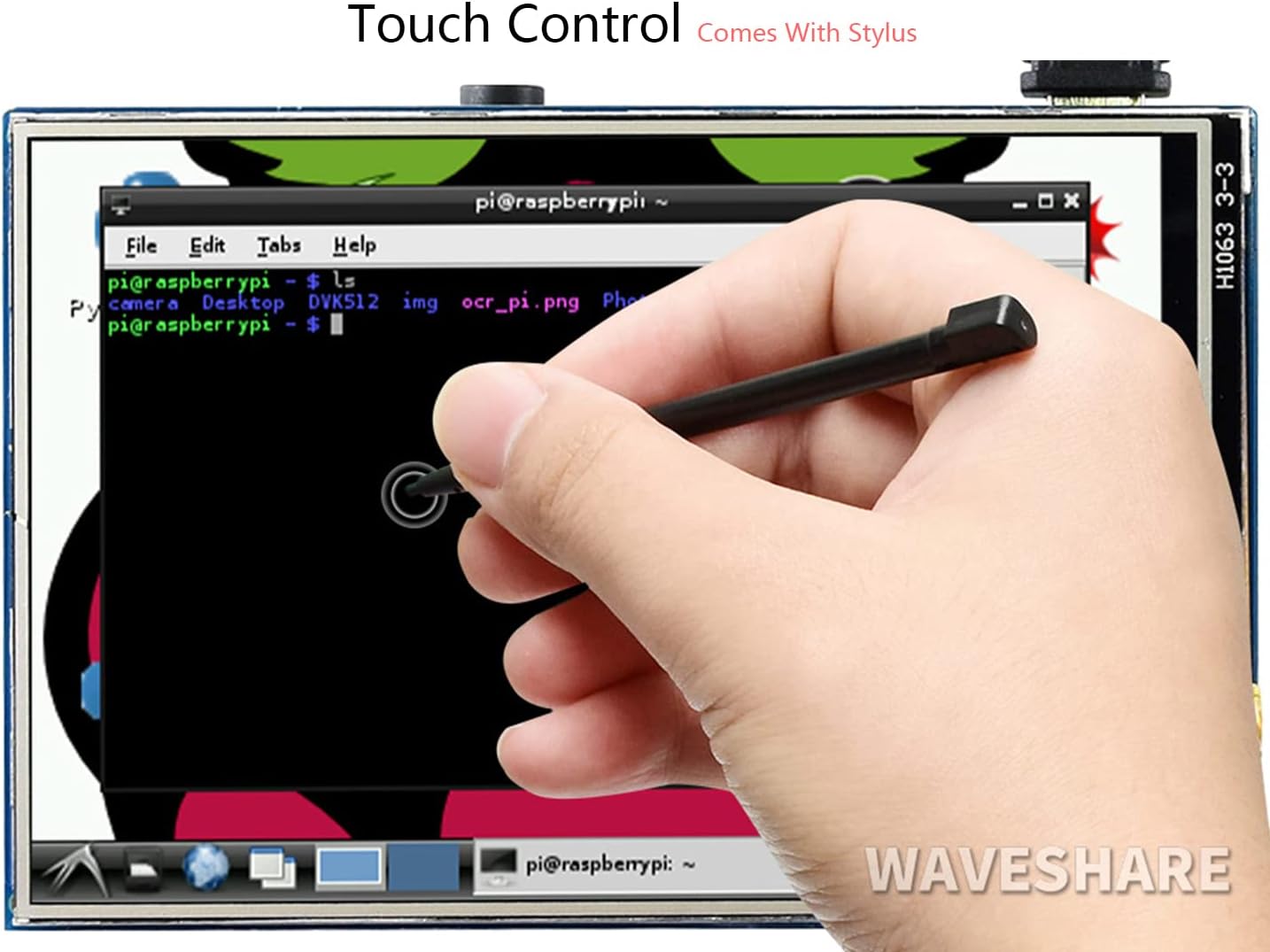
Figure 5: Using the touch pen for interaction.
The touch functionality allows for direct interaction with the operating system, enabling tasks such as navigating menus, opening applications, and using a software keyboard for input without requiring an external keyboard or mouse.
Dual-Display Setup (FBCP)
The display supports FBCP (Framebuffer Copy) software drivers, which allows for configuring software resolution and setting up a dual-display environment. This feature enables the content from the primary display to be mirrored or extended to the 3.5-inch LCD.
Configuration details for FBCP are typically found within the driver installation guide provided by Waveshare. This advanced setup allows for flexible display management in various applications.
മെയിൻ്റനൻസ്
Proper maintenance ensures the longevity and optimal performance of your Waveshare LCD.
- വൃത്തിയാക്കൽ: മൃദുവായ, ലിൻ്റ് രഹിത തുണി ഉപയോഗിക്കുകampened with water or a screen cleaner to wipe the display surface. Avoid abrasive materials or harsh chemicals.
- കൈകാര്യം ചെയ്യൽ: Always handle the LCD by its edges. Avoid touching the display surface directly with fingers to prevent smudges.
- സംഭരണം: When not in use, store the LCD in a dry, dust-free environment, preferably in its original packaging or an anti-static bag.
- പരിസ്ഥിതി വ്യവസ്ഥകൾ: Operate the display within its specified temperature and humidity ranges to prevent damage.
ട്രബിൾഷൂട്ടിംഗ്
This section addresses common issues you might encounter with the Waveshare 3.5-inch LCD.
| പ്രശ്നം | സാധ്യമായ കാരണം | പരിഹാരം |
|---|---|---|
| Display does not light up or shows no image. |
|
|
| Touch function is unresponsive or inaccurate. |
|
|
| Display shows distorted colors or artifacts. |
|
|
സ്പെസിഫിക്കേഷനുകൾ
Detailed technical specifications for the Waveshare 3.5-inch RPi IPS Screen (B).

Figure 6: Key specifications overview.
| പരാമീറ്റർ | മൂല്യം |
|---|---|
| എൽസിഡി തരം | ഐ.പി.എസ് |
| എൽസിഡി ഇന്റർഫേസ് | എസ്.പി.ഐ |
| ടച്ച് സ്ക്രീൻ തരം | റെസിസ്റ്റീവ് |
| ടച്ച് സ്ക്രീൻ കൺട്രോളർ | XPT2046 |
| നിറങ്ങൾ | 65536 |
| ബാക്ക്ലൈറ്റ് | എൽഇഡി |
| റെസലൂഷൻ | 320x480 (Pixel) |
| വീക്ഷണാനുപാതം | 8:5 |
| ഓപ്പറേറ്റിംഗ് വോളിയംtage | 5 Volts (from Raspberry Pi GPIO) |
| അളവുകൾ | 85.06 മിമി x 56.21 മിമി (ഏകദേശം 3.35 x 2.21 ഇഞ്ച്) |
| ഇനത്തിൻ്റെ ഭാരം | 2.89 ഔൺസ് |

Figure 7: Appearance and dimensions of the LCD module.
പിന്തുണയും കോൺടാക്റ്റും
For further assistance, technical support, or inquiries regarding your Waveshare 3.5-inch Resistive Touch Screen IPS LCD, please contact Waveshare customer service.
You can typically reach support by sending a message through the platform where you purchased the product (e.g., Amazon message system). Please provide your product model number (3.5inch RPi IPS Screen (B)) and a detailed description of your issue for efficient support.


