1. ആമുഖം
This manual provides detailed instructions for the setup, operation, and maintenance of your Natec TURBOT Wireless Keyboard with Touchpad (model NKL-0968). This device is designed to enhance your experience with Smart TVs, cellphones, and other compatible devices, offering convenient wireless control via 2.4 GHz technology.
ശരിയായ പ്രവർത്തനക്ഷമത ഉറപ്പാക്കാനും കേടുപാടുകൾ തടയാനും ഉൽപ്പന്നം ഉപയോഗിക്കുന്നതിന് മുമ്പ് ദയവായി ഈ മാനുവൽ നന്നായി വായിക്കുക.
2. പാക്കേജ് ഉള്ളടക്കം
പാക്കേജിൽ എല്ലാ ഇനങ്ങളും ഉണ്ടെന്ന് ഉറപ്പാക്കുക:
- Natec TURBOT Wireless Keyboard with Touchpad
- USB 2.4 GHz Receiver
- ഉപയോക്തൃ മാനുവൽ (ഈ പ്രമാണം)
- (Note: 2 AAA batteries are required and may not be included)
3. സജ്ജീകരണ ഗൈഡ്
3.1. ബാറ്ററി ഇൻസ്റ്റാളേഷൻ
The Natec TURBOT keyboard requires two (2) AAA batteries for operation. Locate the battery compartment on the underside of the keyboard. Open the cover, insert the batteries according to the polarity markings (+/-), and close the cover securely.
3.2. യുഎസ്ബി റിസീവർ ബന്ധിപ്പിക്കുന്നു
The USB 2.4 GHz receiver is typically stored in a dedicated compartment on the keyboard itself for safekeeping. Carefully remove the receiver from its storage slot.

Figure 1: USB receiver stored in the keyboard compartment.
Insert the USB receiver into an available USB port on your Smart TV, computer, or other compatible device. The device should automatically detect and install the necessary drivers.
3.3. Powering On the Keyboard
Locate the power switch on the side of the keyboard. Slide the switch to the "ON" position. The keyboard should now be ready for use.
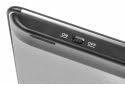
Figure 2: Power switch on the keyboard.
4. പ്രവർത്തന നിർദ്ദേശങ്ങൾ
4.1. കീബോർഡ് പ്രവർത്തനങ്ങൾ

Figure 3: Natec TURBOT Wireless Keyboard Layout.
The keyboard features a standard QWERTY layout for typing. It also includes dedicated function keys (F1-F12) which may have secondary multimedia functions (e.g., volume control, media playback). These secondary functions are often accessed by holding down the Fn key and pressing the corresponding function key.
- വലിയക്ഷരം: Toggles uppercase/lowercase letters.
- ഷിഫ്റ്റ്: Used for uppercase letters and secondary symbols.
- Ctrl / Alt / Win: Standard modifier keys for various shortcuts depending on the operating system.
- ബാക്ക്ലൈറ്റ്: The keyboard features a backlight for improved visibility in low-light conditions. Refer to your device's operating system or the keyboard's specific function key combinations (often involving the Fn key) to activate or adjust the backlight.
4.2. ടച്ച്പാഡ് പ്രവർത്തനങ്ങൾ
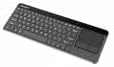
Figure 4: Integrated Touchpad.
The integrated touchpad allows for mouse-like navigation. It supports various gestures:
- ഒറ്റ വിരൽ ടാപ്പ്: Functions as a left-click.
- രണ്ട് ഫിംഗർ ടാപ്പ്: Functions as a right-click.
- രണ്ട് വിരൽ സ്ക്രോൾ: Drag two fingers up or down to scroll through content.
- ഫിസിക്കൽ ബട്ടണുകൾ: Below the touchpad, there are two physical buttons. The left button acts as a left-click, and the right button acts as a right-click.
Touchpad sensitivity and other settings may be adjustable through your connected device's operating system settings.
5. പരിപാലനം
- വൃത്തിയാക്കൽ: Use a soft, dry cloth to clean the keyboard and touchpad. For stubborn dirt, a slightly damp cloth with mild cleaning solution can be used, ensuring no liquid enters the device.
- ബാറ്ററി മാറ്റിസ്ഥാപിക്കൽ: Replace batteries when the keyboard's performance degrades or it stops responding. Always use fresh AAA batteries.
- സംഭരണം: When not in use for extended periods, turn off the keyboard to conserve battery life. Store the USB receiver in its designated compartment to prevent loss.
- അങ്ങേയറ്റത്തെ അവസ്ഥകൾ ഒഴിവാക്കുക: Do not expose the keyboard to extreme temperatures, direct sunlight, or high humidity.
6. പ്രശ്നപരിഹാരം
6.1. കീബോർഡ് പ്രതികരിക്കുന്നില്ല
- കീബോർഡ് ഓണാണെന്ന് ഉറപ്പാക്കുക.
- ബാറ്ററികൾ ശരിയായി ഇൻസ്റ്റാൾ ചെയ്തിട്ടുണ്ടോ എന്നും ആവശ്യത്തിന് ചാർജ് ഉണ്ടോ എന്നും പരിശോധിക്കുക. ആവശ്യമെങ്കിൽ മാറ്റിസ്ഥാപിക്കുക.
- Verify that the USB receiver is securely plugged into a working USB port on your device.
- USB റിസീവർ മറ്റൊരു USB പോർട്ടിലേക്ക് പ്ലഗ് ചെയ്യാൻ ശ്രമിക്കുക.
- Restart your connected device (Smart TV, computer, etc.).
6.2. Touchpad Not Working
- കീബോർഡ് ഓണാക്കിയിട്ടുണ്ടെന്നും കണക്റ്റ് ചെയ്തിട്ടുണ്ടെന്നും ഉറപ്പാക്കുക.
- Clean the touchpad surface to remove any dirt or obstructions.
- Check your device's settings for any touchpad-related configurations.
6.3. ഇടവിട്ടുള്ള കണക്ഷൻ
- Ensure there are no large metallic objects or other 2.4 GHz wireless devices causing interference between the keyboard and the USB receiver.
- കീബോർഡ് USB റിസീവറിന് അടുത്തേക്ക് നീക്കുക.
7 സ്പെസിഫിക്കേഷനുകൾ
| ബ്രാൻഡ് | Natec |
| മോഡൽ നമ്പർ | NKL-0968 |
| കണക്റ്റിവിറ്റി ടെക്നോളജി | 2.4 GHz വയർലെസ് |
| അനുയോജ്യമായ ഉപകരണങ്ങൾ | Smart TV, Cellphone |
| ഓപ്പറേറ്റിംഗ് സിസ്റ്റം അനുയോജ്യത | Android 10.0 (and compatible systems) |
| പ്രത്യേക സവിശേഷതകൾ | Integrated Touchpad, Backlit Keys |
| കീബോർഡ് വിവരണം | മൾട്ടിമീഡിയ |
| നിറം | കറുപ്പ്/വെള്ളി |
| മെറ്റീരിയൽ | അക്രിലോണിട്രൈൽ ബ്യൂട്ടാഡീൻ സ്റ്റൈറൈൻ (എബിഎസ്) |
| പവർ ഉറവിടം | 2 x AAA ബാറ്ററികൾ |
8. വാറൻ്റിയും പിന്തുണയും
For warranty information, technical support, or further assistance, please refer to the official Natec webസൈറ്റിൽ ബന്ധപ്പെടുകയോ അവരുടെ ഉപഭോക്തൃ സേവന വിഭാഗവുമായി ബന്ധപ്പെടുകയോ ചെയ്യുക. വാറന്റി ക്ലെയിമുകൾക്കായി നിങ്ങളുടെ വാങ്ങൽ രസീത് സൂക്ഷിക്കുക.
Natec does not provide specific information regarding spare parts availability or software updates beyond the initial purchase.


