1. ആമുഖം
This user manual provides comprehensive instructions for the FIDECO M.2 SSD Enclosure. Please read this manual carefully before using the product to ensure proper operation and to maximize its performance and lifespan. This enclosure is designed for external use with M.2 NVME PCIe M-Key SSDs, offering high-speed data transfer and broad compatibility.
2. ഉൽപ്പന്നം കഴിഞ്ഞുview
2.1 പ്രധാന സവിശേഷതകൾ
- Supports M.2 NVME SSDs (M-Key and B+M Key) and M.2 SATA SSDs (B+M Key). Note: Does not support AHCI protocol SSDs.
- USB 3.1 Gen 2 interface for data transfer speeds up to 10Gbps. Backward compatible with USB 3.1 and USB 3.0.
- 100% tool-free installation for quick and easy SSD insertion and removal.
- Plug and play functionality, no additional drivers required.
- Compatible with Windows, Mac OS, and Linux operating systems.
- Premium aluminum alloy shell for durability and excellent heat dissipation.
- Slim and portable design.
2.2 പാക്കേജ് ഉള്ളടക്കം
- FIDECO M.2 SSD Enclosure
- USB-C മുതൽ USB-A കേബിൾ വരെ
- USB-A മുതൽ USB-C അഡാപ്റ്റർ വരെ
- Soft fasteners for SSD installation
- ഉപയോക്തൃ മാനുവൽ (ഈ പ്രമാണം)

Figure 2.1: FIDECO M.2 SSD Enclosure and included accessories.

Figure 2.2: Compatibility details for M.2 SSDs, highlighting support for NVME PCIe M-Key and B+M Key, and M.2 SATA B+M Key. AHCI protocol SSDs are not supported.
3. സജ്ജീകരണവും ഇൻസ്റ്റാളേഷനും
The FIDECO M.2 SSD Enclosure features a tool-free design for easy installation.
- എൻക്ലോഷർ തുറക്കുക: Slide to open the rear cover of the enclosure.
- SSD ചേർക്കുക: Gently insert your M.2 NVME SSD into the slot inside the enclosure. Ensure it is fully seated.
- സുരക്ഷിത SSD: Use the provided soft fastener to fix the SSD in place. This protects the SSD and ensures a secure connection.
- എൻക്ലോഷർ അടയ്ക്കുക: Slide the rear cover back until it clicks into place.
- ഉപകരണത്തിലേക്ക് കണക്റ്റുചെയ്യുക: Use the USB-C to USB-A cable or the USB-A to USB-C adapter with the cable to connect the enclosure to your computer or compatible device.
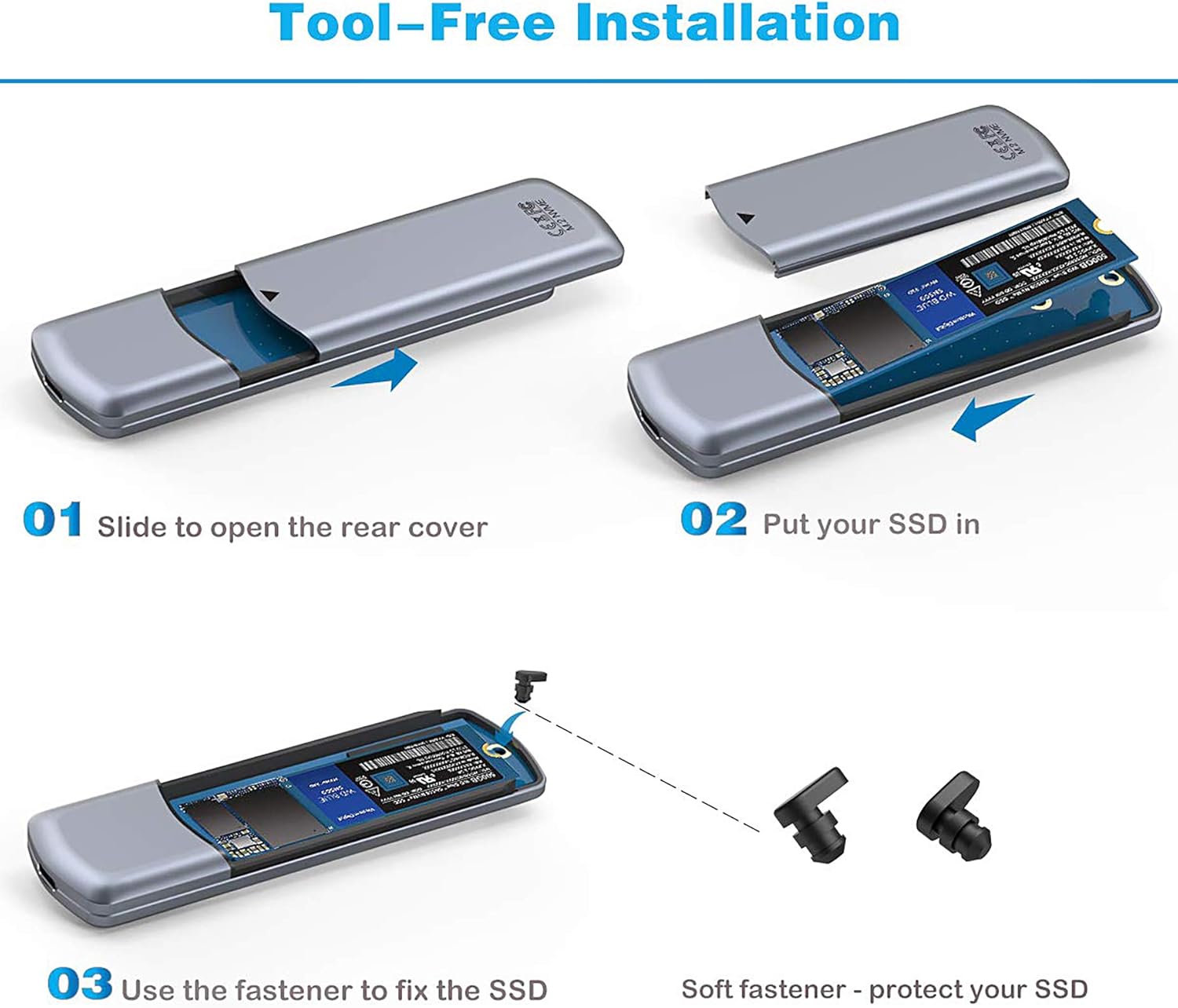
Figure 3.1: Visual guide for tool-free SSD installation: 1. Slide to open rear cover, 2. Put your SSD in, 3. Use the fastener to fix the SSD.
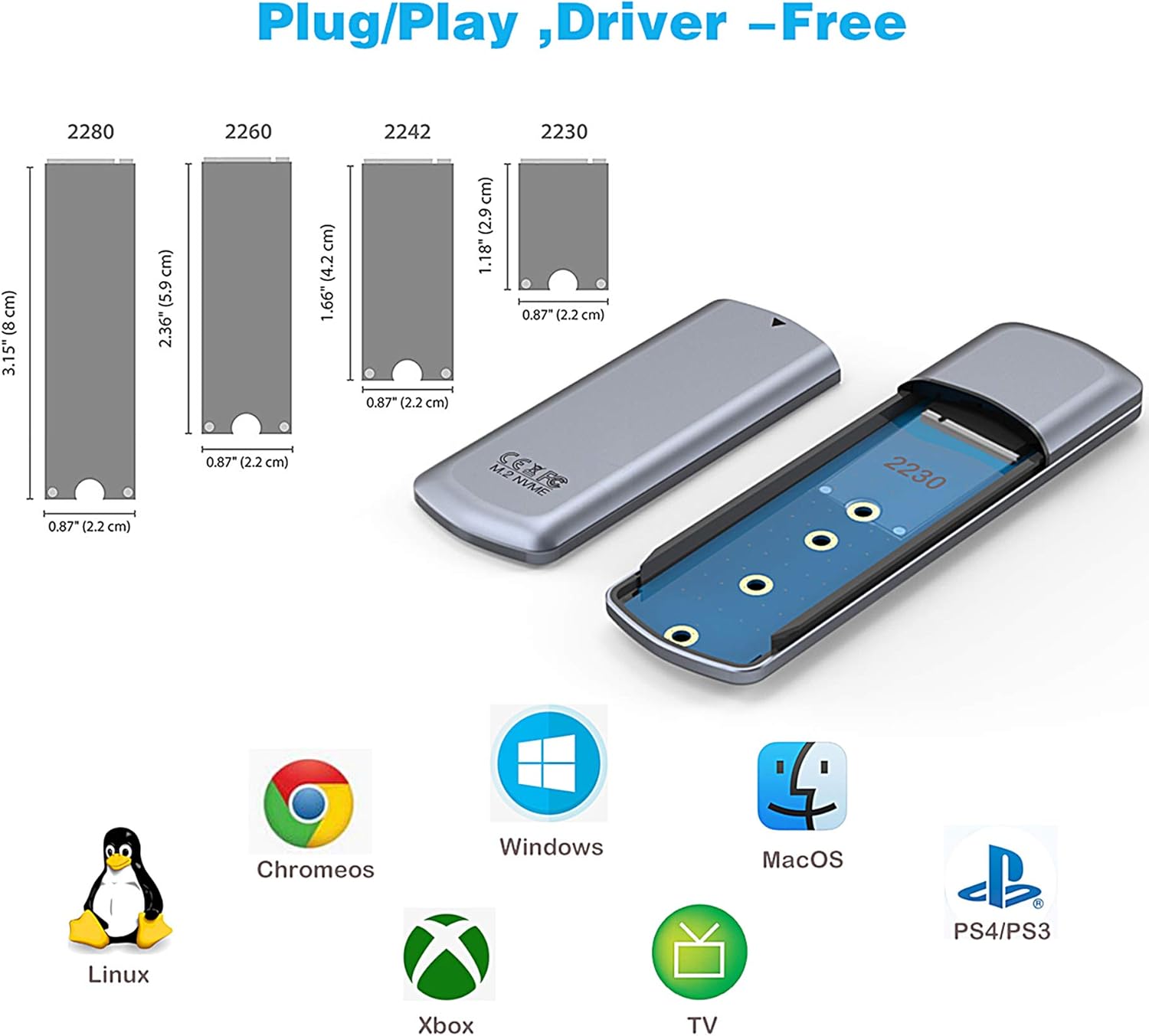
Figure 3.2: The enclosure supports M.2 SSDs of various lengths (2230, 2242, 2260, 2280) and is compatible with Linux, ChromeOS, Windows, MacOS, PS4/PS3, Xbox, and TV.
4. പ്രവർത്തന നിർദ്ദേശങ്ങൾ
4.1 ഡാറ്റ കൈമാറ്റം
Once connected, the SSD enclosure will appear as an external drive on your computer. You can drag and drop files, copy, paste, or use it for backup purposes. The USB 3.1 Gen 2 interface provides transmission speeds up to 10Gbps, significantly faster than older USB standards.
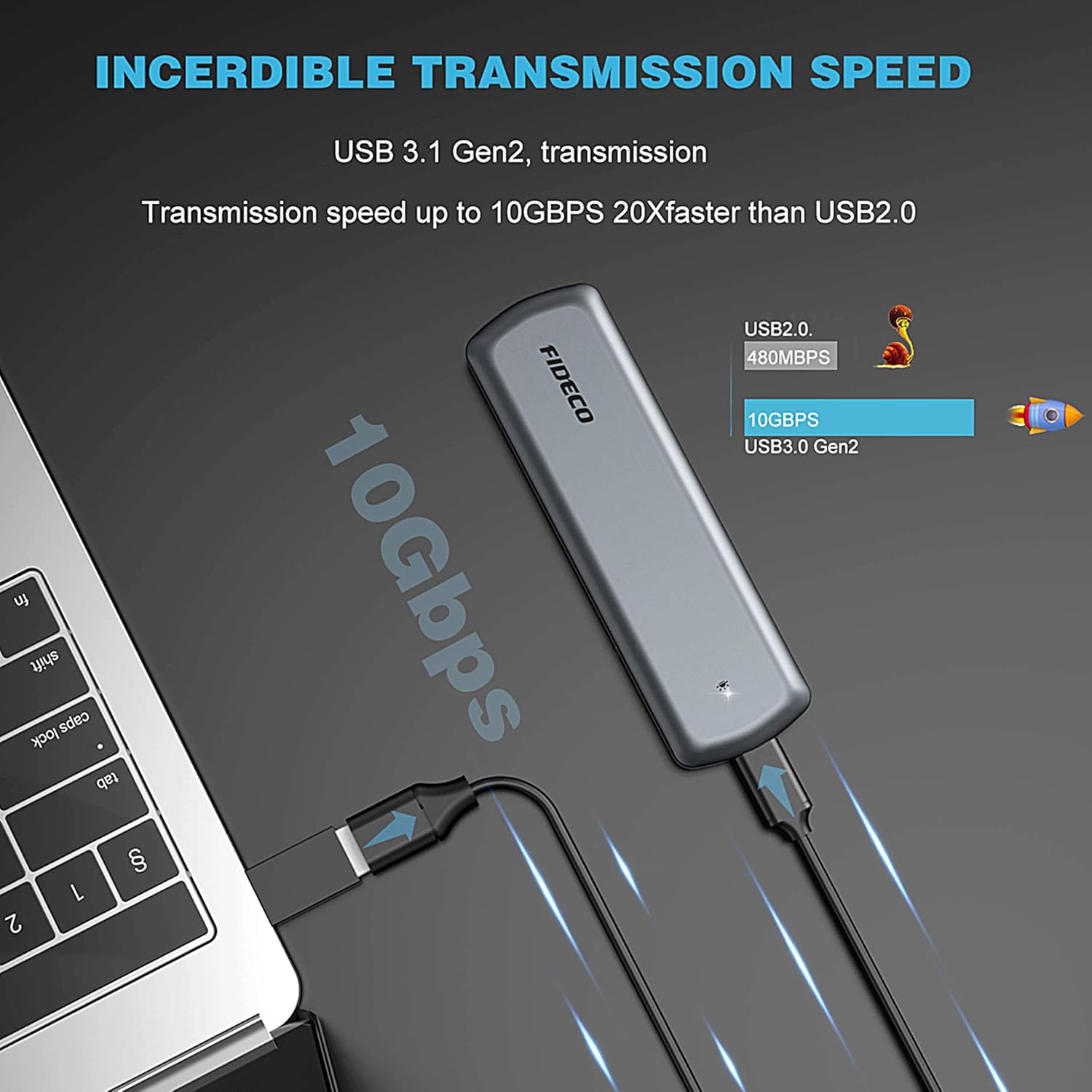
Figure 4.1: The enclosure supports USB 3.1 Gen 2, offering data transfer speeds up to 10Gbps, which is 20 times faster than USB 2.0.
4.2 Initializing a New Hard Drive
If you are using a brand new SSD, it may not be immediately recognized by your operating system until it is initialized and formatted. Follow the steps below or refer to the video for a visual guide.
Video 4.1: This video demonstrates the process of initializing a hard drive under both Windows and Mac OS, a necessary step for new SSDs to be recognized and used by your computer.
4.2.1 Windows Initialization
- Right-click on "This PC" (or "My Computer") and select "Manage".
- In the Computer Management window, navigate to "Disk Management" under "Storage".
- Locate your new SSD (it will likely show as "Unknown" or "Not Initialized").
- Right-click on the disk and select "Initialize Disk".
- Choose the appropriate partition style (GPT is recommended for modern systems, MBR for older systems or smaller drives). Click "OK".
- Right-click on the "Unallocated" space on the new disk and select "New Simple Volume".
- Follow the New Simple Volume Wizard, assigning a drive letter and choosing a file system (NTFS for Windows, exFAT for cross-platform compatibility).
- Complete the wizard to format the drive.
4.2.2 Mac OS Initialization
- Open "Disk Utility" (found in Applications > Utilities, or via Spotlight search).
- In Disk Utility, select your new SSD from the sidebar (it may appear as "Uninitialized").
- Click the "Erase" button in the toolbar.
- Provide a name for the drive, choose a format (e.g., APFS for macOS 10.13+, Mac OS Extended (Journaled) for older macOS, or exFAT for cross-platform compatibility), and a scheme (GUID Partition Map is recommended).
- Click "Erase" to format the drive.
4.3 വൈവിധ്യമാർന്ന ഉപയോഗം
The FIDECO M.2 SSD Enclosure is highly versatile, allowing you to back up pictures, watch movies, or access data from various devices.

Figure 4.2: Super convenience: Use with smartphones for on-the-go data access.
Figure 4.3: Seamlessly connect to laptops for expanded storage.
Figure 4.4: Ideal for desktop use, providing fast external storage.
5. പരിപാലനവും പരിചരണവും
- താപ വിസർജ്ജനം: The aluminum alloy shell is designed for excellent heat dissipation. While normal operation may cause the enclosure to warm up, prolonged heavy use might lead to higher temperatures. Avoid leaving it plugged in for extended periods if not actively in use, especially during intensive data transfers.
- സുരക്ഷിതമായ നീക്കം: ഡാറ്റ കേടാകുന്നത് തടയാൻ എൻക്ലോഷർ വിച്ഛേദിക്കുന്നതിന് മുമ്പ് നിങ്ങളുടെ ഓപ്പറേറ്റിംഗ് സിസ്റ്റത്തിൽ നിന്ന് ഡ്രൈവ് എല്ലായ്പ്പോഴും സുരക്ഷിതമായി പുറത്തെടുക്കുക.
- വൃത്തിയാക്കൽ: Use a soft, dry cloth to clean the exterior of the enclosure. Avoid liquid cleaners or abrasive materials.
- സംഭരണം: നേരിട്ടുള്ള സൂര്യപ്രകാശത്തിൽ നിന്നും കടുത്ത താപനിലയിൽ നിന്നും അകന്ന് തണുത്തതും വരണ്ടതുമായ സ്ഥലത്ത് ഈ പൊതി സൂക്ഷിക്കുക.
- പോർട്ടബിലിറ്റി: Its slim and portable design makes it easy to carry.

Figure 5.1: The enclosure features an advanced built-in JMS583 chip for steady performance and includes features for better heat dissipation and short circuit protection.

Figure 5.2: The enclosure's compact dimensions (4.8" x 1.4" x 0.47") make it highly portable.
6. പ്രശ്നപരിഹാരം
| പ്രശ്നം | സാധ്യമായ കാരണം | പരിഹാരം |
|---|---|---|
| SSD not recognized by computer. | New SSD not initialized or formatted. Incorrect M.2 SSD type (e.g., AHCI not supported). Loose connection. |
|
| ഉപയോഗിക്കുമ്പോൾ എൻക്ലോഷർ ചൂടാകുന്നു. | Normal operation, especially during heavy data transfer. | This is normal due to heat dissipation from the SSD. For prolonged heavy use, consider disconnecting when not in active use to allow cooling. The aluminum casing is designed to dissipate heat effectively. |
| Difficulty opening the enclosure. | Tight fit for secure closure. | Apply firm, even pressure when sliding the rear cover. Some users find adding a small piece of tape for grip can help. |
| Data corruption or loss. | Improper disconnection. Connecting to an incompatible USB port (e.g., USB 2.0 with certain SSDs). |
|
7 സ്പെസിഫിക്കേഷനുകൾ
| ഫീച്ചർ | വിശദാംശങ്ങൾ |
|---|---|
| ബ്രാൻഡ് | ഫിഡെക്കോ |
| മോഡൽ നമ്പർ | FD-M204CP-JP2 |
| അനുയോജ്യമായ SSD തരങ്ങൾ | M.2 NVME PCIe (M-Key, B+M Key), M.2 SATA (B+M Key) |
| ഇൻ്റർഫേസ് | USB 3.1 Gen 2 (USB-C) |
| ഡാറ്റ കൈമാറ്റ നിരക്ക് | 10 Gbps വരെ |
| Max Supported Capacity | 2 ടി.ബി |
| മെറ്റീരിയൽ | അലുമിനിയം |
| നിറം | ചാരനിറം |
| അളവുകൾ (LxWxH) | 4.8 x 1.41 x 0.47 ഇഞ്ച് |
| ഇനത്തിൻ്റെ ഭാരം | 3.98 ഔൺസ് |
| പിന്തുണയ്ക്കുന്ന OS | വിൻഡോസ്, മാക് ഒഎസ്, ലിനക്സ് |
8. വാറൻ്റിയും പിന്തുണയും
FIDECO products are designed for reliability and performance. For warranty information, technical support, or customer service inquiries, please refer to the contact details provided on the product packaging or visit the official FIDECO webസൈറ്റ്. വാറന്റി ക്ലെയിമുകൾക്കായി നിങ്ങളുടെ വാങ്ങലിന്റെ തെളിവ് സൂക്ഷിക്കുക.


