ആമുഖം
This manual provides detailed instructions for the setup, operation, and maintenance of your Geeni Smart Home Pet and Baby Monitor. This 1080p wireless Wi-Fi camera is designed to help you monitor your home, pets, or children with ease, offering features such as two-way audio, motion detection, and night vision. Please read this manual thoroughly before using the device to ensure proper functionality and safety.

The Geeni Smart Home Pet and Baby Monitor shown alongside a smartphone displaying its live feed of a baby.
ഉൽപ്പന്നം കഴിഞ്ഞുview
പ്രധാന സവിശേഷതകൾ
- 1080p HD വീഡിയോ: Provides clear, high-definition live streaming and recording.
- രാത്രി കാഴ്ച: Automatic infrared night vision for monitoring in low-light conditions.
- ടു-വേ ഓഡിയോ: Communicate with your pet or baby directly through the camera.
- ചലന, ശബ്ദ മുന്നറിയിപ്പുകൾ: Receive instant notifications on your smartphone for detected activity.
- Crying Alert: Specifically designed to detect and notify you of a baby's crying.
- താപനില മുന്നറിയിപ്പ്: Monitors the room temperature and sends alerts if it goes outside a set range.
- പാൻ ആൻഡ് ടിൽറ്റ് പ്രവർത്തനം: ക്യാമറകൾ വിദൂരമായി ക്രമീകരിക്കുക viewing angle (355° horizontal, 100° vertical) via the app.
- വോയ്സ് അസിസ്റ്റൻ്റ് അനുയോജ്യത: Works with Amazon Alexa and Google Assistant for convenient control.
- പ്രാദേശികവും ക്ലൗഡ് സംഭരണവും: Options for storing video footage.
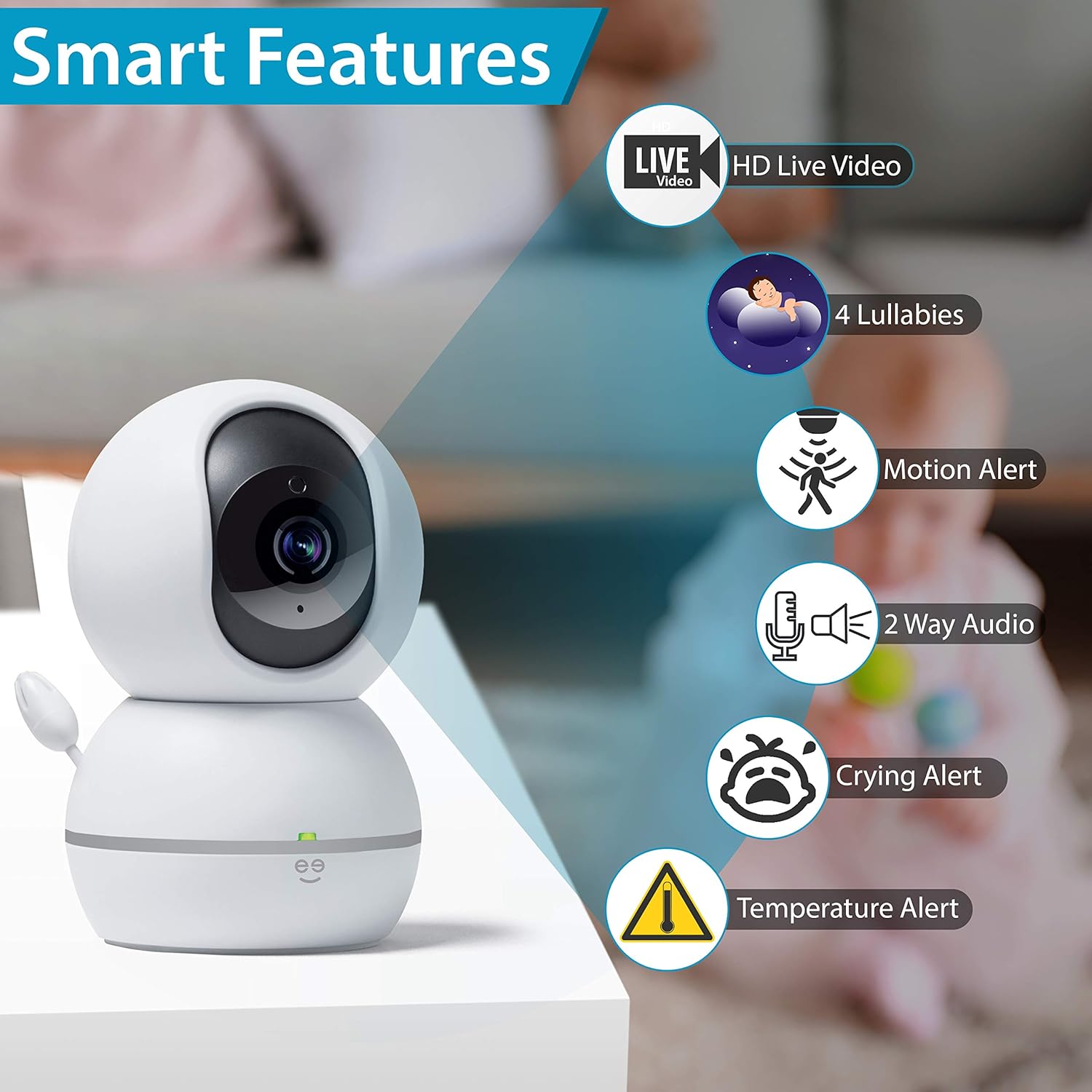
ഒരു ഓവർview of the Geeni camera's smart features, such as HD live video, lullabies, motion alerts, two-way audio, crying alerts, and temperature alerts.

A visual representation of the Geeni camera's comprehensive features, including 360-degree view, app control, lullabies, various alerts, and night vision.
പാക്കേജ് ഉള്ളടക്കം
- Geeni Smart Home Pet and Baby Monitor
- പവർ അഡാപ്റ്റർ
- ഉപയോക്തൃ മാനുവൽ
സജ്ജീകരണ ഗൈഡ്
Follow these steps to set up your Geeni Smart Home Pet and Baby Monitor.
Step 1: Download the Geeni App
Download the Geeni app from the App Store (for iOS devices) or Google Play Store (for Android devices). Register for a new account or log in if you already have one.
ഘട്ടം 2: ക്യാമറ പവർ ഓൺ ചെയ്യുക
Plug the power adapter into the camera and then into a power outlet. The camera will power on, and an indicator light will begin to flash, indicating it is ready for pairing.
ഘട്ടം 3: വൈഫൈയിലേക്ക് കണക്റ്റുചെയ്യുക
- Open the Geeni app and tap the '+' icon to add a new device.
- Select 'Camera' from the device list.
- Follow the on-screen instructions to connect the camera to your 2.4 GHz Wi-Fi network. Ensure your phone is connected to the same 2.4 GHz network during setup.
- The app will guide you through scanning a QR code with the camera or using an alternative pairing method.
- Once connected, the indicator light will turn solid, and you can name your camera and begin monitoring.

Visual guide for setting up the Geeni camera, including app download, power connection, Wi-Fi pairing, and smart home integration.

A simplified three-step setup process for the Geeni camera: download the app, plug in the device, and connect to your network.
പ്രവർത്തന നിർദ്ദേശങ്ങൾ
തത്സമയം View കൂടാതെ പാൻ/ടിൽറ്റ് നിയന്ത്രണം
Once connected, open the Geeni app and select your camera to view the live feed. Use the on-screen controls to pan (rotate horizontally up to 355°) and tilt (rotate vertically up to 100°) the camera to adjust your viewing ആംഗിൾ.

The Geeni camera's pan and tilt functionality is controlled directly through the mobile application, allowing for a wide range of view ക്രമീകരണങ്ങൾ.
ടു-വേ ഓഡിയോ
ലൈവിലെ മൈക്രോഫോൺ ഐക്കണിൽ ടാപ്പ് ചെയ്യുക view interface to speak through the camera. This allows you to comfort your baby or communicate with a pet remotely. Tap the speaker icon to listen to audio from the camera's environment.

The two-way audio feature enables users to speak and listen through the camera, facilitating remote interaction.
അലേർട്ടുകളും അറിയിപ്പുകളും
Configure motion, sound, crying, and temperature alerts within the Geeni app settings. You will receive push notifications on your smartphone when these events are detected, allowing you to respond promptly.
വോയ്സ് അസിസ്റ്റൻ്റ് ഇൻ്റഗ്രേഷൻ
Connect your Geeni camera to Amazon Alexa or Google Assistant through the respective apps. Once linked, you can use voice commands such as "Show me Baby's Crib" or "What's the temperature in Baby's Crib" on compatible devices.

Users can check in on their monitored space using voice commands with integrated smart assistants, viewing the feed on compatible devices.
റെക്കോർഡിംഗും സംഭരണവും
The camera supports local storage via a microSD card (not included) for continuous recording or event-triggered clips. Cloud storage options may also be available through the Geeni app for secure off-site storage of your footage.

The Geeni camera offers multiple ways to monitor, including cloud storage, multi-camera view on a mobile device, and web ബ്രൗസർ ആക്സസ്.
മെയിൻ്റനൻസ്
ക്യാമറ വൃത്തിയാക്കുന്നു
To clean the camera, gently wipe the exterior with a soft, dry cloth. Do not use harsh chemicals, cleaning solvents, or abrasive cleaners, as these can damage the device. Ensure the camera is unplugged before cleaning.
സോഫ്റ്റ്വെയർ അപ്ഡേറ്റുകൾ
Periodically check the Geeni app for available firmware updates. Keeping your camera's software up-to-date ensures optimal performance, security, and access to new features.
ട്രബിൾഷൂട്ടിംഗ്
ക്യാമറ വൈഫൈയിലേക്ക് കണക്റ്റ് ചെയ്യുന്നില്ല
- നിങ്ങളുടെ വൈഫൈ നെറ്റ്വർക്ക് 2.4 GHz ആണെന്ന് ഉറപ്പാക്കുക. ക്യാമറ 5 GHz നെറ്റ്വർക്കുകളെ പിന്തുണയ്ക്കുന്നില്ല.
- നിങ്ങളുടെ വൈഫൈ പാസ്വേഡ് ശരിയാണോ എന്ന് പരിശോധിക്കുക.
- സജ്ജീകരണ സമയത്ത് ക്യാമറ നിങ്ങളുടെ വൈഫൈ റൂട്ടറിന് അടുത്തായി വയ്ക്കുക.
- Restart your router and the camera, then attempt the pairing process again.
- If your router broadcasts both 2.4 GHz and 5 GHz networks with the same name, consider temporarily disabling the 5 GHz band or separating them with different SSIDs during setup.
Camera Offline in App
- Check if the camera's power adapter is securely plugged in and the camera is powered on.
- നിങ്ങളുടെ വീട്ടിലെ വൈഫൈ നെറ്റ്വർക്ക് സജീവമാണെന്നും ശരിയായി പ്രവർത്തിക്കുന്നുണ്ടെന്നും ഉറപ്പാക്കുക.
- Restart the camera by unplugging it for 10 seconds and plugging it back in.
- If the issue persists, you may need to re-pair the camera with the Geeni app.
No Audio or Poor Audio Quality
- Ensure the microphone and speaker permissions are enabled for the Geeni app on your smartphone.
- Check the volume settings within the app and on your smartphone.
- Minimize background noise near the camera for clearer audio.
സാങ്കേതിക സവിശേഷതകൾ
| ഫീച്ചർ | സ്പെസിഫിക്കേഷൻ |
|---|---|
| മോഡൽ നമ്പർ | GN-CW023-199 |
| വീഡിയോ റെസല്യൂഷൻ | 1080p (Effective: 1080 Pixels) |
| Viewing ആംഗിൾ | 355 Degrees (Horizontal), 100 Degrees (Vertical) |
| വയർലെസ് ടെക്നോളജി | വൈഫൈ (2.4 GHz മാത്രം) |
| പവർ ഉറവിടം | Corded Electric (Wattage: 24 watts) |
| പ്രത്യേക സവിശേഷതകൾ | Night Vision, Motion Alert, Sound Alert, Crying Alert, Temperature Alert, Two-Way Audio |
| അനുയോജ്യമായ ഉപകരണങ്ങൾ | Smartphone, Tablet (via Geeni App), Amazon Alexa, Google Assistant |
| അളവുകൾ (L x W x H) | 6.86 x 6.86 x 10.92 സെ.മീ |
| ഇനത്തിൻ്റെ ഭാരം | 472 ഗ്രാം |
| മെറ്റീരിയൽ | പ്ലാസ്റ്റിക് |
വാറന്റി വിവരങ്ങളും ഉപഭോക്തൃ പിന്തുണയും
For detailed warranty information, product registration, and the most up-to-date customer support resources, please visit the official Geeni website. You can typically find FAQs, troubleshooting guides, and contact information for technical assistance there.
Geeni Official Webസൈറ്റ്: www.mygeeni.com


