1. ആമുഖം
This manual provides detailed instructions for the installation, operation, and troubleshooting of your EDUP AC1300 USB WiFi Adapter. This device is designed to provide high-speed wireless connectivity for your desktop or laptop computer, supporting both 2.4GHz and 5GHz bands for optimal performance in various network environments.
2 സുരക്ഷാ വിവരങ്ങൾ
- ഉപകരണം വെള്ളത്തിലോ അമിതമായ ഈർപ്പത്തിലോ തുറന്നുകാട്ടരുത്.
- താപ സ്രോതസ്സുകൾക്ക് സമീപം അല്ലെങ്കിൽ നേരിട്ട് സൂര്യപ്രകാശത്തിൽ ഉപകരണം സ്ഥാപിക്കുന്നത് ഒഴിവാക്കുക.
- ഉപകരണം സ്വയം വേർപെടുത്താനോ നന്നാക്കാനോ ശ്രമിക്കരുത്. സേവനത്തിനായി യോഗ്യതയുള്ള ഉദ്യോഗസ്ഥരെ സമീപിക്കുക.
- നൽകിയിരിക്കുന്ന ആക്സസറികൾ മാത്രം ഉപയോഗിക്കുക.
- കുട്ടികൾക്ക് ലഭ്യമാകാതെ സൂക്ഷിക്കുക.
3. പാക്കേജ് ഉള്ളടക്കം
പാക്കേജിലെ ഉള്ളടക്കങ്ങൾ ശ്രദ്ധാപൂർവ്വം പരിശോധിക്കുക. ഏതെങ്കിലും ഇനം നഷ്ടപ്പെട്ടാലോ കേടായാലോ, നിങ്ങളുടെ റീട്ടെയിലറെ ബന്ധപ്പെടുക.
- 1 x EDUP AC1300 USB WiFi Adapter (Model: EP-AC1686S)
- 1 x Mini CD (Driver)
- 1 x ഉപയോക്തൃ മാനുവൽ (ഈ പ്രമാണം)
4. ഉൽപ്പന്നം കഴിഞ്ഞുview
The EDUP AC1300 USB WiFi Adapter is a compact device designed for high-speed wireless networking. It features a USB 3.0 interface for faster data transfer and an external 6dBi antenna for enhanced signal reception.

Figure 4.1: EDUP AC1300 USB WiFi Adapter with its external antenna.
The adapter consists of a main USB dongle and a detachable high-gain antenna. The USB dongle plugs into a USB 3.0 port on your computer, indicated by the blue internal tab. A small LED indicator on the dongle illuminates when the device is active. The external antenna connects to the dongle via a screw-on connector, allowing for flexible positioning to optimize signal strength.

ചിത്രം 4.2: പിൻഭാഗം view of the USB WiFi Adapter showing product label with model EP-AC1686S.
The product label on the adapter provides essential information including the model number (EP-AC1686S) and various certifications. The antenna is designed to be adjustable, allowing users to orient it for the best possible signal reception.
5. സജ്ജീകരണം
Follow these steps to install your EDUP AC1300 USB WiFi Adapter:
- ഡ്രൈവർ ഇൻസ്റ്റാൾ ചെയ്യുക:
Before plugging in the WiFi adapter, you must install the necessary drivers. Insert the provided mini CD into your computer's CD-ROM drive. If your computer does not have a CD-ROM drive, you can download the latest drivers from the official EDUP website. Run the setup file and follow the on-screen instructions to complete the driver installation.
പ്രധാന കുറിപ്പ്:
- For Windows 11, Windows 10, Windows 8/8.1/7/XP, Vista, and Mac OS 10.6 to 10.15, ensure you install the correct driver version.
- ഈ അഡാപ്റ്റർ അല്ല support macOS Big Sur.
- It is recommended to install the driver from the CD or EDUP website first, then plug in the adapter.
- ആന്റിന ബന്ധിപ്പിക്കുക:
Carefully screw the external 6dBi antenna onto the connector on the USB WiFi adapter. Ensure it is securely fastened but do not overtighten.
- അഡാപ്റ്റർ പ്ലഗ് ഇൻ ചെയ്യുക:
Insert the USB WiFi adapter into an available USB 3.0 port on your desktop or laptop. USB 3.0 ports are typically blue. While the adapter is backward compatible with USB 2.0, a USB 3.0 port is recommended for optimal performance and faster transmission speeds.

Figure 5.1: System Compatibility for the EDUP AC1300 USB WiFi Adapter.
Once plugged in, your operating system should recognize the device. If the driver was installed correctly, the adapter will appear in your network connections.
6. Operating the WiFi Adapter
After successful installation, you can connect to a wireless network.
- ഒരു വൈഫൈ നെറ്റ്വർക്കിലേക്ക് കണക്റ്റുചെയ്യുന്നു:
- Click on the network icon in your system tray (Windows) or menu bar (Mac OS).
- ലഭ്യമായ നെറ്റ്വർക്കുകളുടെ പട്ടികയിൽ നിന്ന് നിങ്ങൾക്ക് ആവശ്യമുള്ള വൈഫൈ നെറ്റ്വർക്ക് തിരഞ്ഞെടുക്കുക.
- ആവശ്യപ്പെടുകയാണെങ്കിൽ നെറ്റ്വർക്ക് സുരക്ഷാ കീ (പാസ്വേഡ്) നൽകുക.
- Click "Connect" to establish the connection.
- Dual-Band Operation (2.4GHz and 5GHz):
The adapter supports both 2.4GHz and 5GHz frequency bands. The 2.4GHz band offers wider coverage and better penetration through walls, while the 5GHz band provides faster speeds and less interference, ideal for activities like 4K video streaming and online gaming. Your router must also support dual-band operation for you to utilize the 5GHz band.

Figure 6.1: Speed capabilities across 2.4GHz and 5GHz bands, and USB 3.0 vs USB 2.0.
- Soft AP Mode (Hotspot Function):
The Soft AP feature allows you to turn your computer into a WiFi hotspot, sharing your wired internet connection wirelessly with other devices like smartphones, tablets, or other computers. This is useful if you only have a wired internet connection and need to provide WiFi access to other devices.
- To enable Soft AP mode, refer to the specific instructions provided by your operating system or the driver utility software.
- നിങ്ങളുടെ കമ്പ്യൂട്ടർ ഒരു ഇതർനെറ്റ് കേബിൾ വഴി ഇന്റർനെറ്റുമായി ബന്ധിപ്പിച്ചിട്ടുണ്ടെന്ന് ഉറപ്പാക്കുക.
- Once enabled, other devices can connect to the new WiFi network created by your adapter.

Figure 6.2: Illustration of Soft AP Mode, enabling the adapter to create a WiFi hotspot.
7. പരിപാലനം
The EDUP AC1300 USB WiFi Adapter requires minimal maintenance.
- അഡാപ്റ്റർ വൃത്തിയായും പൊടിയില്ലാതെയും സൂക്ഷിക്കുക. വൃത്തിയാക്കാൻ മൃദുവായതും ഉണങ്ങിയതുമായ തുണി ഉപയോഗിക്കുക.
- Ensure the antenna is not bent or damaged.
- Periodically check the EDUP website for updated drivers to ensure optimal performance and compatibility with new operating system versions.
8. പ്രശ്നപരിഹാരം
| പ്രശ്നം | സാധ്യമായ കാരണം | പരിഹാരം |
|---|---|---|
| അഡാപ്റ്റർ കണ്ടെത്തിയില്ല അല്ലെങ്കിൽ പ്രവർത്തിക്കുന്നില്ല. | Driver not installed or incorrectly installed. Adapter not properly inserted. യുഎസ്ബി പോർട്ട് പ്രശ്നം. | Install the driver from the mini CD or EDUP webസൈറ്റ്. അഡാപ്റ്റർ പൂർണ്ണമായും ഒരു USB 3.0 പോർട്ടിൽ ചേർത്തിട്ടുണ്ടെന്ന് ഉറപ്പാക്കുക. മറ്റൊരു USB പോർട്ട് പരീക്ഷിക്കുക. നിങ്ങളുടെ കമ്പ്യൂട്ടർ പുനരാരംഭിക്കുക. |
| Slow connection speed. | Connected to 2.4GHz band instead of 5GHz. ഇടപെടൽ. ദുർബലമായ സിഗ്നൽ. | Connect to the 5GHz network if available. Move closer to the router or adjust antenna position. Check for other devices causing interference. |
| Cannot connect to a specific WiFi network. | തെറ്റായ പാസ്വേഡ്. Network not broadcasting. റൂട്ടർ പ്രശ്നങ്ങൾ. | വൈഫൈ പാസ്വേഡ് പരിശോധിക്കുക. Ensure the network is visible. നിങ്ങളുടെ റൂട്ടർ പുനരാരംഭിക്കുക. |
| "No Internet Access" even when connected. | Router or ISP issue. IP configuration problem. | നിങ്ങളുടെ റൂട്ടറിന്റെ ഇന്റർനെറ്റ് കണക്ഷൻ പരിശോധിക്കുക. നിങ്ങളുടെ റൂട്ടറും കമ്പ്യൂട്ടറും പുനരാരംഭിക്കുക. വിൻഡോസ് നെറ്റ്വർക്ക് ട്രബിൾഷൂട്ടർ പ്രവർത്തിപ്പിക്കുക. |
9 സ്പെസിഫിക്കേഷനുകൾ
| ഫീച്ചർ | വിവരണം |
|---|---|
| മോഡൽ | EP-AC1686S |
| ഇൻ്റർഫേസ് | USB 3.0 (യുഎസ്ബി 2.0-ന് പിന്നിലേക്ക് അനുയോജ്യം) |
| വയർലെസ് മാനദണ്ഡങ്ങൾ | IEEE 802.11ac, IEEE 802.11n, IEEE 802.11a, IEEE 802.11g, IEEE 802.11b |
| ഫ്രീക്വൻസി ബാൻഡുകൾ | 2.4GHz, 5GHz |
| ഡാറ്റ കൈമാറ്റ നിരക്ക് | 1300Mbps വരെ (5GHz-ൽ 867Mbps, 2.4GHz-ൽ 300Mbps) |
| ആൻ്റിന തരം | External 6dBi High Gain Antenna |
| ഓപ്പറേറ്റിംഗ് സിസ്റ്റം പിന്തുണ | Windows 11 / 10 / 8 / 8.1 / 7 / XP, Mac OS 10.6 to 10.15 (Not compatible with macOS Big Sur or later) |
| അളവുകൾ (L x W x H) | 2.1 x 0.8 x 6.7 inches (with antenna extended) |
| ഭാരം | 2.11 ഔൺസ് |
| സുരക്ഷാ സവിശേഷതകൾ | WPA, WPA2, WEP encryption |
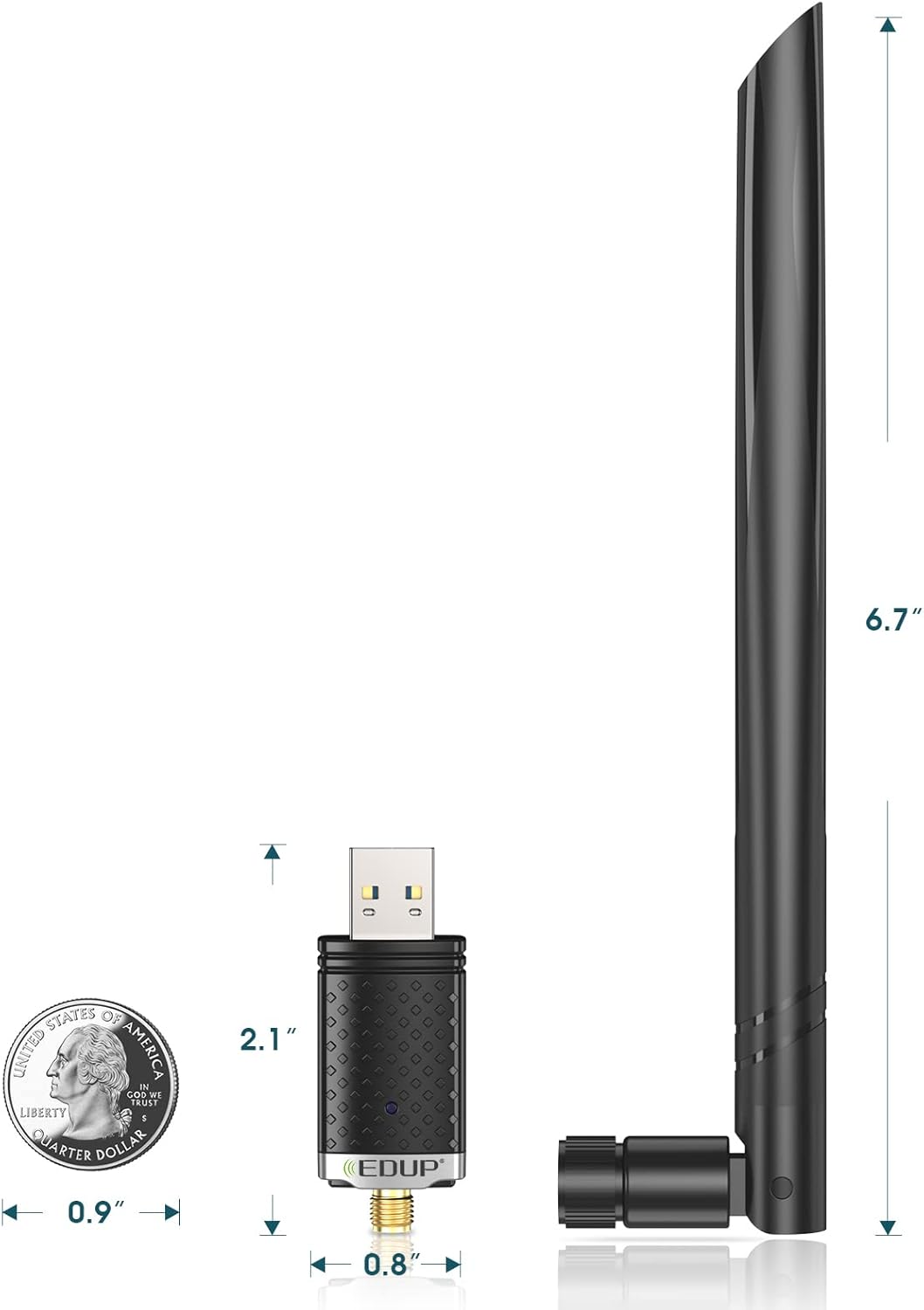
Figure 9.1: Physical dimensions of the EDUP AC1300 USB WiFi Adapter.
10. വാറൻ്റിയും പിന്തുണയും
EDUP products come with a standard manufacturer's warranty. For specific warranty terms and conditions, please refer to the warranty card included in your package or visit the official EDUP webസൈറ്റ്.
For technical support, driver downloads, or frequently asked questions, please visit the EDUP support page or contact their customer service. Contact information can typically be found on the EDUP webസൈറ്റ് അല്ലെങ്കിൽ ഉൽപ്പന്ന പാക്കേജിംഗിൽ.
Official EDUP Webസൈറ്റ്: Visit EDUP Store on Amazon


