1. ആമുഖം
The BENFEI Active DisplayPort to HDMI Adapter provides a reliable solution for connecting DisplayPort-enabled devices to HDMI displays. This adapter supports high-resolution video up to 4K@60Hz and 8-channel digital audio, ensuring a clear and stable transmission for various applications, including multi-screen gaming and professional workstations.
ശരിയായ സജ്ജീകരണവും ഒപ്റ്റിമൽ പ്രകടനവും ഉറപ്പാക്കാൻ ഉൽപ്പന്നം ഉപയോഗിക്കുന്നതിന് മുമ്പ് ദയവായി ഈ മാനുവൽ നന്നായി വായിക്കുക.
2 പ്രധാന സവിശേഷതകൾ
- Excellent Transmission: Utilizes a robust chip solution and professional multiple shielding for instantaneous and accurate data streaming.
- Ultra 4K@60Hz Resolution: Fully compatible with DisplayPort 1.2a, HDCP 1.3/1.4/2.2, HDMI 2.0, and HBR2 specifications. Supports image resolutions up to 1920x1200 @120Hz, 2560x1600 RB @120Hz, 1080P@120Hz, or 4Kx2K@60Hz. Also supports 8 channels digital audio with sampling rates up to 192kHz and sample sizes up to 24 bits, including HBR audio.
- അൾട്രാ ഡ്യൂറബിലിറ്റി: The TPE layer is protected by a nylon braided jacket, offering enhanced performance and longevity even under heavy usage.
- സാർവത്രിക അനുയോജ്യത: Compatible with a wide range of devices including laptops (HP ProBook EliteBook, Lenovo ThinkPad), desktop towers (HP, Dell, Lenovo), graphics cards (AMD, NVIDIA), and other devices with a DisplayPort output.
3. പാക്കേജ് ഉള്ളടക്കം
പാക്കേജ് തുറക്കുമ്പോൾ എല്ലാ ഇനങ്ങളും നിലവിലുണ്ടെന്നും നല്ല നിലയിലാണെന്നും ദയവായി പരിശോധിക്കുക:
- 1 x BENFEI Active DisplayPort to HDMI Adapter 4K@60Hz (Model: 000288grey)
- 1 x ഉപയോക്തൃ മാനുവൽ
4. സജ്ജീകരണ നിർദ്ദേശങ്ങൾ
Follow these steps to connect your DisplayPort source device to an HDMI display:
- Ensure both your source device (e.g., PC, laptop) and your display (e.g., monitor, TV) are powered off.
- ബന്ധിപ്പിക്കുക DisplayPort (DP) male connector of the BENFEI adapter into the DisplayPort output on your source device. Ensure it clicks securely into place.
- Connect a standard HDMI cable (not included) to the HDMI female port of the BENFEI adapter.
- Connect the other end of the HDMI cable to an HDMI input port on your display.
- Power on your display, then power on your source device.
- Select the correct HDMI input on your display using its remote control or on-screen menu.
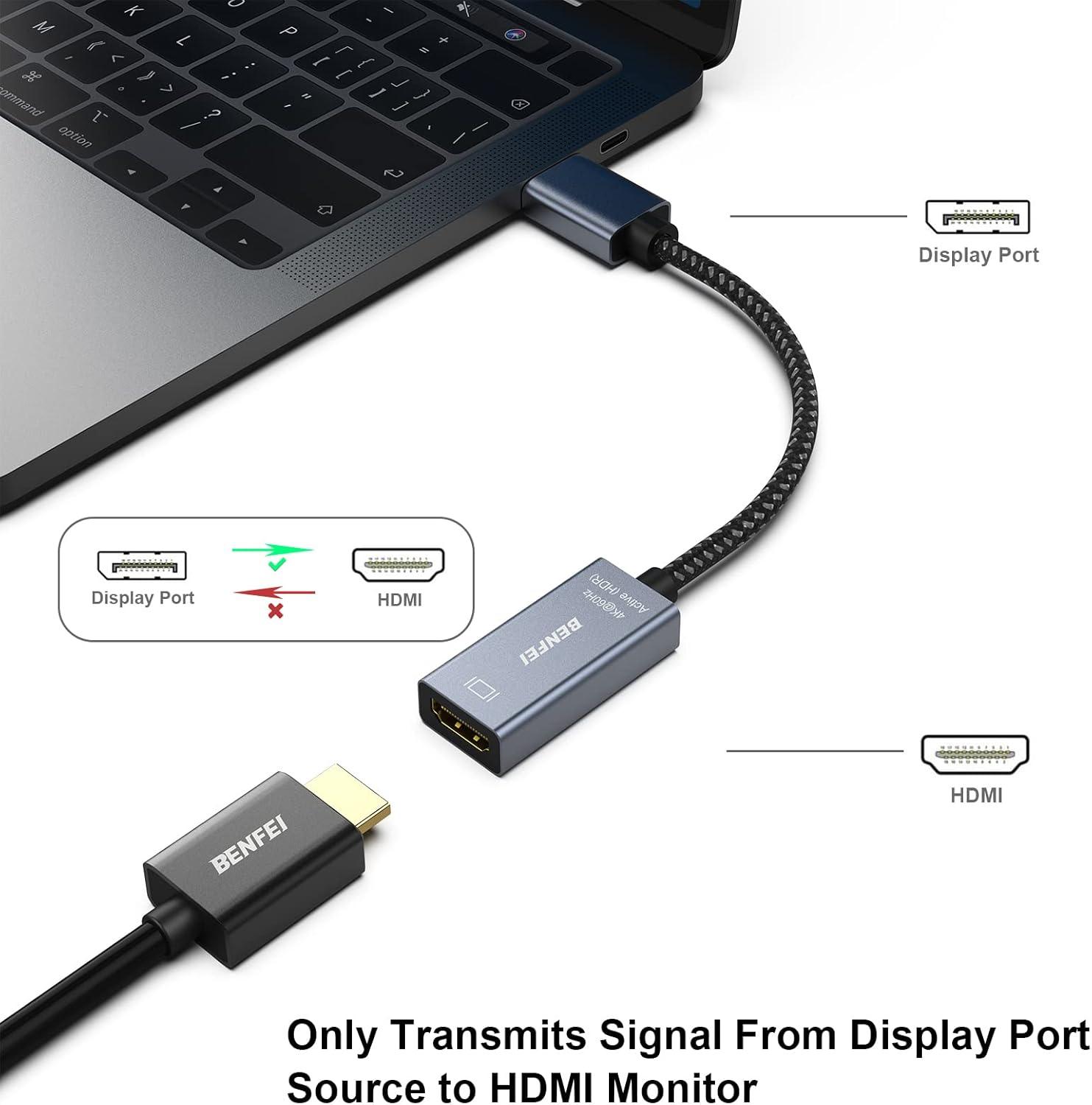
Image: Connecting the BENFEI Active DisplayPort to HDMI Adapter. The DisplayPort end connects to the source device, and the HDMI end connects to an HDMI cable leading to the display.
പ്രധാന കുറിപ്പ്: ഈ അഡാപ്റ്റർ ഏകദിശയിലുള്ള. It converts a DisplayPort signal to an HDMI signal. It cannot convert an HDMI signal to a DisplayPort signal.

Image: Visual representation of the unidirectional signal flow, indicating DisplayPort (Host Device) to HDMI (Target Screen) is supported, but not vice-versa.
5. പ്രവർത്തന നിർദ്ദേശങ്ങൾ
Once connected, your operating system should automatically detect the external display. You can configure the display settings as follows:
5.1. Windows Display Settings
- Right-click on your desktop and select "Display settings" or "Screen resolution".
- Under "Multiple displays", you can choose from the following options:
- ഈ ഡിസ്പ്ലേകളുടെ തനിപ്പകർപ്പ്: Shows the same content on both your primary screen and the connected HDMI display (Mirror Mode).
- ഈ ഡിസ്പ്ലേകൾ വിപുലീകരിക്കുക: Extends your desktop across both screens, allowing for more workspace (Extended Mode).
- Show only on 1/2: Displays content only on the selected screen.
- Adjust resolution and refresh rate as needed. For optimal performance, ensure your display is set to 4K (3840x2160) at 60Hz.
5.2. macOS Display Settings
- "സിസ്റ്റം മുൻഗണനകൾ" > "പ്രദർശനങ്ങൾ" എന്നതിലേക്ക് പോകുക.
- In the "Arrangement" tab, you can drag the display icons to arrange them as desired for extended desktop.
- To enable Mirror Mode, check the "Mirror Displays" box.
- In the "Display" tab, select the desired resolution and refresh rate for your external monitor.

Image: Illustration of Mirror Mode (same content on both screens) and Extended Mode (desktop spread across screens) using the adapter.

ചിത്രം: ഒരു മുൻ കാമുകൻample of a workstation setup with a desktop PC connected to two external monitors, demonstrating how the adapter can be used to expand display capabilities for increased efficiency.
6 അനുയോജ്യത
The BENFEI Active DisplayPort to HDMI Adapter is designed for broad compatibility with various DisplayPort-enabled source devices and HDMI displays.
6.1. അനുയോജ്യമായ ഉറവിട ഉപകരണങ്ങൾ
- Laptops: HP ProBook, EliteBook; Lenovo ThinkPad; and other laptops with DisplayPort output.
- Desktop Towers: HP, Dell, Lenovo, and other desktop PCs with DisplayPort output.
- Graphics Cards: AMD, NVIDIA, and other graphics cards with DisplayPort output.
- Tablets with DisplayPort output.
6.2. Compatible Displays
- Monitors with HDMI input.
- Projectors with HDMI input.
- Televisions (HDTVs) with HDMI input.

Image: Universal compatibility diagram illustrating various host devices (laptops, desktop PCs, graphics cards) that can connect to different target screens (projectors, TVs, displays) using the adapter.
7. ഉൽപ്പന്ന സവിശേഷതകൾ
| ഫീച്ചർ | വിശദാംശങ്ങൾ |
|---|---|
| മോഡൽ നമ്പർ | 000288 ഗ്രേ |
| ഉൽപ്പന്ന അളവുകൾ | 0.39 x 0.39 x 0.39 ഇഞ്ച് |
| ഇനത്തിൻ്റെ ഭാരം | 1.41 ഔൺസ് |
| കണക്റ്റർ തരം | DisplayPort (Male) to HDMI (Female) |
| പരമാവധി മിഴിവ് | 4Kx2K@60Hz (3840x2160@60Hz) |
| പിന്തുണയ്ക്കുന്ന മറ്റ് പ്രമേയങ്ങൾ | 1920x1200@120Hz, 2560x1600 RB@120Hz, 1080P@120Hz |
| ഓഡിയോ പിന്തുണ | 8 channels digital audio, up to 192kHz sampling rate, 24 bits sample size, HBR audio |
| DisplayPort Standard | ഡിസ്പ്ലേ പോർട്ട് 1.2എ |
| HDMI സ്റ്റാൻഡേർഡ് | HDMI 2.0 |
| HDCP പിന്തുണ | എച്ച്ഡിസിപി 1.3/1.4/2.2 |
| നിറം | ചാരനിറം |
| നിർമ്മാതാവ് | ബെൻഫെയ് |

ചിത്രം: വിശദമായത് view of the adapter highlighting its portable size, integrated smart chip for performance, and 24K gold-plated connectors for enhanced durability and signal integrity.
8. പ്രശ്നപരിഹാരം
If you encounter issues while using the adapter, please refer to the following common solutions:
- ഡിസ്പ്ലേ/കറുത്ത സ്ക്രീൻ ഇല്ല:
- Ensure both the DisplayPort and HDMI connections are secure.
- Verify that the correct HDMI input is selected on your display.
- Check if your source device's DisplayPort output is active. You might need to enable it in your computer's display settings or graphics card control panel.
- Try restarting your computer and display.
- Test with a different HDMI cable to rule out cable issues.
- മിന്നിമറയുന്ന അല്ലെങ്കിൽ അസ്ഥിരമായ ചിത്രം:
- Ensure the DisplayPort and HDMI connections are firm.
- Lower the resolution or refresh rate in your computer's display settings to see if stability improves.
- നിങ്ങളുടെ ഗ്രാഫിക്സ് കാർഡ് ഡ്രൈവറുകൾ ഏറ്റവും പുതിയ പതിപ്പിലേക്ക് അപ്ഡേറ്റ് ചെയ്യുക.
- Avoid using excessively long HDMI cables, as this can degrade signal quality.
- ഓഡിയോ ഇല്ല:
- Check your computer's sound settings to ensure the HDMI output is selected as the default playback device.
- Verify that the volume on both your computer and display is not muted or set too low.
- Ensure your display supports audio transmission via HDMI.
- പ്രതീക്ഷിച്ചത്ര റെസല്യൂഷൻ/പുതുക്കൽ നിരക്ക് ഇല്ല:
- Confirm that both your source device's graphics card and your HDMI display support the desired resolution and refresh rate (e.g., 4K@60Hz).
- Check your computer's display settings and manually select the highest available resolution and refresh rate.
9. പരിചരണവും പരിപാലനവും
- അഡാപ്റ്റർ വരണ്ട അന്തരീക്ഷത്തിൽ സൂക്ഷിക്കുക, ഈർപ്പം, കടുത്ത താപനില എന്നിവയിൽ നിന്ന് അകറ്റി നിർത്തുക.
- ആന്തരിക കേടുപാടുകൾ തടയാൻ കേബിൾ അമിതമായി വളയ്ക്കുകയോ വളച്ചൊടിക്കുകയോ ചെയ്യുന്നത് ഒഴിവാക്കുക.
- ഒപ്റ്റിമൽ സിഗ്നൽ ട്രാൻസ്മിഷൻ ഉറപ്പാക്കാൻ, മൃദുവായതും ഉണങ്ങിയതുമായ തുണി ഉപയോഗിച്ച് കണക്ടറുകൾ ഇടയ്ക്കിടെ വൃത്തിയാക്കുക.
- അഡാപ്റ്റർ സ്വയം വേർപെടുത്താനോ നന്നാക്കാനോ ശ്രമിക്കരുത്. ഇത് വാറന്റി അസാധുവാക്കും.
10. വാറൻ്റിയും പിന്തുണയും
The BENFEI Active DisplayPort to HDMI Adapter comes with an Exclusive Benfei Unconditional 18-month Warranty. This warranty ensures long-term satisfaction with your purchase.
For any questions, technical assistance, or warranty claims, please contact Benfei customer service. Our friendly and easy-to-reach customer service team is available to solve your problems timely.
You can find contact information on the official BENFEI webസൈറ്റ് അല്ലെങ്കിൽ നിങ്ങളുടെ വാങ്ങൽ പ്ലാറ്റ്ഫോം വഴി.
11. ഉൽപ്പന്ന വീഡിയോകൾ
Display Port to HDMI Adapter Overview
വീഡിയോ: ഒരു സംക്ഷിപ്ത വിവരണംview demonstrating the BENFEI DisplayPort to HDMI Adapter, showcasing its design and basic functionality.
ഉൽപ്പന്നം കഴിഞ്ഞുview വീഡിയോ
Video: A concise product overview video from Amazon Product Imaging, illustrating the adapter's features and how it connects to devices.


