1. ആമുഖം
The TOTOLINK T6 AC1200 Wireless Mesh Home Router system is designed to provide seamless and reliable Wi-Fi coverage throughout your home. This system utilizes Mesh technology to create a unified network, ensuring stable connections for all your devices. This manual provides instructions for setting up, operating, and maintaining your T6 Mesh system.
2. പാക്കേജ് ഉള്ളടക്കം
നിങ്ങളുടെ പാക്കേജിൽ എല്ലാ ഇനങ്ങളും ഉണ്ടെന്ന് ദയവായി പരിശോധിക്കുക:
- TOTOLINK T6 Mesh Router Units (Master & Slave)
- പവർ അഡാപ്റ്ററുകൾ
- ഇഥർനെറ്റ് കേബിൾ
- ദ്രുത ഇൻസ്റ്റലേഷൻ ഗൈഡ്
3. ഉൽപ്പന്നം കഴിഞ്ഞുview
The TOTOLINK T6 units are compact, white, square devices designed for discreet placement in your home. Each unit features essential ports and indicators for network connectivity.

Image: Two TOTOLINK T6 Mesh Router units, showing their compact design. One unit is slightly behind the other.
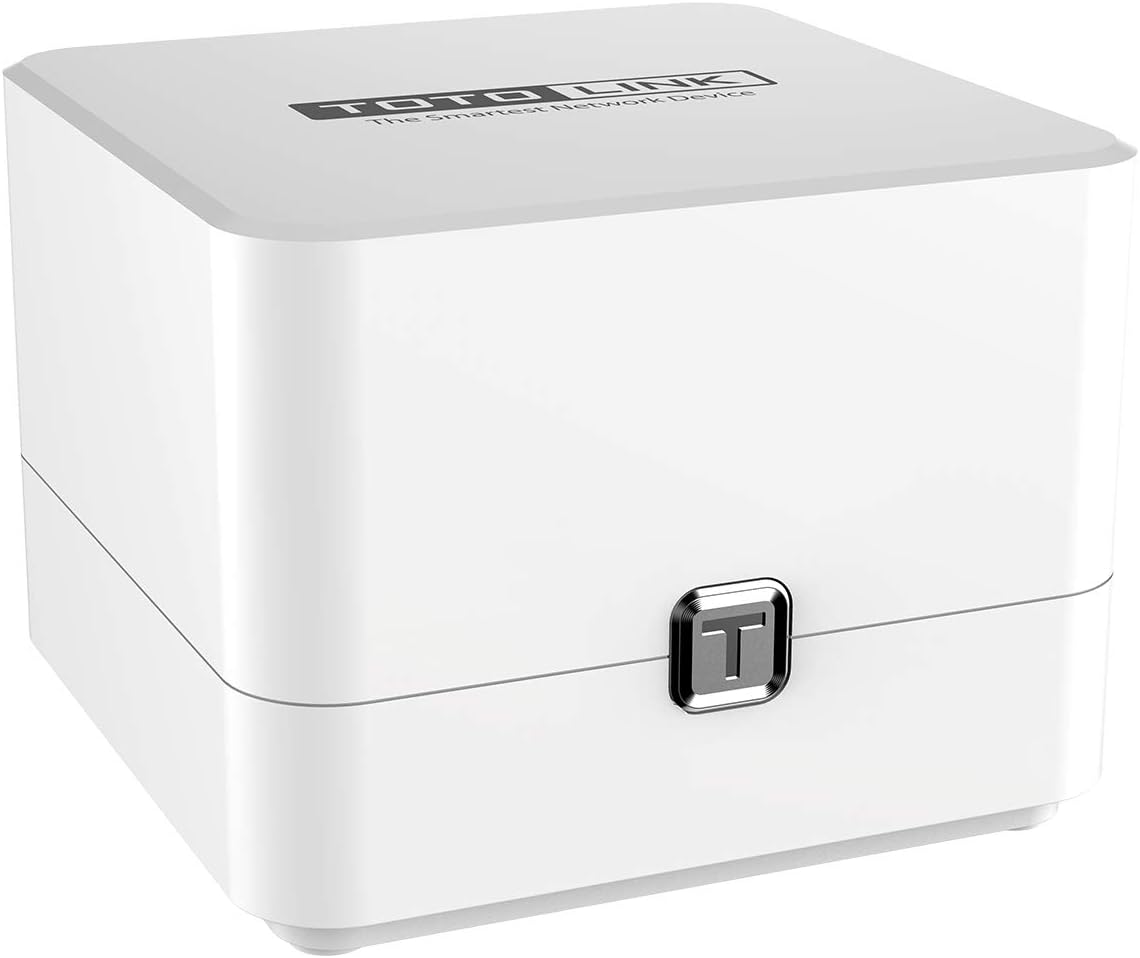
Image: A single TOTOLINK T6 Mesh Router unit, viewed from the top-front, highlighting its minimalist design.
3.1 തുറമുഖങ്ങളും സൂചകങ്ങളും

ചിത്രം: പിൻഭാഗം view of a TOTOLINK T6 unit, clearly showing the power input, WAN port, and two LAN ports.
- പവർ: നൽകിയിരിക്കുന്ന പവർ അഡാപ്റ്ററിലേക്ക് ബന്ധിപ്പിക്കുന്നു.
- വാൻ: Connects to your modem or existing router for internet access. (Typically yellow)
- LAN1/LAN2: Connects to wired devices such as computers, smart TVs, or gaming consoles. (Typically orange/red)
- LED സൂചകം: (Location and specific behavior may vary, refer to Quick Installation Guide for details) Indicates power status, internet connectivity, and Mesh connection status.
4. സജ്ജീകരണം
Follow these steps to set up your TOTOLINK T6 Mesh Home Router system.
4.1 Initial Setup (Master Unit)
- Connect the Master Unit: Identify one T6 unit as the Master. Connect your modem's Ethernet cable to the WAN port of the Master T6 unit.
- പവർ ഓൺ: പവർ അഡാപ്റ്റർ കണക്റ്റുചെയ്യുക പവർ port of the Master T6 unit and plug it into an electrical outlet.
- ബൂട്ടിനായി കാത്തിരിക്കുക: Allow the Master unit to boot up. The LED indicator will change to a stable color (e.g., blue or green) when ready.
- വൈഫൈയിലേക്ക് കണക്റ്റുചെയ്യുക: On your computer or mobile device, search for the default Wi-Fi network (SSID) printed on the label at the bottom of the T6 unit. Connect to this network using the default password.
- പ്രവേശനം Web ഇൻ്റർഫേസ്: എ തുറക്കുക web ബ്രൗസർ ചെയ്ത് സ്ഥിരസ്ഥിതി IP വിലാസം നൽകുക (ഉദാ. http://192.168.0.1) or domain name (e.g., http://itotolink.net) to access the router's management page. Follow the on-screen instructions to complete the initial setup, including setting a new Wi-Fi name and password.
4.2 Adding Slave Units (Mesh Pairing)
The TOTOLINK T6 system is designed for easy expansion. The units are often pre-paired for a plug-and-play experience.

Image: Two TOTOLINK T6 units on a desk, illustrating the 'Plug and Play' feature for easy setup without manual configuration.
- Place Slave Unit: Position the Slave T6 unit in an area where you need extended Wi-Fi coverage, ideally within range of the Master unit or another Slave unit.
- പവർ ഓൺ: പവർ അഡാപ്റ്റർ കണക്റ്റുചെയ്യുക പവർ port of the Slave T6 unit and plug it into an electrical outlet.
- യാന്ത്രിക ജോടിയാക്കൽ: The Slave unit should automatically detect and connect to the existing Mesh network established by the Master unit. The LED indicator will confirm a successful Mesh connection. No manual configuration is typically required for pre-paired units.
- മാനുവൽ ജോടിയാക്കൽ (ആവശ്യമെങ്കിൽ): If automatic pairing fails, consult the Quick Installation Guide for specific instructions on manually pairing units, which may involve pressing a WPS or Mesh button on both units.
5. പ്രവർത്തന നിർദ്ദേശങ്ങൾ
5.1 ഉപകരണങ്ങൾ ബന്ധിപ്പിക്കുന്നു
Once your Mesh network is set up, devices can connect to it using the Wi-Fi name (SSID) and password you configured during the initial setup. The Mesh system ensures that your devices automatically connect to the strongest signal source as you move around your home.

Image: Diagram illustrating two TOTOLINK T6 units providing seamless Wi-Fi coverage across different rooms in a house, demonstrating the roaming function.
5.2 വൈഫൈ ക്രമീകരണങ്ങൾ കൈകാര്യം ചെയ്യൽ
You can manage your Wi-Fi settings (SSID, password, security type) through the web management interface. Access it by opening a web browser and entering the router's IP address or domain name.
6. വിപുലമായ സവിശേഷതകൾ
6.1 Dual Band Technology
The T6 supports simultaneous dual-band operation, providing both 2.4GHz and 5GHz Wi-Fi networks. The 2.4GHz band offers wider coverage, while the 5GHz band provides faster speeds with less interference, ideal for streaming and gaming.

Image: Graphic showing the speed capabilities of the TOTOLINK T6, highlighting 1167Mbps total wireless speed, with 300Mbps for 802.11n (2.4GHz) and 867Mbps for 802.11ac (5GHz).

Image: Close-up of a TOTOLINK T6 unit with an overlay showing 2.4G (300Mbps) and 5G (867Mbps) dual-band speeds, indicating suitability for various online activities.
6.2 MU-MIMO സാങ്കേതികവിദ്യ
Multi-User, Multiple-Input, Multiple-Output (MU-MIMO) technology allows the T6 to communicate with multiple devices simultaneously, improving network efficiency and overall performance, especially in environments with many connected devices.
6.3 ബീംഫോമിംഗ് സാങ്കേതികവിദ്യ
Beamforming technology intelligently directs Wi-Fi signals towards connected devices, rather than broadcasting in a general direction. This enhances signal strength and improves bandwidth efficiency for a more stable connection.

Image: Diagram illustrating Beamforming technology, showing a TOTOLINK T6 Master unit directing focused Wi-Fi signals to a smartphone and tablet within a house layout, compared to a broader, less directed signal from other routers.
6.4 ആക്സസ് പോയിന്റ് മോഡ്
The T6 can operate in Access Point (AP) mode, allowing it to extend an existing wired network with Wi-Fi capabilities. This is useful for adding wireless access to a network that already has a router.
7. പരിപാലനം
- ഫേംവെയർ അപ്ഡേറ്റുകൾ: Regularly check the TOTOLINK official webഫേംവെയർ അപ്ഡേറ്റുകൾക്കായുള്ള സൈറ്റ്. ഫേംവെയർ അപ്ഡേറ്റ് ചെയ്യുന്നത് പ്രകടനം മെച്ചപ്പെടുത്താനും പുതിയ സവിശേഷതകൾ ചേർക്കാനും സുരക്ഷ വർദ്ധിപ്പിക്കാനും കഴിയും.
- പ്ലേസ്മെൻ്റ്: Place the T6 units in open areas, away from obstructions, large metal objects, and sources of interference (e.g., microwaves, cordless phones) to ensure optimal signal strength.
- വൃത്തിയാക്കൽ: യൂണിറ്റുകളുടെ പുറംഭാഗം വൃത്തിയാക്കാൻ മൃദുവായതും ഉണങ്ങിയതുമായ തുണി ഉപയോഗിക്കുക. ലിക്വിഡ് ക്ലീനറുകളോ എയറോസോളുകളോ ഉപയോഗിക്കരുത്.
- പുനരാരംഭിക്കുക: If you experience network issues, try restarting your T6 units and modem by unplugging them from power for 10 seconds and then plugging them back in.
8. പ്രശ്നപരിഹാരം
- ഇൻ്റർനെറ്റ് ആക്സസ് ഇല്ല:
- നിങ്ങളുടെ മോഡം ശരിയായി പ്രവർത്തിക്കുന്നുണ്ടോയെന്ന് പരിശോധിക്കുക.
- Ensure the Ethernet cable from the modem is securely connected to the WAN port of the Master T6 unit.
- Verify the internet connection status via the web മാനേജ്മെൻ്റ് ഇൻ്റർഫേസ്.
- ദുർബലമായ വൈ-ഫൈ സിഗ്നൽ അല്ലെങ്കിൽ ഡെഡ് സോണുകൾ:
- Adjust the placement of your Slave T6 units to ensure they are within good range of each other or the Master unit.
- Avoid placing units near large metal objects or thick walls.
- Wi-Fi-ലേക്ക് കണക്റ്റുചെയ്യാൻ കഴിയില്ല:
- Ensure you are using the correct Wi-Fi name (SSID) and password.
- നിങ്ങളുടെ ഉപകരണം പുനരാരംഭിച്ച് വീണ്ടും കണക്റ്റുചെയ്യാൻ ശ്രമിക്കുക.
- Check if the T6 units are powered on and their LED indicators are normal.
- Forgot Admin Password:
- Perform a factory reset by pressing and holding the reset button (usually a small pinhole button) on the T6 unit for about 5-10 seconds while it is powered on. This will revert all settings to factory defaults, including the admin password and Wi-Fi settings.
9 സ്പെസിഫിക്കേഷനുകൾ
| ഫീച്ചർ | വിവരണം |
|---|---|
| ബ്രാൻഡ് | TOTOLINK |
| മോഡൽ | T6 |
| വയർലെസ് സ്റ്റാൻഡേർഡ് | IEEE 802.11ac/a/b/g/n |
| ഫ്രീക്വൻസി ബാൻഡ് | 2.4GHz & 5GHz (ഡ്യുവൽ ബാൻഡ്) |
| ഡാറ്റ നിരക്ക് | Up to 1167Mbps (2.4GHz: 300Mbps, 5GHz: 867Mbps) |
| പ്രത്യേക സവിശേഷതകൾ | MU-MIMO, Beamforming, Access Point Mode, Mesh Technology |
| തുറമുഖങ്ങൾ | 1x WAN, 2x LAN |
| അനുയോജ്യമായ ഉപകരണങ്ങൾ | Cellphones, Computers, Smart TVs, etc. |
10. വാറൻ്റിയും പിന്തുണയും
TOTOLINK provides ongoing support for its products. Software updates for the T6 model are guaranteed until April 13, 2030. Spare parts are available for 2 years from the date of purchase.
For technical assistance, please refer to the official TOTOLINK webസൈറ്റിൽ ബന്ധപ്പെടുക അല്ലെങ്കിൽ അവരുടെ ഉപഭോക്തൃ പിന്തുണയുമായി ബന്ധപ്പെടുക. വാറന്റി ക്ലെയിമുകൾക്കായി നിങ്ങളുടെ വാങ്ങൽ രസീത് സൂക്ഷിക്കുക.