1. ആമുഖം
This manual provides detailed instructions for the installation, operation, and maintenance of your GIGABYTE Z590 UD motherboard. Designed for 11th and 10th Gen Intel Core Series Processors, this ATX motherboard features an LGA 1200 socket, Intel Z590 chipset, and supports dual-channel DDR4 memory. Key features include a robust 12+1 Phases Digital VRM Solution, Triple Ultra-Fast NVMe PCIe 4.0/3.0 x4 M.2 slots with Thermal Guard, 2.5GbE LAN, and USB 3.2 Gen2 connectivity. Please read this manual thoroughly before proceeding with installation.

ചിത്രം 1: മുകളിൽ നിന്ന് താഴേക്ക് view of the GIGABYTE Z590 UD motherboard, showcasing the LGA 1200 socket, VRM heatsinks, DIMM slots, and M.2 slots.
2. സജ്ജീകരണവും ഇൻസ്റ്റാളേഷനും
Proper installation is crucial for the stability and performance of your system. Ensure your power supply is disconnected before handling any components.
2.1. സിപിയു ഇൻസ്റ്റലേഷൻ
- മദർബോർഡിൽ LGA 1200 സോക്കറ്റ് കണ്ടെത്തുക.
- സിപിയു സോക്കറ്റ് ലിവർ തുറന്ന് സംരക്ഷണ തൊപ്പി നീക്കം ചെയ്യുക.
- Carefully align the triangular mark on your Intel LGA 1200 CPU with the mark on the socket.
- നിർബന്ധിച്ച് അമർത്താതെ സിപിയു സോക്കറ്റിൽ സൌമ്യമായി വയ്ക്കുക.
- സിപിയു സുരക്ഷിതമാക്കാൻ സോക്കറ്റ് ലിവർ അടയ്ക്കുക.
2.2. മെമ്മറി (റാം) ഇൻസ്റ്റലേഷൻ
The motherboard supports Dual Channel Non-ECC Unbuffered DDR4 memory across 4 DIMM slots.
- DIMM സ്ലോട്ടുകളുടെ രണ്ടറ്റത്തും ക്ലിപ്പുകൾ തുറക്കുക.
- DIMM സ്ലോട്ടിലെ കീ ഉപയോഗിച്ച് DDR4 മെമ്മറി മൊഡ്യൂളിലെ നോച്ച് വിന്യസിക്കുക.
- Insert the memory module firmly into the slot until the clips snap into place. For dual-channel configuration, refer to the motherboard's specific slot pairing (usually A2/B2 or A1/B1).
2.3. M.2 SSD ഇൻസ്റ്റലേഷൻ
The Z590 UD features Triple Ultra-Fast NVMe PCIe 4.0*/3.0 x4 M.2 slots with Thermal Guard. Note that the top M.2 slot (M2A_CPU) only supports 11th Gen Intel CPUs for PCIe 4.0 functionality. With a 10th Gen CPU, this slot will be disabled. Use the other M.2 slots (M2P_SB and M2M_SB) for 10th Gen CPUs.
- Locate an available M.2 slot and remove the screw and standoff.
- സ്ലോട്ടിലേക്ക് 30 ഡിഗ്രി കോണിൽ M.2 SSD തിരുകുക.
- Push the SSD down and secure it with the standoff and screw.
- Install the M.2 Thermal Guard heatsink if applicable, ensuring proper contact for heat dissipation.
2.4. എക്സ്പാൻഷൻ കാർഡ് ഇൻസ്റ്റാളേഷൻ
Install your graphics card and other PCIe expansion cards into the appropriate PCIe slots.
- Align the card with the PCIe slot.
- കാർഡ് ശരിയായി ഇരിക്കുന്നതുവരെ ദൃഢമായി അമർത്തുക.
- കാർഡ് ഒരു സ്ക്രൂ ഉപയോഗിച്ച് ചേസിസിൽ ഉറപ്പിക്കുക.
2.5. പെരിഫറലുകളും പവറും ബന്ധിപ്പിക്കൽ
Connect all necessary cables, including the 24-pin ATX power connector, 8-pin CPU power connector, SATA devices, front panel connectors (power switch, reset switch, USB, audio), and case fans. The motherboard features a pre-installed I/O Shield for easy and quick installation of external devices.
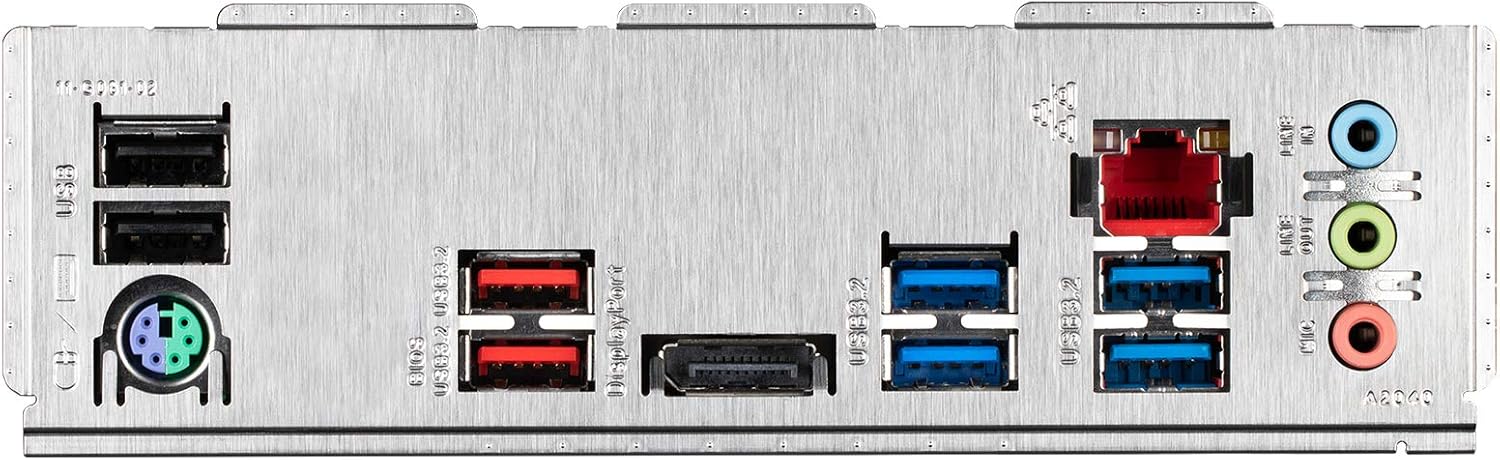
Figure 2: Rear I/O panel of the GIGABYTE Z590 UD motherboard, showing USB ports, LAN port, audio jacks, and PS/2 port.
3. പ്രവർത്തന നിർദ്ദേശങ്ങൾ
3.1. പ്രാരംഭ ബൂട്ടും ബയോസ് സജ്ജീകരണവും
നിങ്ങളുടെ സിസ്റ്റം അസംബിൾ ചെയ്ത ശേഷം, ഒരു മോണിറ്റർ, കീബോർഡ്, മൗസ് എന്നിവ ബന്ധിപ്പിക്കുക. സിസ്റ്റം ഓൺ ചെയ്യുക.
- BIOS/UEFI സജ്ജീകരണത്തിൽ പ്രവേശിക്കാൻ, DEL സ്റ്റാർട്ടപ്പ് സമയത്ത് ആവർത്തിച്ച് കീ അമർത്തുക.
- In the BIOS, you can configure boot order, system time, fan speeds (Smart Fan 6), and enable/disable various features.
- Save changes and exit the BIOS to boot into your operating system installation media.
3.2. ഡ്രൈവർ ഇൻസ്റ്റാളേഷൻ
After installing your operating system, install the necessary drivers for optimal performance. These typically include:
- ചിപ്സെറ്റ് ഡ്രൈവറുകൾ
- LAN drivers (for 2.5GbE LAN)
- ഓഡിയോ ഡ്രൈവറുകൾ
- USB ഡ്രൈവറുകൾ
- Graphics drivers (for integrated graphics or discrete GPU)
Drivers can be found on the GIGABYTE official webനിങ്ങളുടെ മദർബോർഡ് മോഡലിനുള്ള സൈറ്റ്.
3.3. ഗിഗാബൈറ്റ് സോഫ്റ്റ്വെയർ യൂട്ടിലിറ്റികൾ
നിങ്ങളുടെ ഉപയോക്തൃ അനുഭവം മെച്ചപ്പെടുത്തുന്നതിന് GIGABYTE നിരവധി യൂട്ടിലിറ്റികൾ നൽകുന്നു:
- ആർജിബി ഫ്യൂഷൻ 2.0: Control the multi-zone addressable LED light show design and support addressable LED & RGB LED strips.
- സ്മാർട്ട് ഫാൻ 6: Monitor multiple temperature sensors and control hybrid fan headers with FAN STOP functionality for optimized cooling and noise levels.
4. പരിപാലനം
4.1. ബയോസ് അപ്ഡേറ്റുകൾ (ക്യു-ഫ്ലാഷ് പ്ലസ്)
Regularly updating your BIOS can improve system stability, compatibility, and performance. The Z590 UD supports Q-Flash Plus, allowing you to update the BIOS without installing the CPU, memory, or GPU.
- ഏറ്റവും പുതിയ ബയോസ് ഡൗൺലോഡ് ചെയ്യുക file GIGABYTE-ൽ നിന്ന് webസൈറ്റ്.
- BIOS-ൻ്റെ പേര് മാറ്റുക file to GIGABYTE.bin and save it to a USB flash drive (FAT32 format).
- Insert the USB flash drive into the designated Q-Flash Plus USB port on the rear I/O panel.
- With the system powered off but connected to the PSU, press the Q-Flash Plus button. The LED will flash, indicating the update process.
- Wait for the LED to stop flashing, indicating the update is complete.
4.2. ഡ്രൈവർ, സോഫ്റ്റ്വെയർ അപ്ഡേറ്റുകൾ
Keep your drivers and GIGABYTE utilities updated to ensure optimal performance and security. Check the GIGABYTE website periodically for new versions.
4.3. ശാരീരിക ശുദ്ധീകരണം
Dust accumulation can lead to overheating and component failure. Periodically clean your motherboard and PC case using compressed air. Ensure the system is powered off and unplugged before cleaning.
5. പ്രശ്നപരിഹാരം
പ്രശ്നങ്ങൾ നേരിടുകയാണെങ്കിൽ, ഇനിപ്പറയുന്ന ട്രബിൾഷൂട്ടിംഗ് ഘട്ടങ്ങൾ പരിഗണിക്കുക:
- ശക്തിയില്ല: Ensure all power cables (24-pin ATX, 8-pin CPU) are securely connected. Check the power supply unit (PSU) and wall outlet.
- ഡിസ്പ്ലേ ഇല്ല: Verify that your monitor is connected to the correct graphics output (either integrated or discrete GPU). Reseat the graphics card and RAM modules.
- സിസ്റ്റം അസ്ഥിരത/ക്രാഷുകൾ: Check for proper CPU and GPU cooling. Ensure RAM modules are correctly seated. Update BIOS and drivers.
- M.2 SSD Not Detected (10th Gen CPU): If using a 10th Gen Intel CPU, the top M.2 slot (M2A_CPU) is disabled. Ensure your M.2 SSD is installed in one of the other available M.2 slots (M2P_SB or M2M_SB).
- പെരിഫറൽ പ്രശ്നങ്ങൾ: If USB ports or other peripherals are not functioning, ensure drivers are installed. Try different ports.
- ബയോസ് റീസെറ്റ്: If system settings become unstable, you can clear the CMOS by removing the CMOS battery for a few minutes or using the CLR_CMOS jumper (refer to the full manual for location).
For more complex issues, refer to the comprehensive GIGABYTE Z590 UD user manual available on the official GIGABYTE webസൈറ്റ് അല്ലെങ്കിൽ സാങ്കേതിക പിന്തുണയുമായി ബന്ധപ്പെടുക.
6 സ്പെസിഫിക്കേഷനുകൾ
| ഫീച്ചർ | സ്പെസിഫിക്കേഷൻ |
|---|---|
| സിപിയു സോക്കറ്റ് | LGA 1200 |
| അനുയോജ്യമായ പ്രോസസ്സറുകൾ | പതിമൂന്നാം തലമുറയും പന്ത്രണ്ടാം തലമുറയും ഇന്റൽ കോർ സീരീസ് പ്രോസസ്സറുകൾ |
| ചിപ്സെറ്റ് | Intel Z590 Express Chipset |
| മെമ്മറി | 4 x DDR4 DIMM sockets, up to 128 GB (32 GB single DIMM capacity), Dual Channel, Non-ECC Unbuffered, Supports up to 4400 MHz (O.C.) |
| വിപുലീകരണ സ്ലോട്ടുകൾ | 1 x PCI Express x16 slot (PCIe 4.0 for 11th Gen CPU, PCIe 3.0 for 10th Gen CPU) 2 x PCI Express x16 slots (PCIe 3.0 x4) 2 x PCI Express x1 slots (PCIe 3.0 x1) |
| സ്റ്റോറേജ് ഇൻ്റർഫേസ് | 1 x M.2 connector (Socket 3, M key, type 2260/2280/22110 PCIe 4.0 x4/x2 SSD support) (M2A_CPU - 11th Gen CPU only) 2 x M.2 connectors (Socket 3, M key, type 2260/2280/22110 PCIe 3.0 x4/x2 SSD support) (M2P_SB, M2M_SB) 6 x SATA 6Gb/s കണക്ടറുകൾ |
| USB പോർട്ടുകൾ | Rear: 1 x USB 3.2 Gen 2 Type-A, 1 x USB 3.2 Gen 2 Type-C, 4 x USB 3.2 Gen 1 Type-A, 2 x USB 2.0/1.1 Front: 1 x USB 3.2 Gen 1 header, 2 x USB 2.0/1.1 headers |
| ലാൻ | Realtek 2.5GbE LAN chip (2.5 Gbit/1 Gbit/100 Mbit) |
| ഓഡിയോ | റിയൽടെക് ALC897 കോഡെക്, ഹൈ ഡെഫനിഷൻ ഓഡിയോ, 2/4/5.1/7.1-ചാനൽ |
| ഫോം ഫാക്ടർ | ATX Form Factor (30.5cm x 24.4cm) |
| ഭാരം | ഏകദേശം 3.32 പൗണ്ട് |
7. വാറൻ്റി വിവരങ്ങൾ
GIGABYTE motherboards are covered by a manufacturer's limited warranty. The duration and terms of the warranty may vary by region and retailer. Please retain your proof of purchase for warranty claims. For specific warranty details, refer to the warranty card included with your product or visit the official GIGABYTE webസൈറ്റ്.
8. പിന്തുണ
For further assistance, technical support, or to download the latest drivers and BIOS updates, please visit the official GIGABYTE support webസൈറ്റ്:
You can also find frequently asked questions (FAQs) and community forums on the support page.


