ആമുഖം
Welcome to the user manual for your Beats Studio3 Wireless Headphones. This guide provides detailed instructions on setting up, operating, maintaining, and troubleshooting your headphones to ensure optimal performance and longevity. The Beats Studio3 headphones feature Pure Adaptive Noise Canceling (Pure ANC), real-time audio calibration, and the Apple W1 chip for seamless connectivity.

ചിത്രം: മുൻഭാഗം view of the Beats Studio3 Wireless Headphones in matte black.
ബോക്സിൽ എന്താണുള്ളത്
Upon unboxing your Beats Studio3 Wireless Headphones, you should find the following items:
- Beats Studio3 Wireless headphones
- ചുമക്കുന്ന കേസ്
- 3.5mm RemoteTalk cable
- Universal USB charging cable (USB-A to USB Micro-B)
- ദ്രുത ആരംഭ ഗൈഡ്
- വാറൻ്റി കാർഡ്
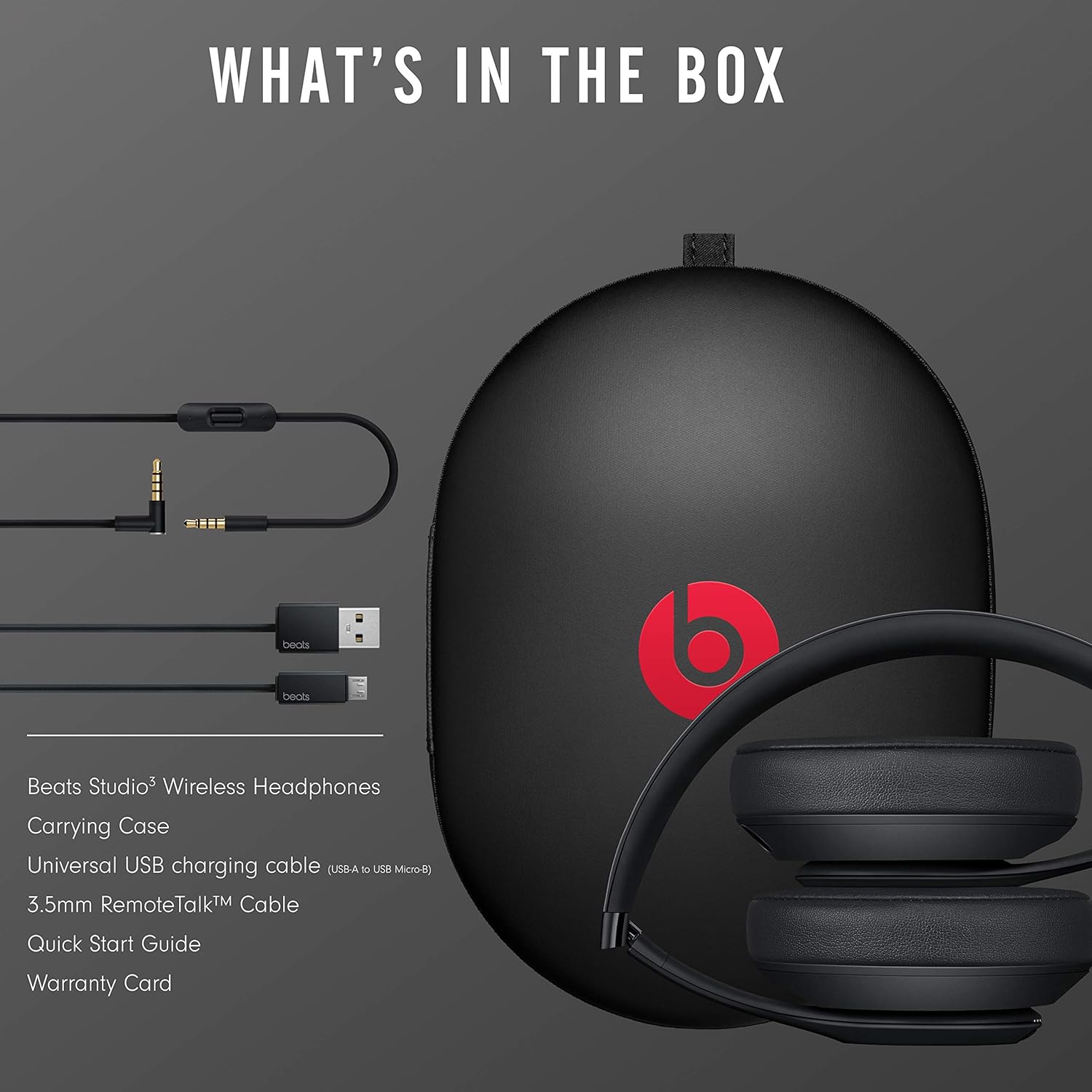
Image: All items included in the Beats Studio3 Wireless Headphones package, neatly arranged next to the carrying case.
സജ്ജമാക്കുക
നിങ്ങളുടെ ഹെഡ്ഫോണുകൾ ചാർജ് ചെയ്യുന്നു
Before first use, it is recommended to fully charge your Beats Studio3 Wireless Headphones. Use the included Universal USB charging cable to connect the headphones to a USB power source.
- Connect the micro-USB end of the cable to the charging port on the right earcup.
- Connect the USB-A end to a powered USB port (e.g., computer, wall adapter).
- The Fuel Gauge LEDs on the left earcup will indicate the charging status. When fully charged, all five LEDs will glow solid white.
A 10-minute charge provides 3 hours of playback when the battery is low, thanks to Fast Fuel technology.
നിങ്ങളുടെ ഉപകരണം ഉപയോഗിച്ച് ജോടിയാക്കുന്നു
The Beats Studio3 Wireless Headphones utilize the Apple W1 chip for seamless pairing with Apple devices and standard Bluetooth for other devices.
ആപ്പിൾ ഉപകരണങ്ങൾക്ക് (iOS 10 അല്ലെങ്കിൽ അതിനുശേഷമുള്ളത്):
- Ensure your iPhone, iPad, or iPod touch is unlocked and Bluetooth is enabled.
- Hold your Beats Studio3 headphones near your unlocked Apple device.
- Press and hold the power button on the headphones for 1 second.
- A setup animation will appear on your Apple device. Follow the on-screen instructions.
- Your headphones are now connected and ready to use with all your iCloud-synced devices.

Image: Diagram illustrating the compatibility of Beats Studio3 headphones with various Apple devices including iPhone, Apple TV, iMac, Apple Watch, iPad, and Macbook, powered by the Apple W1 chip.
For Android Devices and Other Bluetooth Devices:
- Press and hold the power button on the headphones for 5 seconds until the Fuel Gauge LEDs begin to flash. This indicates pairing mode.
- നിങ്ങളുടെ ഉപകരണത്തിൽ, ബ്ലൂടൂത്ത് ക്രമീകരണങ്ങളിലേക്ക് പോയി ബ്ലൂടൂത്ത് പ്രവർത്തനക്ഷമമാക്കിയിട്ടുണ്ടെന്ന് ഉറപ്പാക്കുക.
- Select "Beats Studio3" from the list of available devices.
- കണക്ട് ചെയ്തുകഴിഞ്ഞാൽ, ഇന്ധന ഗേജ് LED-കൾ കടും വെള്ള നിറത്തിൽ തിളങ്ങും.
നിങ്ങളുടെ ഹെഡ്ഫോണുകൾ പ്രവർത്തിപ്പിക്കുന്നു
പവർ ഓൺ/ഓഫ്
- പവർ ഓണാക്കാൻ, പവർ ബട്ടൺ 1 സെക്കൻഡ് അമർത്തിപ്പിടിക്കുക.
- To power off, press and hold the power button for 1 second.
ഓഡിയോ നിയന്ത്രണങ്ങൾ
The 'b' button on the left earcup controls audio playback and calls.
- ഒരിക്കൽ അമർത്തുക: ഓഡിയോ പ്ലേ ചെയ്യുക/താൽക്കാലികമായി നിർത്തുക, കോൾ സ്വീകരിക്കുക/അവസാനിപ്പിക്കുക.
- രണ്ടുതവണ അമർത്തുക: മുന്നോട്ട് പോകുക (ഓഡിയോ), കോൾ നിരസിക്കുക.
- മൂന്ന് തവണ അമർത്തുക: പിന്നിലേക്ക് പോകുക (ഓഡിയോ).
- അമർത്തിപ്പിടിക്കുക: Activate voice assistant (Siri, Google Assistant, etc.).
Volume controls are located above and below the 'b' button.
- വോളിയം കൂട്ടുക: Press the button above the 'b' button.
- വോളിയം താഴേക്ക്: Press the button below the 'b' button.

ചിത്രം: ക്ലോസ്-അപ്പ് view of the left earcup showing the 'b' button and volume controls, with annotations for single, double, and triple presses for playback control, and hold for voice assistant activation.
Pure Adaptive Noise Canceling (Pure ANC)
Pure ANC actively blocks external noise for an immersive listening experience. It continuously calibrates audio in real-time to preserve clarity, range, and emotion.
- നിങ്ങളുടെ ഹെഡ്ഫോണുകൾ ഓൺ ചെയ്യുമ്പോൾ പ്യുവർ ANC യാന്ത്രികമായി പ്രവർത്തനക്ഷമമാകും.
- To turn Pure ANC off or on, double-press the power button.
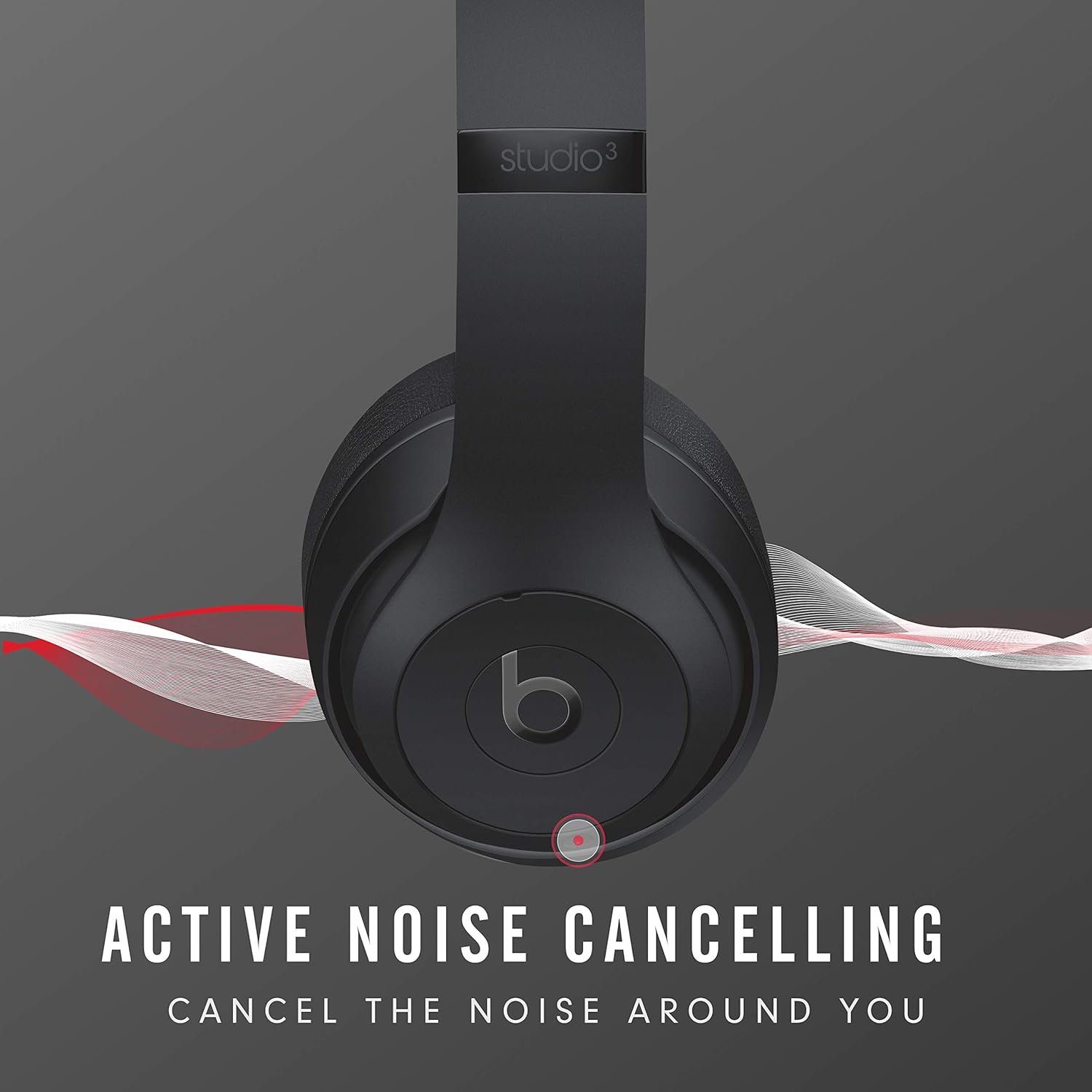
Image: Illustration of Beats Studio3 headphones with sound waves emanating from them, visually representing the Active Noise Cancelling feature.
Battery Life and Fast Fuel
Your Beats Studio3 headphones offer up to 22 hours of listening time with Pure ANC enabled, and up to 40 hours with Pure ANC off. The Fuel Gauge LEDs on the left earcup indicate battery level:
- Five white LEDs: Full charge.
- One flashing red LED: Low battery.
Fast Fuel technology allows for quick charging:
- ബാറ്ററി ചാർജ് കുറവായിരിക്കുമ്പോൾ 10 മിനിറ്റ് ചാർജ് ചെയ്താൽ 3 മണിക്കൂർ പ്ലേബാക്ക് ലഭിക്കും.
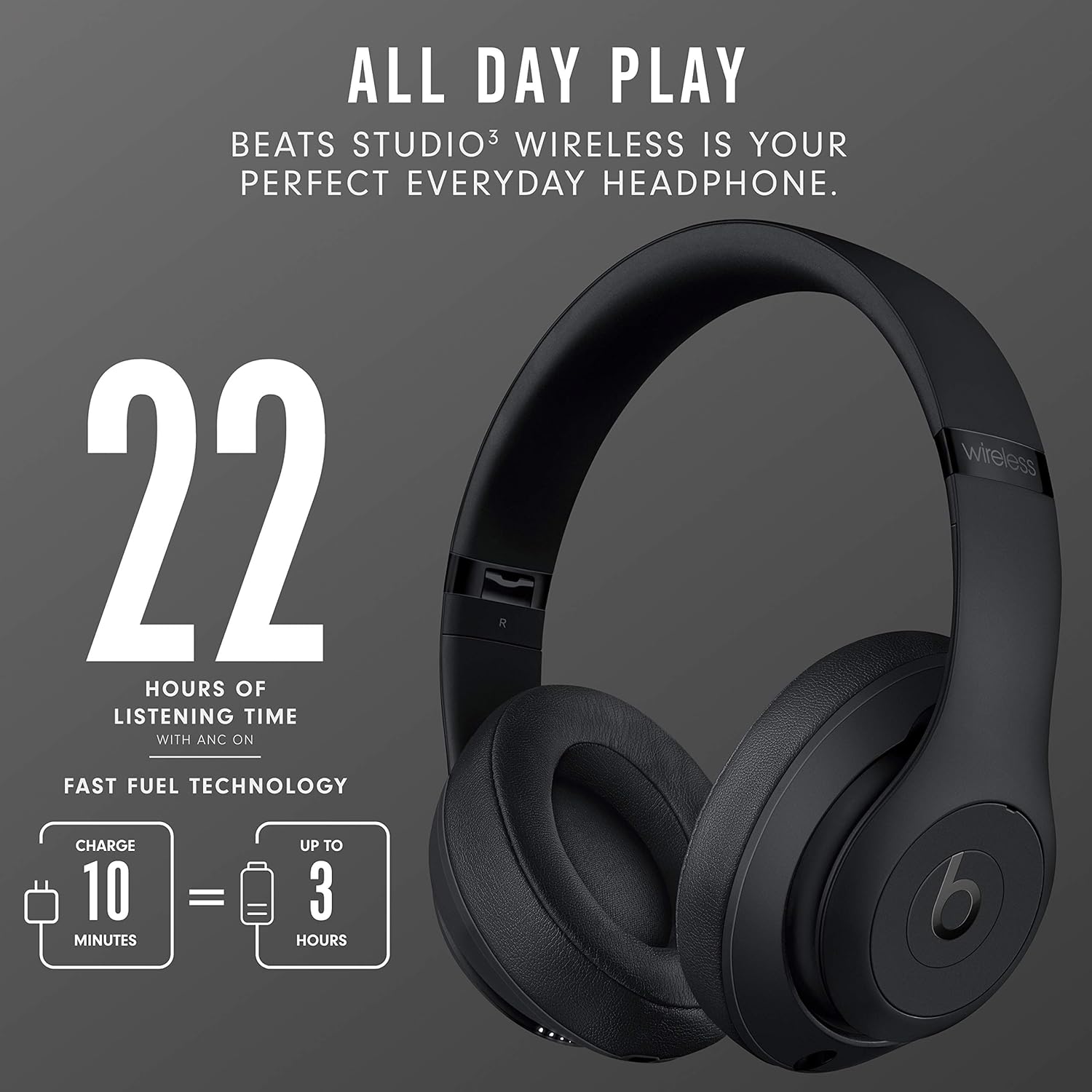
Image: Graphic showing "22 Hours of Listening Time with ANC On" and "Fast Fuel Technology" with an icon indicating "10 Minutes = 3 Hours" of play time.
മെയിൻ്റനൻസ്
വൃത്തിയാക്കൽ
നിങ്ങളുടെ ഹെഡ്ഫോണുകളുടെ അവസ്ഥ നിലനിർത്താൻ:
- ഇയർകപ്പുകളും ഹെഡ്ബാൻഡും മൃദുവായ, ഡി-ടച്ച് ഉപയോഗിച്ച് തുടയ്ക്കുക.amp, ലിൻ്റ് രഹിത തുണി.
- അബ്രാസീവ് ക്ലീനറുകൾ, ആൽക്കഹോൾ, കെമിക്കൽ ലായകങ്ങൾ എന്നിവ ഉപയോഗിക്കരുത്.
- ഏതെങ്കിലും തുറസ്സുകളിൽ ഈർപ്പം ലഭിക്കുന്നത് ഒഴിവാക്കുക.
സംഭരണം
When not in use, store your headphones in the included carrying case to protect them from dust, scratches, and impacts. The headphones are designed to fold compactly for easy storage.
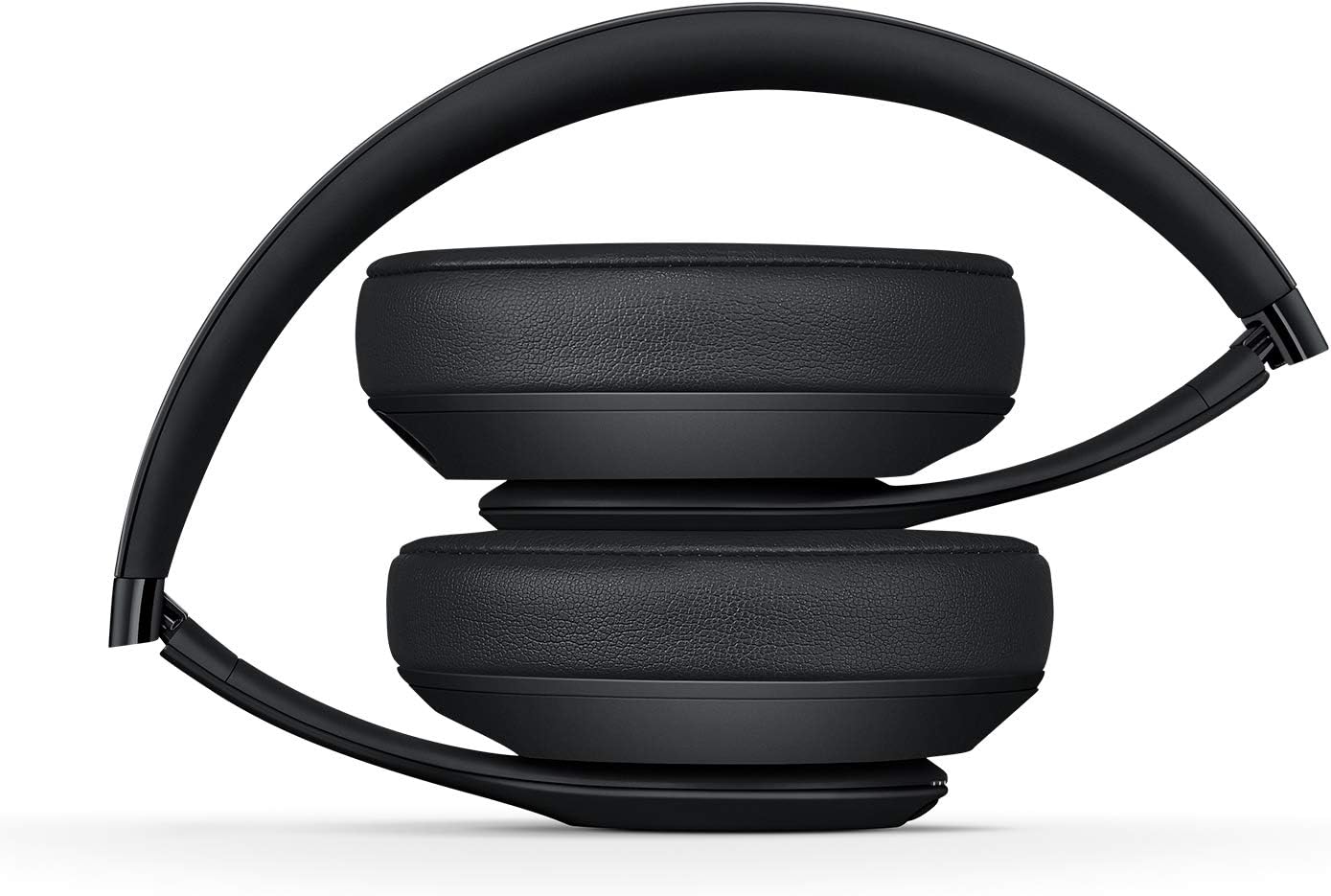
ചിത്രം: വശം view of the Beats Studio3 Wireless Headphones folded into a compact position, demonstrating their portability and ease of storage.
ട്രബിൾഷൂട്ടിംഗ്
If you encounter issues with your Beats Studio3 Wireless Headphones, try the following solutions:
വൈദ്യുതിയില്ല / ഓണാക്കുന്നില്ല
- Ensure the headphones are charged. Connect them to a power source using the USB cable and check the Fuel Gauge LEDs.
- Try resetting the headphones: Press and hold both the power button and the volume down button for 10 seconds. Release the buttons when the Fuel Gauge LEDs flash.
Cannot Pair / Bluetooth Connection Issues
- Ensure the headphones are in pairing mode (flashing Fuel Gauge LEDs).
- Make sure Bluetooth is enabled on your device and it is within range (typically 10 meters or 33 feet).
- നിങ്ങളുടെ ഉപകരണത്തിന്റെ ബ്ലൂടൂത്ത് ക്രമീകരണങ്ങളിൽ നിന്ന് ഉപകരണം മറന്ന് വീണ്ടും ജോടിയാക്കാൻ ശ്രമിക്കുക.
- If connecting to an Apple device, ensure iCloud is enabled and your device is running iOS 10 or later.
- Try resetting the headphones as described above.
ശബ്ദമോ കുറഞ്ഞ ശബ്ദമോ ഇല്ല
- Check the volume level on both your headphones and the connected device.
- ഹെഡ്ഫോണുകൾ നിങ്ങളുടെ ഉപകരണവുമായി ശരിയായി ബന്ധിപ്പിച്ചിട്ടുണ്ടെന്ന് ഉറപ്പാക്കുക.
- If using the 3.5mm RemoteTalk cable, ensure it is fully plugged into both the headphones and your audio source.
- Try playing audio from a different application or device to isolate the issue.
Active Noise Canceling Not Working Properly
- Ensure Pure ANC is enabled (double-press the power button).
- Check that the earcups are properly sealed around your ears. Adjust the headband for a snug fit.
- Ensure there is no obstruction to the microphones on the earcups.
സ്പെസിഫിക്കേഷനുകൾ
| ഫീച്ചർ | വിശദാംശങ്ങൾ |
|---|---|
| മോഡലിൻ്റെ പേര് | Beats Studio3 - Matte Black (Latest Model) |
| ഇനം മോഡൽ നമ്പർ | MX3X2LL/A |
| കണക്റ്റിവിറ്റി ടെക്നോളജി | ബ്ലൂടൂത്ത്, NFC |
| വയർലെസ് കമ്മ്യൂണിക്കേഷൻ ടെക്നോളജി | ബ്ലൂടൂത്ത് |
| ശബ്ദ നിയന്ത്രണം | സജീവ ശബ്ദ റദ്ദാക്കൽ (ശുദ്ധമായ ANC) |
| ചെവി പ്ലേസ്മെൻ്റ് | ചെവിക്ക് മുകളിൽ |
| ഫോം ഫാക്ടർ | ചെവിക്ക് മുകളിൽ |
| ഹെഡ്ഫോൺ ജാക്ക് | 3.5 എംഎം ജാക്ക് (വയർഡ് കണക്ഷന്) |
| ബാറ്ററി ലൈഫ് | Up to 22 hours (with Pure ANC), Up to 40 hours (Pure ANC off) |
| Charging Time (Fast Fuel) | 10 മിനിറ്റ് ചാർജ് ചെയ്താൽ 3 മണിക്കൂർ പ്ലേബാക്ക് ലഭിക്കും. |
| ബാറ്ററി തരം | 1 ലിഥിയം അയോൺ ബാറ്ററി (ഉൾപ്പെടുത്തിയിരിക്കുന്നു) |
| ഉൽപ്പന്ന അളവുകൾ | 16 x 12 x 22.7 സെ.മീ |
| ഇനത്തിൻ്റെ ഭാരം | 453.59 ഗ്രാം |
| നിർമ്മാതാവ് | അടിക്കുന്നു |
| ആദ്യം ലഭ്യമായ തീയതി | 1 ജൂൺ 2020 |
വാറൻ്റിയും പിന്തുണയും
വാറൻ്റി വിവരങ്ങൾ
Your Beats Studio3 Wireless Headphones come with a limited warranty. Please refer to the included Warranty Card for specific terms and conditions, including coverage period and what is covered. Retain your proof of purchase for warranty claims.
ഉപഭോക്തൃ പിന്തുണ
For further assistance, technical support, or warranty service, please visit the official Beats support website or contact their customer service. You can often find detailed FAQs, software updates, and contact information on their official support pages.
Note: Specific contact details are subject to change. Always refer to the latest information on the official Beats webസൈറ്റ്.


