ആമുഖം
This manual provides essential instructions for the installation, operation, and maintenance of your Swann Master-Series 4K HD 8 Camera 8 Channel NVR Security System, model SWNVK-876808-US. This system is designed to provide high-definition surveillance for your property, featuring 4K resolution cameras and an 8-channel Network Video Recorder (NVR) for reliable recording and monitoring.
Please read this manual thoroughly before setting up and using your security system to ensure proper functionality and to maximize its performance and longevity.
ബോക്സിൽ എന്താണുള്ളത്
Carefully unpack all components and verify that you have received all items listed below. If any items are missing or damaged, please contact Swann customer support.
- Swann 8-Channel Network Video Recorder (NVR)
- 8 x 4K HD Security Cameras
- Ethernet Cables (for camera connection)
- Power Adapters (for NVR and cameras)
- യുഎസ്ബി മൗസ്
- മൗണ്ടിംഗ് സ്ക്രൂകളും പ്ലഗുകളും
- Security Warning Stickers
- HDMI കേബിൾ
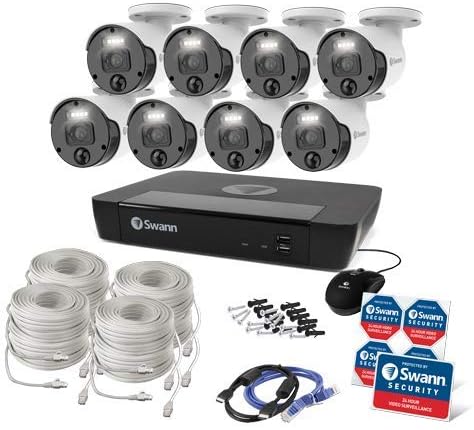
ചിത്രം 1: Complete contents of the Swann Master-Series 4K HD 8 Camera 8 Channel NVR Security System kit, including the NVR, eight cameras, various cables, a USB mouse, and security stickers.
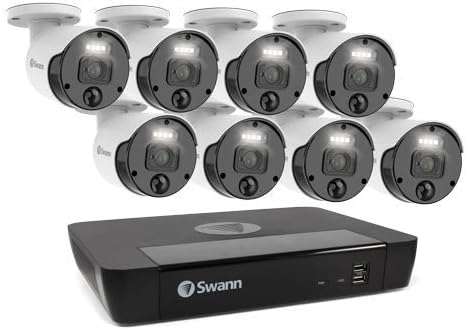
ചിത്രം 2: The Swann Network Video Recorder (NVR) unit, which serves as the central recording and management hub for the security system.
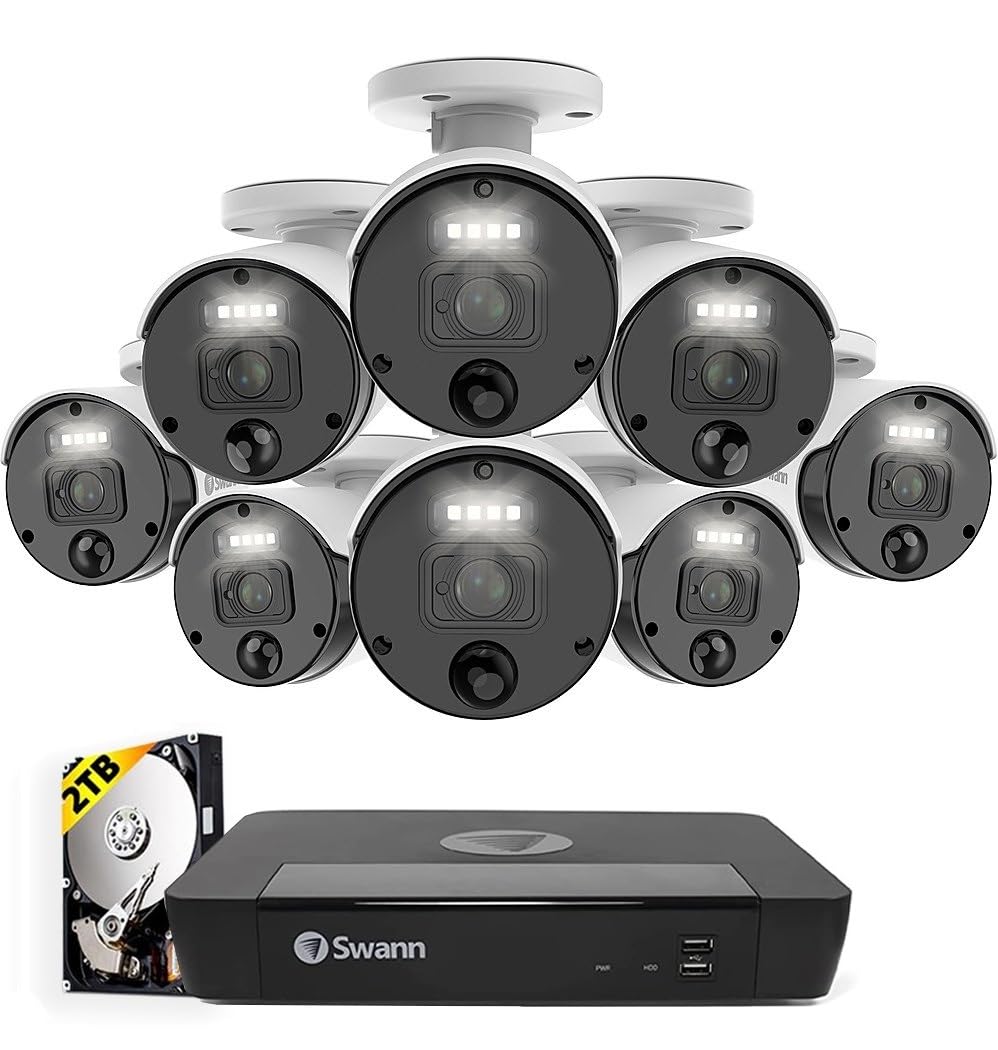
ചിത്രം 3: The Swann Master-Series NVR unit shown with eight 4K HD security cameras, illustrating the core components of the surveillance system.
സജ്ജമാക്കുക
1. എൻവിആർ കണക്ഷൻ
- ഒരു മോണിറ്ററിലേക്ക് കണക്റ്റുചെയ്യുക: NVR-ന്റെ HDMI ഔട്ട്പുട്ട് പോർട്ട് ഒരു മോണിറ്ററിലേക്കോ ടിവിയിലേക്കോ ബന്ധിപ്പിക്കുന്നതിന് നൽകിയിരിക്കുന്ന HDMI കേബിൾ ഉപയോഗിക്കുക.
- യുഎസ്ബി മൗസ് ബന്ധിപ്പിക്കുക: NVR-ലെ USB പോർട്ടുകളിൽ ഒന്നിലേക്ക് USB മൗസ് പ്ലഗ് ചെയ്യുക.
- നെറ്റ്വർക്കിലേക്ക് കണക്റ്റ് ചെയ്യുക: Connect an Ethernet cable from the NVR's LAN port to your router or network switch for internet access and remote viewകഴിവുകൾ.
- പവർ ബന്ധിപ്പിക്കുക: Plug the NVR's power adapter into the DC IN port and then into a power outlet. The NVR will power on automatically.
2. ക്യാമറ ഇൻസ്റ്റാളേഷൻ
- മൗണ്ട് ക്യാമറകൾ: Choose suitable locations for your cameras, ensuring they have a clear field of view and are protected from direct weather exposure. Use the provided screws and plugs to securely mount each camera.
- ക്യാമറകളെ NVR-ലേക്ക് ബന്ധിപ്പിക്കുക: Connect each camera to an available Ethernet port on the NVR using the provided Ethernet cables. The NVR will automatically detect and power the cameras (Power over Ethernet - PoE).
3. പ്രാരംഭ കോൺഫിഗറേഷൻ
- ആദ്യ തവണ സജ്ജീകരണ വിസാർഡ്: Upon first power-up, the NVR will display a setup wizard on the connected monitor. Follow the on-screen prompts to configure basic settings such as language, date/time, and network settings.
- അഡ്മിനിസ്ട്രേറ്റർ പാസ്വേഡ് സജ്ജമാക്കുക: Create a strong, unique password for the administrator account. This is crucial for system security.
- ഹാർഡ് ഡ്രൈവ് ആരംഭിക്കൽ: The wizard may prompt you to initialize the hard drive. Confirm to prepare it for recording.
സിസ്റ്റം പ്രവർത്തിപ്പിക്കുന്നു
തത്സമയം View
പ്രാരംഭ സജ്ജീകരണത്തിനുശേഷം, NVR തത്സമയം പ്രദർശിപ്പിക്കും view from all connected cameras on the monitor. You can switch between single-camera view, മൾട്ടി-ക്യാമറ ഗ്രിഡ് view, and sequence view using the NVR's interface and mouse.
റെക്കോർഡിംഗ്
- തുടർച്ചയായ റെക്കോർഡിംഗ്: The system is typically configured for continuous recording by default.
- മോഷൻ ഡിറ്റക്ഷൻ റെക്കോർഡിംഗ്: Configure specific cameras to record only when motion is detected within their field of view. Adjust sensitivity and detection zones as needed.
- ഷെഡ്യൂൾഡ് റെക്കോർഡിംഗ്: Set specific times for recording, allowing for customized surveillance schedules.
പ്ലേബാക്ക്
Access the playback menu on the NVR to review രേഖപ്പെടുത്തി footage. You can search by date, time, and event type (e.g., motion detection). Use the timeline and controls to navigate through recordings.
Remote Access (Swann Security App)
റിമോട്ടിന് viewing and management, download the official Swann Security app on your smartphone or tablet. Follow the in-app instructions to pair your NVR system. This allows you to view live feeds, play back recordings, and receive alerts from anywhere with an internet connection.
മെയിൻ്റനൻസ്
- ക്യാമറ വൃത്തിയാക്കൽ: ക്യാമറ ലെൻസുകൾ ഇടയ്ക്കിടെ മൃദുവായ, ഡി-ടച്ച് ഉപയോഗിച്ച് വൃത്തിയാക്കുക.amp വ്യക്തമായ ചിത്ര നിലവാരം ഉറപ്പാക്കാൻ തുണി ഉപയോഗിക്കുക. അബ്രസിവ് ക്ലീനറുകൾ ഒഴിവാക്കുക.
- NVR Ventilation: Ensure the NVR unit has adequate ventilation to prevent overheating. Keep vents clear of obstructions.
- ഫേംവെയർ അപ്ഡേറ്റുകൾ: Regularly check for and install firmware updates for your NVR and cameras. Updates often include security enhancements and new features. Refer to the Swann support webഏറ്റവും പുതിയ ഫേംവെയറിനായുള്ള സൈറ്റ്.
- ഹാർഡ് ഡ്രൈവ് മാനേജ്മെന്റ്: The NVR's hard drive will automatically overwrite the oldest footage when it becomes full. Ensure your recording settings (e.g., continuous, motion detection) align with your storage needs.
- പാസ്വേഡ് സുരക്ഷ: Change your administrator password periodically and use strong, unique passwords to protect your system from unauthorized access.
ട്രബിൾഷൂട്ടിംഗ്
No Video Display on Monitor
- Check if the NVR is powered on and its power adapter is securely connected.
- Verify the HDMI cable connection between the NVR and the monitor.
- Ensure the monitor is set to the correct input source (e.g., HDMI 1).
Cameras Not Showing Live View / No Recording
- Check that each camera is securely connected to the NVR's Ethernet port.
- Ensure the Ethernet cables are not damaged.
- Verify that the NVR's hard drive is initialized and has sufficient space.
- Check camera settings within the NVR interface to ensure they are enabled and configured for recording.
Remote Access Issues
- Ensure the NVR is connected to your router and has an active internet connection.
- Verify your smartphone or tablet has an active internet connection.
- Confirm that the NVR is correctly paired with the Swann Security app.
- Check your router's firewall settings; some may block NVR access.
നൈറ്റ് വിഷൻ പ്രവർത്തിക്കുന്നില്ല
- Ensure there are no obstructions directly in front of the camera lens blocking the infrared (IR) LEDs.
- Check camera settings to ensure night vision (IR) is enabled.
- Verify the camera is receiving adequate power.
സ്പെസിഫിക്കേഷനുകൾ
| ഫീച്ചർ | സ്പെസിഫിക്കേഷൻ |
|---|---|
| ബ്രാൻഡ് | സ്വാൻ |
| മോഡൽ നമ്പർ | SWNVK-876808-US |
| കണക്റ്റിവിറ്റി ടെക്നോളജി | Wired (Ethernet/PoE) |
| വീഡിയോ ക്യാപ്ചർ റെസല്യൂഷൻ | 2160p (4K അൾട്രാ HD) |
| പ്രത്യേക ഫീച്ചർ | നൈറ്റ് വിഷൻ |
| ചാനലുകളുടെ എണ്ണം | 8 |
| പവർ ഉറവിടം | കോർഡഡ് ഇലക്ട്രിക് |
| NVR Dimensions (L x W x H) | 10 x 2 x 2.7 ഇഞ്ച് |
| അനുയോജ്യമായ ഉപകരണങ്ങൾ | Swann IP Cameras |
| ലോ ലൈറ്റ് ടെക്നോളജി | നൈറ്റ് വിഷൻ |
| ഫ്രെയിം റേറ്റ് | 15, 24, 30 fps (variable by resolution/settings) |
| റെക്കോർഡിംഗ് മോഡ് | Continuous, Event (Motion Detection), Scheduled |
| വീഡിയോ ഇൻപുട്ട് | Ethernet (for IP Cameras) |
| ഇനത്തിൻ്റെ ഭാരം | 21.2 പൗണ്ട് (ആകെ പാക്കേജ്) |
| യു.പി.സി | 840236127788 |
Note: While the provided data listed 'BNC' for Video Input, this NVR system primarily uses Ethernet for IP cameras. Please refer to the product packaging or Swann's official webഏറ്റവും കൃത്യവും കാലികവുമായ സ്പെസിഫിക്കേഷനുകൾക്കായുള്ള സൈറ്റ്.
വാറൻ്റിയും പിന്തുണയും
Your Swann Master-Series 4K HD 8 Camera 8 Channel NVR Security System is covered by a manufacturer's warranty. For specific warranty terms, duration, and conditions, please refer to the warranty card included with your product or visit the official Swann webസൈറ്റ്.
For technical support, troubleshooting assistance, or to access the latest software and firmware updates, please visit the Swann support portal on their official webസൈറ്റ്. ഉപഭോക്തൃ സേവനത്തിനായുള്ള കോൺടാക്റ്റ് വിവരങ്ങളും നിങ്ങൾക്ക് അവിടെ കണ്ടെത്താനാകും.


