1. ആമുഖം
The CATCHFACE G2 Wifi Gateway acts as a bridge to connect your Bluetooth-enabled smart locks to your home Wi-Fi network. This enables remote control functionalities and integration with voice assistants like Amazon Alexa and Google Assistant, enhancing the convenience and security of your smart lock system.
This gateway is compatible with smart locks that utilize the TTLock app, including brands such as CATCHFACE, Sifely, YRHAND, Laxre, Nyboer, and Tropernic Bluetooth Smart Door Locks.

Image: The CATCHFACE G2 Wifi Gateway device, a compact white square unit with a blue indicator light.

Image: The G2 Gateway shown alongside logos indicating compatibility with Amazon Alexa, Google Home, and the TTLock App.
2. സജ്ജീകരണ ഗൈഡ്
2.1 Powering the Gateway
The G2 Wifi Gateway requires a DC5V1A micro USB power adapter for operation. Please note that a power adapter is not included in the package. Connect the gateway to a suitable power source using the provided USB cable.
2.2 Indicator Lights Status
- Red and Blue lights flashing alternately: Indicates Stand-by mode, ready for pairing.
- നീല വെളിച്ചം: Indicates Working mode, the gateway is connected and operational.
- ചുവന്ന വെളിച്ചം: Indicates Network failure, the gateway is unable to connect to the Wi-Fi network.

Image: Diagram showing the G2 Gateway's power interface and the meaning of its blue and red indicator lights.
2.3 Adding the Gateway to the TTLock App
Follow these steps to connect your G2 Gateway to the TTLock app:
- ഘട്ടം 1: Power on the G2 gateway. The light will flash alternately in red and blue, indicating it is in pairing mode.
- ഘട്ടം 2: Open the TTLock APP on your smartphone and navigate to the 'Gateway' section.
- ഘട്ടം 3: Click the '+' icon located in the top right corner of the app interface, then select 'G2' as the gateway type.
- ഘട്ടം 4: Click 'Next'. The app will automatically search for available G2 Gateway devices. Once found, click to add the G2 Gateway.
- ഘട്ടം 5: Choose your Wi-Fi network from the list and enter the Wi-Fi password to connect the gateway to your network.
- ഘട്ടം 6: Once connected, the gateway will be added successfully to your app.

Image: A visual six-step guide demonstrating the process of adding the G2 Gateway within the TTLock mobile application, showing various app screenshots.
3. പ്രവർത്തന നിർദ്ദേശങ്ങൾ
3.1 Remote Control via TTLock App
With the G2 Gateway connected, you can remotely manage your smart lock from anywhere in the world using the TTLock app. This includes:
- Setting, changing, and deleting access codes.
- Checking the door status (locked/unlocked).
- Monitoring battery life of the connected smart lock.
- Viewing activity logs in real-time.
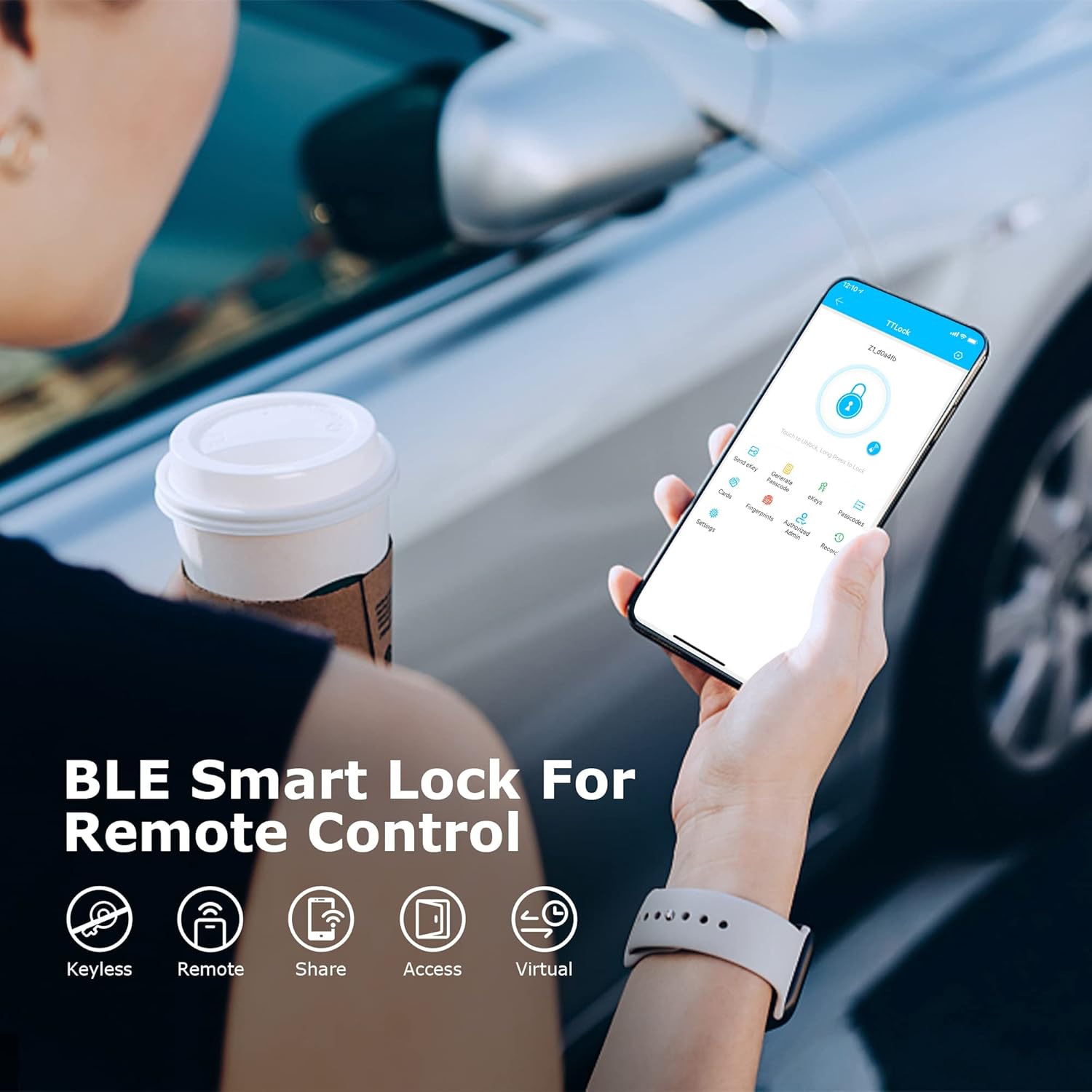
Image: A smartphone displaying the TTLock app interface, highlighting features for keyless entry, remote access, sharing, and virtual keys.

Image: A desktop computer and smartphone displaying the TTLock Web System and app, illustrating remote management capabilities for multiple locks and properties.
3.2 Instant Alerts
Receive instant notifications on your smartphone when someone enters or exits your home, providing real-time security monitoring.
3.3 വോയ്സ് കൺട്രോൾ ഇന്റഗ്രേഷൻ
The G2 Gateway enables voice control of your smart lock through compatible devices like Amazon Alexa and Google Assistant. Once set up, you can use voice commands to lock or unlock your door.

Image: The G2 Gateway positioned near Amazon Echo and Google Home devices, demonstrating its smart voice control capabilities.
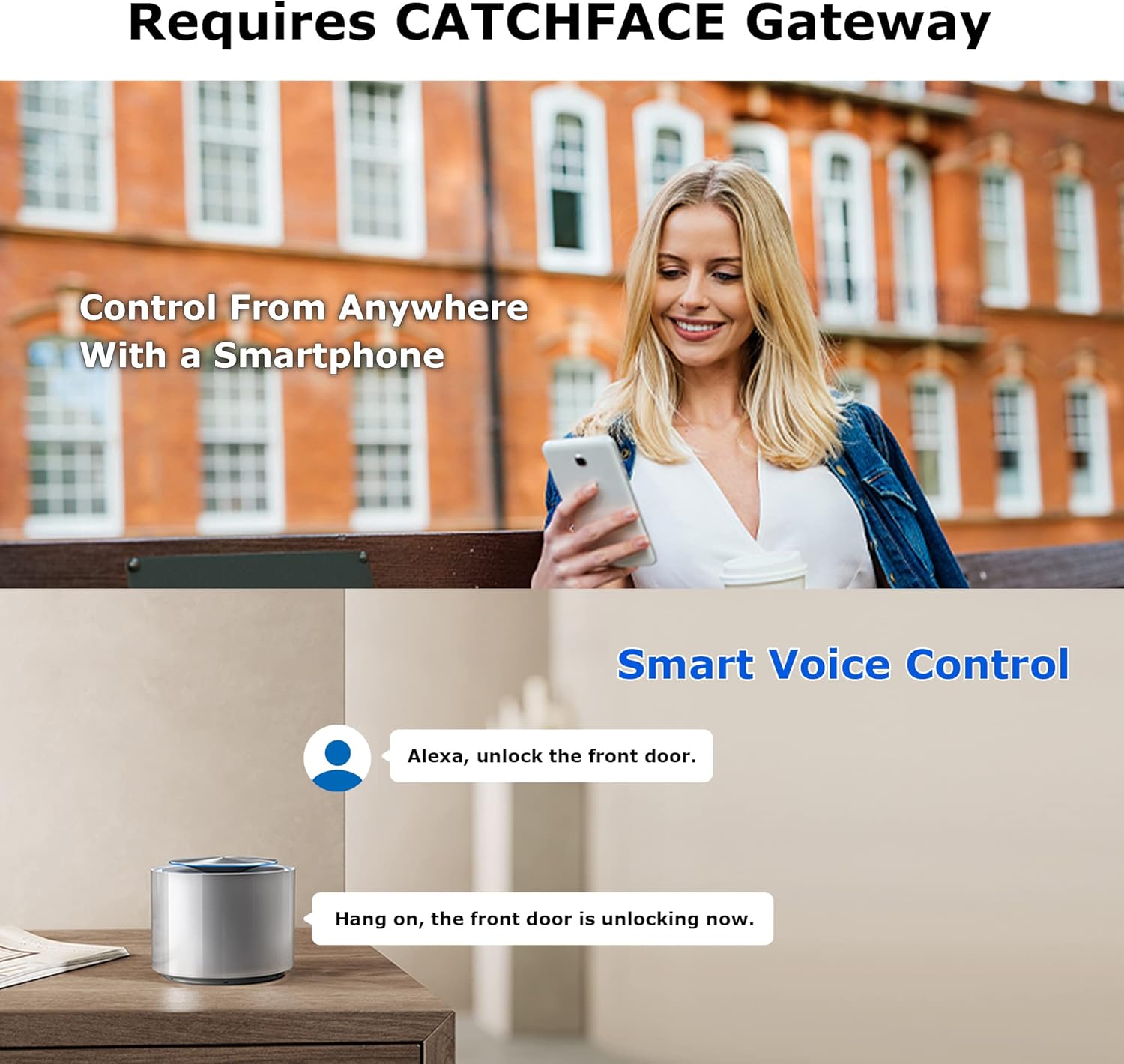
Image: A person using a smartphone to control a smart lock remotely, with an illustration of voice command interaction with a smart speaker.
4. പരിപാലനം
The G2 Wifi Gateway is designed for low maintenance. Ensure it is always connected to a stable DC5V1A micro USB power source. Keep the device in a dry environment and avoid exposure to extreme temperatures or moisture.
If the gateway is powered off, it may need to be reconnected to the network through the TTLock app to restore full functionality.
5. പ്രശ്നപരിഹാരം
- Gateway not pairing (Red and Blue lights flashing alternately): Ensure the gateway is powered on and within range of your Wi-Fi router. Follow the app pairing steps carefully.
- Network failure (Red light): Check your Wi-Fi router and internet connection. Ensure the Wi-Fi password entered in the app is correct. Try restarting your router and the gateway.
- റിമോട്ട് കൺട്രോൾ പ്രവർത്തിക്കുന്നില്ല: Verify that the gateway's blue light is on, indicating it's in working mode. Ensure your smartphone has an active internet connection. Check the TTLock app for any error messages or connectivity issues.
- ശബ്ദ നിയന്ത്രണം പ്രതികരിക്കുന്നില്ല: Confirm that your Alexa or Google Assistant device is properly linked to your TTLock account and the gateway is online. Ensure voice commands are clear and correctly phrased.
- Gateway powered off: If the gateway loses power, it will need to be reconnected to the network via the TTLock app once power is restored.
If you encounter persistent issues, please refer to the TTLock app's help section or contact CATCHFACE customer support for assistance.
6 സ്പെസിഫിക്കേഷനുകൾ
| ഫീച്ചർ | വിശദാംശങ്ങൾ |
|---|---|
| ബ്രാൻഡ് | ക്യാച്ച്ഫേസ് |
| മോഡലിൻ്റെ പേര് | G2 |
| ഇനം മോഡൽ നമ്പർ | G2 |
| നിറം | G2 ഗേറ്റ്വേ |
| മെറ്റീരിയൽ | സിങ്ക് |
| ഇനത്തിൻ്റെ അളവുകൾ L x W x H | 2.75 x 1.02 x 2.55 ഇഞ്ച് |
| ഉൽപ്പന്ന അളവുകൾ | 2.75 x 1.02 x 2.55 ഇഞ്ച് |
| ഇനത്തിൻ്റെ ഭാരം | 4.2 ഔൺസ് |
| ലോക്ക് തരം | Wifi smart door lock with hub |
| പ്രത്യേക ഫീച്ചർ | ഇൻസ്റ്റാൾ ചെയ്യാൻ എളുപ്പമാണ് |
| കണക്റ്റിവിറ്റി പ്രോട്ടോക്കോൾ | വൈഫൈ |
| നിയന്ത്രണ രീതി | ആപ്പ് |
| കൺട്രോളർ തരം | ആമസോൺ അലക്സ, ആൻഡ്രോയിഡ്, ഗൂഗിൾ അസിസ്റ്റന്റ്, ഐഒഎസ് |
| ഉൾപ്പെടുത്തിയ ഘടകങ്ങൾ | 1 X Smart Gateway, 1 X USB Cable, 1 X User Manual |
| ബാറ്ററികൾ ഉൾപ്പെടുത്തിയിട്ടുണ്ടോ? | ഇല്ല |
| ബാറ്ററികൾ ആവശ്യമുണ്ടോ? | ഇല്ല |
| യു.പി.സി | 727522007439 |

Image: A diagram illustrating the physical dimensions of the G2 Wifi Gateway, measuring 2.75 inches by 2.75 inches by 1.02 inches.
7. വാറൻ്റിയും പിന്തുണയും
For warranty information or technical support, please contact CATCHFACE customer service. Details can typically be found on the product packaging or the official CATCHFACE website. When contacting support, please have your product model (G2) and purchase information available.


