1. ആമുഖം
നിങ്ങളുടെ Amazon Fire HD 10 ടാബ്ലെറ്റിന്റെ (2021 റിലീസ്) സുരക്ഷിതവും കാര്യക്ഷമവുമായ ഉപയോഗത്തിന് ആവശ്യമായ വിവരങ്ങൾ ഈ മാനുവൽ നൽകുന്നു. നിങ്ങളുടെ ഉപകരണം പ്രവർത്തിപ്പിക്കുന്നതിന് മുമ്പ് ദയവായി ഇത് നന്നായി വായിക്കുക.
പ്രധാന സവിശേഷതകൾ
- വേഗതയേറിയതും പ്രതികരിക്കുന്നതും: ഒക്ടാ-കോർ പ്രൊസസറും 3 ജിബി റാമും ഉള്ള ഇത് മുൻ തലമുറയേക്കാൾ 50% കൂടുതൽ റാം വാഗ്ദാനം ചെയ്യുന്നു.
- ദീർഘകാല ബാറ്ററി: വായന, ബ്രൗസിംഗ്, വീഡിയോ, സംഗീതം എന്നിവയ്ക്കായി 12 മണിക്കൂർ വരെ ബാറ്ററി ലൈഫ്.
- വിവിഡ് ഡിസ്പ്ലേ: 10.1 ഇഞ്ച് 1080p ഫുൾ HD ഡിസ്പ്ലേ, മുൻ തലമുറയേക്കാൾ 10% തിളക്കം, 2 ദശലക്ഷത്തിലധികം പിക്സലുകൾ.
- Ample സംഭരണം: 32 ജിബി അല്ലെങ്കിൽ 64 ജിബി ഇന്റേണൽ സ്റ്റോറേജിൽ ലഭ്യമാണ്, മൈക്രോ എസ്ഡി കാർഡ് ഉപയോഗിച്ച് 1 ടിബി വരെ വികസിപ്പിക്കാം (പ്രത്യേകമായി വിൽക്കുന്നു).
- ആപ്പ് അനുയോജ്യത: നെറ്റ്ഫ്ലിക്സ്, ഫേസ്ബുക്ക്, ഡിസ്നി+, ഇൻസ് പോലുള്ള ജനപ്രിയ ആപ്ലിക്കേഷനുകളിലേക്കുള്ള ആക്സസ്tagആമസോണിന്റെ ആപ്പ്സ്റ്റോർ വഴി റാം, ടിക് ടോക്ക്, തുടങ്ങിയവ.
- ഉൽപ്പാദനക്ഷമത ഉപകരണങ്ങൾ: മെച്ചപ്പെടുത്തിയ ഉൽപ്പാദനക്ഷമതയ്ക്കായി Microsoft Office, OneNote, Dropbox പോലുള്ള ആപ്പുകളെ പിന്തുണയ്ക്കുന്നു.
- മോടിയുള്ള ഡിസൈൻ: മുൻ തലമുറയേക്കാൾ കനം കുറഞ്ഞതും ഭാരം കുറഞ്ഞതും, അലുമിനോസിലിക്കേറ്റ് ഗ്ലാസ് കൊണ്ട് ബലപ്പെടുത്തിയ സ്ക്രീനുമുണ്ട്.
- സ്പ്ലിറ്റ് സ്ക്രീൻ പ്രവർത്തനം: മൾട്ടിടാസ്കിംഗിനായി രണ്ട് അനുയോജ്യമായ ആപ്പുകൾ വശങ്ങളിലായി തുറക്കാൻ അനുവദിക്കുന്നു.
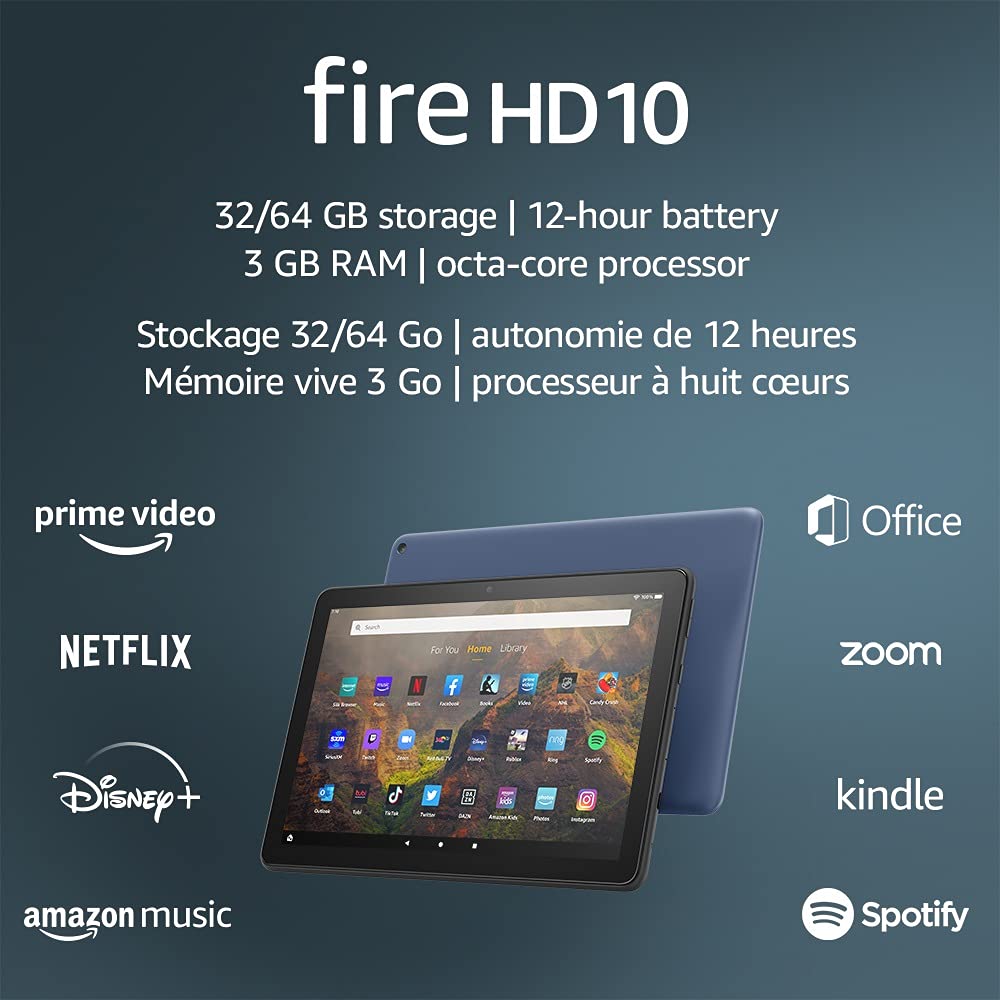
ചിത്രം 1.1: ആമസോൺ ഫയർ എച്ച്ഡി 10 ടാബ്ലെറ്റ് അതിന്റെ 32/64 ജിബി സ്റ്റോറേജ്, 12 മണിക്കൂർ ബാറ്ററി, 3 ജിബി റാം, ഒക്ടാ-കോർ പ്രോസസർ എന്നിവ എടുത്തുകാണിക്കുന്നു, കൂടാതെ പ്രൈം വീഡിയോ, നെറ്റ്ഫ്ലിക്സ്, ഡിസ്നി+, ആമസോൺ മ്യൂസിക്, ഓഫീസ്, സൂം, കിൻഡിൽ, സ്പോട്ടിഫൈ തുടങ്ങിയ പിന്തുണയുള്ള ആപ്ലിക്കേഷനുകളുടെ ലോഗോകളും.
2. സജ്ജീകരണം
2.1 അൺബോക്സിംഗും പ്രാരംഭ ചാർജും
നിങ്ങൾക്ക് ഫയർ HD 10 ടാബ്ലെറ്റ് ലഭിക്കുമ്പോൾ, പാക്കേജിംഗിൽ നിന്ന് എല്ലാ ഘടകങ്ങളും ശ്രദ്ധാപൂർവ്വം നീക്കം ചെയ്യുക. ആദ്യ ഉപയോഗത്തിന് മുമ്പ്, ഉപകരണം പൂർണ്ണമായും ചാർജ് ചെയ്യാൻ ശുപാർശ ചെയ്യുന്നു.
- നൽകിയിരിക്കുന്ന USB-C (2.0) കേബിൾ ടാബ്ലെറ്റിന്റെ USB-C പോർട്ടിലേക്ക് ബന്ധിപ്പിക്കുക.
- USB-C കേബിളിന്റെ മറ്റേ അറ്റം 9W പവർ അഡാപ്റ്ററിലേക്ക് പ്ലഗ് ചെയ്യുക.
- ഒരു മതിൽ ഔട്ട്ലെറ്റിലേക്ക് പവർ അഡാപ്റ്റർ പ്ലഗ് ചെയ്യുക.
- ഉപകരണം സ്റ്റാൻഡ്ബൈ മോഡിലായിരിക്കുമ്പോൾ, 0% മുതൽ 100% വരെ പൂർണ്ണമായി ചാർജ് ചെയ്യാൻ സാധാരണയായി ഏകദേശം 4 മണിക്കൂർ എടുക്കും.
2.2 പവർ ഓൺ/ഓഫ്
- പവർ ഓണാക്കാൻ: ആമസോൺ ലോഗോ സ്ക്രീനിൽ ദൃശ്യമാകുന്നതുവരെ ടാബ്ലെറ്റിന്റെ വശത്തുള്ള പവർ ബട്ടൺ അമർത്തിപ്പിടിക്കുക.
- പവർ ഓഫ് ചെയ്യാൻ: പവർ ഓപ്ഷൻ മെനു ദൃശ്യമാകുന്നതുവരെ പവർ ബട്ടൺ അമർത്തിപ്പിടിക്കുക. 'പവർ ഓഫ്' തിരഞ്ഞെടുക്കുക.
- പുനരാരംഭിക്കാൻ: പവർ ഓപ്ഷനുകൾ മെനുവിൽ നിന്ന്, 'റീസ്റ്റാർട്ട്' തിരഞ്ഞെടുക്കുക.
2.3 വൈ-ഫൈ കണക്റ്റിവിറ്റി
ഓൺലൈൻ ഉള്ളടക്കവും സേവനങ്ങളും ആക്സസ് ചെയ്യുന്നതിന്, നിങ്ങളുടെ Fire HD 10 ഒരു Wi-Fi നെറ്റ്വർക്കിലേക്ക് ബന്ധിപ്പിക്കുക.
- ഹോം സ്ക്രീനിൽ നിന്ന്, ക്വിക്ക് സെറ്റിംഗ്സ് പാനൽ തുറക്കാൻ മുകളിൽ നിന്ന് താഴേക്ക് സ്വൈപ്പ് ചെയ്യുക.
- Wi-Fi ഐക്കൺ ടാപ്പുചെയ്യുക.
- ലഭ്യമായ നെറ്റ്വർക്കുകളുടെ പട്ടികയിൽ നിന്ന് നിങ്ങൾക്ക് ആവശ്യമുള്ള വൈഫൈ നെറ്റ്വർക്ക് തിരഞ്ഞെടുക്കുക.
- ആവശ്യപ്പെടുകയാണെങ്കിൽ, നെറ്റ്വർക്ക് പാസ്വേഡ് നൽകി 'കണക്റ്റ്' ടാപ്പ് ചെയ്യുക.
- ടാബ്ലെറ്റ് 2.4 GHz, 5.0 GHz നെറ്റ്വർക്കുകളെ പിന്തുണയ്ക്കുന്നു. അഡ്-ഹോക് (പിയർ-ടു-പിയർ) വൈ-ഫൈ നെറ്റ്വർക്കുകൾ പിന്തുണയ്ക്കുന്നില്ല.
2.4 അക്കൗണ്ട് സജ്ജീകരണം
പ്രാരംഭ സജ്ജീകരണ പ്രക്രിയയിൽ, നിങ്ങളുടെ ഫയർ HD 10 ഒരു ആമസോൺ അക്കൗണ്ടിൽ രജിസ്റ്റർ ചെയ്യാൻ നിങ്ങളെ നയിക്കും. ആപ്പുകൾ ഡൗൺലോഡ് ചെയ്യാനും ആമസോൺ ഉള്ളടക്കം ആക്സസ് ചെയ്യാനും ക്ലൗഡ് സേവനങ്ങൾ ഉപയോഗിക്കാനും ഇത് ആവശ്യമാണ്.
- നിലവിലുള്ള ഒരു ആമസോൺ അക്കൗണ്ട് ഉപയോഗിച്ച് സൈൻ ഇൻ ചെയ്യുന്നതിനോ പുതിയൊരെണ്ണം സൃഷ്ടിക്കുന്നതിനോ ഓൺ-സ്ക്രീൻ നിർദ്ദേശങ്ങൾ പാലിക്കുക.
- പൂർണ്ണമായ പ്രവർത്തനത്തിനായി നിങ്ങളുടെ അക്കൗണ്ട് വിശദാംശങ്ങൾ കൃത്യമാണെന്ന് ഉറപ്പാക്കുക.
3. പ്രവർത്തന നിർദ്ദേശങ്ങൾ
3.1 ഇന്റർഫേസ് നാവിഗേറ്റ് ചെയ്യൽ
ഫയർ എച്ച്ഡി 10 ടാബ്ലെറ്റിൽ ഇന്ററാക്ഷനായി ടച്ച് സെൻസിറ്റീവ് ഡിസ്പ്ലേ ഉണ്ട്.
- ടാപ്പ് ചെയ്യുക: ഒരു ഇനം തിരഞ്ഞെടുക്കാൻ, ഒരു ആപ്പ് തുറക്കുക, അല്ലെങ്കിൽ ഒരു ബട്ടൺ സജീവമാക്കുക.
- സ്വൈപ്പ്: പേജുകളിലൂടെയോ ലിസ്റ്റുകളിലൂടെയോ സ്ക്രോൾ ചെയ്യാനോ ഹോം സ്ക്രീനുകൾക്കിടയിൽ മാറാനോ.
- പിഞ്ച്-ടു-സൂം: ചിത്രങ്ങൾ സൂം ഇൻ ചെയ്യാനോ ഔട്ട് ചെയ്യാനോ, web പേജുകൾ, അല്ലെങ്കിൽ പ്രമാണങ്ങൾ.
- ലോംഗ് പ്രസ്സ്: സന്ദർഭോചിത മെനുകൾ ആക്സസ് ചെയ്യുന്നതിനോ ആപ്പ് ഐക്കണുകൾ നീക്കുന്നതിനോ.
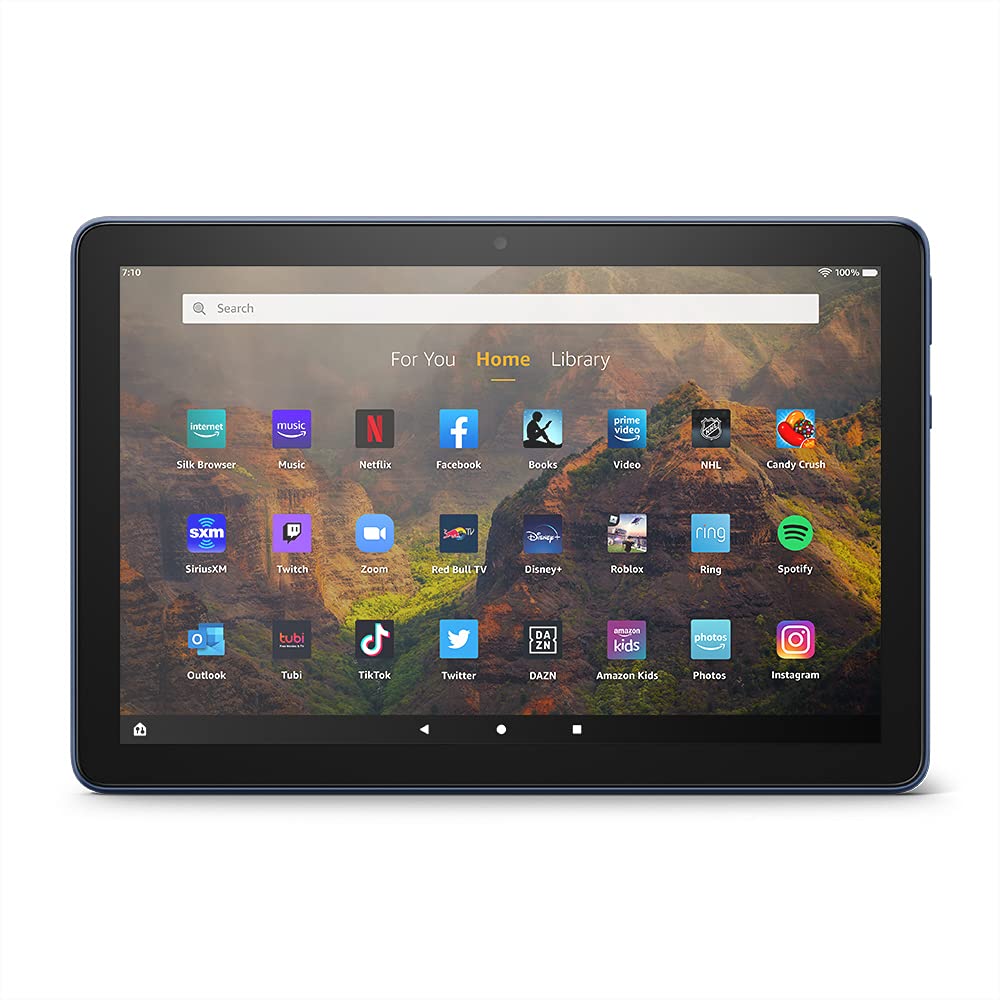
ചിത്രം 3.1: ആമസോൺ ഫയർ HD 10 ടാബ്ലെറ്റിന്റെ ഹോം സ്ക്രീൻ, showcasinസിൽക്ക് ബ്രൗസർ, മ്യൂസിക്, നെറ്റ്ഫ്ലിക്സ്, ഫേസ്ബുക്ക്, ബുക്സ്, വീഡിയോ, എൻഎച്ച്എൽ, കാൻഡി ക്രഷ്, സിറിയസ് എക്സ്എം, ട്വിച്ച്, സൂം, റെഡ് ബുൾ ടിവി, ഡിസ്നി+, റോബ്ലോക്സ്, റിംഗ്, സ്പോട്ടിഫൈ, ഔട്ട്ലുക്ക്, ട്യൂബി, ടിക് ടോക്ക്, ട്വിറ്റർ, ഡിഎഎസ്എൻ, ആമസോൺ കിഡ്സ്, ഫോട്ടോസ്, ഇൻസ് എന്നിവയുൾപ്പെടെയുള്ള ആപ്ലിക്കേഷൻ ഐക്കണുകളുടെ ഒരു ഗാ ഗ്രിഡ്.tagRAM.
3.2 ആപ്ലിക്കേഷനുകൾ ഉപയോഗിക്കൽ
ആമസോൺ ആപ്പ്സ്റ്റോറിൽ നിന്ന് ആപ്ലിക്കേഷനുകൾ ഡൗൺലോഡ് ചെയ്യാം. ഗൂഗിൾ പ്ലേ പിന്തുണയ്ക്കുന്നില്ല.
- അത് സമാരംഭിക്കുന്നതിന് ഹോം സ്ക്രീനിലെ ഒരു ആപ്പ് ഐക്കണിൽ ടാപ്പ് ചെയ്യുക.
- പുതിയ ആപ്പുകൾ കണ്ടെത്താൻ, 'ആപ്പ്സ്റ്റോർ' ആപ്ലിക്കേഷൻ തുറക്കുക.
- ചില ആപ്പുകൾക്ക് പൂർണ്ണ ആക്സസിന് സബ്സ്ക്രിപ്ഷൻ ആവശ്യമായി വന്നേക്കാം.

ചിത്രം 3.2: ആമസോൺ ഫയർ എച്ച്ഡി 10 ടാബ്ലെറ്റിൽ ലഭ്യമായ ഉള്ളടക്കത്തിന്റെ ഒരു കൊളാഷ്, 'ദി സൈലന്റ് പേഷ്യന്റ്', ആമസോൺ ഒറിജിനൽ സീരീസ് തുടങ്ങിയ പുസ്തക കവറുകളും 'ദി വൈൽഡ്സ്', 'കമിംഗ് ടു അമേരിക്ക', 'ദി എക്സ്പാൻസ്', 'ഡ്യൂൺ', 'ഹന്ന', 'വൺ നൈറ്റ് ഇൻ മിയാമി', 'സൗണ്ട് ഓഫ് മെറ്റൽ', 'ദി മാർവലസ് മിസിസ് മൈസൽ', 'അപ്ലോഡ്', 'ദി ബോയ്സ്' തുടങ്ങിയ സിനിമകളും ടിക് ടോക്ക്, ഫേസ്ബുക്ക്, ട്വിറ്റർ എന്നിവയ്ക്കായുള്ള സോഷ്യൽ മീഡിയ ആപ്പ് ലോഗോകളും ഉൾക്കൊള്ളുന്നു.
3.3 സ്പ്ലിറ്റ് സ്ക്രീൻ മൾട്ടിടാസ്കിംഗ്
ഫയർ എച്ച്ഡി 10 സ്പ്ലിറ്റ് സ്ക്രീൻ പ്രവർത്തനത്തെ പിന്തുണയ്ക്കുന്നു, ഇത് രണ്ട് അനുയോജ്യമായ ആപ്ലിക്കേഷനുകൾ വശങ്ങളിലായി പ്രവർത്തിപ്പിക്കാൻ അനുവദിക്കുന്നു.
- നിങ്ങൾ ഉപയോഗിക്കാൻ ആഗ്രഹിക്കുന്ന ആദ്യ ആപ്ലിക്കേഷൻ തുറക്കുക.
- നാവിഗേഷൻ ബാർ കാണുന്നതിന് സ്ക്രീനിന്റെ താഴെ നിന്ന് മുകളിലേക്ക് സ്വൈപ്പ് ചെയ്യുക.
- സമീപകാല ആപ്പുകളിലെ ആദ്യത്തെ ആപ്പിന്റെ ഐക്കൺ ദീർഘനേരം അമർത്തുക. view.
- ഓപ്ഷനുകളിൽ നിന്ന് 'സ്പ്ലിറ്റ് സ്ക്രീൻ' തിരഞ്ഞെടുക്കുക.
- നിങ്ങളുടെ സമീപകാല ആപ്പുകളിൽ നിന്നോ ആപ്പ് ഡ്രോയറിൽ നിന്നോ അനുയോജ്യമായ രണ്ടാമത്തെ ആപ്പ് തിരഞ്ഞെടുത്ത് സ്ക്രീനിന്റെ മറ്റേ പകുതി പൂരിപ്പിക്കുക.

ചിത്രം 3.3: ആമസോൺ ഫയർ എച്ച്ഡി 10 ടാബ്ലെറ്റ്, ഒരു ഓപ്ഷണൽ ബ്ലൂടൂത്ത് കീബോർഡ് കേസ് ഉപയോഗിച്ച് കാണിച്ചിരിക്കുന്നു, അതിന്റെ സ്പ്ലിറ്റ്-സ്ക്രീൻ ശേഷി പ്രകടമാക്കുന്നു. രണ്ട് ആപ്ലിക്കേഷനുകൾ ഒരേസമയം തുറന്നിരിക്കുന്നു: ഇടതുവശത്ത് ഒരു കലണ്ടർ ആപ്പും വലതുവശത്ത് ഒരു മെസേജിംഗ് ആപ്പും, മെച്ചപ്പെടുത്തിയ ഉൽപ്പാദനക്ഷമത ചിത്രീകരിക്കുന്നു.
3.4 ക്യാമറ ഉപയോഗം
720p HD വീഡിയോ റെക്കോർഡിംഗ് സാധ്യമാക്കുന്ന 2 MP മുൻ ക്യാമറയും 5 MP പിൻ ക്യാമറയും ഈ ടാബ്ലെറ്റിൽ സജ്ജീകരിച്ചിരിക്കുന്നു.
- നിങ്ങളുടെ ഹോം സ്ക്രീനിൽ നിന്നോ ആപ്പ് ഡ്രോയറിൽ നിന്നോ 'ക്യാമറ' ആപ്പ് തുറക്കുക.
- ഒരു ഫോട്ടോ എടുക്കാൻ ഷട്ടർ ബട്ടൺ ടാപ്പ് ചെയ്യുക.
- ക്യാമറ ടോഗിൾ ഐക്കൺ ഉപയോഗിച്ച് മുൻ ക്യാമറയും പിൻ ക്യാമറയും തമ്മിൽ മാറുക.
- വീഡിയോകൾ റെക്കോർഡ് ചെയ്യാൻ വീഡിയോ മോഡ് തിരഞ്ഞെടുക്കുക.
3.5 ഓഡിയോയും ബ്ലൂടൂത്തും
ഫയർ HD 10-ൽ ഡ്യുവൽ ഇന്റഗ്രേറ്റഡ് സ്പീക്കറുകളും ഹെഡ്ഫോണുകൾക്കായി 3.5 mm സ്റ്റീരിയോ ജാക്കും ഉൾപ്പെടുന്നു. ബ്ലൂടൂത്ത് 5.0 LE-യും ഇത് പിന്തുണയ്ക്കുന്നു.
- 3.5 എംഎം ജാക്ക് വഴി വയർഡ് ഹെഡ്ഫോണുകളോ എക്സ്റ്റേണൽ സ്പീക്കറുകളോ ബന്ധിപ്പിക്കുക.
- ബ്ലൂടൂത്ത് ഉപകരണങ്ങൾ (ഹെഡ്ഫോണുകൾ, സ്പീക്കറുകൾ, മൈക്രോഫോണുകൾ, LE ആക്സസറികൾ) ജോടിയാക്കാൻ:
- 'ക്രമീകരണങ്ങൾ' > 'ബന്ധിപ്പിച്ച ഉപകരണങ്ങൾ' > 'ബ്ലൂടൂത്ത്' എന്നതിലേക്ക് പോകുക.
- ബ്ലൂടൂത്ത് ഓണാണെന്ന് ഉറപ്പാക്കുക.
- ലഭ്യമായ ഉപകരണങ്ങളുടെ പട്ടികയിൽ നിന്ന് നിങ്ങളുടെ ഉപകരണം തിരഞ്ഞെടുത്ത് ജോടിയാക്കൽ നിർദ്ദേശങ്ങൾ പാലിക്കുക.
3.6 സ്റ്റോറേജ് മാനേജ്മെൻ്റ്
നിങ്ങളുടെ ഫയർ HD 10-ൽ 32 GB അല്ലെങ്കിൽ 64 GB ഇന്റേണൽ സ്റ്റോറേജ് ഉണ്ട്. ഒരു മൈക്രോ എസ്ഡി കാർഡ് ഉപയോഗിച്ച് നിങ്ങൾക്ക് ഇത് 1 TB വരെ വികസിപ്പിക്കാൻ കഴിയും.
- ഒരു മൈക്രോ എസ്ഡി കാർഡ് ചേർക്കാൻ: ടാബ്ലെറ്റിന്റെ വശത്തുള്ള മൈക്രോ എസ്ഡി സ്ലോട്ട് കണ്ടെത്തുക, കവർ തുറക്കുക, കാർഡ് സ്ഥലത്ത് ക്ലിക്കുചെയ്യുന്നതുവരെ സൌമ്യമായി ചേർക്കുക.
- 'ക്രമീകരണങ്ങൾ' > 'സംഭരണം' എന്നതിലേക്ക് പോയി സംഭരണം കൈകാര്യം ചെയ്യുക. ഇവിടെ നിങ്ങൾക്ക് കഴിയും view ഉപയോഗവും അനുയോജ്യമായ ആപ്പുകളോ മീഡിയയോ മൈക്രോ എസ്ഡി കാർഡിലേക്ക് നീക്കുക.
4. പരിപാലനം
4.1 ബാറ്ററി കെയർ
- ടാബ്ലെറ്റ് അമിതമായ താപനിലയിൽ തുറന്നുകാട്ടുന്നത് ഒഴിവാക്കുക, കാരണം ഇത് ബാറ്ററിയുടെ പ്രകടനം കുറയ്ക്കും.
- ബാറ്ററിയുടെ ഒപ്റ്റിമൽ ആയുസ്സ് ഉറപ്പാക്കാൻ, ഇടയ്ക്കിടെ ബാറ്ററി പൂർണ്ണമായും കളയുന്നത് ഒഴിവാക്കുകയോ ദീർഘനേരം 100% ചാർജിൽ സൂക്ഷിക്കുകയോ ചെയ്യുക.
- ചാർജ് ചെയ്യുന്നതിന് നൽകിയിരിക്കുന്ന 9W പവർ അഡാപ്റ്ററും USB-C കേബിളും മാത്രം ഉപയോഗിക്കുക.
4.2 ഉപകരണം വൃത്തിയാക്കുന്നു
- വൃത്തിയാക്കുന്നതിനുമുമ്പ് ടാബ്ലെറ്റ് ഓഫ് ചെയ്യുക.
- സ്ക്രീനും ബോഡിയും മൃദുവായതും ലിന്റ് രഹിതവുമായ ഒരു തുണി ഉപയോഗിച്ച് മൃദുവായി തുടയ്ക്കുക.
- കഠിനമായ പാടുകൾക്ക്, ചെറുതായി dampതുണിയിൽ വെള്ളം ഒഴിക്കുക. കഠിനമായ രാസവസ്തുക്കൾ, അബ്രസീവ് ക്ലീനറുകൾ, എയറോസോൾ സ്പ്രേകൾ എന്നിവ ഉപയോഗിക്കുന്നത് ഒഴിവാക്കുക.
4.3 സോഫ്റ്റ്വെയർ അപ്ഡേറ്റുകൾ
പ്രകടനം മെച്ചപ്പെടുത്തുന്നതിനും പുതിയ സവിശേഷതകൾ ചേർക്കുന്നതിനുമായി ആമസോൺ ഇടയ്ക്കിടെ സോഫ്റ്റ്വെയർ അപ്ഡേറ്റുകൾ പുറത്തിറക്കാറുണ്ട്. ഈ അപ്ഡേറ്റുകൾ ലഭിക്കാൻ നിങ്ങളുടെ ഉപകരണം വൈഫൈയിലേക്ക് കണക്റ്റുചെയ്തിട്ടുണ്ടെന്ന് ഉറപ്പാക്കുക.
- സാധാരണയായി അപ്ഡേറ്റുകൾ ഡൗൺലോഡ് ചെയ്ത് ഓട്ടോമാറ്റിക്കായി ഇൻസ്റ്റാൾ ചെയ്യപ്പെടും.
- 'ക്രമീകരണങ്ങൾ' > 'ഉപകരണ ഓപ്ഷനുകൾ' > 'സിസ്റ്റം അപ്ഡേറ്റുകൾ' എന്നതിലേക്ക് പോയി നിങ്ങൾക്ക് അപ്ഡേറ്റുകൾക്കായി നേരിട്ട് പരിശോധിക്കാൻ കഴിയും.
5. പ്രശ്നപരിഹാരം
5.1 ഉപകരണം പ്രതികരിക്കുന്നില്ല
- ഉപകരണം മരവിച്ചിരിക്കുകയോ പ്രതികരിക്കാതിരിക്കുകയോ ചെയ്താൽ, പുനരാരംഭിക്കാൻ നിർബന്ധിതമാക്കുന്നതിന് പവർ ബട്ടൺ ഏകദേശം 20 സെക്കൻഡ് അമർത്തിപ്പിടിക്കുക.
- ഉപകരണത്തിന് ആവശ്യത്തിന് ബാറ്ററി ചാർജ് ഉണ്ടെന്ന് ഉറപ്പാക്കുക. അത് ചാർജറുമായി ബന്ധിപ്പിച്ച് വീണ്ടും പവർ ചെയ്യാൻ ശ്രമിക്കുക.
5.2 വൈഫൈ കണക്ഷൻ പ്രശ്നങ്ങൾ
- ദ്രുത ക്രമീകരണങ്ങൾ അല്ലെങ്കിൽ 'ക്രമീകരണങ്ങൾ' > 'വയർലെസ്' എന്നിവയിൽ വൈഫൈ പ്രവർത്തനക്ഷമമാക്കിയിട്ടുണ്ടെന്ന് ഉറപ്പാക്കുക.
- നിങ്ങളുടെ വൈഫൈ റൂട്ടറിന്റെ പരിധിയിലാണെന്ന് ഉറപ്പാക്കുക.
- നിങ്ങളുടെ വൈഫൈ റൂട്ടറും മോഡവും പുനരാരംഭിക്കുക.
- 'ക്രമീകരണങ്ങൾ' > 'വയർലെസ്സ്' എന്നതിൽ നെറ്റ്വർക്ക് മറന്ന് വീണ്ടും കണക്റ്റുചെയ്യുക, ആവശ്യമെങ്കിൽ പാസ്വേഡ് വീണ്ടും നൽകുക.
5.3 ആപ്പുകൾ ക്രാഷാകുന്നു അല്ലെങ്കിൽ ലോഡ് ആകുന്നില്ല
- ആപ്പ് അടച്ച് വീണ്ടും തുറക്കുക.
- ആപ്പിന്റെ കാഷെ മായ്ക്കുക: 'ക്രമീകരണങ്ങൾ' > 'ആപ്പുകളും ഗെയിമുകളും' > 'എല്ലാ ആപ്ലിക്കേഷനുകളും നിയന്ത്രിക്കുക' എന്നതിലേക്ക് പോയി, പ്രശ്നമുള്ള ആപ്പ് തിരഞ്ഞെടുത്ത് 'കാഷെ മായ്ക്കുക' ടാപ്പ് ചെയ്യുക.
- നിങ്ങളുടെ ടാബ്ലെറ്റിന്റെ സോഫ്റ്റ്വെയർ കാലികമാണെന്ന് ഉറപ്പാക്കുക.
- പ്രശ്നം നിലനിൽക്കുകയാണെങ്കിൽ, ആപ്പ് അൺഇൻസ്റ്റാൾ ചെയ്ത് വീണ്ടും ഇൻസ്റ്റാൾ ചെയ്യുന്നത് പരിഗണിക്കുക.
5.4 കുറഞ്ഞ ബാറ്ററി ലൈഫ്
- സ്ക്രീൻ തെളിച്ചം കുറയ്ക്കുക.
- പശ്ചാത്തലത്തിൽ പ്രവർത്തിക്കുന്ന ഉപയോഗിക്കാത്ത ആപ്ലിക്കേഷനുകൾ അടയ്ക്കുക.
- ഉപയോഗത്തിലില്ലാത്തപ്പോൾ വൈഫൈ അല്ലെങ്കിൽ ബ്ലൂടൂത്ത് ഓഫാക്കുക.
- ആപ്പുകളുടെ പശ്ചാത്തല ഡാറ്റ ഉപയോഗം പരിമിതപ്പെടുത്തുക.
- ഏറ്റവും കൂടുതൽ വൈദ്യുതി ഉപയോഗിക്കുന്ന ആപ്പുകൾ തിരിച്ചറിയാൻ 'ക്രമീകരണങ്ങൾ' > 'ബാറ്ററി' എന്നിവ പരിശോധിക്കുക.
6 സ്പെസിഫിക്കേഷനുകൾ
| ഫീച്ചർ | വിശദാംശങ്ങൾ |
|---|---|
| തലമുറ | 11-ാം തലമുറ, 2021 റിലീസ് |
| പ്രദർശിപ്പിക്കുക | 2 ദശലക്ഷത്തിലധികം പിക്സലുകളുള്ള (224 ppi) മികച്ച 10.1” 1080p ഡിസ്പ്ലേ (1920 x 1200). അലുമിനോസിലിക്കേറ്റ് ഗ്ലാസ് ഉപയോഗിച്ച് സ്ക്രീൻ ശക്തിപ്പെടുത്തി. |
| വലിപ്പം | 247 മിമീ x 166 മിമീ x 9.2 എംഎം |
| ഭാരം | 465 ഗ്രാം (യഥാർത്ഥ വലുപ്പവും ഭാരവും വ്യത്യാസപ്പെടാം) |
| CPU & RAM | 2.0 ജിബി റാം ഉള്ള ഒക്ടാകോർ 3 GHz |
| സംഭരണം | 32 GB (24.2 GB ലഭ്യമാണ്) അല്ലെങ്കിൽ 64 GB (55.0 GB ലഭ്യമാണ്) ഇന്റേണൽ സ്റ്റോറേജ്. മൈക്രോ എസ്ഡി കാർഡ് ഉപയോഗിച്ച് 1 TB വരെ വികസിപ്പിക്കാം. |
| ബാറ്ററി ലൈഫ് | 12 മണിക്കൂർ വരെ മിശ്രിത ഉപയോഗം (വായന, web, വീഡിയോ, സംഗീതം). ക്രമീകരണങ്ങളും ഉപയോഗവും അനുസരിച്ച് വ്യത്യാസപ്പെടുന്നു. |
| ചാർജ്ജ് സമയം | സ്റ്റാൻഡ്ബൈയിൽ നൽകിയിരിക്കുന്ന 9W അഡാപ്റ്റർ ഉപയോഗിച്ച് ഏകദേശം 4 മണിക്കൂർ (0-100%). |
| വൈഫൈ കണക്റ്റിവിറ്റി | 2.4 GHz, 5.0 GHz നെറ്റ്വർക്കുകൾ പിന്തുണയ്ക്കുന്നു. അഡ്-ഹോക് നെറ്റ്വർക്കുകളെ പിന്തുണയ്ക്കുന്നില്ല. |
| തുറമുഖങ്ങൾ | ചാർജിംഗിനായി USB-C (2.0), ബാഹ്യ സംഭരണത്തിനായി മൈക്രോ എസ്ഡി സ്ലോട്ട്. |
| ഓഡിയോ | 3.5 എംഎം സ്റ്റീരിയോ ജാക്ക്, ഡ്യുവൽ ഇന്റഗ്രേറ്റഡ് സ്പീക്കറുകൾ, ബാഹ്യ വോളിയം നിയന്ത്രണങ്ങൾ. |
| സെൻസറുകൾ | ആക്സിലറോമീറ്റർ, ആംബിയന്റ് ലൈറ്റ് സെൻസറുകൾ. |
| ക്യാമറ സവിശേഷതകൾ | 720p HD വീഡിയോ റെക്കോർഡിംഗുള്ള 2 MP മുൻവശത്തേക്കും, 5 MP പിൻവശത്തേക്കും അഭിമുഖീകരിക്കുന്ന ക്യാമറകൾ. |
| മൈക്രോഫോണുകൾ | 2 ബിൽറ്റ്-ഇൻ മൈക്രോഫോണുകൾ. |
| ലൊക്കേഷൻ സേവനങ്ങൾ | വൈഫൈ വഴി ലൊക്കേഷൻ അധിഷ്ഠിത സേവനങ്ങൾ. |
| ലഭ്യമായ നിറങ്ങൾ | കറുപ്പ്, ഡെനിം. |
| ബ്ലൂടൂത്ത് | സ്റ്റീരിയോ ഹെഡ്ഫോണുകൾ, സ്പീക്കറുകൾ, മൈക്രോഫോൺ, LE ആക്സസറികൾ എന്നിവയ്ക്കായി A2DP പിന്തുണയുള്ള ബിൽറ്റ്-ഇൻ ബ്ലൂടൂത്ത് 5.0 LE. |
6.1 പ്രവേശനക്ഷമത സവിശേഷതകൾ
ഉപയോക്താക്കളെ സഹായിക്കുന്നതിനായി ഫയർ എച്ച്ഡി 10 ടാബ്ലെറ്റിൽ വിവിധ ആക്സസബിലിറ്റി സവിശേഷതകൾ ഉൾപ്പെടുത്തിയിട്ടുണ്ട്. 'ക്രമീകരണങ്ങൾ' > 'ആക്സസബിലിറ്റി' വഴി ഇവ ആക്സസ് ചെയ്യാൻ കഴിയും.
- ശബ്ദംView സ്ക്രീൻ റീഡർ: അന്ധരോ കാഴ്ച വൈകല്യമുള്ളവരോ ആയ ഉപയോക്താക്കൾക്ക് സംഭാഷണ ഫീഡ്ബാക്ക് നൽകുന്നു.
- സ്ക്രീൻ മാഗ്നിഫയർ: ഉപയോക്താക്കളെ സ്ക്രീനിന് ചുറ്റും സൂം ഇൻ/ഔട്ട് ചെയ്യാനും പാൻ ചെയ്യാനും അനുവദിക്കുന്നു.
- ആക്സസ് മാറുക: അനുയോജ്യമായ ബ്ലൂടൂത്ത് ഉപകരണങ്ങൾ വഴി മോട്ടോർ വൈകല്യമുള്ള ഉപയോക്താക്കൾക്കുള്ള ഇടപെടൽ പ്രാപ്തമാക്കുന്നു.
- കിൻഡിൽ ഉറക്കെ വായിക്കുക: അലക്സയ്ക്ക് കിൻഡിൽ പുസ്തകങ്ങൾ ഉറക്കെ വായിക്കാൻ കഴിയും.
- ഡിസ്പ്ലേ ക്രെമീകരണങ്ങൾ: ക്ലോസ്ഡ് ക്യാപ്ഷനിംഗ്, ഫോണ്ട് സൈസ്, ഡിസ്പ്ലേ സൈസ്, ഹൈ കോൺട്രാസ്റ്റ് ടെക്സ്റ്റ്, കളർ ഇൻവേർഷൻ, കളർ കറക്ഷൻ, സ്റ്റീരിയോയെ മോണോ ഓഡിയോയിലേക്ക് പരിവർത്തനം ചെയ്യൽ എന്നിവയ്ക്കുള്ള ഓപ്ഷനുകൾ ഉൾപ്പെടുന്നു. (ശ്രദ്ധിക്കുക: എല്ലാ ഉള്ളടക്കത്തിനും ക്യാപ്ഷനുകൾ ലഭ്യമല്ല.)
7. വാറൻ്റിയും പിന്തുണയും
7.1 വാറൻ്റി വിവരങ്ങൾ
നിങ്ങളുടെ Amazon Fire HD 10 ടാബ്ലെറ്റിന് 1 വർഷത്തെ പരിമിത വാറണ്ടിയും സേവനവും ഉണ്ട്. കാനഡയിലെ ഉപഭോക്താക്കൾക്ക് 1 വർഷം, 2 വർഷം, 3 വർഷം എന്നിങ്ങനെയുള്ള വിപുലീകൃത വാറണ്ടികൾ പ്രത്യേകം വാങ്ങാൻ ലഭ്യമാണ്.
ഫയർ എച്ച്ഡി 10 ടാബ്ലെറ്റിന്റെ ഉപയോഗം ആമസോണിന്റെ ഉപയോഗ നിബന്ധനകൾക്കും അനുബന്ധ നിബന്ധനകൾക്കും വിധേയമാണ്.
7.2 ബോക്സിൽ ഉൾപ്പെടുത്തിയിട്ടുണ്ട്
നിങ്ങളുടെ Fire HD 10 ടാബ്ലെറ്റിൽ ഇനിപ്പറയുന്ന ഇനങ്ങൾ ഉൾപ്പെടുത്തിയിട്ടുണ്ട്:
- ഫയർ HD 10 ടാബ്ലെറ്റ്
- USB-C (2.0) കേബിൾ
- 9W പവർ അഡാപ്റ്റർ
- ദ്രുത ആരംഭ ഗൈഡ്
7.3 കൂടുതൽ പിന്തുണ
കൂടുതൽ സഹായത്തിന്, ദയവായി ആമസോൺ ഉപകരണ പിന്തുണ സന്ദർശിക്കുക webസൈറ്റ് സന്ദർശിക്കുക അല്ലെങ്കിൽ ആമസോൺ കസ്റ്റമർ സർവീസുമായി ബന്ധപ്പെടുക.


